Calendar
All modules
Complete, postpone, edit or delete a deadline
Calendar · 13 of 13 · 5 min read
The Deadlines tab of an employee, a contact or an event lists the deadlines linked to that record. From here you can complete a deadline, reopen it, postpone it by one week, edit it, download it for your calendar or delete it.
To add a new deadline, read Adding a deadline to a customer, an employee or an event.
Reading the Deadlines tab
The tab groups the record's deadlines by their status.
- In Employees press the row of the employee, for example Julia Green.
- Press the Deadlines tab.
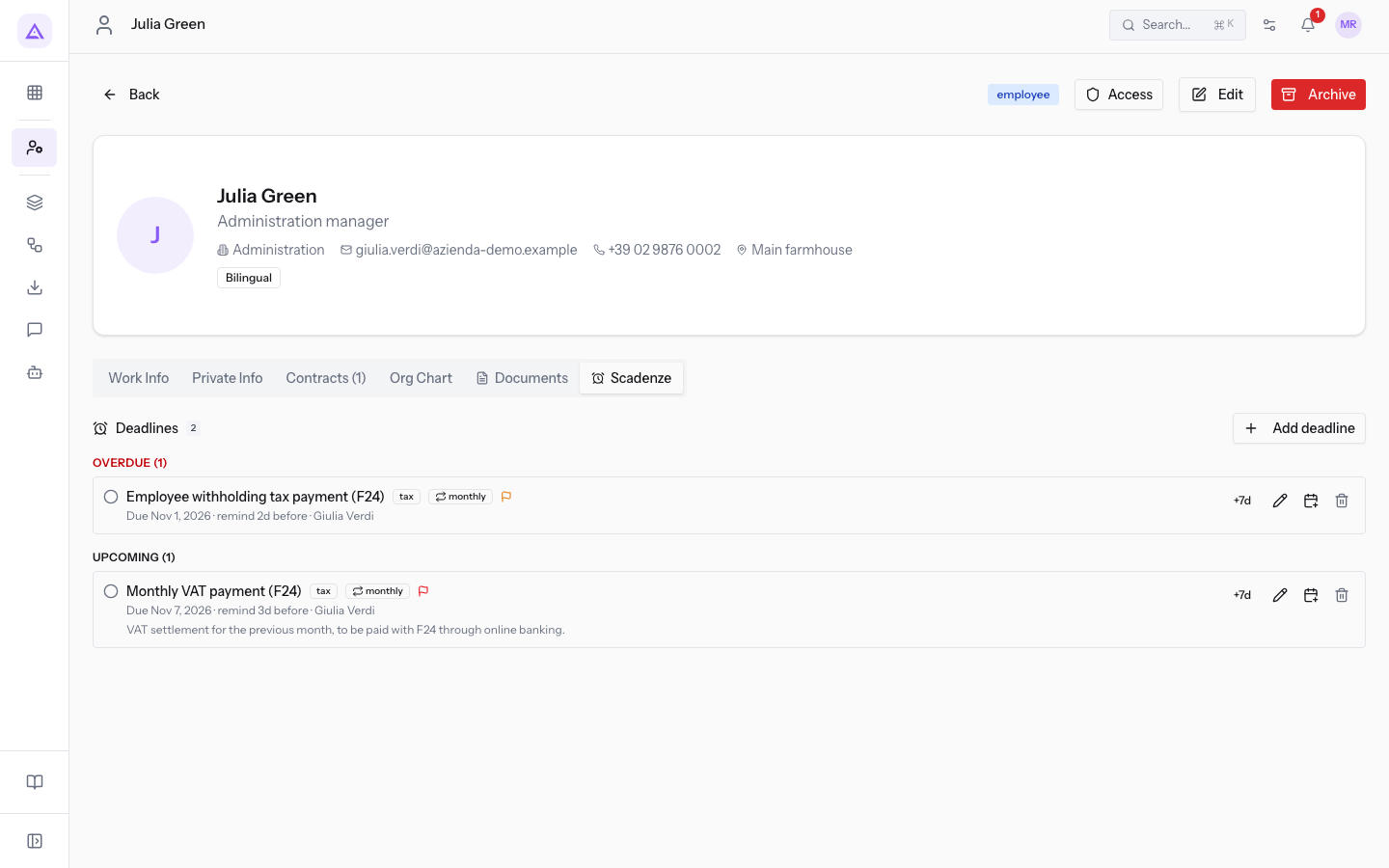
The groups appear in this order, each with the number of deadlines in brackets. An empty group does not appear.
- Overdue: open deadlines with a date already past, in red.
- Today: deadlines due today, in amber.
- Upcoming: open deadlines with a future date.
- Completed / Cancelled: completed or cancelled deadlines, in grey.
Each row shows:
- the circle on the left (Mark as done). On completed or cancelled deadlines, a green check mark (Reopen) appears in its place;
- the title, struck through if the deadline is completed or cancelled;
- the category badge and the recurrence badge, with the technical value, such as
taxandmonthly; - the
autobadge on deadlines created by another record; - the priority flag: red for Critical, amber for High, lighter for Normal and Low;
- the
Dueline with the date, the days of advance notice and the assigned person; - the notes, if there are any.
On the right, open deadlines have the buttons +7d, Edit, Add to my calendar and Delete. On completed or cancelled deadlines, +7d and Edit are replaced by Reopen.
To understand the colors in the calendar see Spot late, urgent and completed deadlines at a glance.
Completing a deadline
Complete a deadline when the work has been done. A completed deadline no longer receives reminders.
In the Deadlines tab of the record, press the circle (Mark as done) next to the deadline, for example "Employee withholding tax payment (F24)" of Julia Green.
The deadline moves to the Completed / Cancelled group, struck through and with a green check mark.
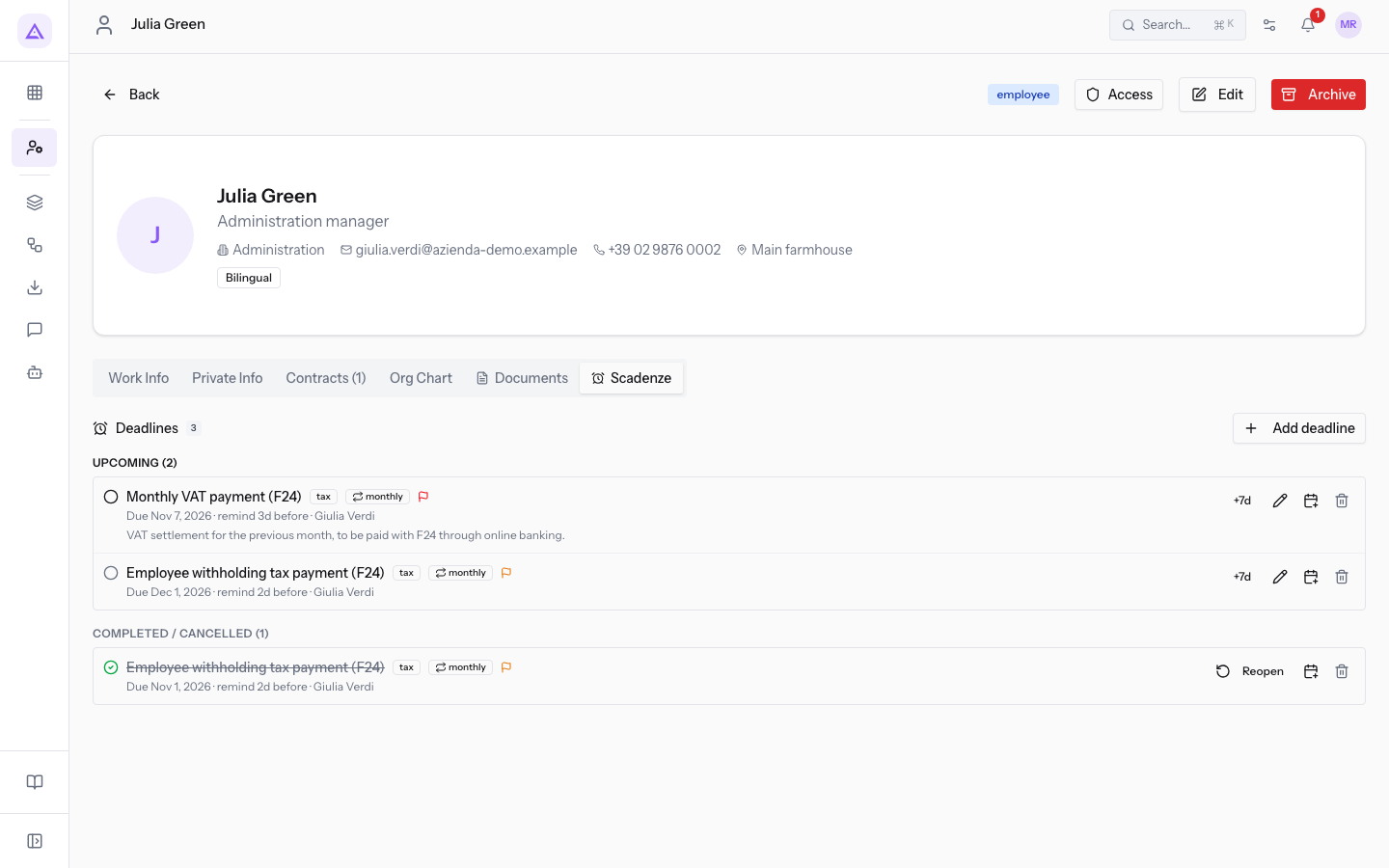
"Employee withholding tax payment (F24)" is monthly: after completing it, the tab shows, among the open ones, the deadline for the following month.
Note: the deadline is completed immediately, without a confirmation window.
Reopening a completed deadline
Reopen a deadline if it was closed by mistake or if the work needs to be repeated.
- In the Deadlines tab of the record, find the deadline in the Completed / Cancelled group, for example "Fire safety course refresher" of Helen Russell.
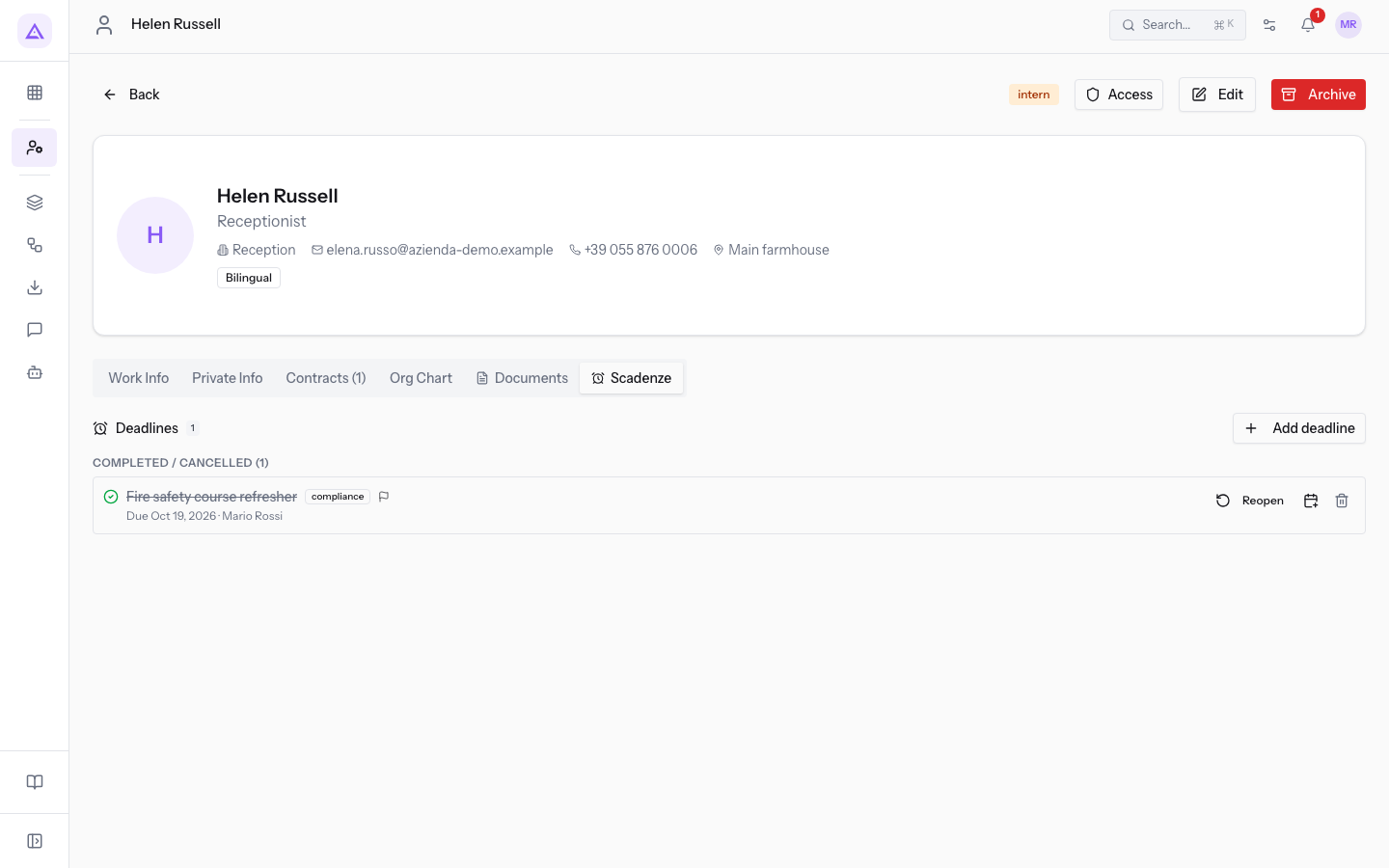
- Press Reopen, or the green check mark to the left of the title.
The deadline returns among the open ones, in the group that matches its date.
Postponing a deadline by 7 days
Use +7d to move an open deadline by one week. To choose another day, change the date with Edit or Move a deadline by dragging it on the calendar.
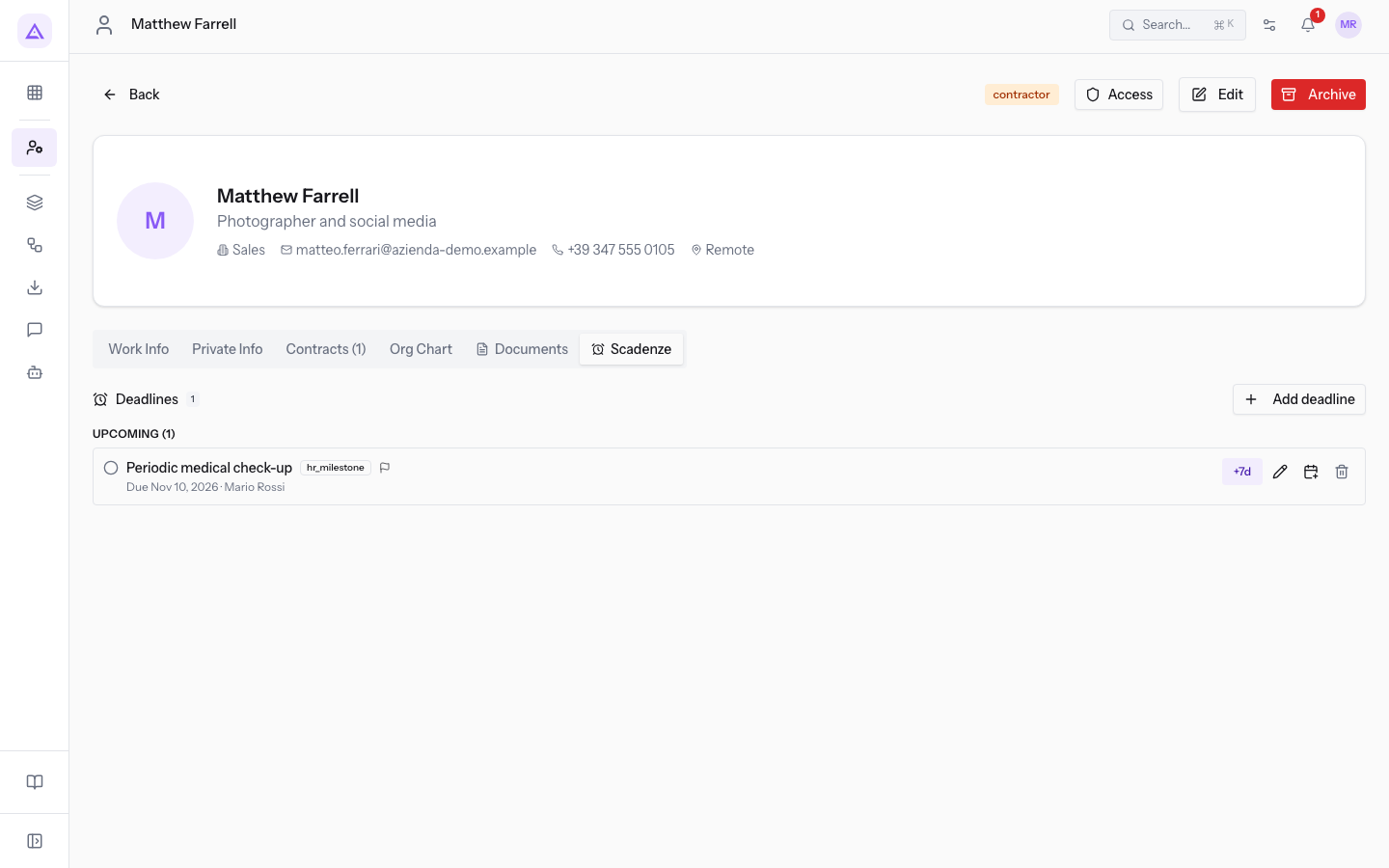
- Open the Deadlines tab of the record, for example that of Matthew Farrell.
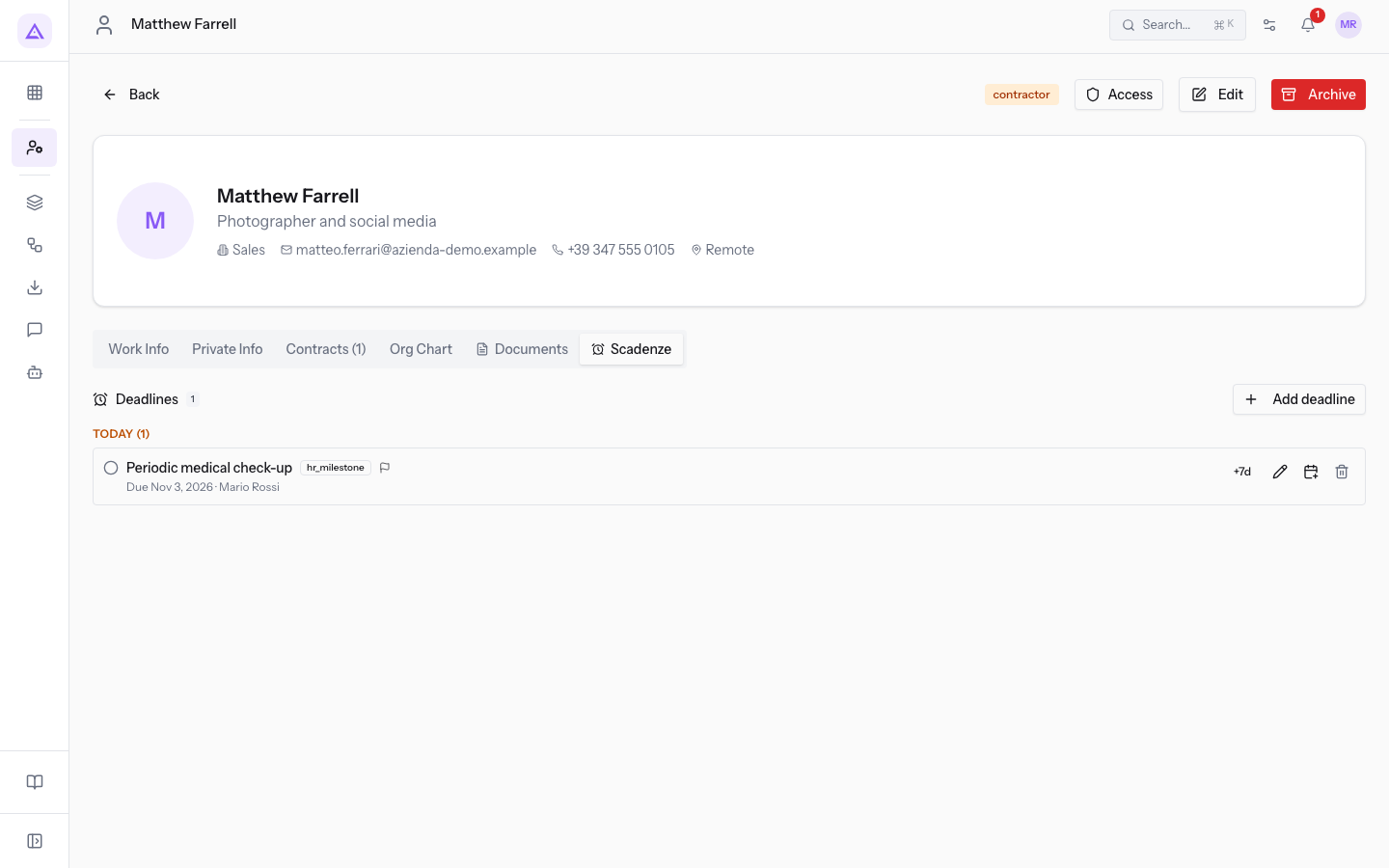
- Press +7d on the row of the deadline.
The due date of the deadline moves forward by 7 days and the deadline moves to the Upcoming group.
Editing a deadline
Edit a deadline to correct the title, the date, the priority or the other details.
- In the Deadlines tab of the record, press the pencil (Edit) on the row of the deadline. The deadline panel opens with the current values.
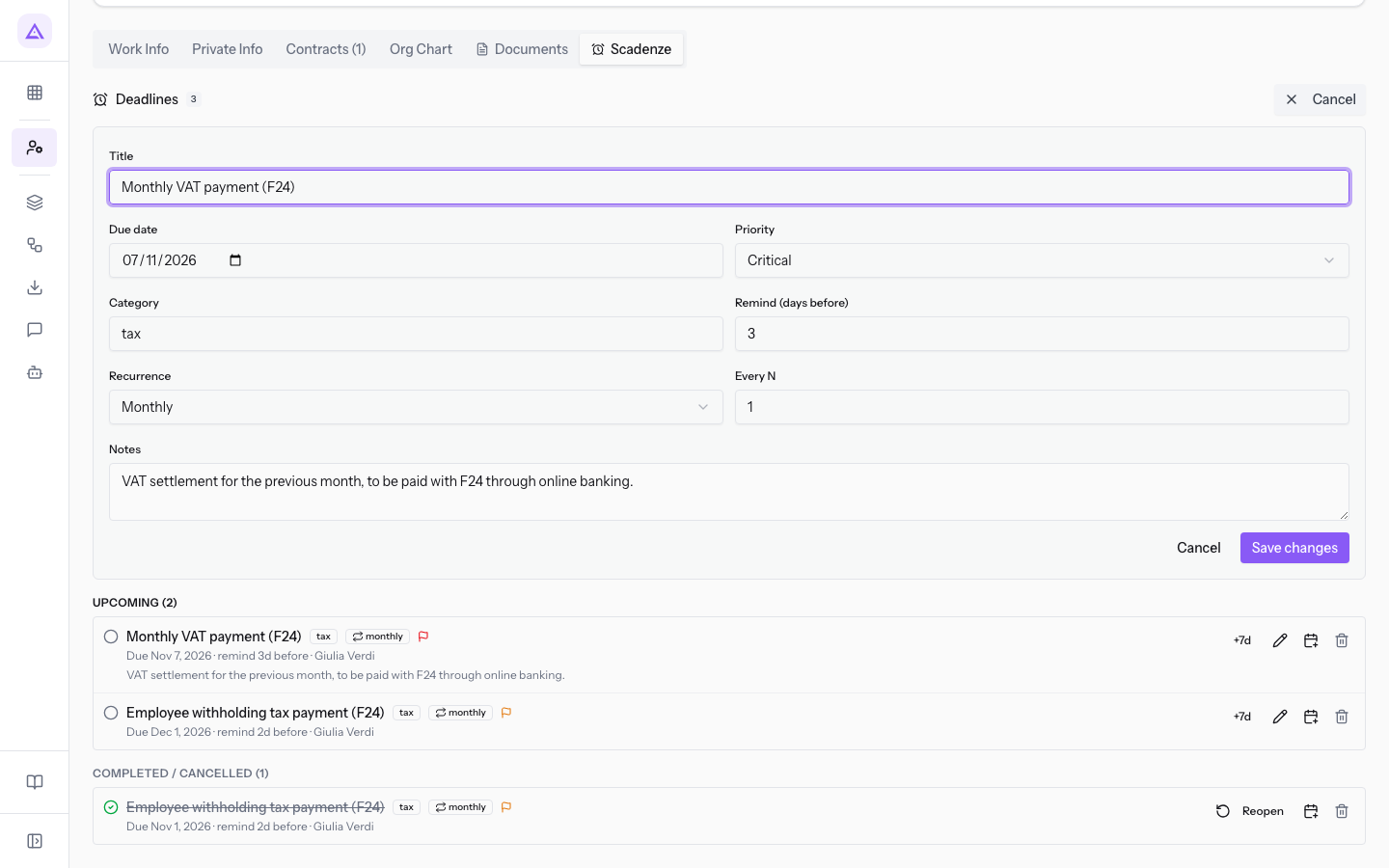
- Change the fields and press Save changes. To close the panel without saving, press Cancel.
The fields of the deadline panel:
- Title: the title of the deadline. The field is required.
- Due date: the date of the deadline. The field is required.
- Priority: the priority, with the options Low, Normal, High and Critical.
- Category: the category, as free text.
- Remind (days before): how many days before the reminder arrives, from 0 to 365.
- Recurrence: how often the deadline repeats, with the options One-off, Daily, Weekly, Monthly and Yearly.
- Every N: the repeat interval: 1 with Monthly means every month. It appears only if the recurrence is not One-off.
- Notes: optional notes.
Note: on a recurring deadline the edit applies only to that occurrence, not to the following ones.
Downloading a deadline to your calendar
The Add to my calendar icon downloads the deadline as a .ics file, to open with Google Calendar or Outlook.
Important: the file is a fixed copy. Later changes made to the deadline do not update it.
Deleting a deadline
Delete a deadline entered by mistake or that is no longer needed. If the work has been done, complete it instead.
In the Deadlines tab of the record, press the bin (Delete) on the row of the deadline.
Important: the deadline is deleted immediately, without a confirmation window.
Automatic deadlines
Deadlines with the auto badge come from another record and follow it, such as "Event: Sara and Luca's wedding" on the event Sara and Luca's wedding.
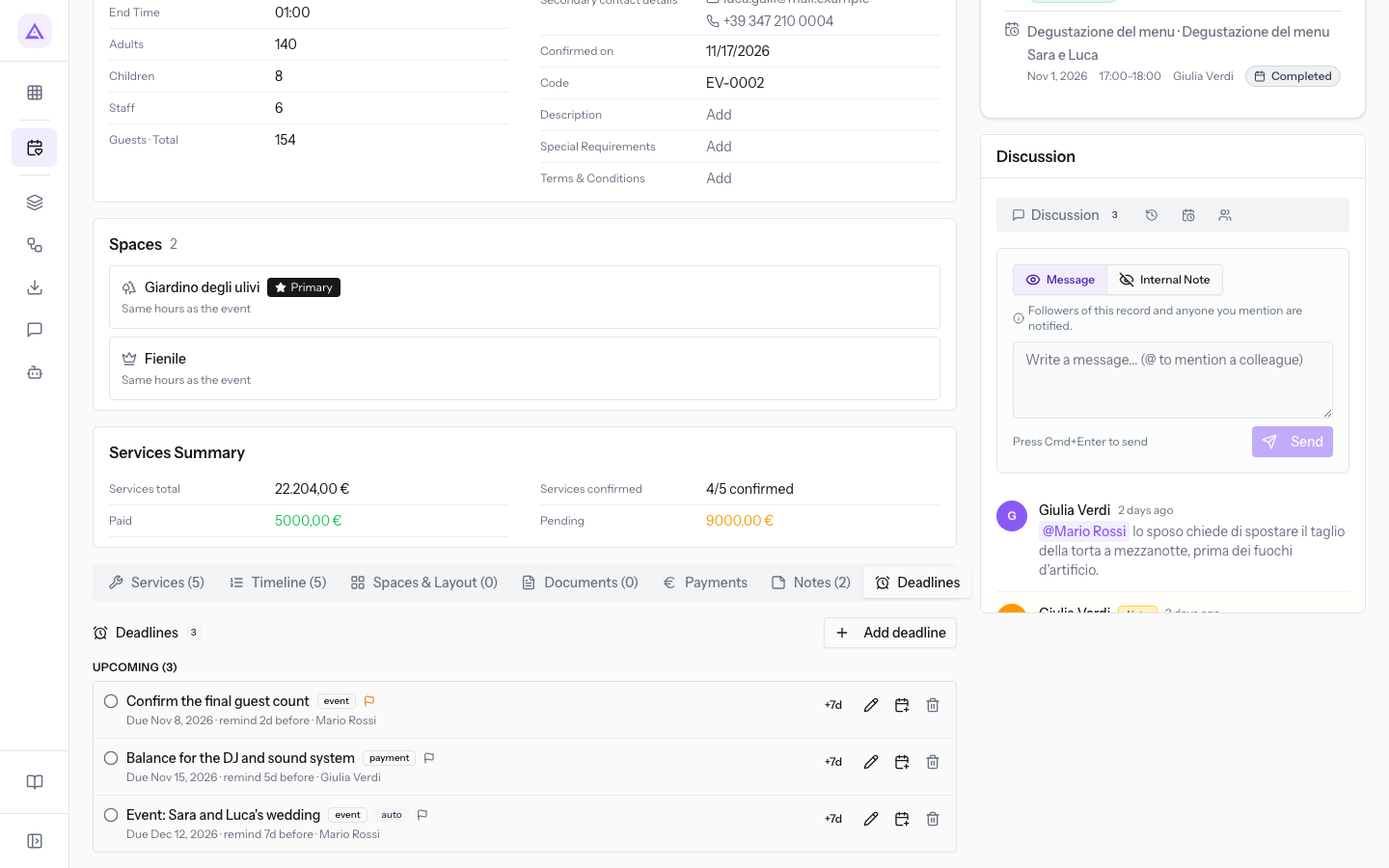
Manage these deadlines from the record they come from, by paying the invoice or changing the date of the event. To understand where an automatic deadline comes from, read Understanding automatic deadlines and opening the record they come from.
See it on your company, not on a slide deck.
In 30 minutes we map the software you use today.We show you how much work and how much margin Archimedes gives back.
Show me on my business →What industry are you in?
One tap — it lets us prepare the demo around your world.
What tools do you use today?
Pick the ones you recognise — or just type them. It helps us show you how they migrate.
Last step: your details.
We reply within one working day — and right after, if you like, you pick the demo slot yourself.
We couldn't send your request. Try again, or write to us at [email protected].
By sending, you agree to your data being processed so we can get back to you about the demo. Privacy notice.
Preview form — nothing is sent from this page.
Want to schedule the demo now?
Your call: book the slot you prefer yourself, or we'll call you to arrange it.
Live availability, 30 minutes, instant confirmation. The calendar opens in a new tab.
Lock in your slot ↗We'll get back to you within one working day — and we'll join the call already knowing your world.
The calendar is open in another tab: pick a slot and the demo is booked. Can't see it? Reopen it ↗
Preview page: nothing was sent.
Our calendar is live: take the slot that suits you and the demo is booked. 30 minutes, instant confirmation, no waiting.
Lock in your slot ↗