Calendar
All modules
Move a deadline by dragging it on the calendar
Calendar · 9 of 13 · 3 min read
In the Month view of the calendar you can change the date of a deadline by dragging it to another day, without opening the record it comes from.
When a deadline can be dragged
Dragging works only in the Month view of Calendar. Before you move a deadline, check what kind it is:
- If the deadline was entered by hand, it moves right away, with no confirmation window.
- If the deadline comes from a record, for example "Quote expires: S00001" from quote S00001, the confirmation window warns that the deadline will stop following that record.
- If the deadline is recurring, such as "Monthly VAT payment (F24)", the move applies only to that occurrence. The later occurrences stay on their own dates.
- Deadlines with the status Done or Cancelled cannot be dragged. To move them, reopen them first with Reopen.
- Planned activities cannot be dragged. Their date is changed from the activity itself: read See planned activities on the calendar, yours and your colleagues'.
Note: to postpone a deadline by one week without dragging it, use +7d from the Deadlines tab of the record. Read Complete, postpone, edit or delete a deadline.
Move a deadline entered by hand
A deadline entered by hand does not depend on any other record. The date you choose becomes its new date.
- In Calendar choose the Month view and go to the month of the deadline. To change view or period, read Moving between Agenda, Day, Week and Month, and navigating through time.
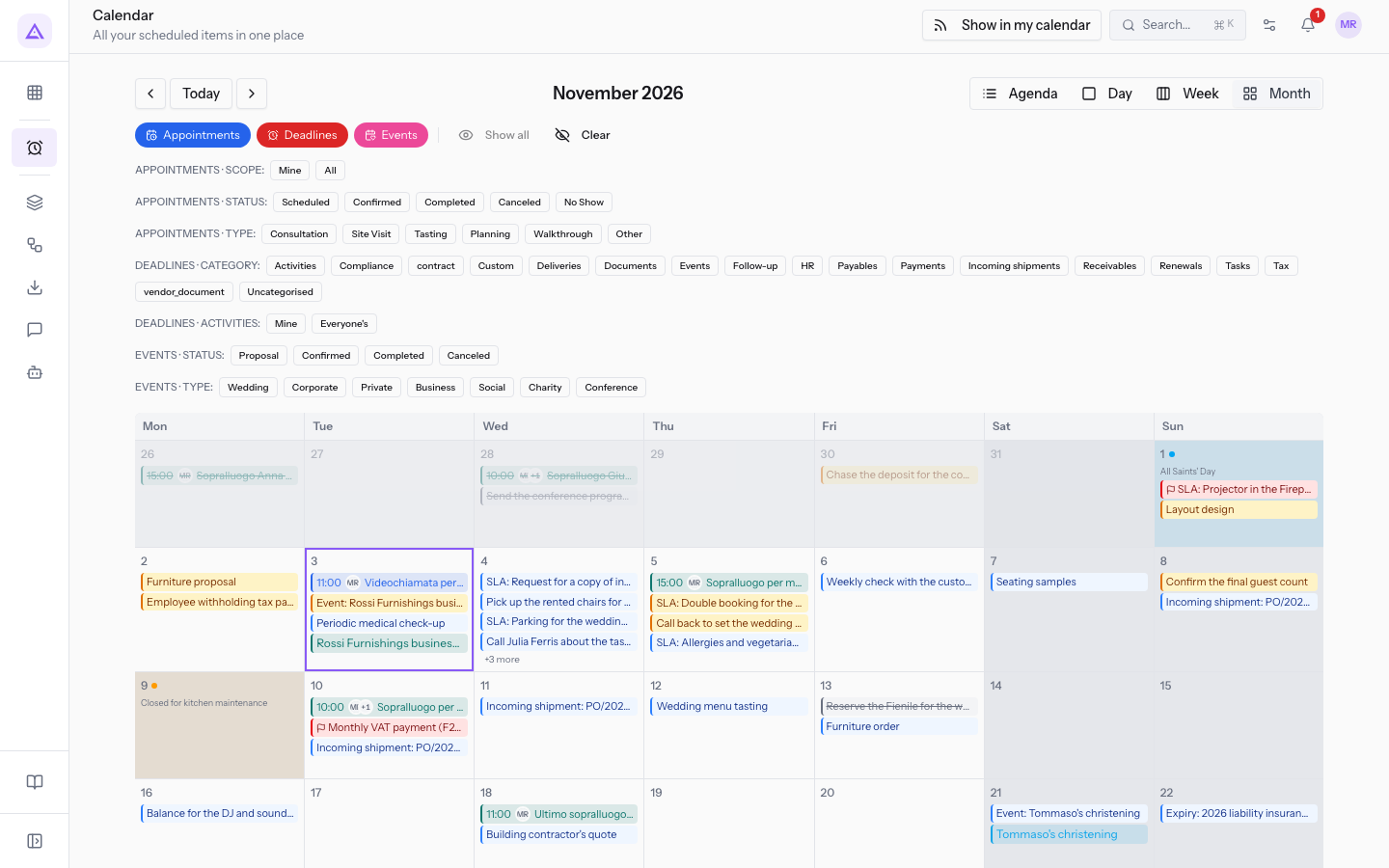
- Drag the deadline to the new day, for example "Wedding menu tasting".
After the move, the message "Moved to …" appears with the new date. If the chosen day is not a working day, the message is "Moved to … — a non-working day."
Note: tax and payment deadlines appear on the first working day from their date. Read Why a tax deadline shows on the first working day.
Move a deadline that comes from a record
An automatic deadline follows the record it comes from: if the date of the record changes, the deadline changes too. If you move it by hand, this link is broken.
- In the Month view, drag the deadline to the new day, for example "Quote expires: S00001".
- The Move this to a new date? window shows the warning "This date comes from … If you move it, this deadline keeps the day you picked and stops changing when … changes.", with the name of the record the deadline comes from.
- Press Move it to confirm, or Cancel to leave the deadline linked to the record.
After the move, the deadline stays on the day you chose, even if the date of the record changes later. "Quote expires: S00002" has already been moved by hand and no longer follows quote S00002.
Important: if you want the deadline to keep following the record, do not drag it. Change the date on the record itself instead: read Understanding automatic deadlines and opening the record they come from.
When the move does not work
Before you move a deadline, the calendar checks whether the move is allowed. In these cases the deadline stays on its date.
- "This deadline cannot be moved from the calendar.": the deadline cannot be moved by dragging it.
- "Could not move this deadline.": the move did not succeed, for example because you do not have permission to edit the record the deadline is linked to.
See it on your company, not on a slide deck.
In 30 minutes we map the software you use today.We show you how much work and how much margin Archimedes gives back.
Show me on my business →What industry are you in?
One tap — it lets us prepare the demo around your world.
What tools do you use today?
Pick the ones you recognise — or just type them. It helps us show you how they migrate.
Last step: your details.
We reply within one working day — and right after, if you like, you pick the demo slot yourself.
We couldn't send your request. Try again, or write to us at [email protected].
By sending, you agree to your data being processed so we can get back to you about the demo. Privacy notice.
Preview form — nothing is sent from this page.
Want to schedule the demo now?
Your call: book the slot you prefer yourself, or we'll call you to arrange it.
Live availability, 30 minutes, instant confirmation. The calendar opens in a new tab.
Lock in your slot ↗We'll get back to you within one working day — and we'll join the call already knowing your world.
The calendar is open in another tab: pick a slot and the demo is booked. Can't see it? Reopen it ↗
Preview page: nothing was sent.
Our calendar is live: take the slot that suits you and the demo is booked. 30 minutes, instant confirmation, no waiting.
Lock in your slot ↗