Directory
All modules
Find a listing: search, filters and sorting
Directory · 3 of 13 · 4 min read
The Listings list shows all the listings in the public directory, in any status, and helps you find one. You can search it by name, town or address, filter the list by status, badge or province, and sort it by name, town or status.
The listings list
The list includes the listings of every status, so it also includes those the public site does not show.
- Open Directory › Listings.
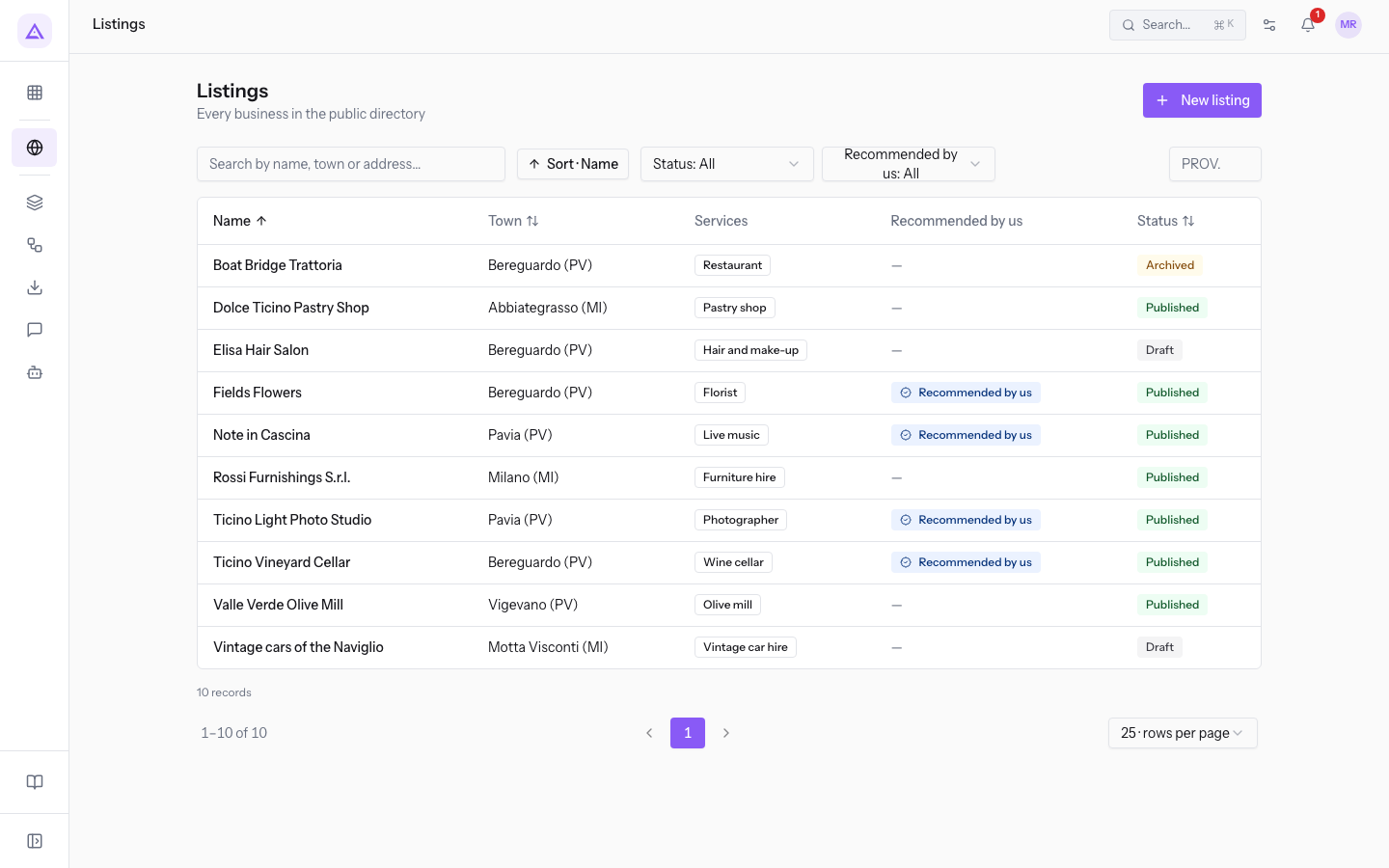
The list has these columns:
- Name: the name of the business.
- Town: the town of the listing.
- Services: the service types of the listing, taken from the Services and amenities catalogue.
- Recommended by us: the badge column. It takes the name of the badge chosen in the settings, in the demo
Recommended by us. To change the name, see Configure the directory: what it lists, badge, public address and texts. - Status: the status of the listing, Draft, Published or Archived.
In the demo the list contains ten listings: seven published, two in draft (Vintage cars of the Naviglio and Acconciature Elisa) and one archived (Boat Bridge Trattoria).
At the bottom of the list, use the 25 · rows per page menu to show 25, 50 or 100 rows per page. The starting value is 25. Use the arrows next to the page number to move between pages.
Opening a listing
To see all the data of a listing, find it with the search or the filters, then press its row. The listing page opens.
Search by name, town or address
Use the search when you know part of the name, the town or the address of the business.
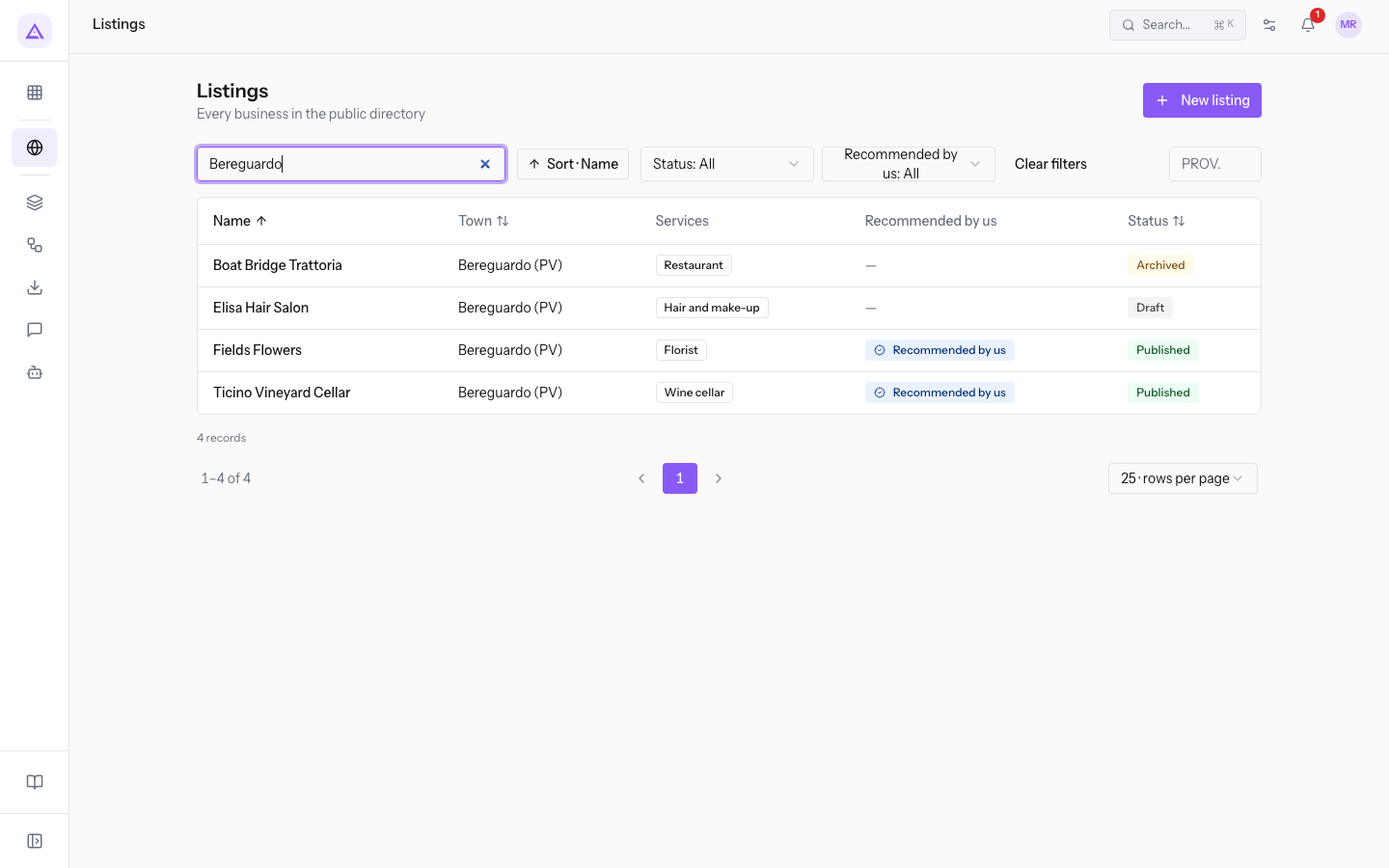
Type the text in the Search by name, town or address… box: while you type, the list updates and shows only the matching listings.
For example, with Bereguardo the list shows Acconciature Elisa, Ticino Vineyard Cellar, Fiori di Campo and Boat Bridge Trattoria. The search also includes drafts and archived listings.
Filter by status
The status filter separates the listings visible on the public site from the others. Only Published listings appear on the public site. Draft and Archived are not visible.
- If you want the listings to complete or to publish, choose Draft.
- If you want to check what the public sees, choose Published.
- If you want to find the listings removed from the public site, choose Archived.
- Open the Status filter. The starting value is Status: All.
- Choose Draft, Published or Archived.
For example, with Published the list shows seven listings: Ticino Vineyard Cellar, Fiori di Campo, Olive mill Valle Verde, Note in Cascina, Pastry shop Dolce Ticino, Rossi Arredamenti S.r.l. and Ticino Light Photo Studio.
Filter by badge
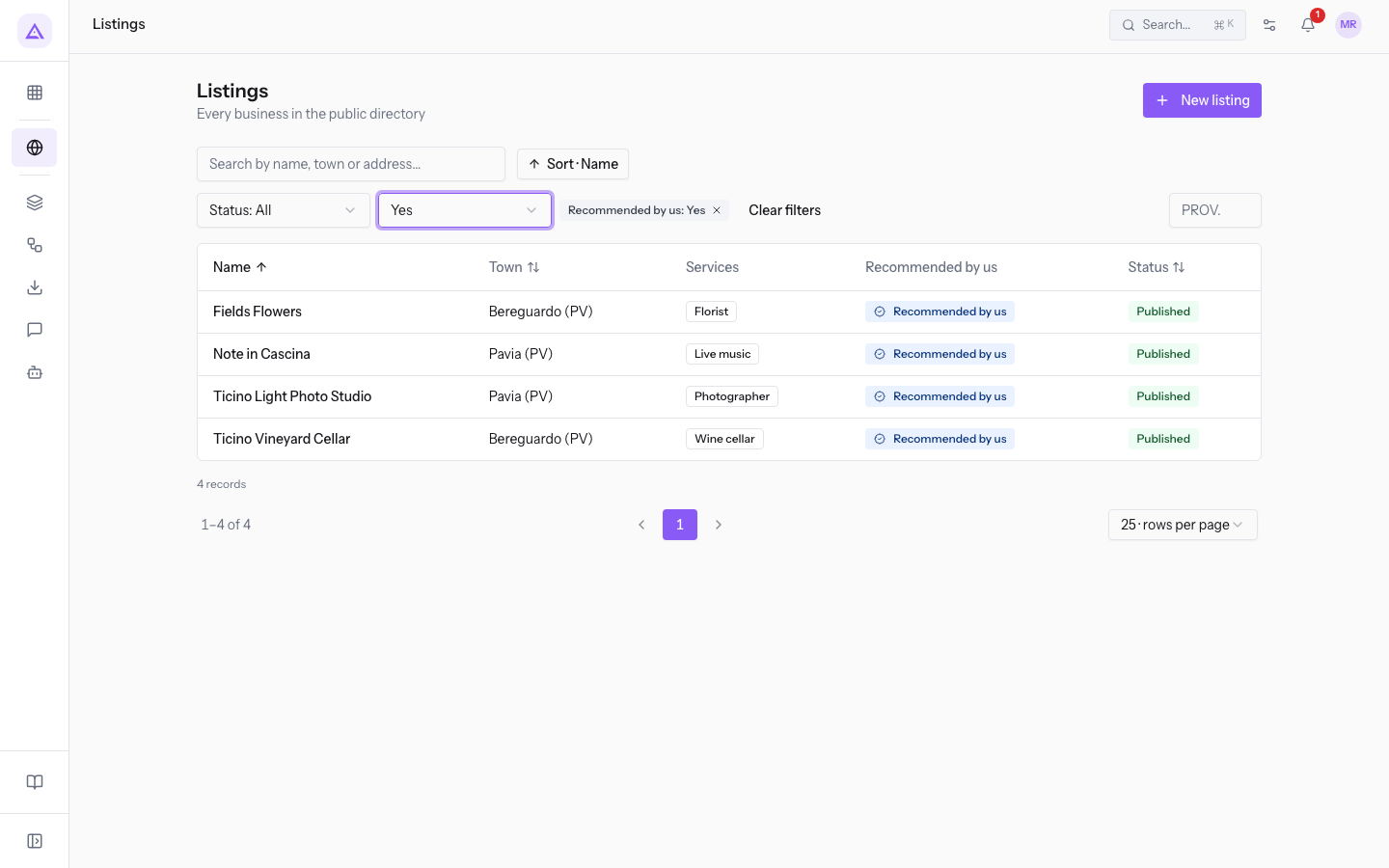
The badge filter separates the listings that have the badge from the others. Like the column, the filter takes the name of the badge; in the demo, Recommended by us.
- Open the Recommended by us filter. The starting value is Recommended by us: All.
- Choose one of these options:
- Yes: only the listings with the badge.
- No: only the listings without the badge.
With Yes the list shows the four listings with the badge: Ticino Vineyard Cellar, Fiori di Campo, Note in Cascina and Ticino Light Photo Studio.
Note: the badge is granted and revoked on the listing, not from the list. Only the directory manager can do it.
Filter by province
The province filter shows the listings of one province. Use the two-letter code, the same as the Province field of the listing.
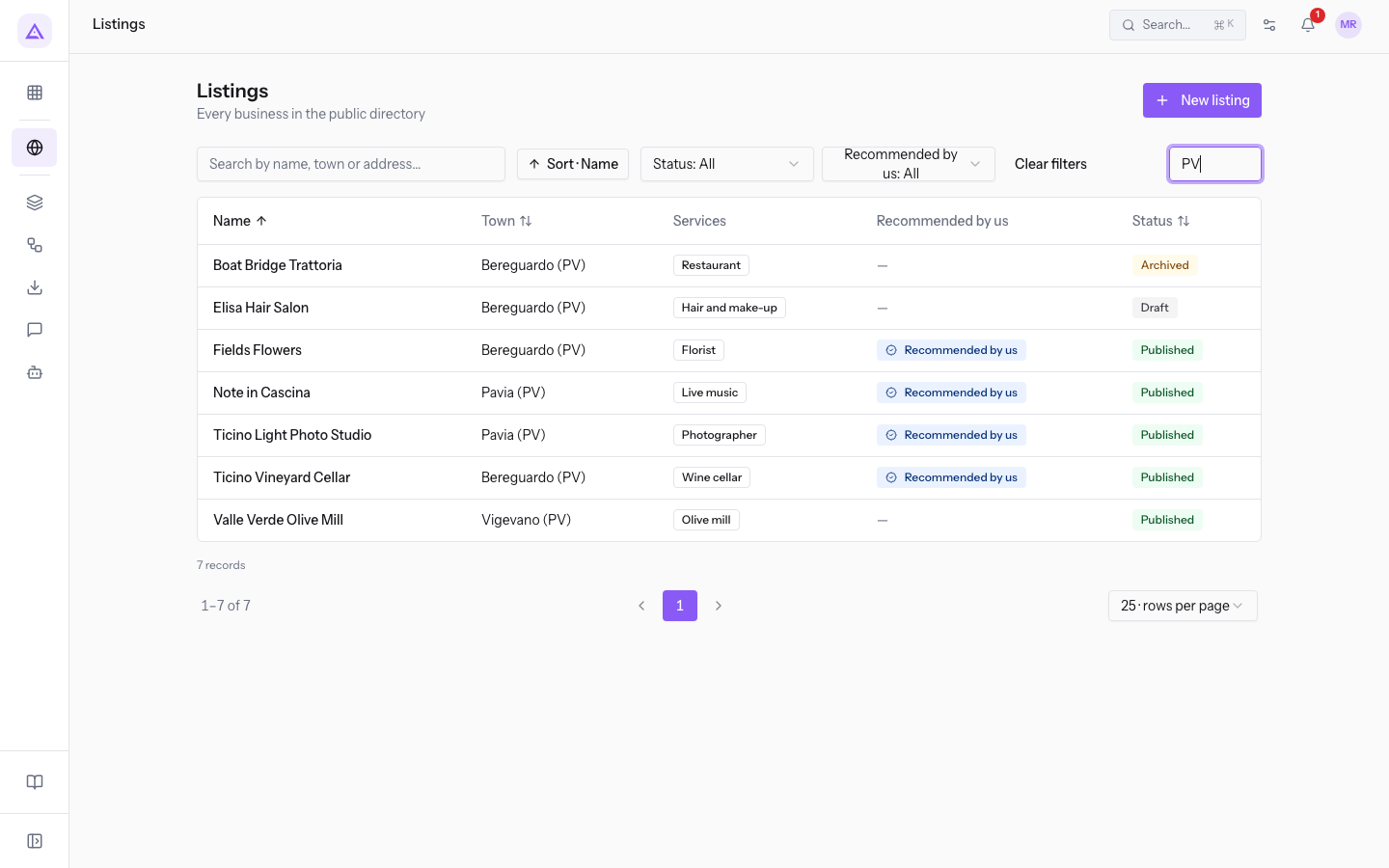
Type the code in the PROV. box: the list shows only the listings of that province.
With PV the list shows the seven listings of Bereguardo, Pavia and Vigevano: Acconciature Elisa, Ticino Vineyard Cellar, Fiori di Campo, Olive mill Valle Verde, Note in Cascina, Ticino Light Photo Studio and Boat Bridge Trattoria. With MI it shows the three listings of Milano, Abbiategrasso and Motta Visconti: Vintage cars of the Naviglio, Pastry shop Dolce Ticino and Rossi Arredamenti S.r.l.
Clear the filters
When a filter or a search is active, the Clear filters button appears above the list. Press it to go back to all the listings.
Sort the list
The list is sorted by name, in alphabetical order. You can also sort it by town or by status.
- Press the column header Name, Town or Status. The list sorts in ascending order on that column.
- Press the same header again to reverse the order.
Alternatively, open the Sort · Name menu above the list and choose Name, Town or Status. The button shows the sort in use.
For example, sorting by town in ascending order, the first listing is Pastry shop Dolce Ticino (Abbiategrasso), followed by the listings of Bereguardo. In descending order the first is Olive mill Valle Verde (Vigevano).
See it on your company, not on a slide deck.
In 30 minutes we map the software you use today.We show you how much work and how much margin Archimedes gives back.
Show me on my business →What industry are you in?
One tap — it lets us prepare the demo around your world.
What tools do you use today?
Pick the ones you recognise — or just type them. It helps us show you how they migrate.
Last step: your details.
We reply within one working day — and right after, if you like, you pick the demo slot yourself.
We couldn't send your request. Try again, or write to us at [email protected].
By sending, you agree to your data being processed so we can get back to you about the demo. Privacy notice.
Preview form — nothing is sent from this page.
Want to schedule the demo now?
Your call: book the slot you prefer yourself, or we'll call you to arrange it.
Live availability, 30 minutes, instant confirmation. The calendar opens in a new tab.
Lock in your slot ↗We'll get back to you within one working day — and we'll join the call already knowing your world.
The calendar is open in another tab: pick a slot and the demo is booked. Can't see it? Reopen it ↗
Preview page: nothing was sent.
Our calendar is live: take the slot that suits you and the demo is booked. 30 minutes, instant confirmation, no waiting.
Lock in your slot ↗