Directory
All modules
Configure the directory: what it lists, badge, public address and texts
Directory · 13 of 13 · 6 min read
The Directory settings page decides how the public site names the listings, which address it publishes them at, what the badge is called and which copy the directory's landing page shows.
Before you start: the page is reserved for directory managers. The Directory settings entry appears in the menu only for them.
Open the settings
All settings are on a single page, split into four sections: What the directory lists, Public site, Search filters and Landing page copy. Below the title appears the subtitle What the directory lists, how the public site names it, language, badge and copy.
- Open Directory › Directory settings.
- Edit the fields you need in the four sections.
- Press Save. The message Settings saved appears.
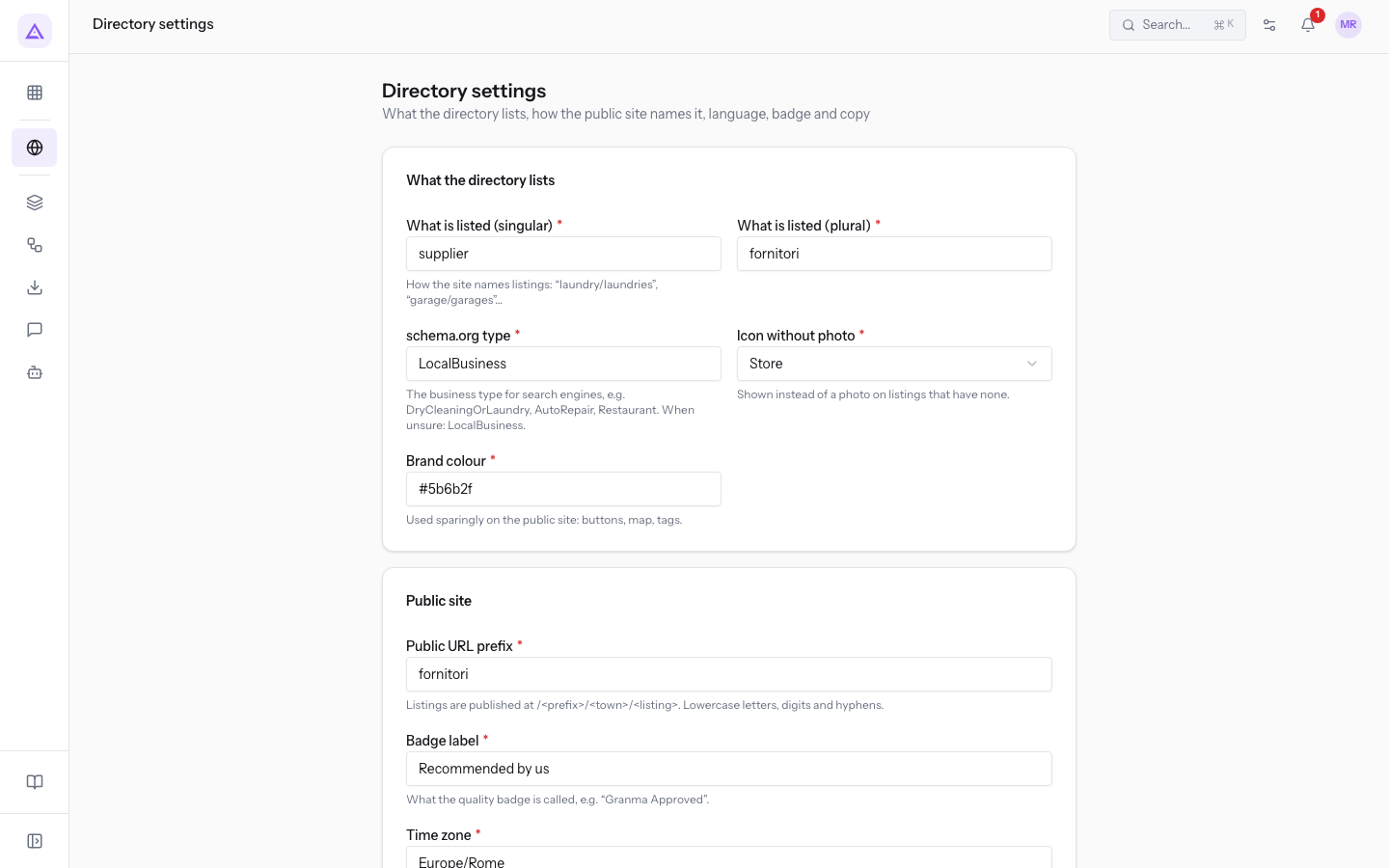
On first opening, the settings are created with the default values.
Note: fields marked with an asterisk are required. All fields are required except Directory landing on the home page and those in the Landing page copy section.
What the directory lists
This section tells the public site what the listings are and how to present them. The directory is not tied to a sector: the names you choose here are what the public site uses in place of the word "listing".
- What is listed (singular): the name of a listing on the public site. In the demo
supplier. The field is required. - What is listed (plural): the plural name. In the demo
fornitori. The field is required. The field help suggests “laundry/laundries” and “garage/garages” as examples. - schema.org type: the type of business communicated to search engines. In the demo
LocalBusiness. The help suggestsDryCleaningOrLaundry,AutoRepairandRestaurantas examples. If no specific type describes your listings, leaveLocalBusiness. The field is required. - Icon without photo: the fallback icon for listings without a photo. The public site shows the initials of the listing's name and uses the icon only if no initials can be taken from the name. Choose the icon from the field's list. The field is required.
- Brand colour: the colour of the directory, in hexadecimal format. In the demo
#5b6b2f. The public site uses it sparingly: buttons, map, labels. The field is required.
To manage the listing photos see Managing a listing's photos and choosing the cover.
Public site
This section covers the address of the public pages, the badge, the time zone and the language of the public site.
- Public URL prefix: the first part of the address of all public pages, followed by the town and the listing. It accepts lowercase letters, digits and hyphens. In the demo
fornitori, so Fiori di Campo is at/fornitori/bereguardo/fiori-di-campo. The field is required. - Badge label: the name of the quality badge that managers grant to listings. In the demo
Recommended by us. The field is required. - Time zone: used to tell visitors whether a business is open right now, by comparing the current time with the listing's opening hours. In the demo
Europe/Rome. The field is required. - Public site language: the language of the directory's public pages. The field is required.
- Italian: the demo value.
- English
- Directory landing on the home page: shows the directory's landing page at the root of the public site when no CMS page occupies it. In the demo it is turned off.
Important: changing the Public URL prefix changes the address of all public pages of the directory. Links already shared with the old prefix no longer lead to the listings. Choose the prefix before publishing listings and then do not change it.
Each listing's address is created on first save from the town and the name, and does not change if you later rename the listing: the prefix is the only part that changes for all listings together.
The badge name also appears in the back office: in the listing buttons for granting and revoking the badge, in the column and the filter of the Listings list. If you rename it, these labels change too.
For Directory landing on the home page:
- If the public site already has a CMS page at the root, leave it turned off: the CMS page stays at the root even with the option on.
- If the public site serves mainly the directory and the root is free, turn it on: whoever opens the public site immediately sees the directory's landing page.
Note: in the demo the Public URL prefix stays
fornitoriand Directory landing on the home page stays turned off.
Search filters
On the public site, the service types and the amenities of the Services and amenities catalogue become the search filters. This section decides the title of each filter. The same titles appear on the two panels of the Services and amenities page.
- Service types heading: the title of the service types filter. In the demo
Supplier type. The field is required. - Amenities heading: the title of the amenities filter. In the demo
Services offered. The field is required.
To choose a listing's service types and amenities see Specify supplier type and services offered for a listing. For the catalogue entries see Managing the catalogue of service types and extra amenities.
Landing page copy
These fields make up the header of the directory's landing page on the public site. They are all optional. If you leave them empty, the public site uses default copy built from the names chosen in What is listed (singular) and What is listed (plural).
- Tagline: the short line above the title. In the demo
Local suppliers. - Title: the page title. In the demo
Trusted suppliers for your wedding at the farmhouse. - Lead: the introductory text below the title. In the demo
Florists, photographers, wineries and musicians a few kilometres from the farm stay, chosen by the people who organise our events. - Cover image: the address of an image, in the form
/storage/…orhttps://…. If the field is empty, the landing page shows the map. In the demo the field is empty.
Choose based on what the visitor should see first:
- If where the businesses are matters, leave Cover image empty: the landing page shows the map.
- If you want a representative photo, enter its address in Cover image.
- If the directory has no proper name, leave the texts empty and use the default ones.
See it on your company, not on a slide deck.
In 30 minutes we map the software you use today.We show you how much work and how much margin Archimedes gives back.
Show me on my business →What industry are you in?
One tap — it lets us prepare the demo around your world.
What tools do you use today?
Pick the ones you recognise — or just type them. It helps us show you how they migrate.
Last step: your details.
We reply within one working day — and right after, if you like, you pick the demo slot yourself.
We couldn't send your request. Try again, or write to us at [email protected].
By sending, you agree to your data being processed so we can get back to you about the demo. Privacy notice.
Preview form — nothing is sent from this page.
Want to schedule the demo now?
Your call: book the slot you prefer yourself, or we'll call you to arrange it.
Live availability, 30 minutes, instant confirmation. The calendar opens in a new tab.
Lock in your slot ↗We'll get back to you within one working day — and we'll join the call already knowing your world.
The calendar is open in another tab: pick a slot and the demo is booked. Can't see it? Reopen it ↗
Preview page: nothing was sent.
Our calendar is live: take the slot that suits you and the demo is booked. 30 minutes, instant confirmation, no waiting.
Lock in your slot ↗