Directory
All modules
Specify supplier type and services offered for a listing
Directory · 7 of 13 · 3 min read
The Services and amenities section of a listing says what the business does and which services and facilities it offers, for example Wine cellar with Parking and Card payment. On the public site these entries become the search filters.
Service types and amenities
The entries a listing can show come from the Services and amenities catalogue, split into two groups.
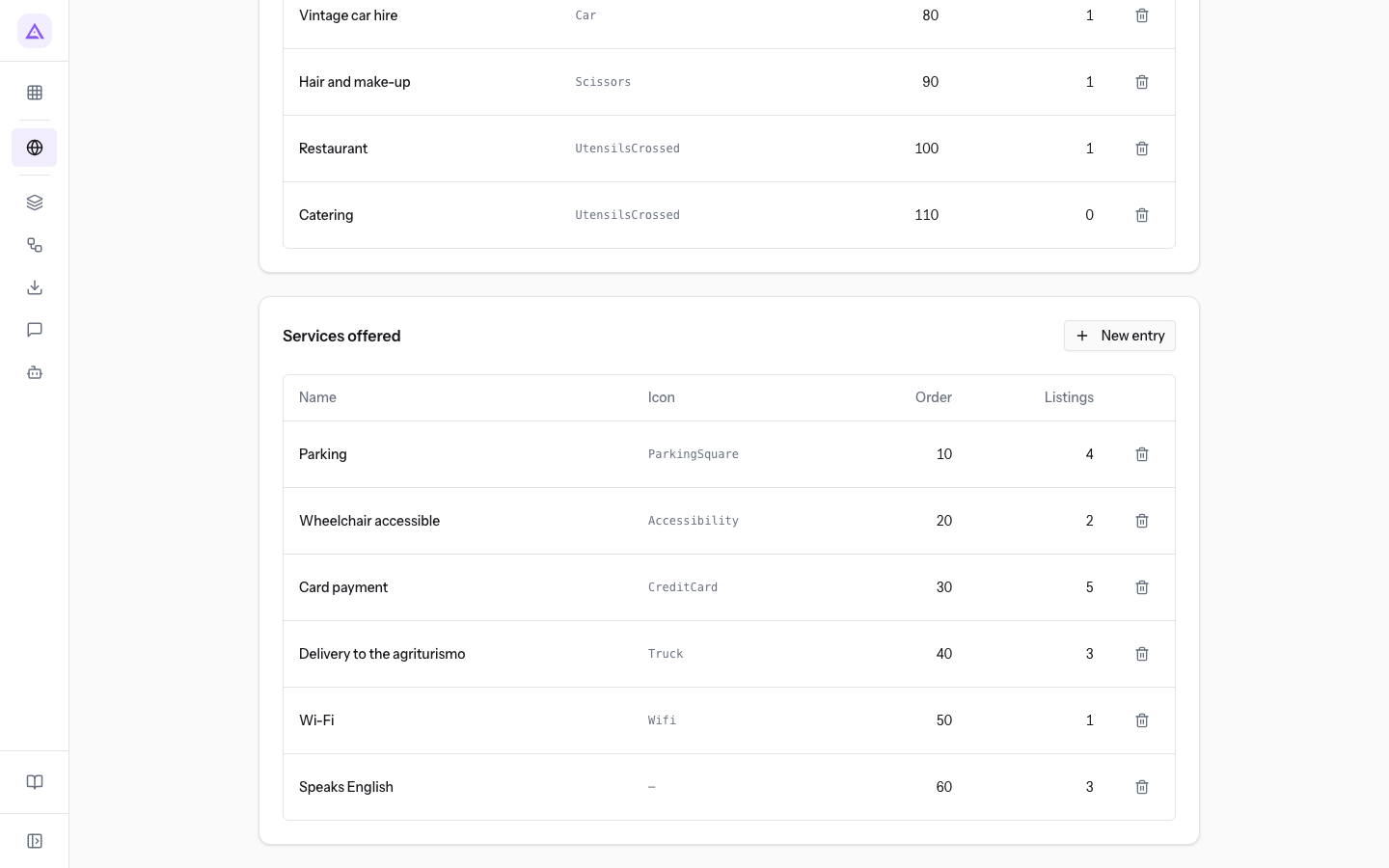
- Service type: what the business does. In the demo: Florist, Photographer, Wine cellar, Olive mill, Pastry shop, Live music, Furniture hire, Vintage car hire, Hair and make-up, Restaurant, Catering.
- Amenity: what else the business offers, in services and facilities. In the demo: Parking, Wheelchair accessible, Card payment, Delivery to the farm stay, Wi-Fi, Speaks English.
If an entry says what the business does, it is a service type. If it says what else the business offers, it is an amenity. A listing can have several entries in each group.
On the public site the two groups are the search filters. Their titles are set in Service types heading and Amenities heading: in the demo Supplier type and Services offered. To change them see Configure the directory: what it lists, badge, public address and texts.
Note: catalogue entries are added and edited in Directory › Services and amenities, a menu item that only directory managers can see. Those who fill in listings choose from the entries already present.
Choosing the entries of a listing
Entries are chosen in the Services and amenities section of the listing window. The section is the same in the New listing window and the Edit listing window.
- In Directory › Listings press New listing, or open an existing listing and press Edit.
- In the Services and amenities section tick the boxes that apply to the business, for example Wine cellar under Service type and Parking, Wheelchair accessible, Card payment and Speaks English under Amenity.
- To remove an entry, untick its box.
- Press Create for a new listing or Save for an existing listing.
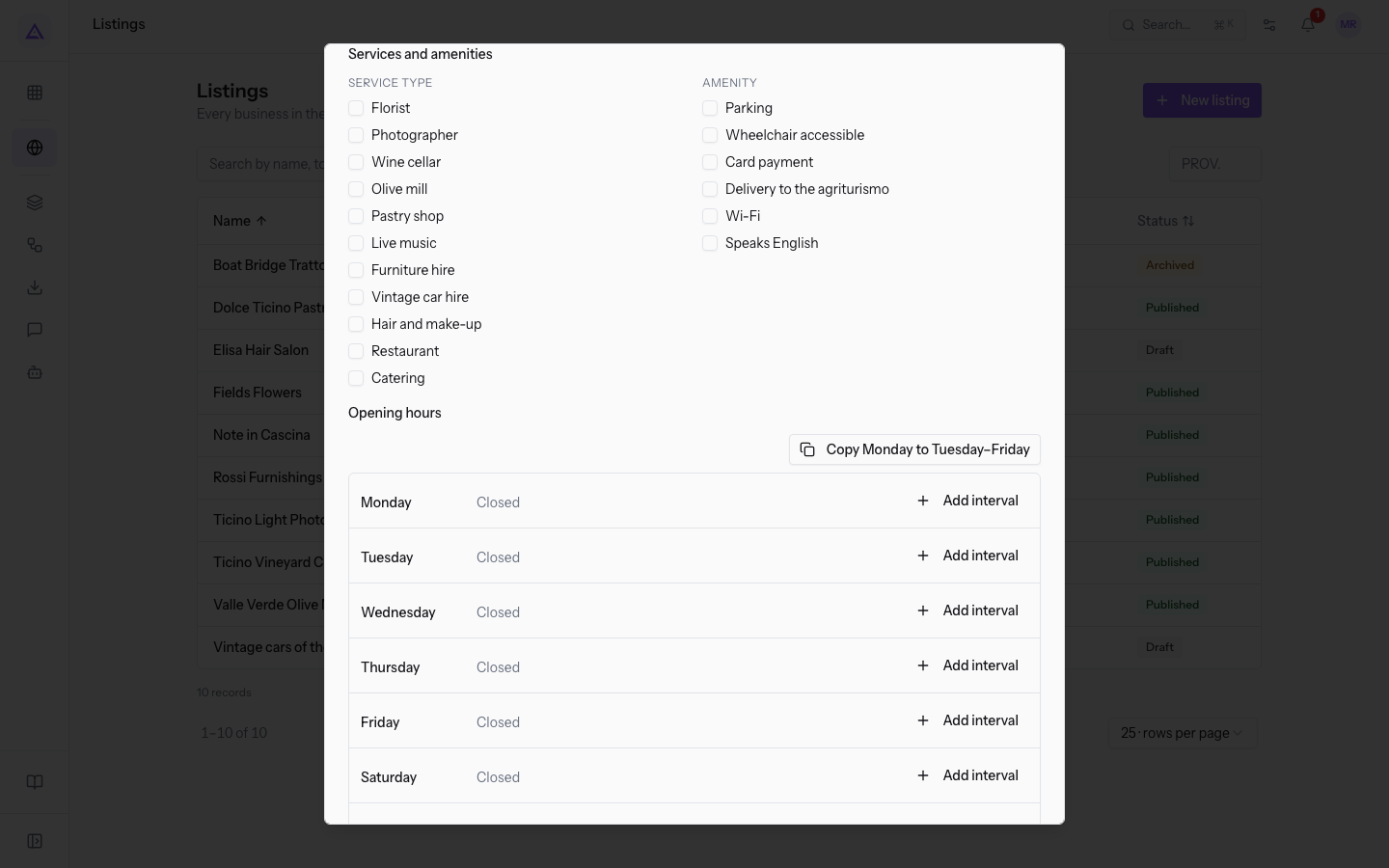
The Services and amenities section contains:
- Service type: one box for each service type in the catalogue. None is required.
- Amenity: one box for each amenity in the catalogue. None is required.
If the catalogue has no entries yet, the message The catalogue is empty — add service types and amenities first. appears in place of the boxes. In this case a directory manager must first add the entries from Directory › Services and amenities.
Where the chosen entries appear
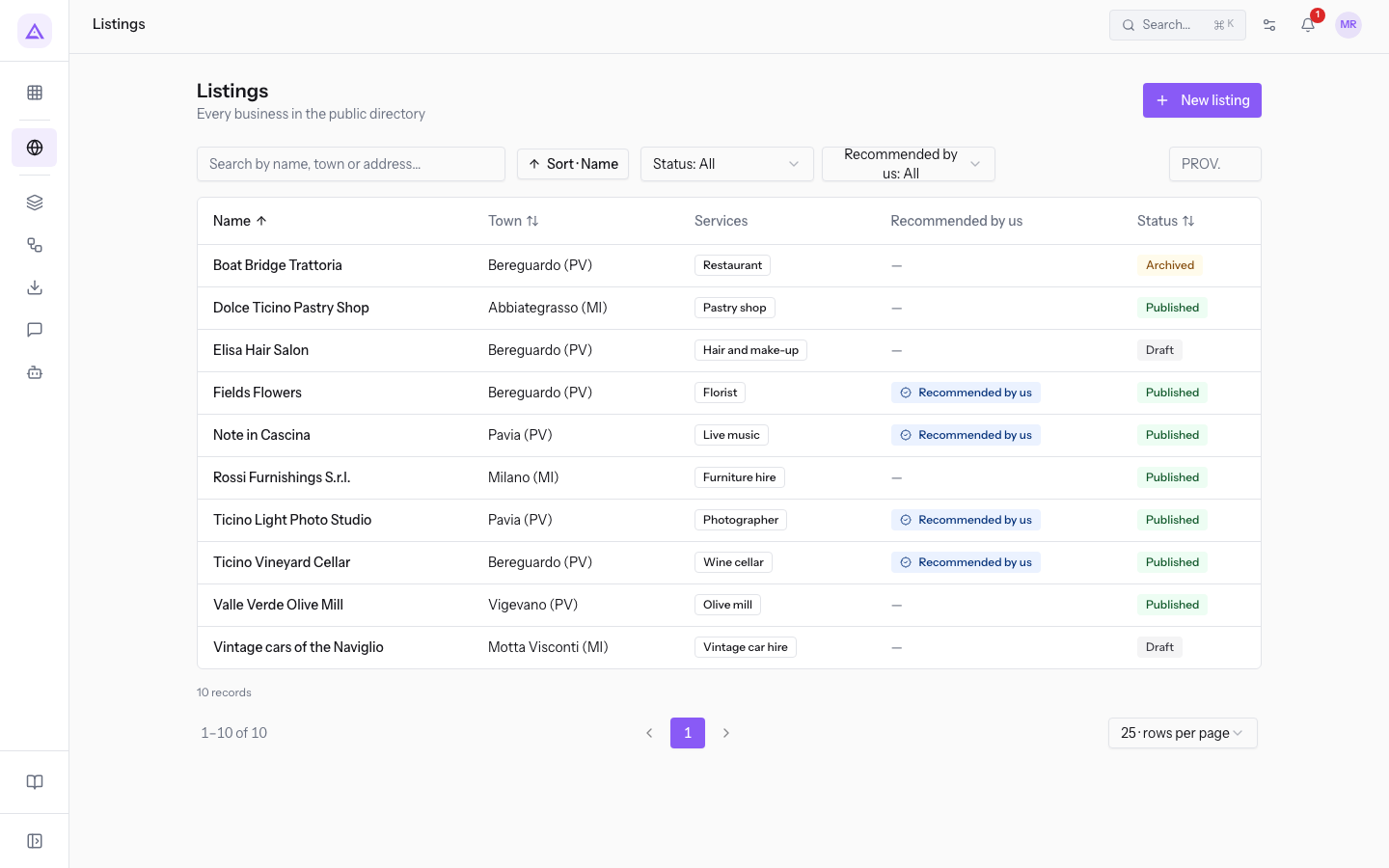
The chosen entries show in the listings list and in the listing itself.
- In the Listings list the Services column shows only the service types of the listing as labels. Amenities do not appear in the list.
- In the listing, the Services and amenities panel shows two groups, Service type and Amenity, with the chosen entries. A group with no entries shows None.
Important: if a directory manager deletes an entry from the catalogue, the entry is removed from every listing that shows it.
See it on your company, not on a slide deck.
In 30 minutes we map the software you use today.We show you how much work and how much margin Archimedes gives back.
Show me on my business →What industry are you in?
One tap — it lets us prepare the demo around your world.
What tools do you use today?
Pick the ones you recognise — or just type them. It helps us show you how they migrate.
Last step: your details.
We reply within one working day — and right after, if you like, you pick the demo slot yourself.
We couldn't send your request. Try again, or write to us at [email protected].
By sending, you agree to your data being processed so we can get back to you about the demo. Privacy notice.
Preview form — nothing is sent from this page.
Want to schedule the demo now?
Your call: book the slot you prefer yourself, or we'll call you to arrange it.
Live availability, 30 minutes, instant confirmation. The calendar opens in a new tab.
Lock in your slot ↗We'll get back to you within one working day — and we'll join the call already knowing your world.
The calendar is open in another tab: pick a slot and the demo is booked. Can't see it? Reopen it ↗
Preview page: nothing was sent.
Our calendar is live: take the slot that suits you and the demo is booked. 30 minutes, instant confirmation, no waiting.
Lock in your slot ↗