Directory
All modules
Managing the catalogue of service types and extra amenities
Directory · 12 of 13 · 4 min read
The Services and amenities catalogue collects the entries that directory listings can carry: service types, such as Florist or Wine cellar, and amenities, such as Parking or Wi-Fi. On the public site, search uses these entries as filters.
Before you start
Before you start: only the directory manager can manage the catalogue. The Services and amenities entry appears in the menu only for the manager. The operator chooses entries on the listing but does not change the catalogue.
To choose a listing's entries, read Specify supplier type and services offered for a listing.
The Services and amenities page
The page shows all catalogue entries, divided into the two groups.
- Open Directory › Services and amenities.
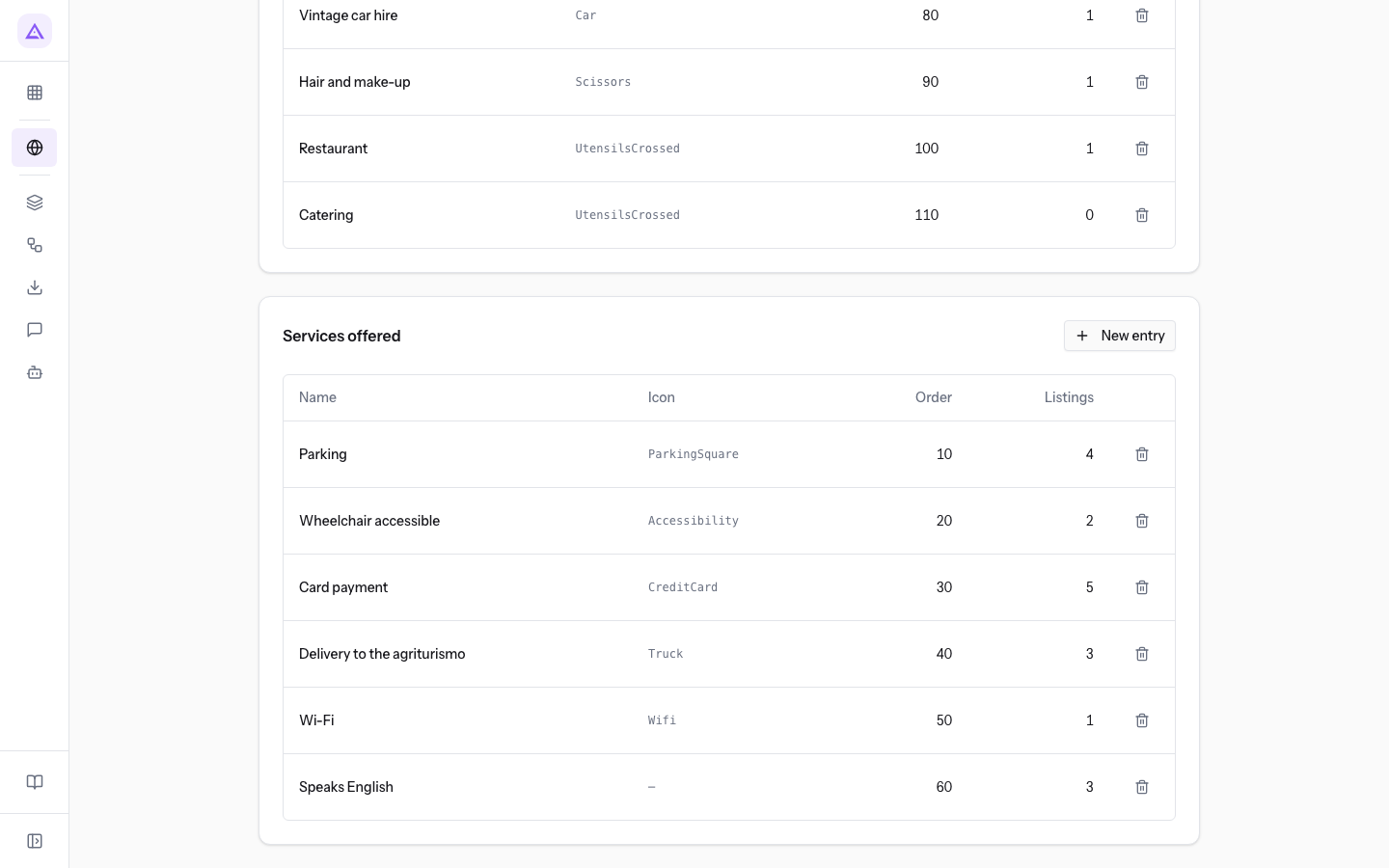
The page has one panel for each group. Each panel has the title that the corresponding filter has on the public site. The title comes from the directory settings. In the demo, the panels are called "Supplier type" (the service types) and "Services offered" (the amenities).
Each panel has the New entry button and a table with these columns:
- Name: the name of the entry.
- Icon: the name of the icon. If the entry has no icon, the column shows —, as for
Speaks English. - Order: the number entered in the Order field of the entry.
- Listings: how many listings use the entry. In the demo,
Cateringhas 0 listings. - The last column contains the Delete button, with the trash-can icon.
If a group has no entries, the panel shows Nothing in this group yet.
Choosing the kind of entry
Each entry belongs to one of the two groups. You choose the group with the Kind field.
- If the entry says what the business does, choose Service type. In the demo:
Florist,Photographer,Wine cellar,Olive mill,Pastry shop,Live music,Furniture hire,Vintage car hire,Hair and make-up,RestaurantandCatering. - If the entry indicates a service or facility that the business offers, choose Amenity. In the demo:
Parking,Wheelchair accessible,Card payment,Delivery to the farm stay,Wi-FiandSpeaks English.
On the public site, each group becomes a separate filter. The entry appears in the panel and in the filter of the group you chose.
Creating an entry
Create an entry when listings need a service type or an amenity that the catalogue does not yet have.
- In the group panel, press New entry. The New catalogue entry window opens.
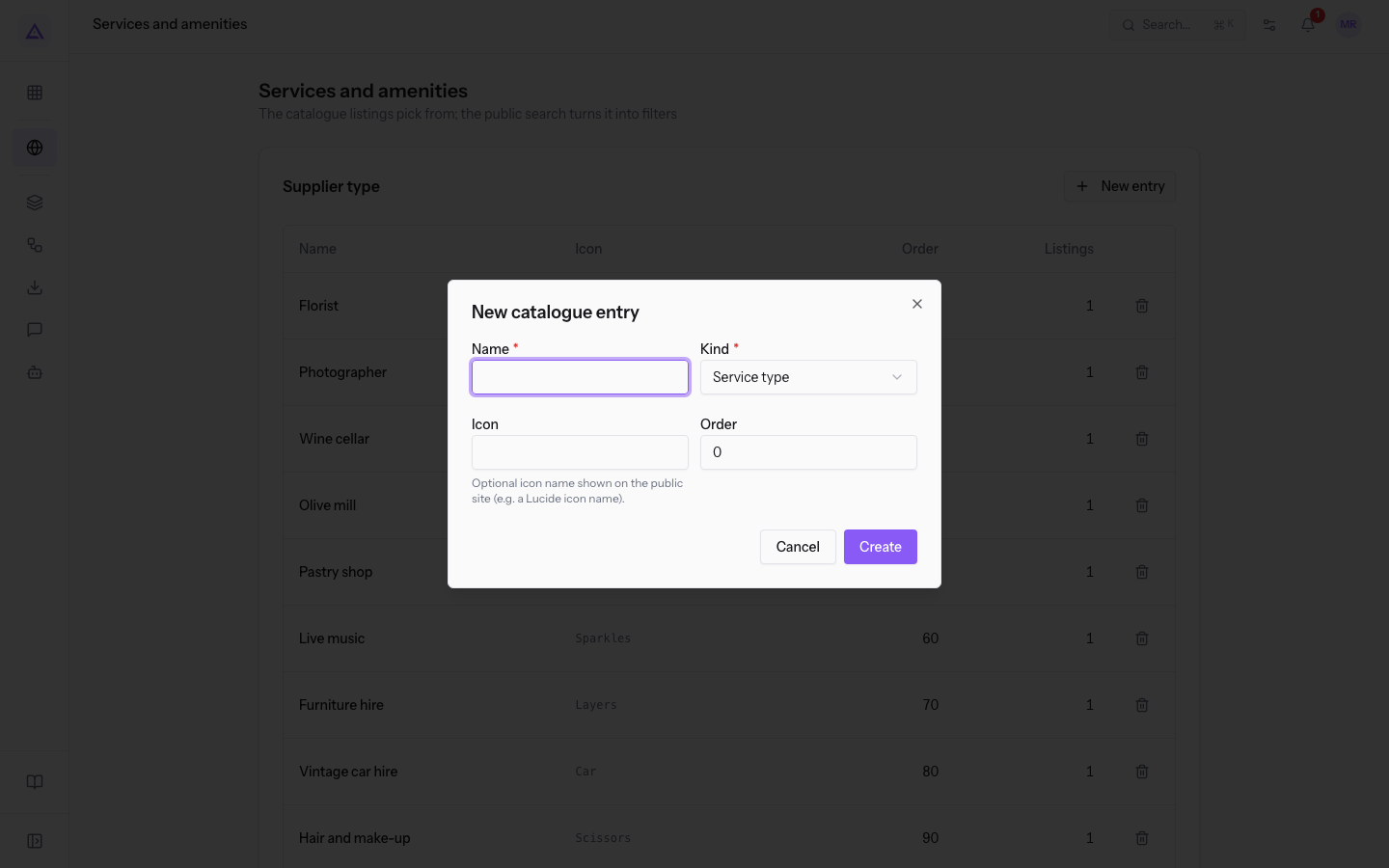
- Fill in the fields of the window.
- Press Create. The message Entry created appears.
The fields of the window:
- Name: the name of the entry, as it appears in listings and on the public site filters. The field is required.
- Kind: the group of the entry. The field is required. The options are:
- Service type: the entry goes in the service types group.
- Amenity: the entry goes in the amenities group.
- Icon: the name of the icon shown on the public site, for example a Lucide icon. If you leave it empty, the entry has no icon.
- Order: the number that sets the position of the entry in the panel: lower numbers come first. The default value is
0.
Note: the public site recognises the entry by an identifier created from the name at the first save. If you later rename the entry, the identifier stays the same.
Editing an entry
Edit an entry to change its name, group, icon or order.
- In the table, press the row of the entry, for example
Speaks English. The Edit catalogue entry window opens with the same fields as creation.
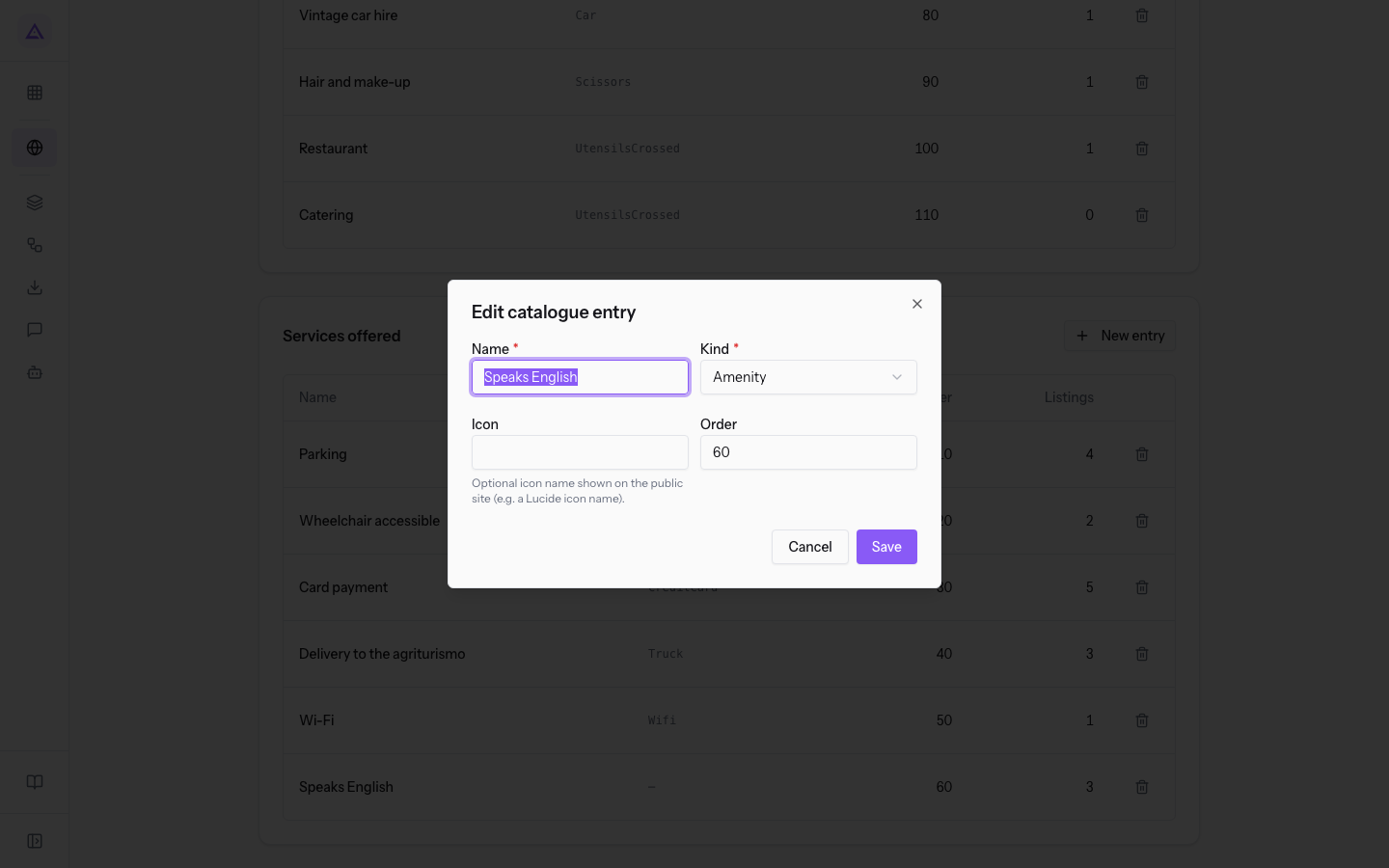
- Change the fields you need.
- Press Save. The message Entry saved appears.
The change applies to all listings that use the entry.
Deleting an entry
Delete an entry when it is no longer needed by any listing.
- In the entry's row, press Delete (the trash-can icon). The confirmation Delete “…”? It is removed from every listing that carries it. appears, with the entry name in place of the dots.
- Press Delete to confirm. The message Entry deleted appears.
Important: a deleted entry is removed from all listings that carry it. Before deleting, check the Listings column. If the number is not 0, those listings lose the entry.
Tip: in the demo,
Cateringhas 0 listings, so deleting it does not remove the entry from any listing. Other service types, such asFloristorWine cellar, are used by at least one listing.
See it on your company, not on a slide deck.
In 30 minutes we map the software you use today.We show you how much work and how much margin Archimedes gives back.
Show me on my business →What industry are you in?
One tap — it lets us prepare the demo around your world.
What tools do you use today?
Pick the ones you recognise — or just type them. It helps us show you how they migrate.
Last step: your details.
We reply within one working day — and right after, if you like, you pick the demo slot yourself.
We couldn't send your request. Try again, or write to us at [email protected].
By sending, you agree to your data being processed so we can get back to you about the demo. Privacy notice.
Preview form — nothing is sent from this page.
Want to schedule the demo now?
Your call: book the slot you prefer yourself, or we'll call you to arrange it.
Live availability, 30 minutes, instant confirmation. The calendar opens in a new tab.
Lock in your slot ↗We'll get back to you within one working day — and we'll join the call already knowing your world.
The calendar is open in another tab: pick a slot and the demo is booked. Can't see it? Reopen it ↗
Preview page: nothing was sent.
Our calendar is live: take the slot that suits you and the demo is booked. 30 minutes, instant confirmation, no waiting.
Lock in your slot ↗