Directory
All modules
Set opening hours, including split or past-midnight hours
Directory · 6 of 13 · 4 min read
The Opening hours section of the listing tells visitors on the public site which days and times a business is open. For each day you can enter no interval, one interval, or several intervals. This lets you show continuous hours, split hours between morning and afternoon, or an evening schedule that ends after midnight.
How hours are organized
Hours are set in the Opening hours section of the Edit listing window. There is one row for each day, from Monday to Sunday. Each interval has an opening time and a closing time.
Choose the number of intervals based on the business:
- If the business has continuous hours, enter one interval per day.
- If the business closes in the middle of the day, enter two intervals on the same day: one for the morning and one for the afternoon.
- If the business stays closed on a day, do not enter any intervals for that day: the row shows Closed.
- If the business works in the evening until late night, enter a closing time earlier than the opening time. For example, Note in Cascina is open on Friday and Saturday
18:00–02:00. The interval continues past midnight.
Note: a closing time equal to or earlier than the opening time is not an error. The interval continues past midnight.
If a listing has no hours, the public site shows them as not available. In the demo, this is the case for Vintage cars of the Naviglio.
Open the Opening hours section
Hours are changed from the listing.
- Open Directory › Listings and press the listing row, for example
Vintage cars of the Naviglio. - Press Edit and, in the Edit listing window, scroll down to the Opening hours section.
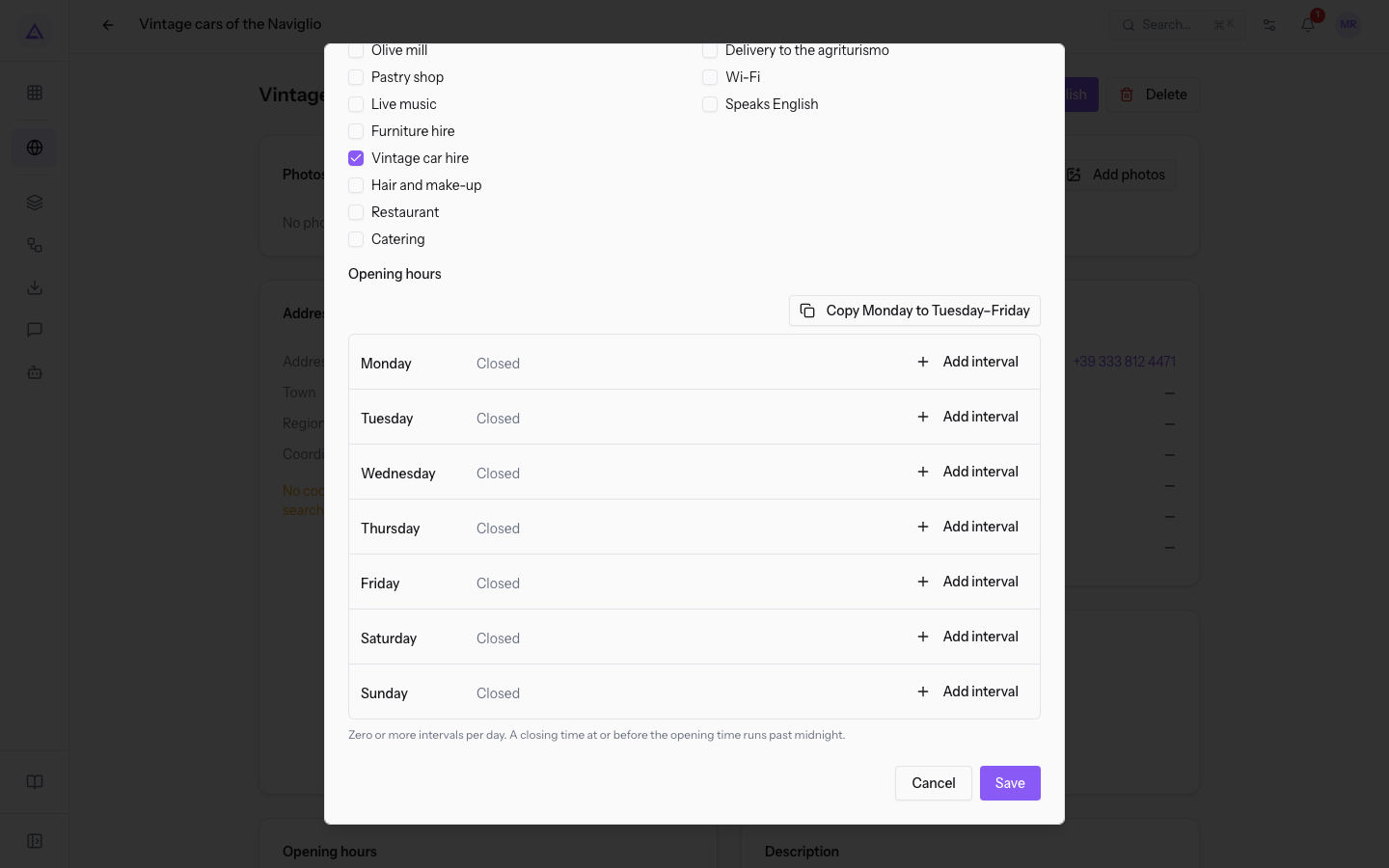
The section contains these elements:
- Copy Monday to Tuesday–Friday: copies the Monday intervals to Tuesday through Friday, replacing the ones already there.
- One row for each day, from Monday to Sunday, with the Add interval button.
- For each interval entered:
- The first field: the opening time.
- The second field: the closing time. If it is equal to or earlier than the opening time, the interval continues past midnight.
- Remove interval (the icon shaped like an X): removes the interval from the day.
Enter continuous hours
Use one interval when the business does not close during the day.
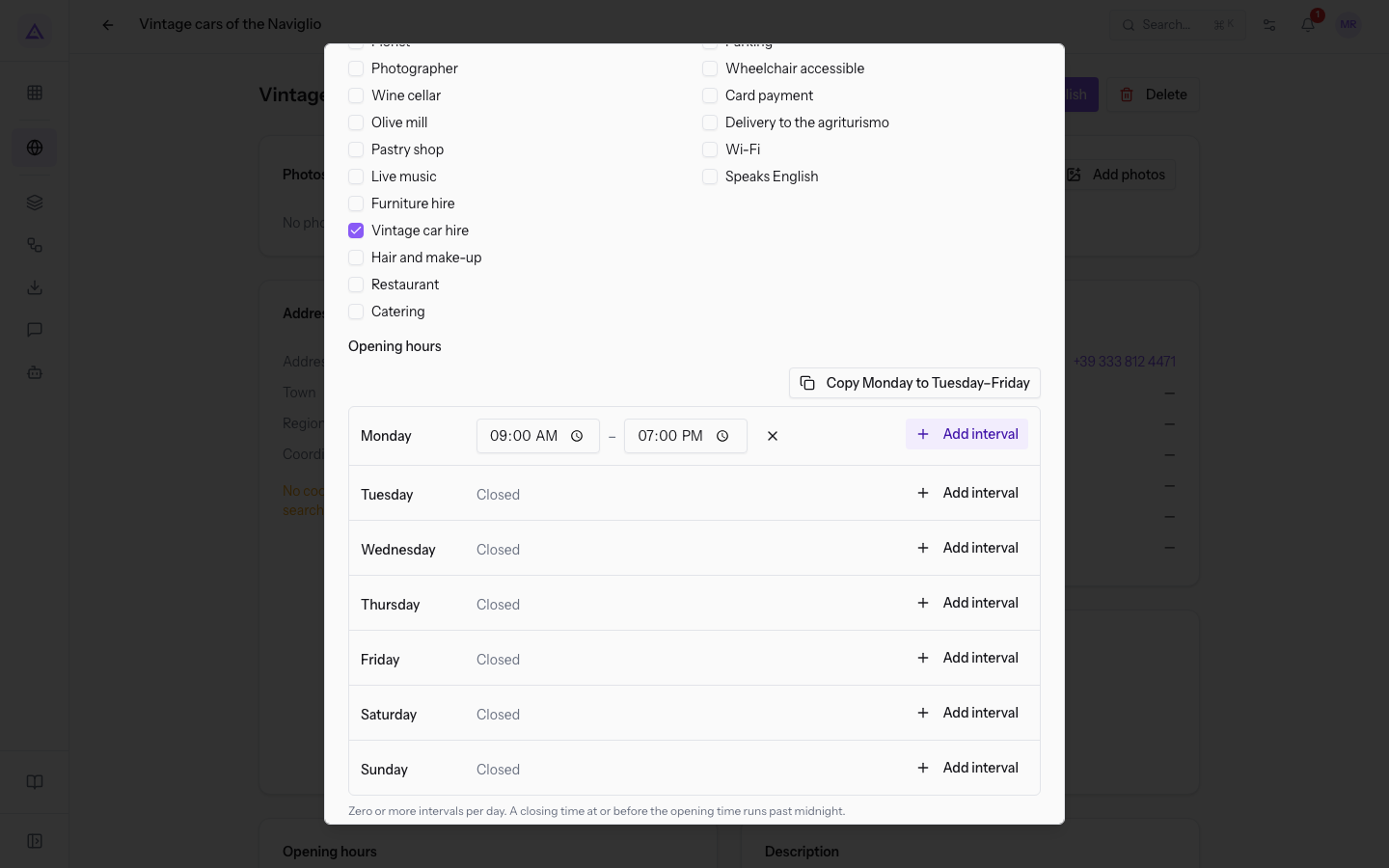
- In the Monday row, press Add interval. An interval appears with the values
09:00 AMand07:00 PM. - Set the opening time and the closing time.
- Press Save.
Enter split hours
Use two intervals on the same day when the business closes in the middle of the day.
- In the day's row, press Add interval and set the morning opening and closing times.
- Press Add interval again in the same row and set the afternoon interval. The new interval starts at the closing time of the previous one.
- Repeat the steps for the other days, or use Copy Monday to Tuesday–Friday (see the next section).
- Press Save.
Copy Monday to the other weekdays
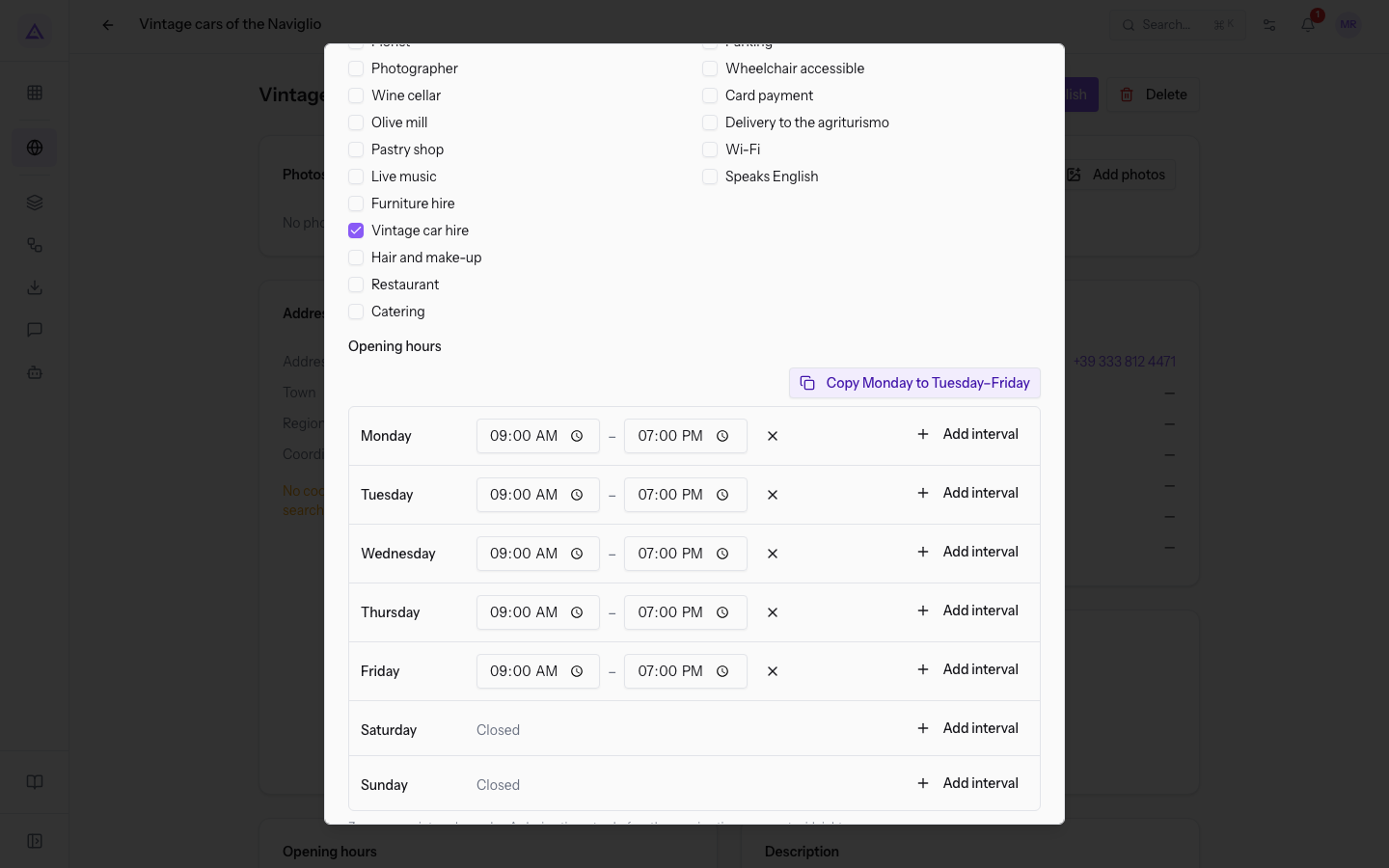
If the business has the same hours from Monday to Friday, set only Monday and copy it.
- Set the intervals in the Monday row.
- Press Copy Monday to Tuesday–Friday. The same intervals appear in the rows from Tuesday to Friday.
- If needed, set Saturday and Sunday by hand. The button does not change them.
- Press Save.
Enter hours past midnight
Use an interval that ends the next day when the business works in the evening until late night. For example, Note in Cascina is open on Friday 18:00–02:00.
- In the row of the opening day, press Add interval.
- Enter the opening time.
- As the closing time, enter a time equal to or earlier than the opening time. past midnight appears next to the interval.
- Press Save.
On the listing, intervals that end the next day are marked with (+1) in the Opening hours box.
Time zone of the public site
Before you start: only the directory manager can change the time zone, in Directory › Directory settings.
The public site uses the Time zone from the directory settings to tell visitors whether a business is open at that moment. In the demo, the time zone is Europe/Rome.
See it on your company, not on a slide deck.
In 30 minutes we map the software you use today.We show you how much work and how much margin Archimedes gives back.
Show me on my business →What industry are you in?
One tap — it lets us prepare the demo around your world.
What tools do you use today?
Pick the ones you recognise — or just type them. It helps us show you how they migrate.
Last step: your details.
We reply within one working day — and right after, if you like, you pick the demo slot yourself.
We couldn't send your request. Try again, or write to us at [email protected].
By sending, you agree to your data being processed so we can get back to you about the demo. Privacy notice.
Preview form — nothing is sent from this page.
Want to schedule the demo now?
Your call: book the slot you prefer yourself, or we'll call you to arrange it.
Live availability, 30 minutes, instant confirmation. The calendar opens in a new tab.
Lock in your slot ↗We'll get back to you within one working day — and we'll join the call already knowing your world.
The calendar is open in another tab: pick a slot and the demo is booked. Can't see it? Reopen it ↗
Preview page: nothing was sent.
Our calendar is live: take the slot that suits you and the demo is booked. 30 minutes, instant confirmation, no waiting.
Lock in your slot ↗