Directory
All modules
Finish a draft listing before publishing it
Directory · 5 of 13 · 4 min read
The page of a listing in Draft shows which data is missing. Use it to complete the listing with address, coordinates, description, opening hours and photos, and publish it only when it is ready: while it stays in draft, it does not appear on the public site.
When a draft needs completing
A listing can be published even if some data is missing, but on the public site it will appear reduced.
- If the coordinates are missing, the listing does not appear on the map or in "near me" searches.
- If the opening hours are missing, the public site shows them as unavailable.
- If the photos are missing, the public site shows a placeholder.
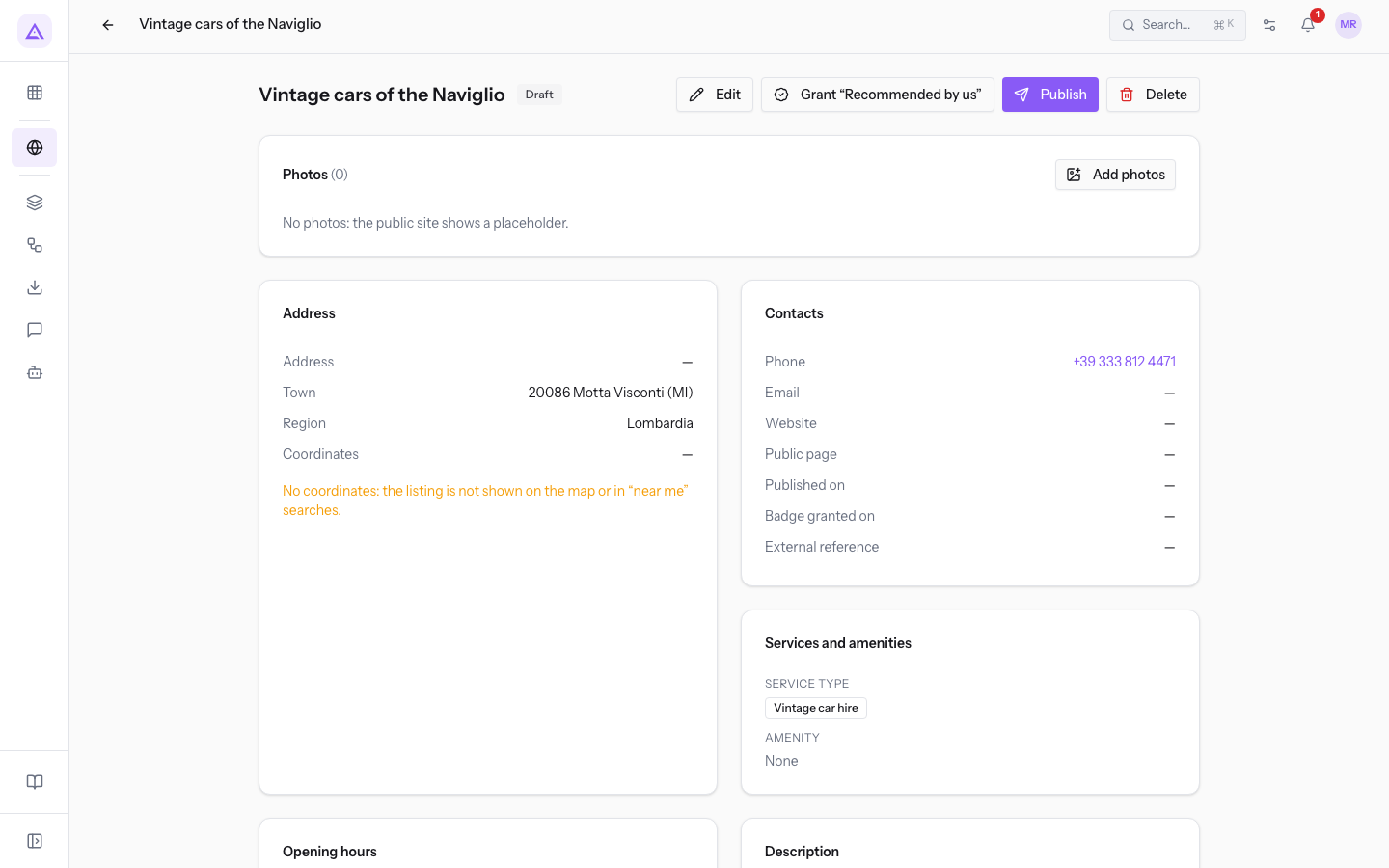
In the demo, Vintage cars of the Naviglio (Motta Visconti, Draft) is the draft to complete: it has no address, coordinates, opening hours, description or photos. Acconciature Elisa, on the other hand, is a draft that is already complete and ready to publish, with the external reference GUIDA2025-14, taken from the 2025 paper guide.
Recognising the missing data in the listing
The listing page flags each missing piece of data with a warning in the corresponding panel.
- In Directory › Listings, press the row of the listing, for example
Vintage cars of the Naviglio.
The warnings you may find are these:
- In the Address panel: No coordinates: the listing is not shown on the map or in “near me” searches.
- In the Opening hours panel: No opening hours on file — the public site shows them as unknown.
- In the Description panel: No description.
- In the Photos panel: No photos: the public site shows a placeholder.
In the listing header there is the status label Draft and the buttons Edit, Publish and Delete. For the manager, Grant “Recommended by us” also appears.
Completing address, coordinates, description and opening hours
All the listing data is completed in the Edit listing window. Photos, on the other hand, are added from the listing, with Add photos.
- On the listing, press Edit.
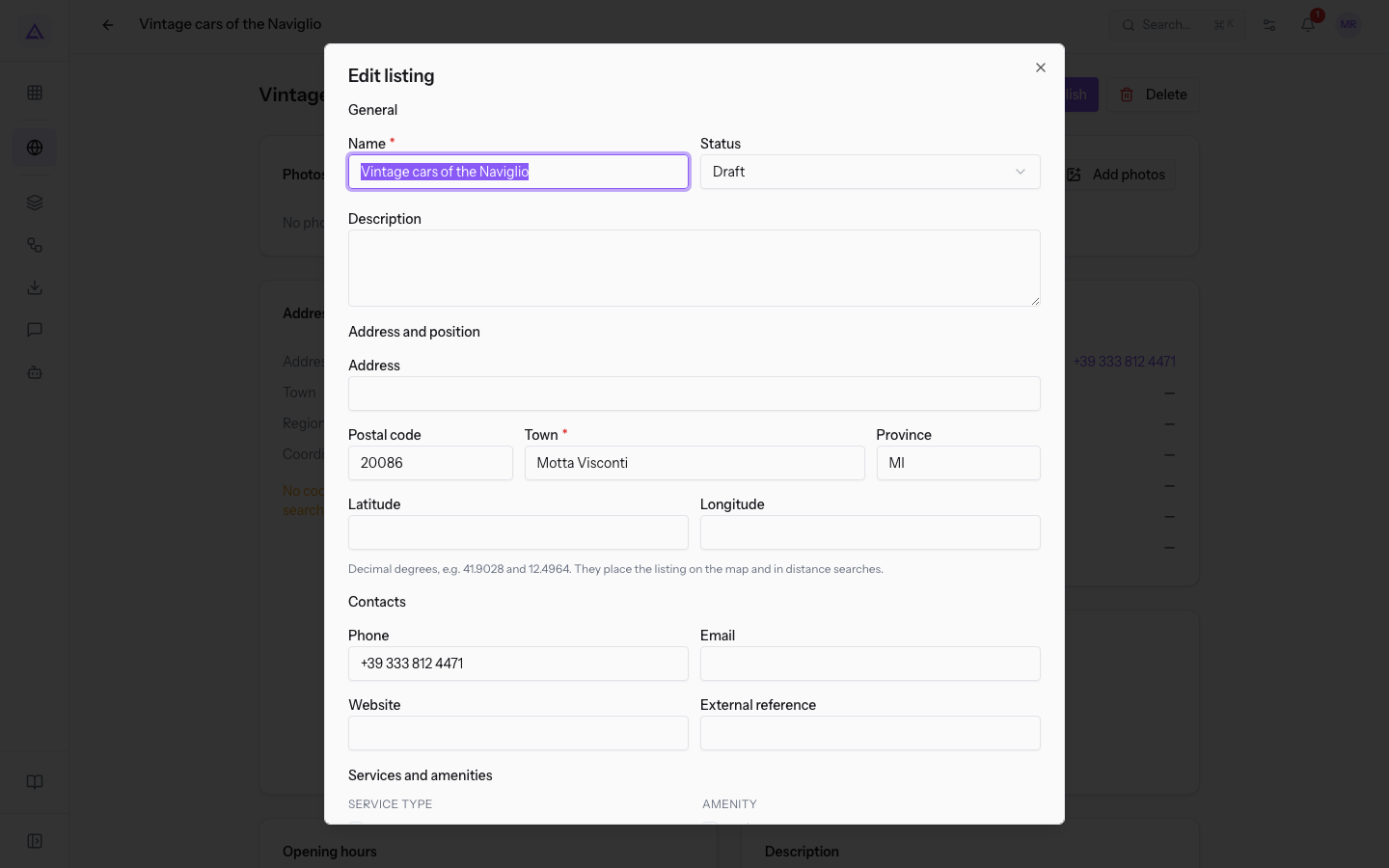
- Fill in the empty fields in the General, Address and position and Contacts sections.
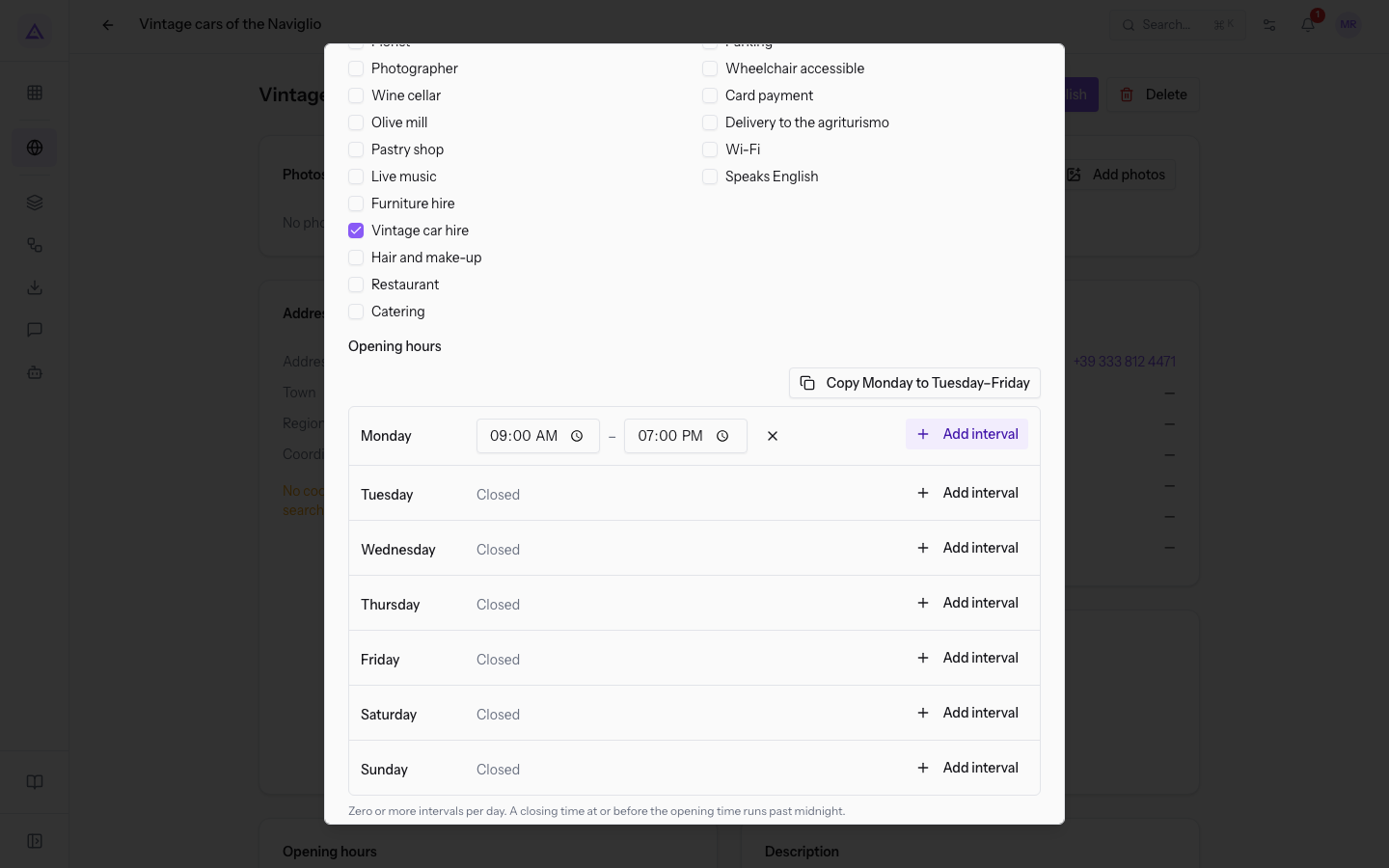
- In Opening hours, press Add interval next to the day and enter the opening time and the closing time.
- Press Save. The message Listing saved appears.
The window contains these fields.
General section:
- Name: the name of the business. The field is required.
- Status: the status of the listing. Leave Draft until the listing is complete.
- Draft: the listing is not visible on the public site.
- Published: the listing appears on the public site.
- Archived: the listing is not visible on the public site.
- Description: the text that presents the business. If it stays empty, the listing shows No description.
Address and position section:
- Address and Postal code: the street, the house number and the postal code. In the demo draft the address is empty.
- Town: the town where the business is. The field is required.
- Province: the two-letter code, for example
MI. The region is derived from the province and is not entered by hand. - Latitude and Longitude: the position of the business in decimal degrees. They place the listing on the map and in distance-based searches.
Contacts section:
- Phone, Email and Website: the business's contact details.
- External reference: a code that links the listing to an external source.
The Services and amenities and Opening hours sections show the catalogue checkboxes and the intervals of each day, with Add interval and Copy Monday to Tuesday–Friday.
Note: the public address of the listing is generated on the first save and does not change if you later edit the name.
Entering latitude and longitude
Coordinates are written in decimal degrees, that is, as one number for latitude and one for longitude, without degrees, minutes and seconds.
- Work out the latitude and longitude of the point where the business is.
- Write the latitude in the Latitude field and the longitude in the Longitude field.
- Use the point as the decimal separator, as in the example in the window:
41.9028and12.4964.
Important: latitude goes in Latitude and longitude goes in Longitude. If you swap the two values, the listing is placed in the wrong spot on the map.
After saving, the warning No coordinates: the listing is not shown on the map or in “near me” searches. no longer appears.
Checking the listing before publishing
A listing is ready to publish when it no longer shows warnings in the panels, like the draft Acconciature Elisa in the demo.
- Open the listing from Directory › Listings.
- Check that no warnings appear for coordinates, opening hours, description and photos.
- Press Publish: the listing moves to Published and appears on the public site.
See it on your company, not on a slide deck.
In 30 minutes we map the software you use today.We show you how much work and how much margin Archimedes gives back.
Show me on my business →What industry are you in?
One tap — it lets us prepare the demo around your world.
What tools do you use today?
Pick the ones you recognise — or just type them. It helps us show you how they migrate.
Last step: your details.
We reply within one working day — and right after, if you like, you pick the demo slot yourself.
We couldn't send your request. Try again, or write to us at [email protected].
By sending, you agree to your data being processed so we can get back to you about the demo. Privacy notice.
Preview form — nothing is sent from this page.
Want to schedule the demo now?
Your call: book the slot you prefer yourself, or we'll call you to arrange it.
Live availability, 30 minutes, instant confirmation. The calendar opens in a new tab.
Lock in your slot ↗We'll get back to you within one working day — and we'll join the call already knowing your world.
The calendar is open in another tab: pick a slot and the demo is booked. Can't see it? Reopen it ↗
Preview page: nothing was sent.
Our calendar is live: take the slot that suits you and the demo is booked. 30 minutes, instant confirmation, no waiting.
Lock in your slot ↗