Suppliers
All modules
Viewing the supplier register
Suppliers · 2 of 10 · 4 min read
The supplier register lists the companies that can supply you and shows each one's qualification status and the documents to check. You need it, for example, to see which suppliers are qualified for a category, which are suspended, or which have documents to review.
Opening the register
The register is on the Suppliers page, with the subtitle “The register: who is qualified to supply us, and what is missing.”.
Before you begin: to view the register you need at least user-level permission for the Suppliers module.
- Open Suppliers › Register.
- The list shows suppliers in alphabetical order by name.
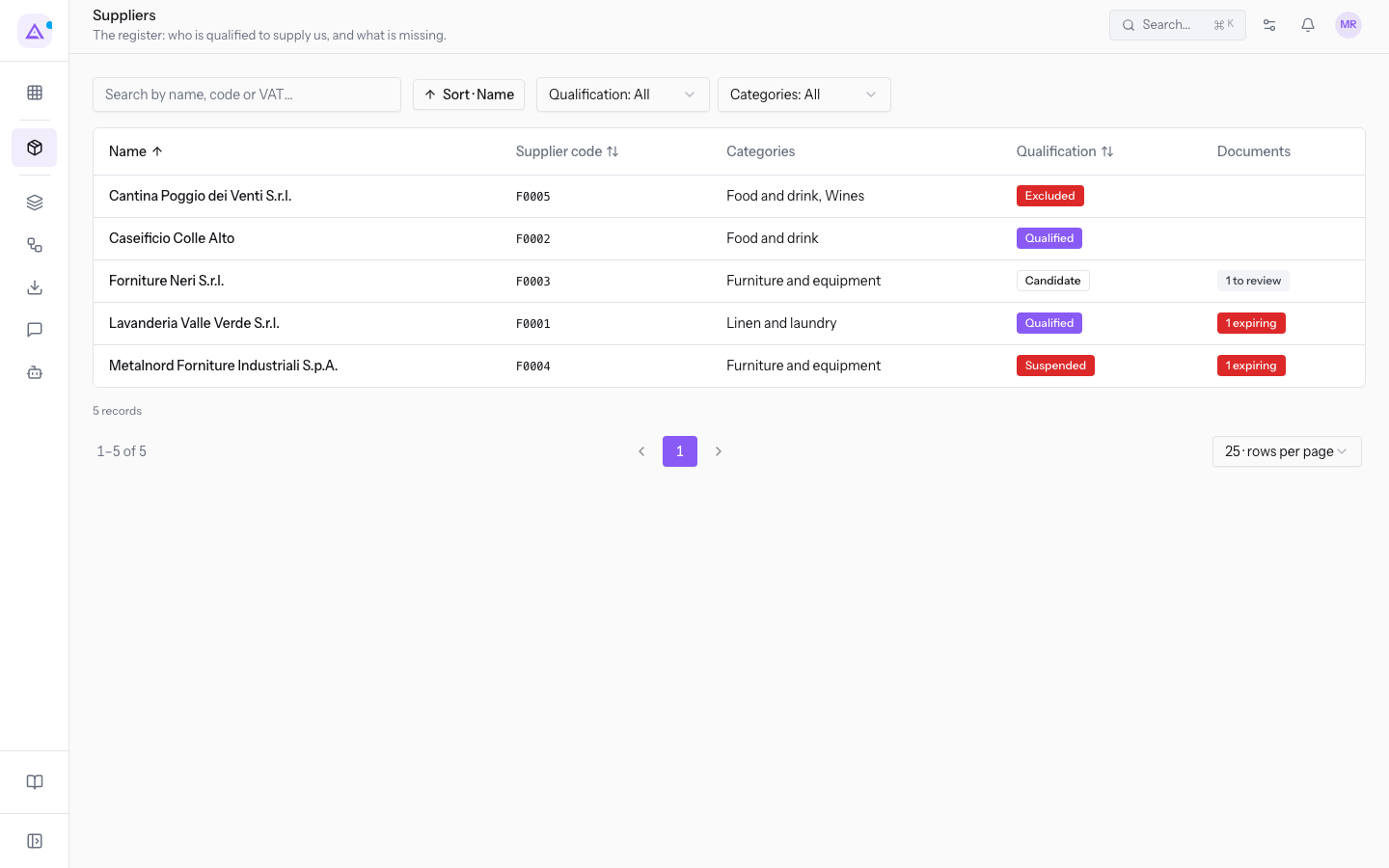
The list has these columns:
- Name: the supplier's name, for example
Forniture Neri S.r.l.. - Supplier code: the supplier's code in the register, for example
F0003. - Categories: the product categories assigned to the supplier, for example Furniture and equipment.
- Qualification: the supplier's qualification status.
- Documents: the counters for qualification documents to check, “to review” for documents uploaded by the supplier and not yet reviewed, “expiring” for documents nearing expiry.
To sort the list, use Sort by Name, Sort by Supplier code or Sort by Qualification. With Rows per page choose how many rows to display per page, for example 25.
Click a supplier's name to open their profile.
Qualification statuses
Every supplier in the register is in one of four statuses. The status indicates the supplier’s qualification: it depends on documents or a decision to suspend or exclude the supplier.
- Candidate: the supplier is in the register, but at least one mandatory document for their categories is missing, invalid, or still to be reviewed. In the demo,
Forniture Neri S.r.l.is a candidate, because their Liability Insurance policy uploaded via the portal is still to be reviewed. - Qualified: all mandatory documents for the supplier's categories are usable. This status is not assigned manually: the system calculates it when you file or approve a document, change categories, or use Recompute status. The nightly check updates document expiry statuses and recalculates qualification for affected suppliers. In the demo,
Lavanderia Valle Verde S.r.l.andCaseificio Colle Altoare qualified. - Suspended: staff has suspended the supplier. The suspension signals that you should not place new orders until reinstatement. The supplier can read the reason. In the demo,
Metalnord Forniture Industriali S.p.A.is suspended. - Excluded: staff have decided to stop working with the supplier. The supplier remains visible in the register with this status and can be reinstated. The supplier can read the reason. In the demo,
Cantina Poggio dei Venti S.r.l.is excluded.
The transitions between Candidate and Qualified are automatic: a mandatory document that expires causes the supplier to lose their qualification, an approved document can earn it. Suspended and Excluded are not removed when documents arrive: use Reinstate. Suspension can also happen automatically if the installation is configured to apply it when a mandatory document expires.
Note: only the supplier manager can suspend, exclude, or reinstate a supplier.
Searching and filtering suppliers
Use the search and filters to narrow the list to a supplier or a group of suppliers.
- In the Search by name, code or VAT… field, type part of the name, the supplier code, or the VAT number. For example, with
F0003the list shows onlyForniture Neri S.r.l.. - Open the Qualification filter and choose a status.
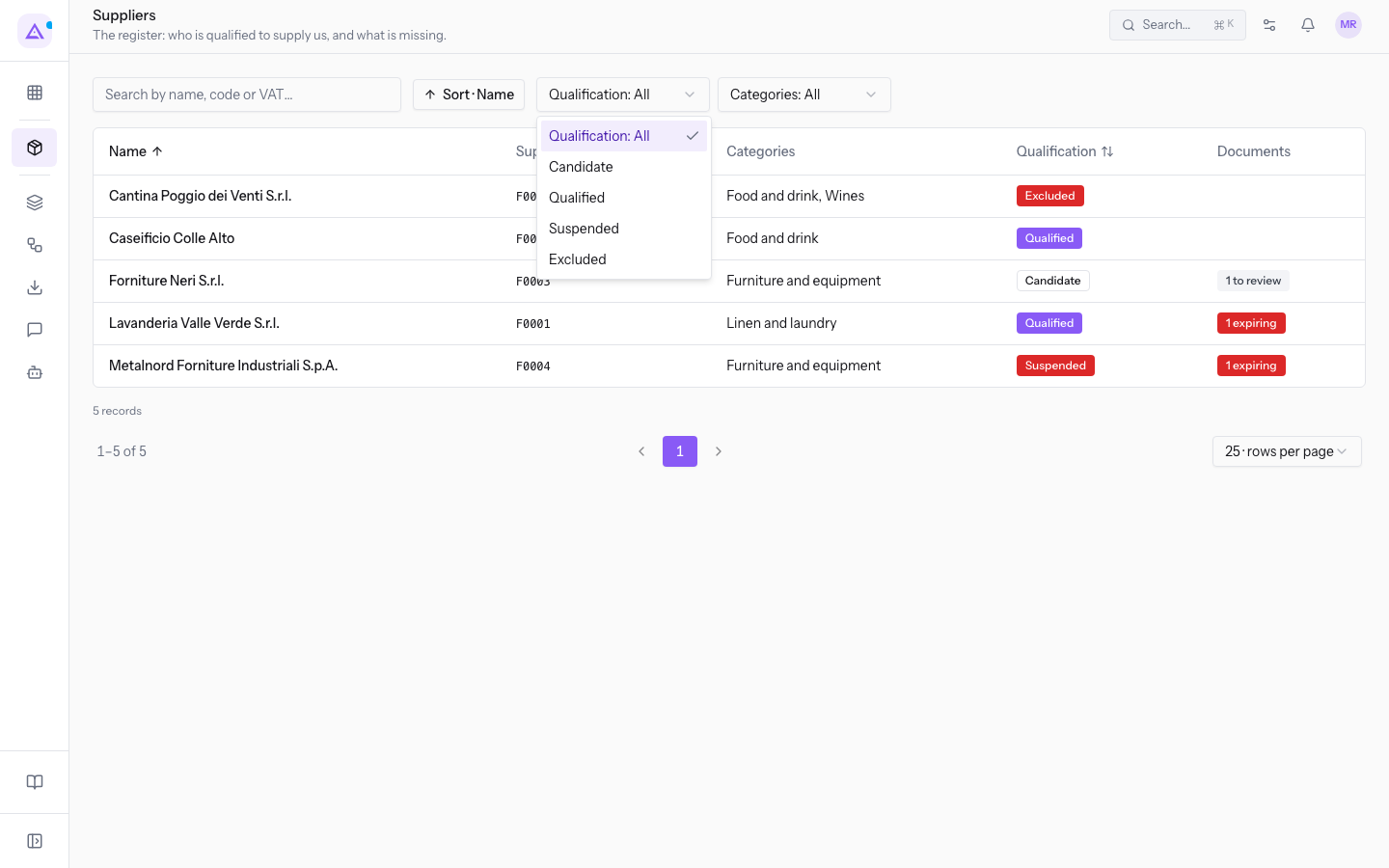
- Open the Categories filter and choose a product category.
- To return to the full list, press Clear filters. The button appears when a search or filter is active.
The filters have these options:
- Qualification: with the default value Qualification: Everyone the list shows all statuses.
- Candidate
- Qualified
- Suspended
- Excluded
- Categories: with the default value Categories: Everyone the list shows all categories. The options are the categories configured in the organisation.
- Food and drink
- Wines: subcategory of Food and drink.
- Linen and laundry
- Furniture and equipment
If you want to see which suppliers have documents to check, use the counters in the Documents column and then the documents page: see Review documents uploaded by suppliers.
How a supplier enters the register
A supplier is not a separate registry entry: it is a contact in the Contacts module marked as a supplier. The Suppliers module adds a supplier profile to the contact, with qualification status, Supplier code and categories.
For this reason, there is no button in the register to create a supplier. To add one, mark the company's contact as a supplier. If no contact is marked as a supplier, the register shows the message “No suppliers yet. Mark a contact as vendor to see it here.”.
See it on your company, not on a slide deck.
In 30 minutes we map the software you use today.We show you how much work and how much margin Archimedes gives back.
Show me on my business →What industry are you in?
One tap — it lets us prepare the demo around your world.
What tools do you use today?
Pick the ones you recognise — or just type them. It helps us show you how they migrate.
Last step: your details.
We reply within one working day — and right after, if you like, you pick the demo slot yourself.
We couldn't send your request. Try again, or write to us at [email protected].
By sending, you agree to your data being processed so we can get back to you about the demo. Privacy notice.
Preview form — nothing is sent from this page.
Want to schedule the demo now?
Your call: book the slot you prefer yourself, or we'll call you to arrange it.
Live availability, 30 minutes, instant confirmation. The calendar opens in a new tab.
Lock in your slot ↗We'll get back to you within one working day — and we'll join the call already knowing your world.
The calendar is open in another tab: pick a slot and the demo is booked. Can't see it? Reopen it ↗
Preview page: nothing was sent.
Our calendar is live: take the slot that suits you and the demo is booked. 30 minutes, instant confirmation, no waiting.
Lock in your slot ↗