Suppliers
All modules
Reviewing a price list version line by line
Suppliers · 9 of 10 · 6 min read
When a supplier sends a new version of a price list, you review it line by line and decide which prices to accept. For example, you can accept a modest increase, reject an increase that is too high, or link a new item to the catalogue.
How line decisions work
Each line in the version is compared with the previous version and shows as New, Changed, Removed, or Unchanged. For each line the decision is Pending, Accepted, or Rejected.
- Unchanged lines are accepted on arrival: no decision needed.
- If you accept a change, the new price applies. If you reject a change or a removal, the price from the previous version is kept.
- If you reject a new item, the item does not enter the price list.
- When no lines remain pending, the system checks Valid from: the version remains Resolved if the date is in the future, or becomes effective immediately if the date has arrived. If no lines were accepted, it is rejected once the effective date has arrived.
If the changes are few and varied, decide line by line. If there are many similar ones, use bulk decisions — for example, accept all increases within 5%.
Opening the review queue
The queue lists submissions awaiting a decision, oldest first.
Before you start: to review price lists you need authorisation from the purchasing office in the Suppliers module.
- Open Suppliers › Review queue.
- To narrow the list use Search… or the Status filter.
- Click the row of the version to review — for example the one from Forniture Neri S.r.l. for the
Office furniture 2026price list.
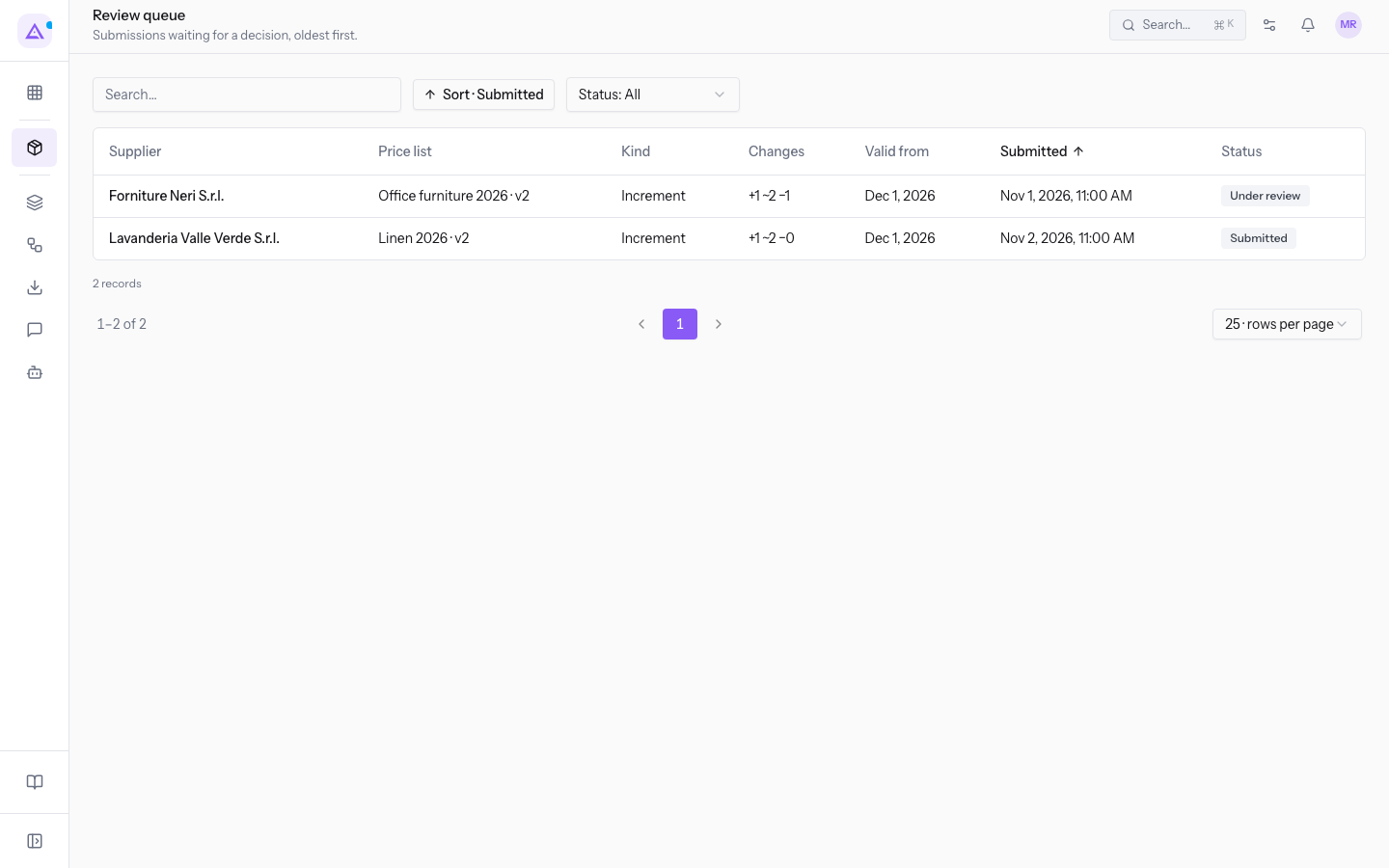
The list has these columns:
- Supplier: the supplier who sent the version.
- Price list: the price list the version belongs to.
- Kind: full price list or increment.
- Changes: the number of changed lines.
- Valid from: the date from which the version is valid.
- Submitted: the submission date. The list is sorted by this column.
- Status: the version status.
The Status filter has these options:
- Submitted: the version has arrived and no line has been decided yet.
- Under review: the review has started and pending lines remain.
- Resolved: no lines are pending.
- Effective, Superseded, Rejected: the statuses the version takes on after the decision.
Reading a version page
The review page title shows the price list and version number — for example Office furniture 2026 · v2.
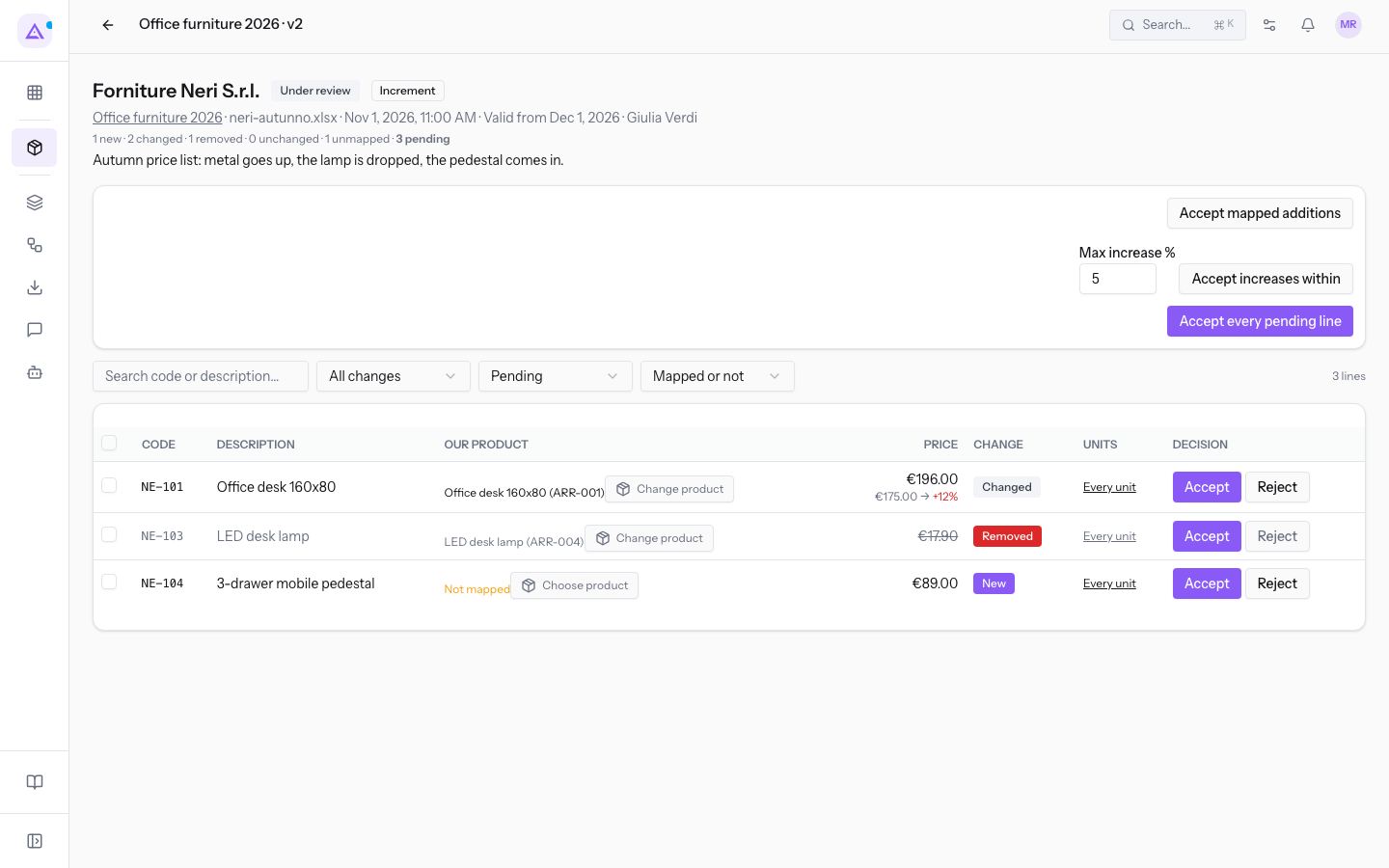
At the top you find:
- The supplier, the status and the type of the version — for example Under review and Increment.
- The price list, the submitted file, the submission date, the Valid from date and the person who submitted it — for example
neri-autunno.xlsxeffective 1 Dec 2026, submitted by Giulia Verdi. - The line summary: how many are new, changed, removed, unchanged and unmapped, and how many are pending.
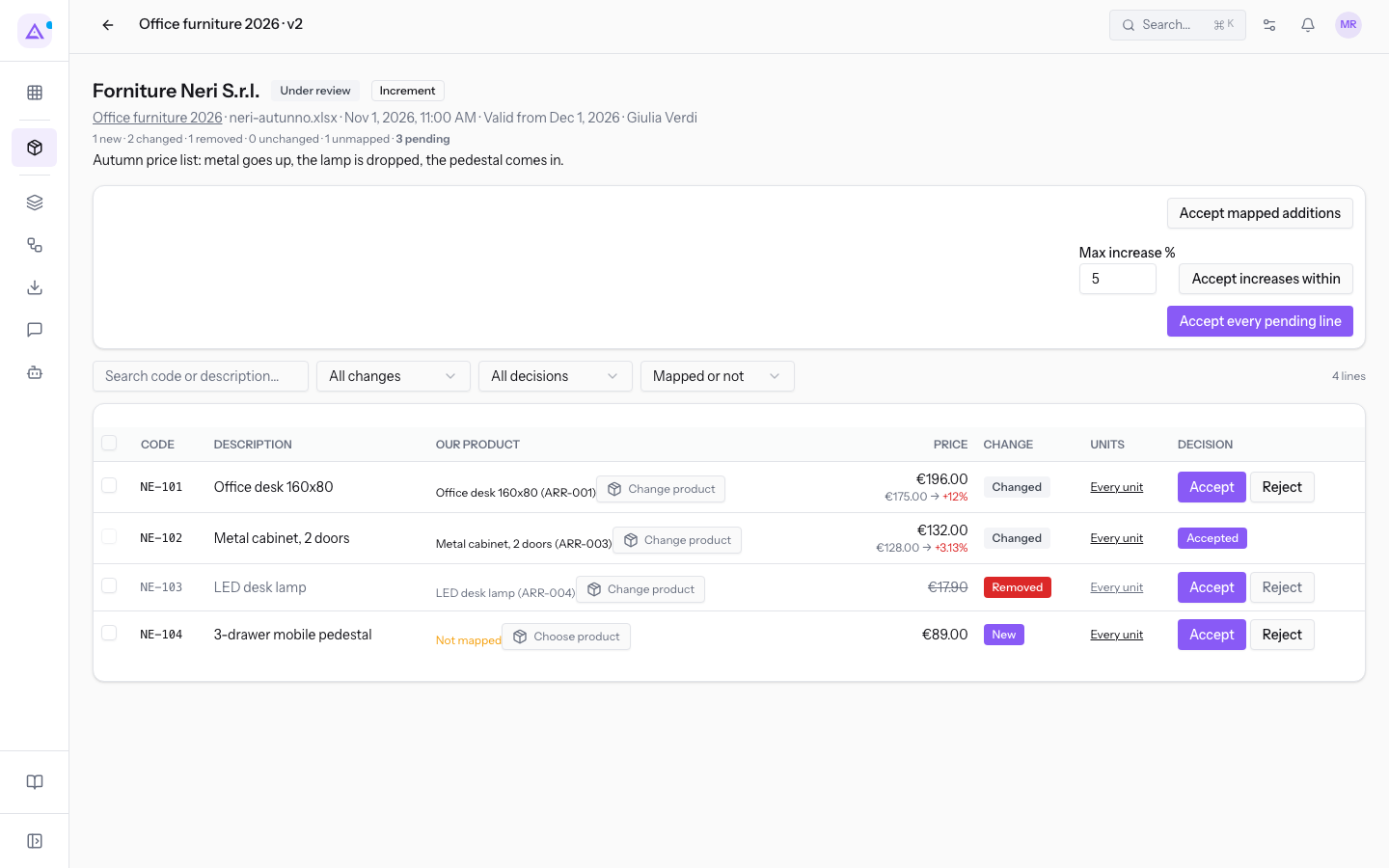
In v2 of Office furniture 2026 the increase for the Metal cabinet, 2 doors has already been accepted, the Office desk 160x80 has a 12% increase and is pending, the LED desk lamp has been removed, and line NE-104 3-drawer mobile pedestal is new and unmapped.
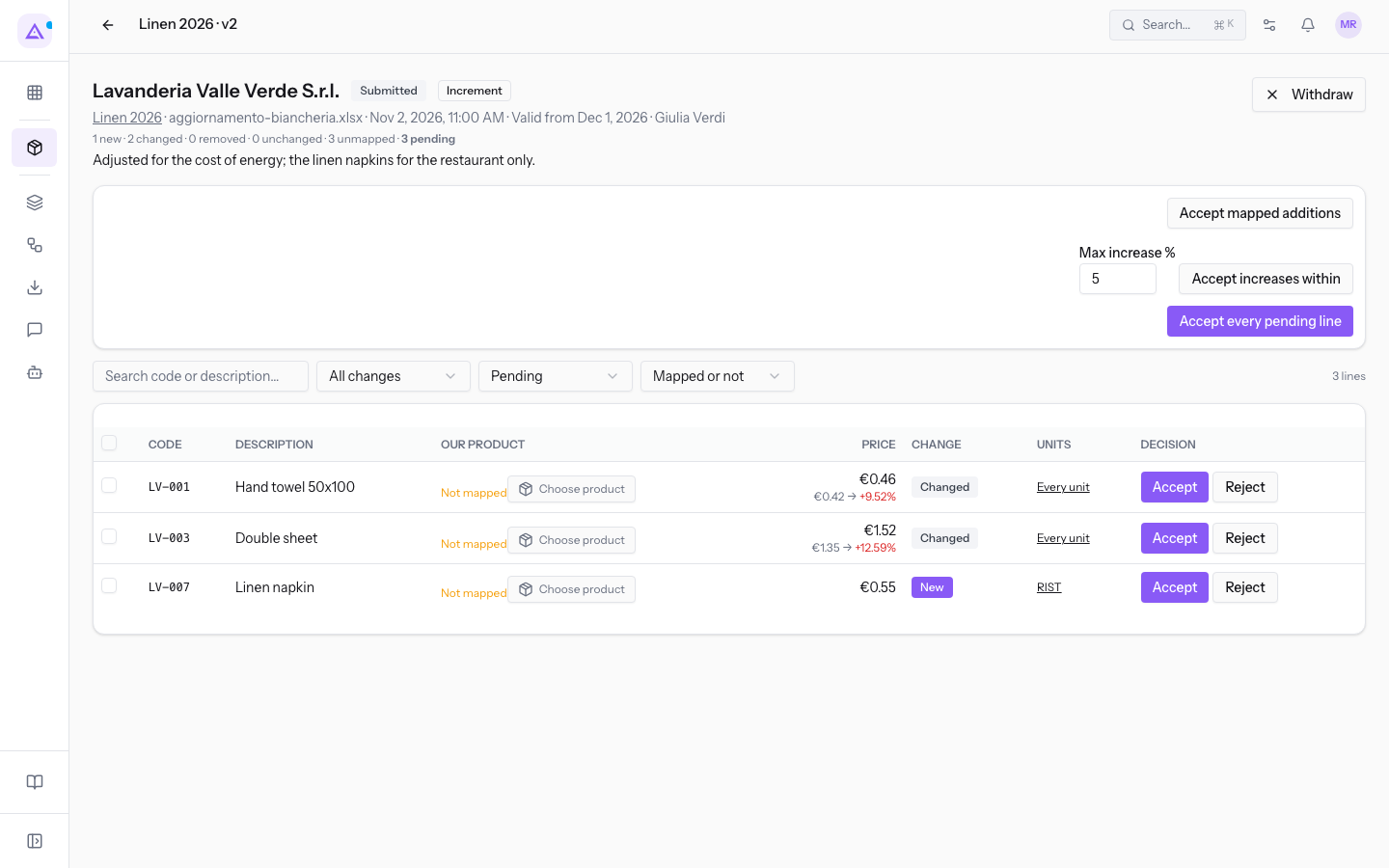
In v2 of Linen 2026 from Lavanderia Valle Verde S.r.l., just submitted, the status is Submitted and the Withdraw button is also visible. A new line applies only to the RIST unit, the Restaurant.
Line columns
- Code: the item code from the supplier — for example NE-101.
- Description: the description sent by the supplier.
- Our product: the catalogue item linked to the line, with its code — for example Office desk 160x80 (ARR-001). There is a Change product button. If the line is not linked, Choose product appears.
- Price: the new price. For a changed line it also shows the previous price and the percentage change — for example 196.00 € vs 175.00 €, +12%.
- Change: New, Changed, Removed, or Unchanged.
- Units: the organisational units for which the line is valid — for example Every unit.
- Decision: the Accept and Reject buttons, or the decision already taken.
Filtering lines
Above the lines there is a search field and three filters. On opening, the decision filter shows only Pending lines.
- Type in the Search code or description… field to find a line.
- Choose a change in the All changes filter: New, Changed, Removed, or Unchanged.
- Choose a decision in the decision filter: All decisions, Pending, Accepted, or Rejected.
- Choose in the Mapped or not filter between Mapped and Not mapped.
To see already-decided lines too, choose All decisions.
Linking an unmapped line to one of our products
A Not mapped line is not linked to any catalogue item. Link it before deciding, so the price reaches the right item.
- In the line — for example NE-104 3-drawer mobile pedestal — click Choose product.
- Search for the item in the Name, code or barcode… field. The list shows each item's name, code and price.
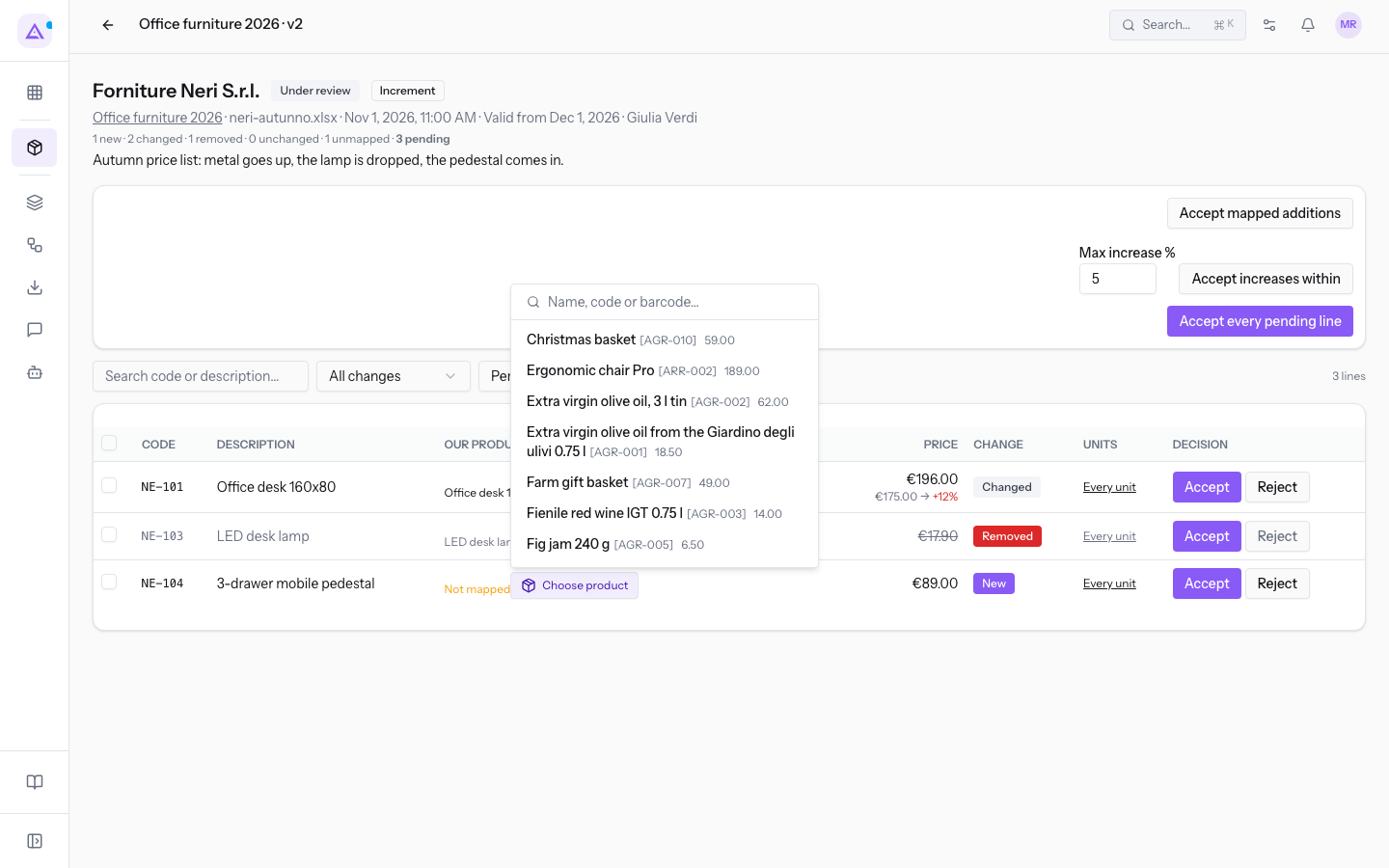
- Click the item. The Our product column shows the chosen item and the button becomes Change product.
Important: choose an item that is not already linked to another line in the price list. In v2 of
Office furniture 2026the Office desk 160x80 is already linked to line NE-101.
To correct a link use Change product on the same line.
Deciding a line
Decide one line at a time when you want to evaluate each price individually.
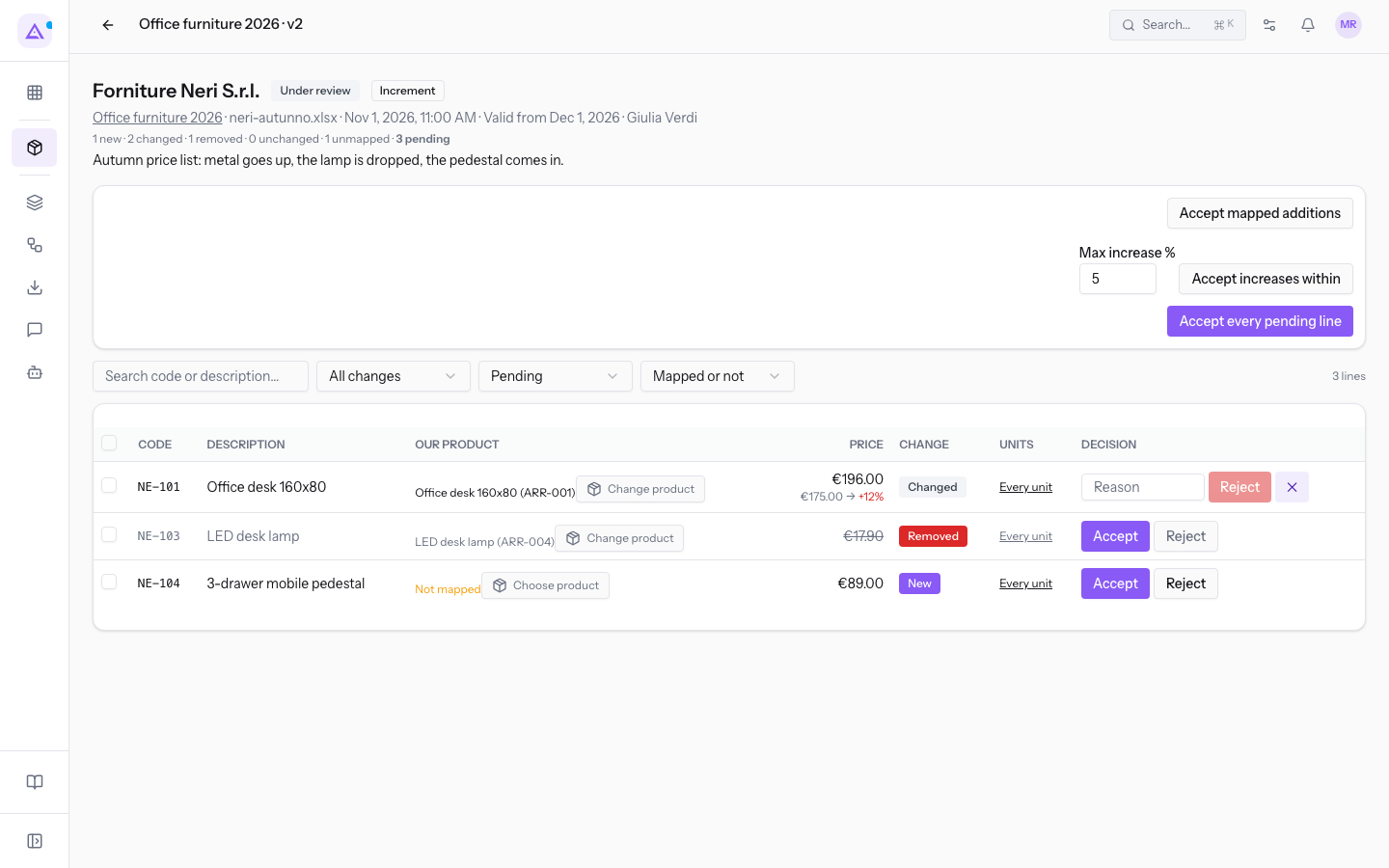
- To accept the line, click Accept.
- To reject it, click Reject. The Reason field appears.
- Enter the reason and click Reject. To go back without rejecting, click ✕.
Note: the supplier reads the outcome of each line from the portal.
Deciding multiple lines at once
The decision bar above the lines acts on multiple lines with a single click.
With no lines selected the bar has:
- Accept mapped additions: accepts new lines already linked to one of our products.
- Max increase % and Accept increases within: accepts increases up to the indicated percentage. The suggested value is 5.
- Accept every pending line: accepts every line not yet decided.
To decide only some lines:
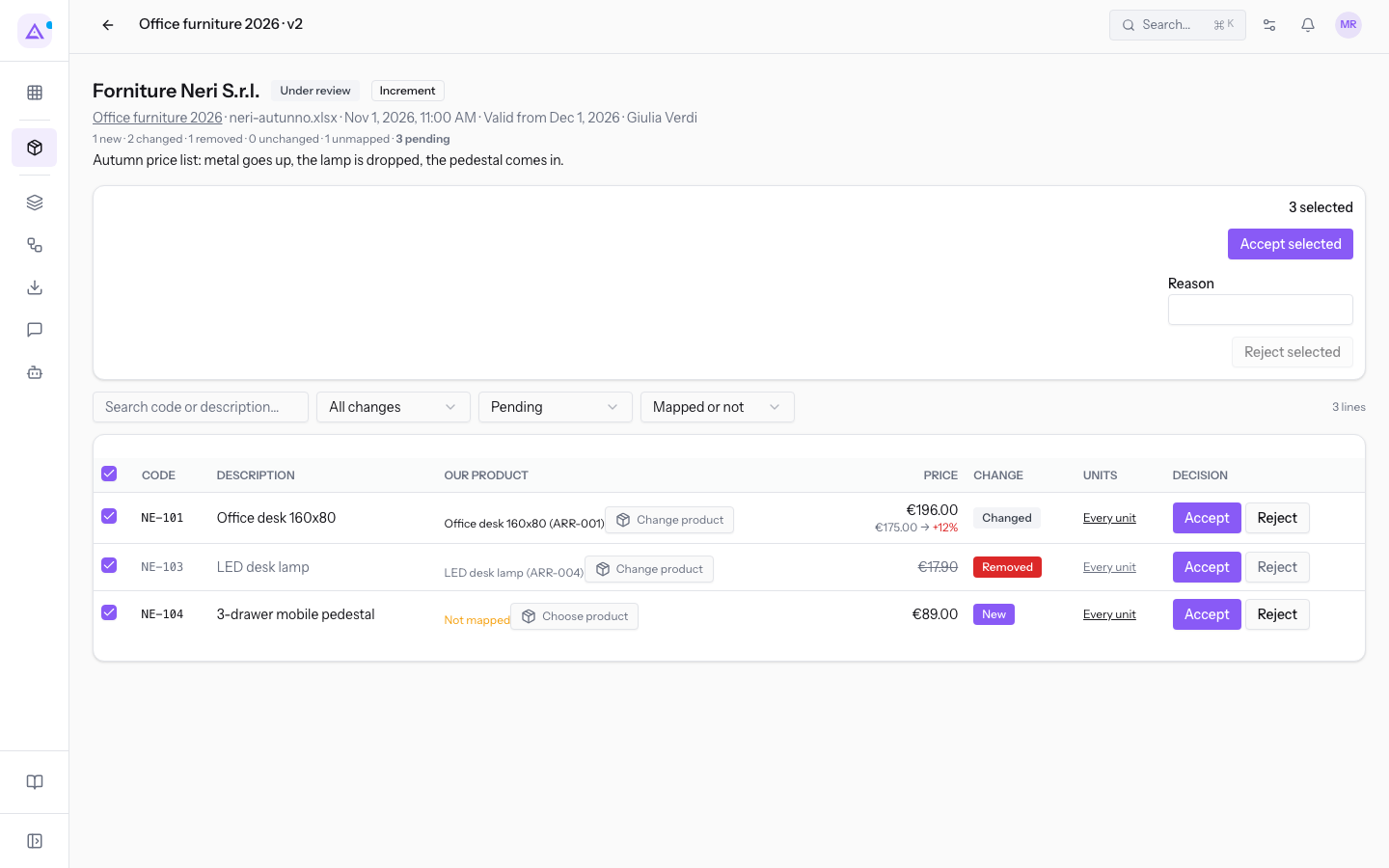
- Check the lines, or check Select all.
- The bar shows Accept selected, Reject selected, and the Reason field.
- To reject, enter the Reason and click Reject selected. To accept, click Accept selected.
Tip: before using Accept every pending line, link the unmapped lines and check the largest increases with the Changed filter.
Withdrawing a version
The Withdraw button appears on the page of a version still awaiting a decision — for example v2 of Linen 2026 in the Submitted status. A withdrawn version moves to the Withdrawn status and is no longer reviewed.
- Open the version from Suppliers › Review queue.
- Click Withdraw.
Note: versions cannot be edited. If the supplier needs to correct a price list, they send a new version.
See it on your company, not on a slide deck.
In 30 minutes we map the software you use today.We show you how much work and how much margin Archimedes gives back.
Show me on my business →What industry are you in?
One tap — it lets us prepare the demo around your world.
What tools do you use today?
Pick the ones you recognise — or just type them. It helps us show you how they migrate.
Last step: your details.
We reply within one working day — and right after, if you like, you pick the demo slot yourself.
We couldn't send your request. Try again, or write to us at [email protected].
By sending, you agree to your data being processed so we can get back to you about the demo. Privacy notice.
Preview form — nothing is sent from this page.
Want to schedule the demo now?
Your call: book the slot you prefer yourself, or we'll call you to arrange it.
Live availability, 30 minutes, instant confirmation. The calendar opens in a new tab.
Lock in your slot ↗We'll get back to you within one working day — and we'll join the call already knowing your world.
The calendar is open in another tab: pick a slot and the demo is booked. Can't see it? Reopen it ↗
Preview page: nothing was sent.
Our calendar is live: take the slot that suits you and the demo is booked. 30 minutes, instant confirmation, no waiting.
Lock in your slot ↗