Suppliers
All modules
Configure categories, document types and requirements
Suppliers · 7 of 10 · 6 min read
On the Supplier settings page you define which documents a supplier needs to qualify. Here you manage the product categories, for example Food and drink or Furniture and equipment, the document types, for example DURC or Liability insurance (RC), and the requirements that link them.
How categories, document types and requirements are linked
A category describes what a supplier provides. A document type describes a document you can request from the supplier, with its validity period. A requirement states that a document type is mandatory or optional for a category or for all suppliers.
- If every supplier must provide a document, for example DURC, create a requirement for Every supplier.
- If a document is only required from those who supply certain products, for example the HACCP plan / food safety for food suppliers, create a requirement for that category.
- If a document is useful but should not block qualification, for example the ISO 9001 certificate, create the requirement with the mandatory toggle disabled.
Mandatory requirements determine qualification: a Candidate supplier becomes Qualified when every mandatory document for their categories is usable. A supplier's categories are assigned in their record.
If no requirement with an active document type applies to the supplier, the system uses the active document types marked Required by default.
Before you start: the Suppliers › Settings menu item is only visible to the supplier manager.
Open the settings
The page has three tabs, one for each element to configure.
- Open Suppliers › Settings. The Supplier settings page opens on the Categories tab.
- Choose the Categories, Document types or Requirements tab.
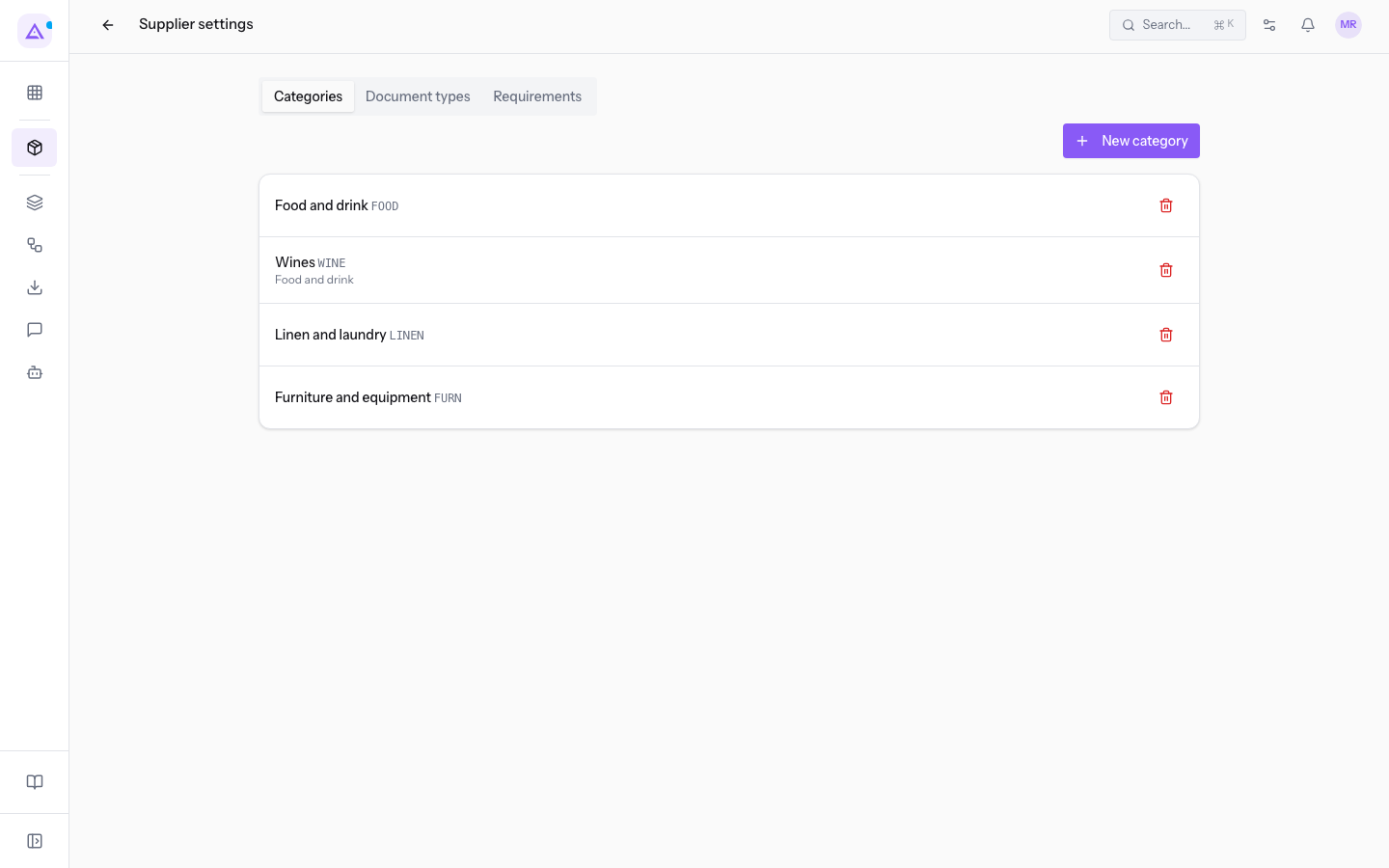
Manage categories
The Categories tab lists the product categories with the name, code and, for subcategories, the name of the parent category.
In the demo the categories are:
Food and drink, codeFOOD, with the subcategoryWines, codeWINE.Linen and laundry, codeLINEN.Furniture and equipment, codeFURN.
To create a category:
- On the Categories tab click New category.
- Fill in the form fields.
- Click Save. Click Cancel to close the form without saving.
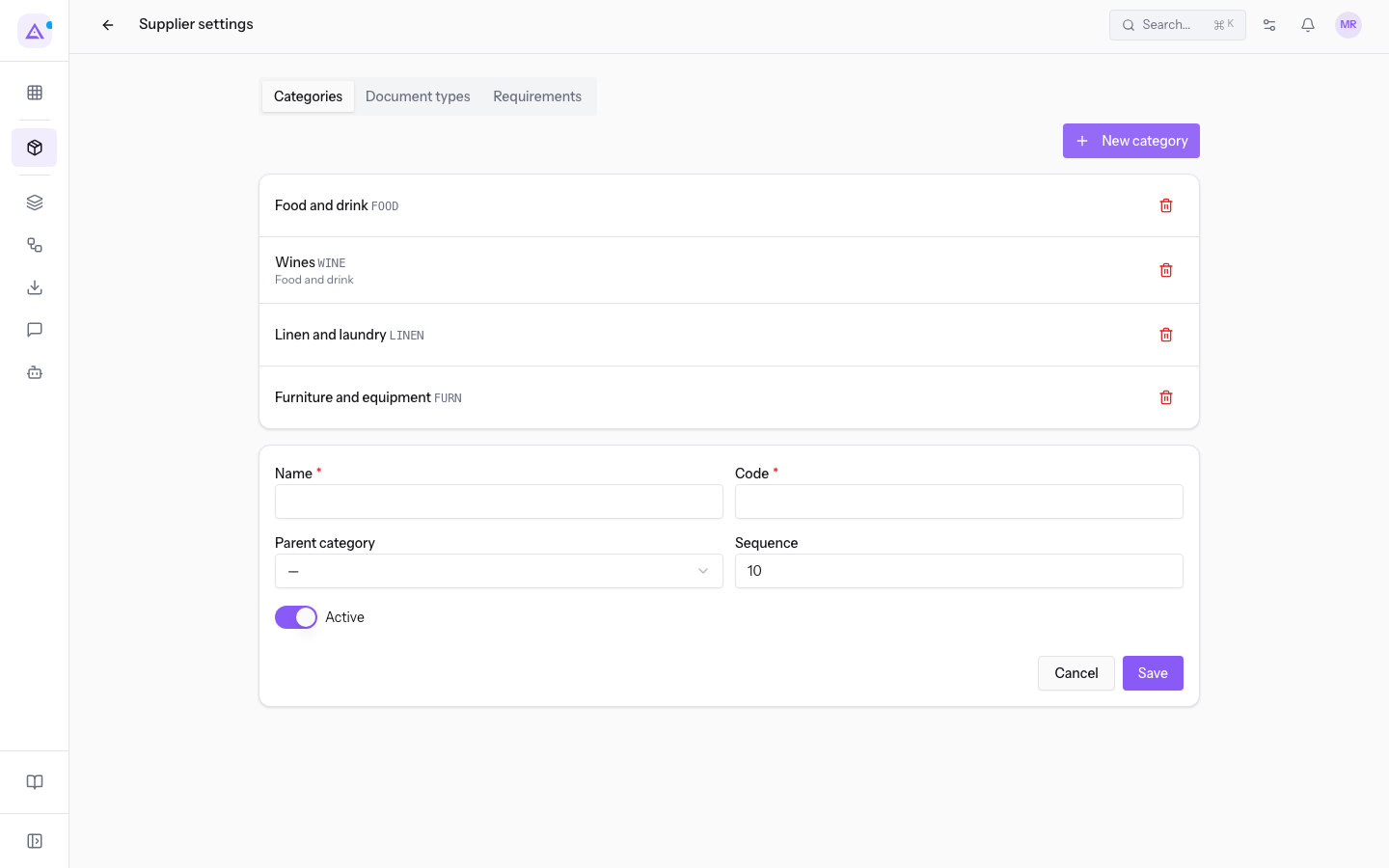
To edit a category, click its row: the same form opens with the saved values.
The form fields:
- Name: the category name, for example
Wines. The field is required. - Code: a short code, shown next to the name in the list, for example
WINE. The field is required. - Parent category: the category that contains this one. Leave — for a top-level category. The options are the existing categories, for example
Food and drinkforWines. - Sequence: a number. The default value is
10. - Active: the toggle is on when you create the category.
Manage document types
The Document types tab lists the documents you can request from suppliers. Each row shows the name, the key, the validity period, the warning days and, if the type is required by default, the required label.
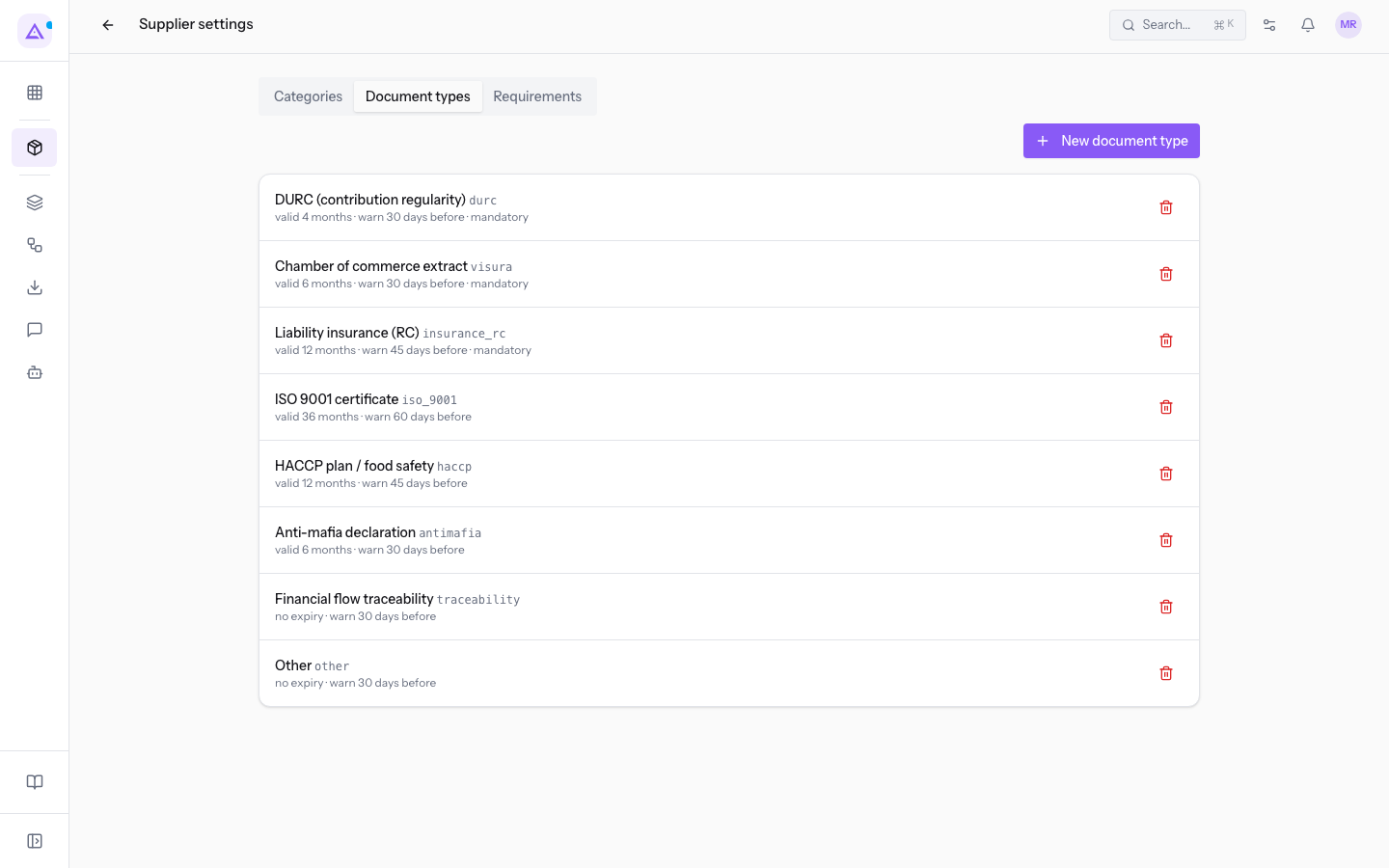
The ready-made types are:
DURC (contribution regularity): validity 4 months, warning 30 days before, required.Chamber of commerce extract: validity 6 months, warning 30 days before, required.Liability insurance (RC): validity 12 months, warning 45 days before, required.ISO 9001 certificate: validity 36 months, warning 60 days before.HACCP plan / food safety: validity 12 months, warning 45 days before.Anti-mafia declaration: validity 6 months, warning 30 days before.Financial flow traceability: no expiry, warning 30 days before.Other: no expiry, warning 30 days before.
To create a document type:
- On the Document types tab click New document type.
- Fill in the form fields.
- Click Save. Click Cancel to close the form without saving.
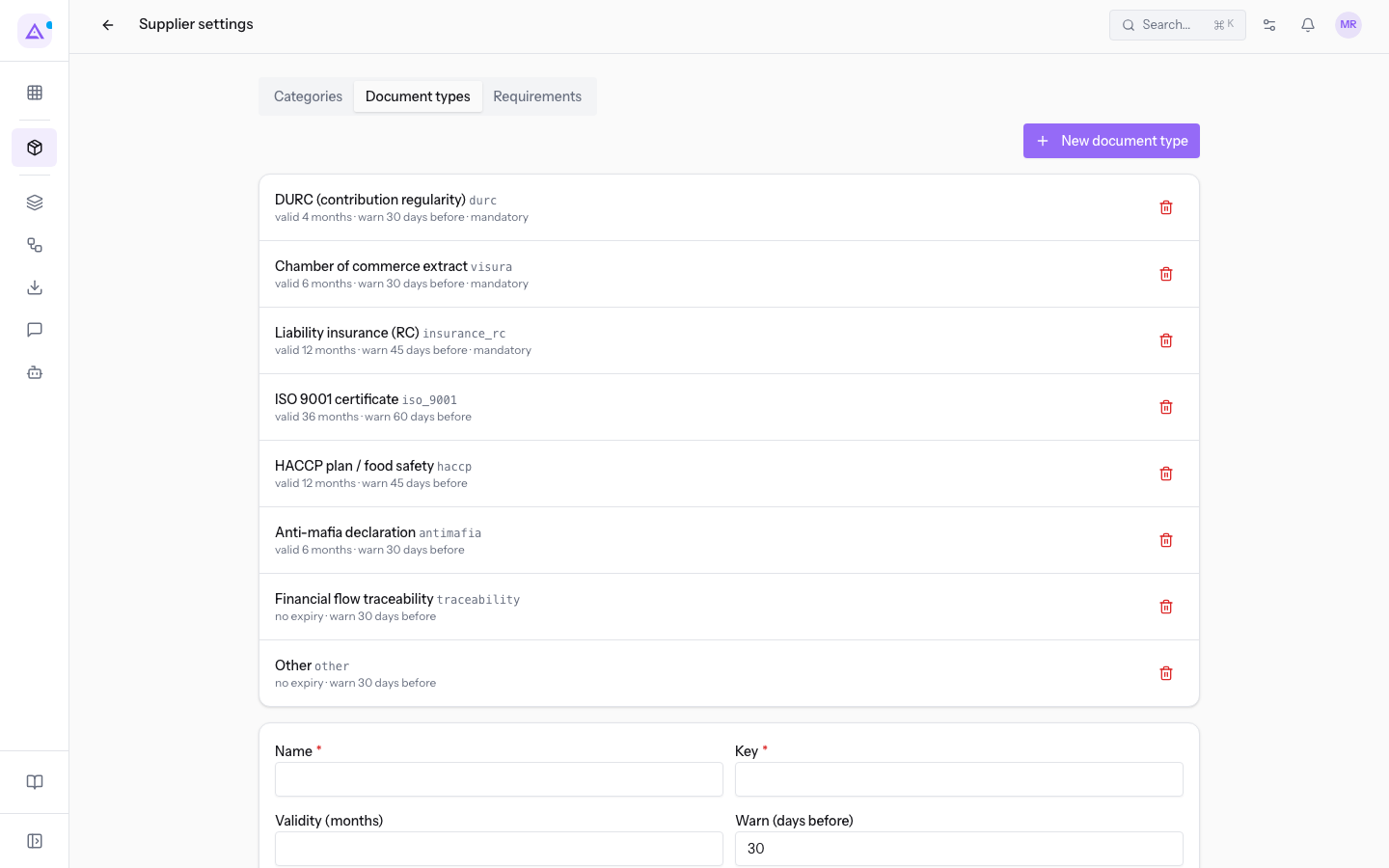
To edit a document type, click its row.
The form fields:
- Name: the document name, as it appears in the supplier's file, for example
Liability insurance (RC). The field is required. - Key: a short identifier, shown next to the name in the list, for example
insurance_rc. The field is required. - Validity (months): how many months the document remains valid from the issue date. If left empty, the type has no expiry. When a document is archived without an expiry date, the expiry is calculated from the issue date and this validity period.
- Warn (days before): how many days before expiry the document moves to Expiring. The default value is
30. - Sequence: a number. The default value is
10. - Required by default: if on, the type is required from every supplier when no requirements exist. The toggle is off when you create the type.
- Active: the toggle is on when you create the type.
Note: the nightly check updates the document status based on validity and warning days. An expired mandatory document causes the supplier to lose their qualification. For documents to review and expiring documents see Review documents uploaded by suppliers.
Manage requirements
The Requirements tab shows the phrase Which documents a supplier must hold, per category or for every supplier. Each row shows the category, or Every supplier, the document type and whether it is mandatory or optional.
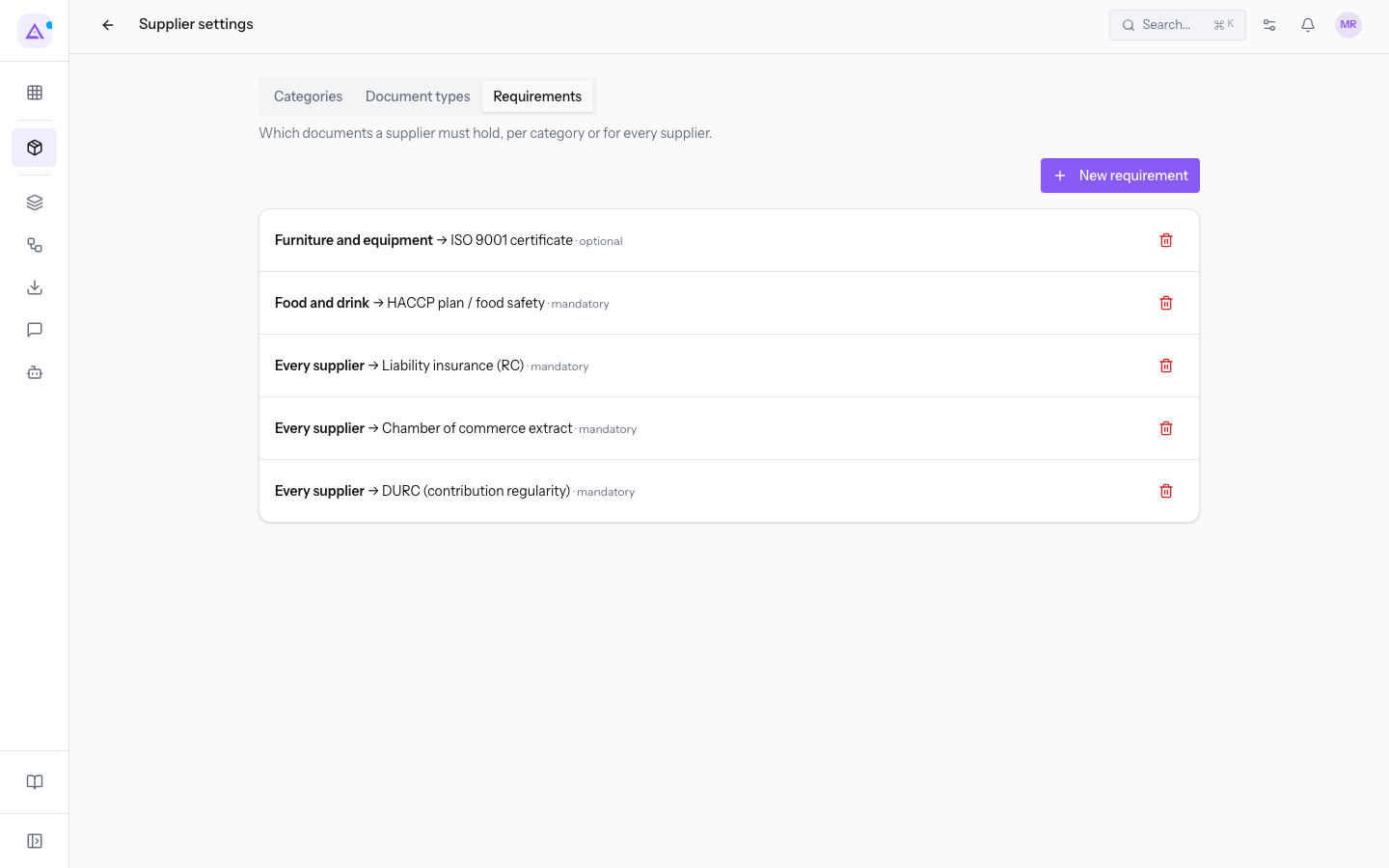
In the demo the requirements are:
- DURC, Chamber of commerce extract and Liability insurance (RC), mandatory for all suppliers.
- HACCP plan / food safety, mandatory for
Food and drink. - ISO 9001 certificate, optional for
Furniture and equipment.
To add a requirement:
- On the Requirements tab click New requirement.
- Fill in the form fields.
- Click Add. Click Cancel to close the form without saving.
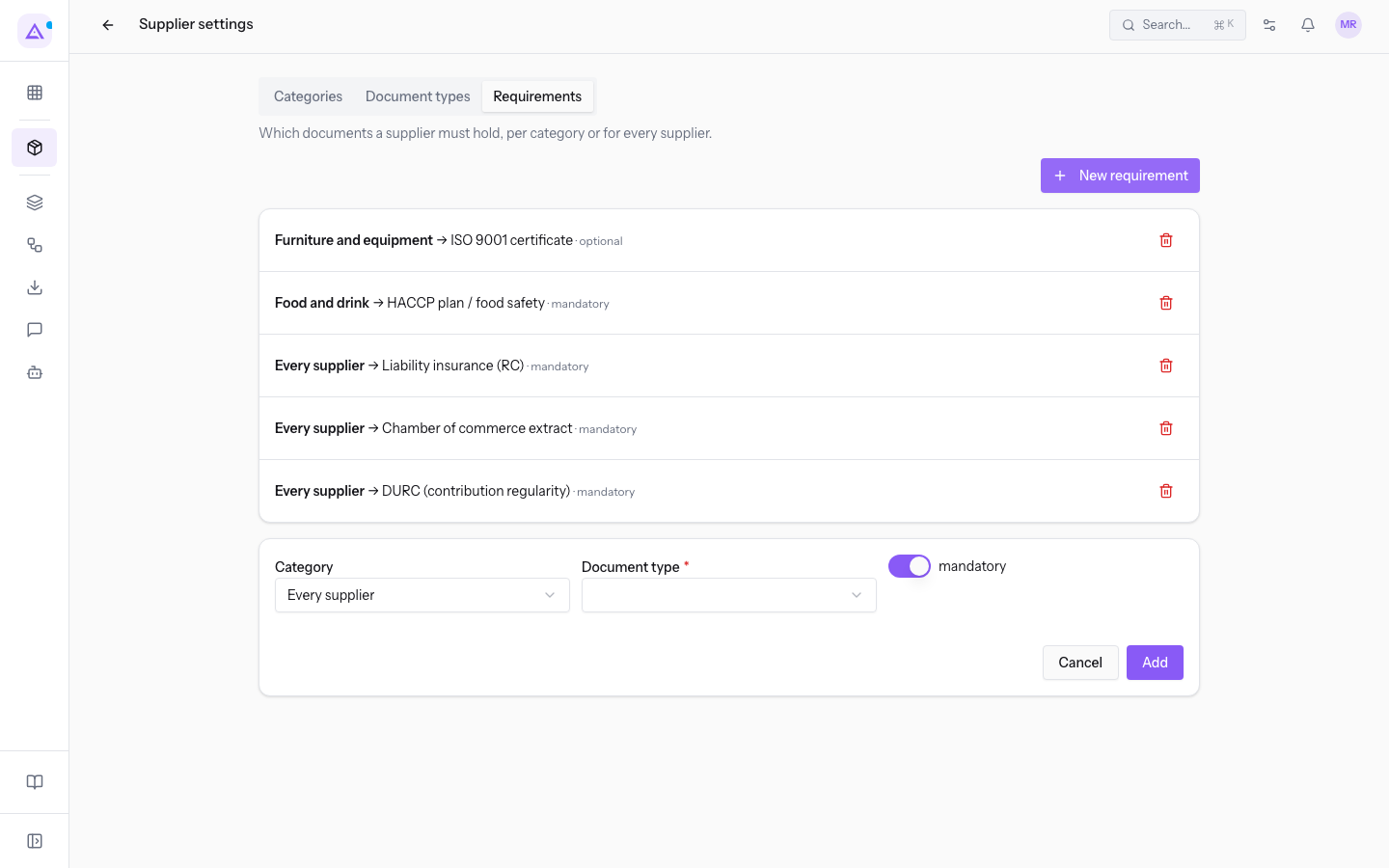
The form fields:
- Category: who the requirement applies to. The default value is Every supplier. The other options are the categories, for example
Food and drinkorWines. - Document type: the required document. The options are the document types, for example
HACCP plan / food safety. The field is required. - mandatory: if on, the document counts towards qualification. If you turn it off, the requirement is optional. The toggle is on when you open the form.
Important: a requirement cannot be edited. To change it, delete it and add it again with the correct values.
Delete a category, a document type or a requirement
Every row on the three tabs has the Delete icon.
- Click the Delete icon on the row. The row is deleted immediately, without a confirmation prompt.
- The Deleted message appears followed by the name. To restore the row, click Undo in the message within eight seconds.
Note: Undo restores the deleted row.
See it on your company, not on a slide deck.
In 30 minutes we map the software you use today.We show you how much work and how much margin Archimedes gives back.
Show me on my business →What industry are you in?
One tap — it lets us prepare the demo around your world.
What tools do you use today?
Pick the ones you recognise — or just type them. It helps us show you how they migrate.
Last step: your details.
We reply within one working day — and right after, if you like, you pick the demo slot yourself.
We couldn't send your request. Try again, or write to us at [email protected].
By sending, you agree to your data being processed so we can get back to you about the demo. Privacy notice.
Preview form — nothing is sent from this page.
Want to schedule the demo now?
Your call: book the slot you prefer yourself, or we'll call you to arrange it.
Live availability, 30 minutes, instant confirmation. The calendar opens in a new tab.
Lock in your slot ↗We'll get back to you within one working day — and we'll join the call already knowing your world.
The calendar is open in another tab: pick a slot and the demo is booked. Can't see it? Reopen it ↗
Preview page: nothing was sent.
Our calendar is live: take the slot that suits you and the demo is booked. 30 minutes, instant confirmation, no waiting.
Lock in your slot ↗