Suppliers
All modules
Managing a supplier's qualification file
Suppliers · 4 of 10 · 5 min read
The qualification file collects the documents a supplier must have in order to be qualified, for example the DURC, the company registration extract, the public liability policy or the HACCP plan. From the file you can check which documents are missing and archive a document you have already verified. You can also review documents uploaded by the supplier and recompute the qualification status.
How the qualification status depends on the file
The Qualified status is not assigned manually: the system calculates it from the mandatory documents. A Candidate supplier becomes Qualified when all mandatory documents for their categories are valid or expiring.
- If a mandatory document has been uploaded from the portal and is awaiting review, it does not count. The supplier remains a candidate until you approve the document.
- If a mandatory document expires, the supplier loses their qualification.
- If the supplier is suspended or excluded, the calculation does not remove their status. To reinstate them, use Reinstate.
The mandatory documents depend on the supplier's categories and on the requirements defined in Suppliers › Settings. In the demo, DURC, Chamber of commerce extract and Liability insurance (RC) are mandatory for everyone. The HACCP plan / food safety is mandatory for the Food and drink category.
For example, Forniture Neri S.r.l. is Candidate because its Liability insurance (RC), uploaded from the portal, is awaiting review. The record header shows “Missing mandatory documents: Liability insurance (RC)”.
Reading the file
The file is a tab on the supplier record. It has one row for each required document type.
Before you start: to archive and review documents you need authorisation from the purchasing office.
- Open Suppliers › Register and click on the supplier, for example Forniture Neri S.r.l.
- Open the Qualification file tab. The number in brackets shows how many rows the file has.
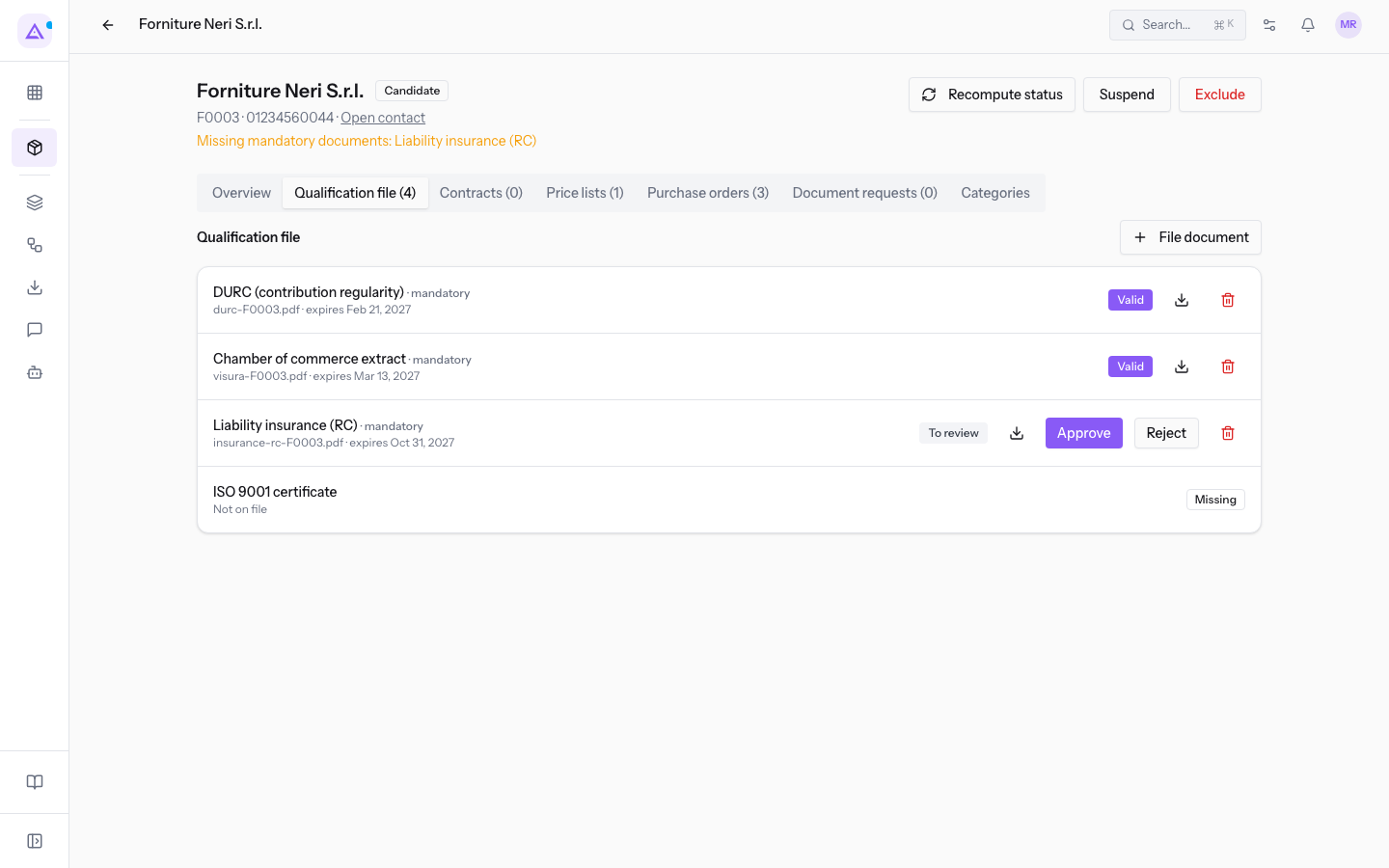
Each row shows:
- The document type, followed by “· mandatory” if the document is mandatory for the supplier.
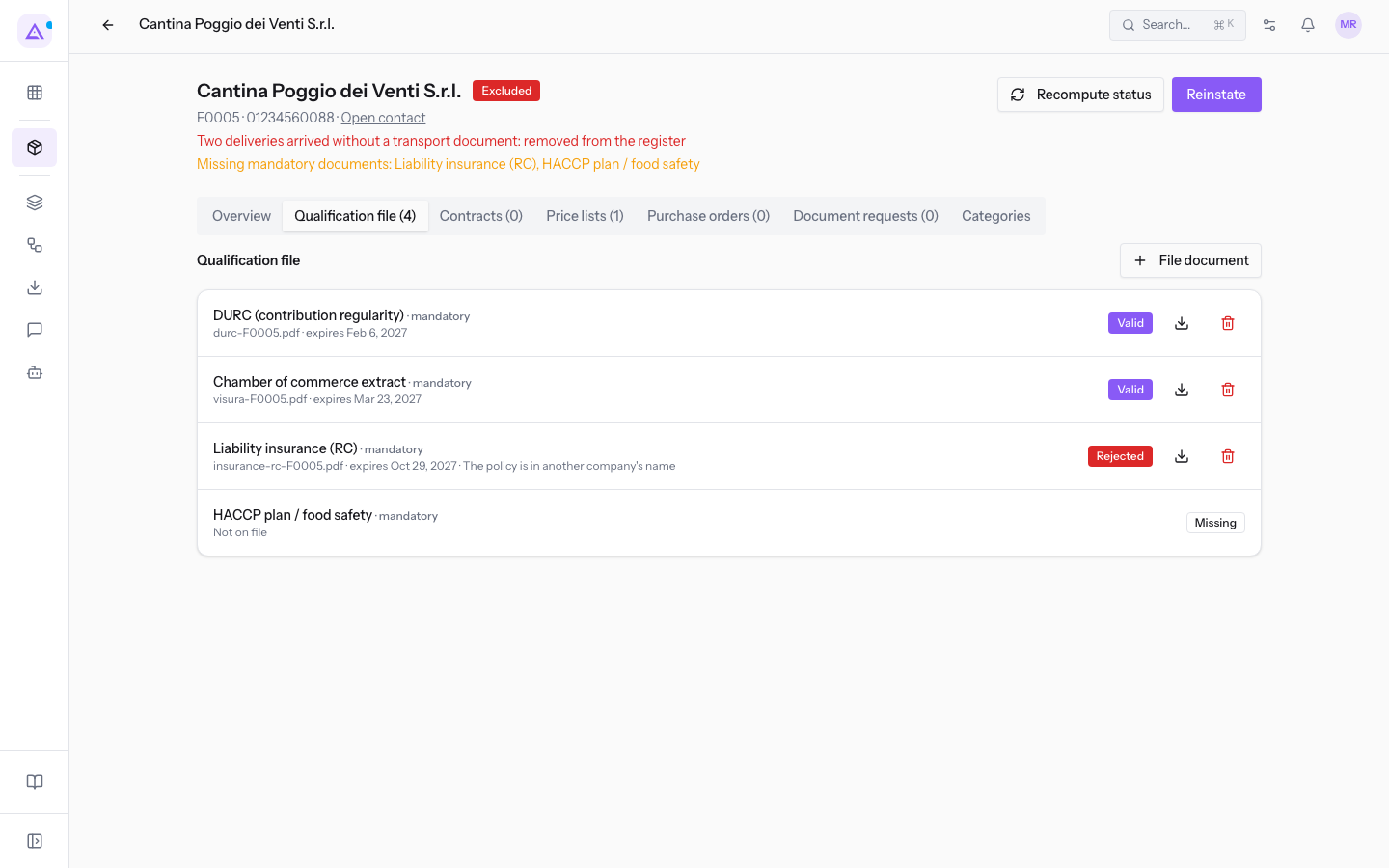
- The file name and expiry date (“expires” followed by the date), or “no expiry”. If the document has been rejected, the row also shows the reason for the rejection.
- The document status: Valid, Expiring, Expired, To review, Rejected or Not on file.
- The Download icon, which opens the file. It only appears if the document has a file.
- The Approve and Reject buttons, only on documents awaiting review.
- The Delete icon, which deletes the document.
For example, the file for Cantina Poggio dei Venti S.r.l. shows the Liability insurance (RC) rejected, with the reason «The policy is in another company's name». It also shows the HACCP plan / food safety as not on file.
If the file has no rows, it shows No requirements: every supplier needs the document types marked as required by default. It also shows the New requirement button, which opens the module settings.
Note: the Delete icon deletes the document without asking for confirmation.
Archiving a document
Use File document when you have already verified the document, for example a DURC that the supplier sent you by email. The document is archived on behalf of the supplier. A document uploaded by the supplier from the portal, on the other hand, arrives as To review.
- In the Qualification file tab, click File document.
- Fill in the dialog fields.
- Click File document. The Document filed message appears.
The dialog reads: A document already checked, filed on the supplier's behalf. Expiry is computed from the issue date when you leave it empty. Its fields are:
- Document type: the document type, chosen from the active types, for example DURC or Liability insurance (RC). The field is required: you cannot press File document while it is empty.
- Issued on: the issue date of the document.
- Expires on: the expiry date. If you leave it empty, it is calculated from the issue date and the validity in months of the document type.
- File: the document file, in PDF, JPG, PNG, DOC, DOCX or P7M format.
Cancel closes the dialog without archiving.
Approving or rejecting a document awaiting review
Documents uploaded by the supplier from the portal remain To review until you approve or reject them. You can review them from the file or from the list of all suppliers, described in Reviewing documents uploaded by suppliers.
- In the Qualification file tab, locate the row with the To review status, for example the Liability insurance (RC) for Forniture Neri S.r.l.
- Open the file using the Download icon and check it.
- Choose the outcome:
- To accept it, click Approve.
- To reject it, click Reject, write the reason in the Reason for the rejection (the supplier reads it): prompt and confirm. Without a reason the document is not rejected.
The rejection reason appears on the file row and the supplier reads it from the portal. Write it for them, for example «The policy is in another company's name».
Recomputing the qualification status
Qualification is recalculated when you file or approve a document or change the supplier's categories. The nightly check updates document expiry statuses and recalculates qualification for affected suppliers. Use Recompute status whenever you want to repeat the check against the documents on file.
- In the supplier record header, click Recompute status.
- The Status recomputed message appears and the header shows the updated status.
Note: Recompute status does not remove a suspension or exclusion. For a suspended or excluded supplier, use Reinstate.
See it on your company, not on a slide deck.
In 30 minutes we map the software you use today.We show you how much work and how much margin Archimedes gives back.
Show me on my business →What industry are you in?
One tap — it lets us prepare the demo around your world.
What tools do you use today?
Pick the ones you recognise — or just type them. It helps us show you how they migrate.
Last step: your details.
We reply within one working day — and right after, if you like, you pick the demo slot yourself.
We couldn't send your request. Try again, or write to us at [email protected].
By sending, you agree to your data being processed so we can get back to you about the demo. Privacy notice.
Preview form — nothing is sent from this page.
Want to schedule the demo now?
Your call: book the slot you prefer yourself, or we'll call you to arrange it.
Live availability, 30 minutes, instant confirmation. The calendar opens in a new tab.
Lock in your slot ↗We'll get back to you within one working day — and we'll join the call already knowing your world.
The calendar is open in another tab: pick a slot and the demo is booked. Can't see it? Reopen it ↗
Preview page: nothing was sent.
Our calendar is live: take the slot that suits you and the demo is booked. 30 minutes, instant confirmation, no waiting.
Lock in your slot ↗