Suppliers
All modules
Create a price list and submit a version on the supplier's behalf
Suppliers · 8 of 10 · 6 min read
A price list collects a supplier's prices in a given currency. Each submission from the supplier becomes a new version of the price list. From this page you create a price list and submit a version on the supplier's behalf, for example when they send you the file by email instead of uploading it from the portal.
How price lists and versions work
A supplier has one price list per currency. The page subtitle summarises this: “One per supplier and currency; every submission is a version.” A submitted version can no longer be edited: to correct it, a new submission is required.
Usually it is the supplier who submits versions from the portal. There they map the file's columns, read the outcome of each row, and can withdraw a submission as long as it has not been decided. Submit a version on their behalf only when the file reaches you another way, for example by email.
Each submitted version goes through review. Unchanged rows are accepted immediately. The others remain pending until someone accepts or rejects them.
Open the price list index
The index shows all supplier price lists, sorted by name.
- Open Suppliers › Price lists.
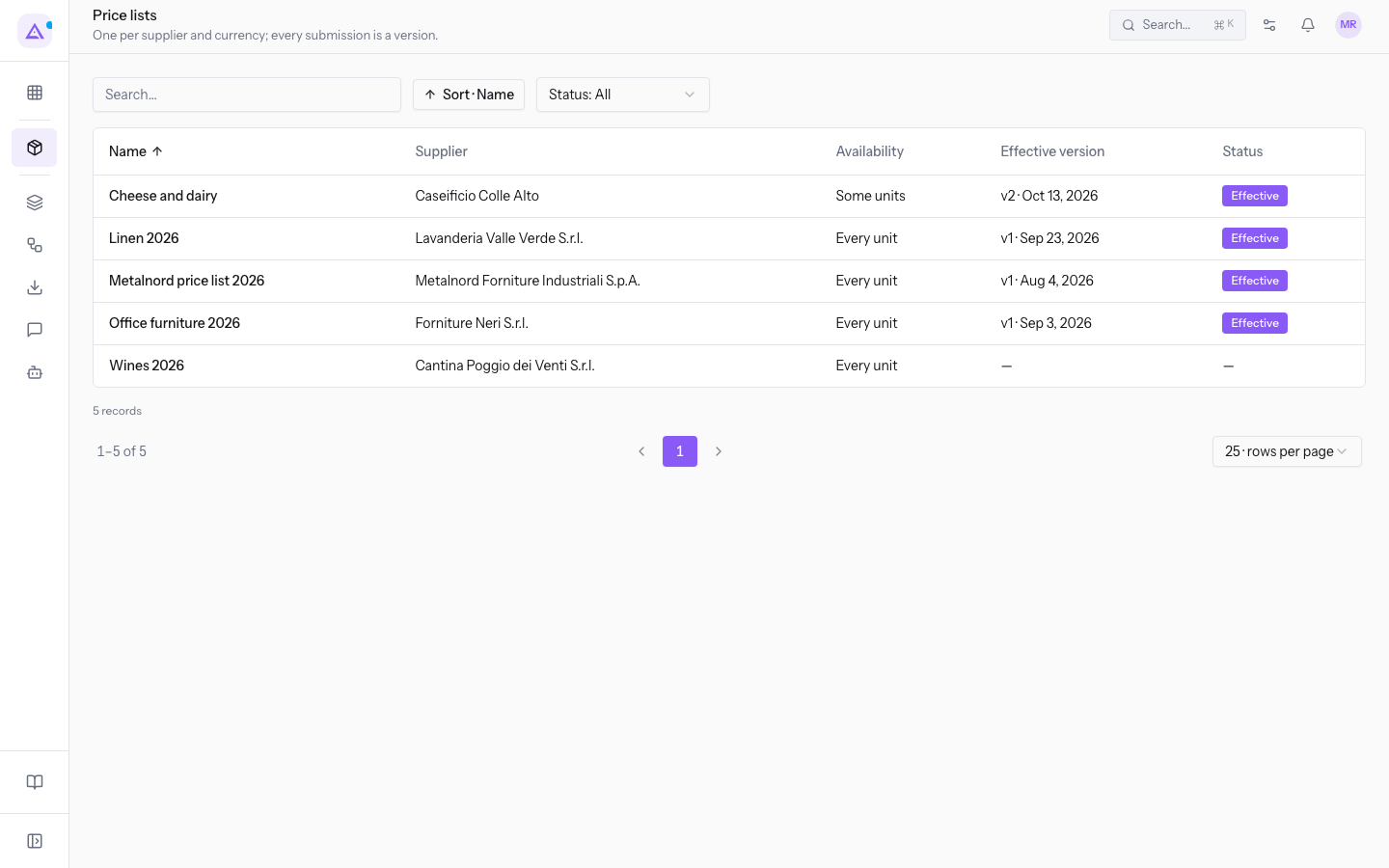
The index has these columns:
- Name: the name of the price list, for example
Cheese and dairy. - Supplier: the price list's supplier, for example
Caseificio Colle Alto. - Availability: the organisational units for which the price list applies, either Every unit or Some units.
- Effective version: the number and effective date of the current version, for example v2. If no version is in effect, the column is empty.
- Status: Effective if the price list has a version in effect.
To search for a price list use the Search… field. To filter the index use the Status filter, with the options Submitted, Under review, Resolved and Effective.
Create a price list
Create a price list when a supplier sends you prices for the first time. The dialog described below has no currency selector.
Before you start: the supplier must already be in the register, meaning they must be a contact marked as a supplier.
Note: on desktop the New price list button only appears when the price list index is empty. On a phone screen it is always visible.
- In Suppliers › Price lists press New price list.
- Fill in the fields in the dialog.
- Press Save.
The dialog has these fields. They are the same as in the Edit price list dialog.
- Supplier: the supplier contact to whom the price list belongs. The field is required.
- Name: the name of the price list, for example
Cheese and dairy. The field is required. - Active: indicates whether the price list is in use. It is active by default.
To close the dialog without saving press Cancel.
Open a price list and edit it
The page for a price list shows its versions, the units it applies to, and the submission section.
- In Suppliers › Price lists click on the price list, for example
Cheese and dairy.
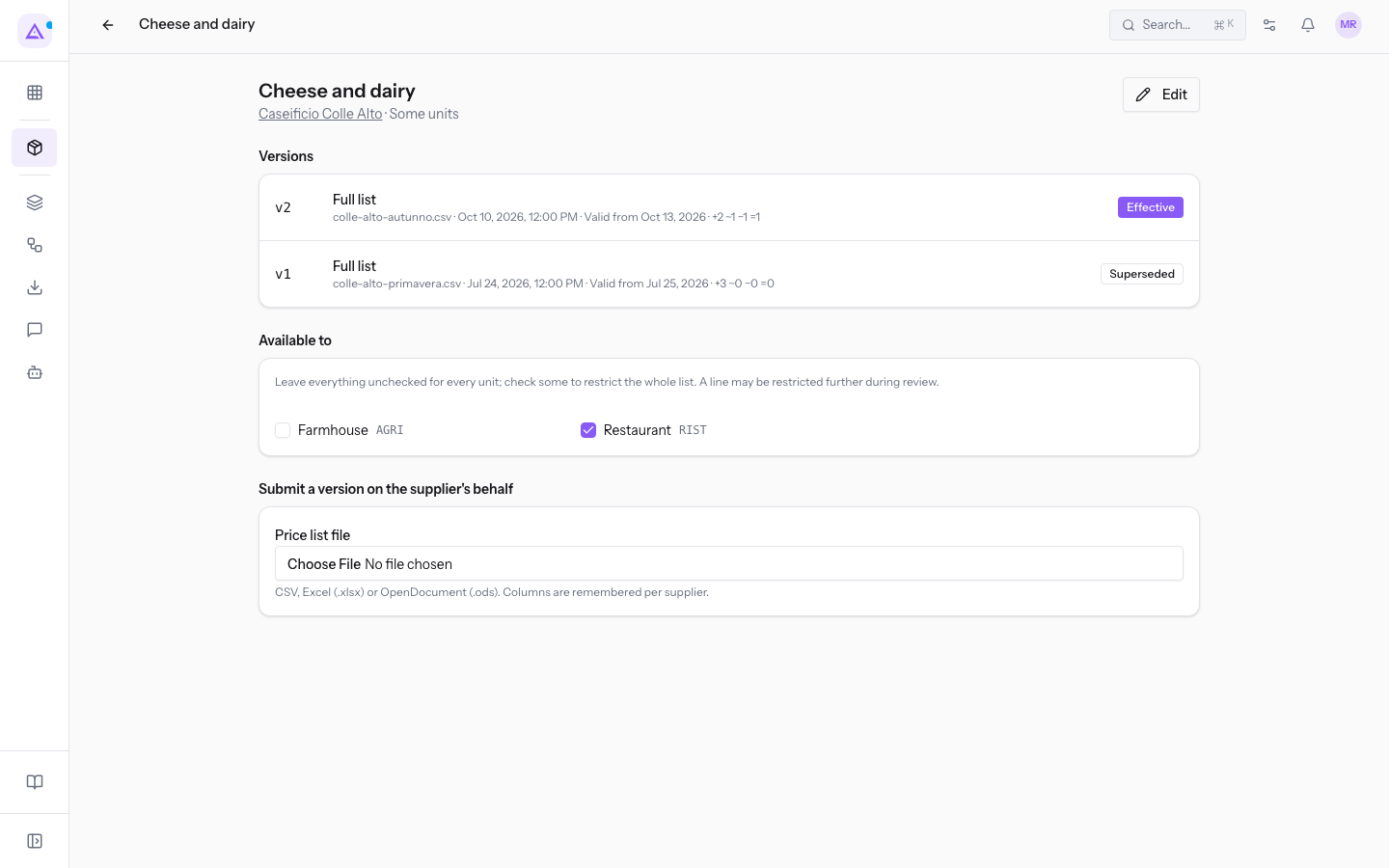
The header shows the supplier and availability, for example Caseificio Colle Alto and Some units. The Available to section lists the organisational units: in the demo Cheese and dairy applies only to the Restaurant.
The Versions section has one row per version, from the most recent. Each row shows:
- the number, for example v2;
- the type, for example Full list;
- the name of the submitted file, with the date and time of submission;
- the Valid from;
- the variation count: new rows (+), changed (~), removed (−) and unchanged (=);
- the status, for example Effective or Superseded.
In the demo, v2 of Cheese and dairy is Effective and v1 is Superseded.
To change the supplier, the name, or the active status of the price list:
- Press Edit. The Edit price list dialog opens.
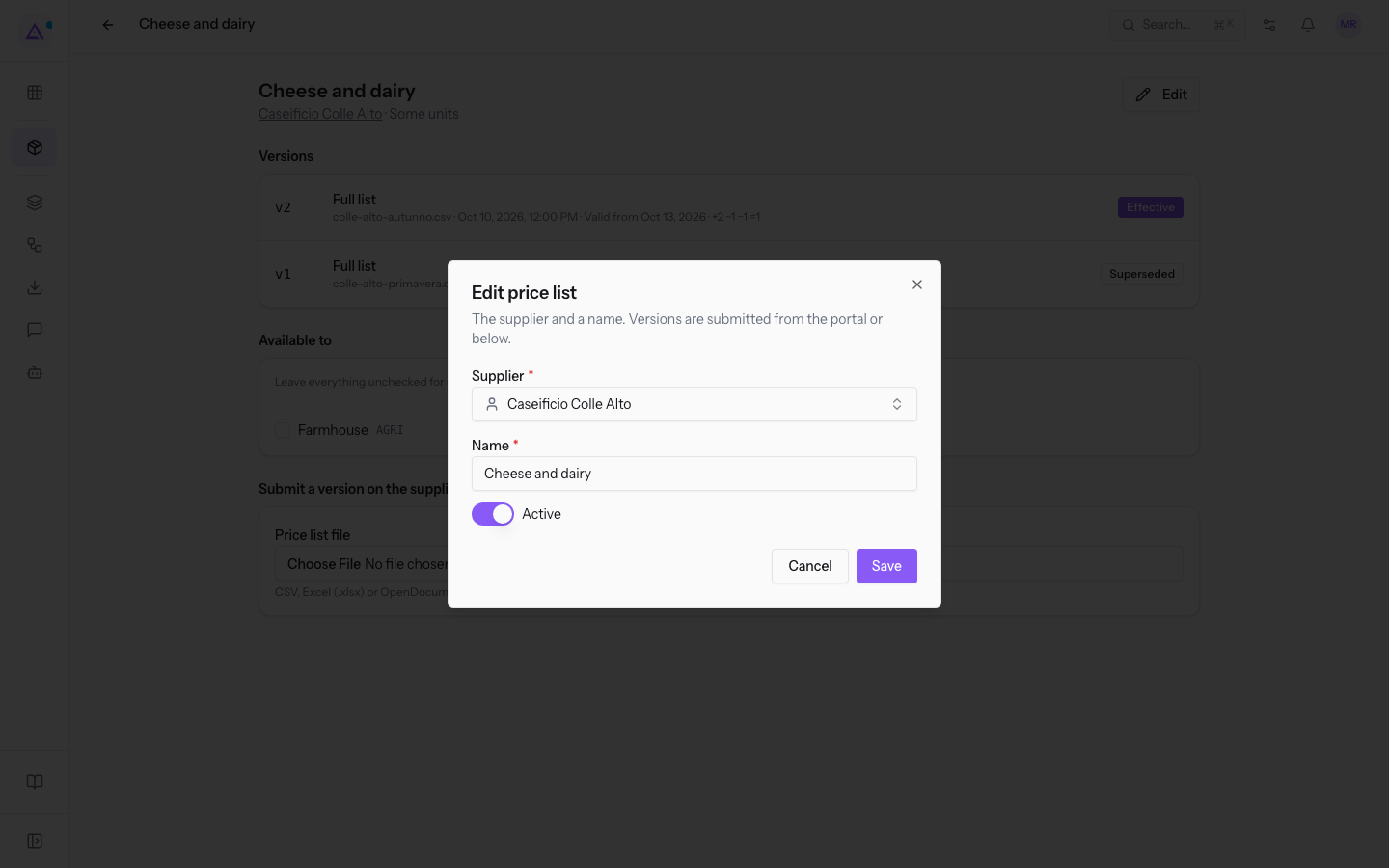
- Change the Supplier, Name or Active fields.
- Press Save.
Full list or increment: which to choose
The version type determines what happens to items that are not in the file.
- Full list (missing articles are removed): the file replaces the entire price list. Items missing from the file become Removed.
- Increment (only the lines sent change): only the rows present in the file change. The others remain unchanged. You can choose this only if the price list has an effective or superseded base version.
If the supplier sends you their entire catalogue, choose Full list (missing articles are removed). If the supplier sends you only the prices that are changing or new items, choose Increment (only the lines sent change). If the supplier has removed items from their offer, choose Full list (missing articles are removed): with an increment, the removed items would remain in the price list.
If the price list has an effective or superseded base version, the default is an increment. Otherwise the default is a full list.
Submit a version on the supplier's behalf
The submission is done in the Submit a version on the supplier's behalf section, at the bottom of the price list page. It takes two steps: first you choose the file, then you map the columns.
Before you start: you need the price list file in CSV, Excel (.xlsx) or OpenDocument (.ods) format.
- Open the price list, for example
Cheese and dairyfromCaseificio Colle Alto. - In Price list file choose the file, for example
listino-colle-alto-inverno.csv. The system reads the file and shows its columns. - If the file has more than one sheet, in Sheet choose the sheet to read.
- Choose the version type: Full list (missing articles are removed) or Increment (only the lines sent change).
- In Valid from enter the date from which the new prices apply.
- Map the file's columns to the price list fields.
- If needed, write the Notes for the review.
- Press Submit version.
The section accepts CSV, Excel (.xlsx) and OpenDocument (.ods) files. Sheet appears only for files with multiple sheets. An increment requires an effective or superseded base version; without a base, use a full list. Notes for the review is optional.
Important: Submit version remains disabled until you map a column to every required field.
Tip: the column mapping is remembered for each supplier. On the next submission from the same supplier the columns are already mapped.
What happens after submission
After Submit version the section clears and the new version appears in the Versions section.
The system compares each row with the base version and classifies it as New, Changed, Removed or Unchanged. It maps each row to a catalogue item by searching first for the barcode, then our code, then the codes previously used by the supplier. Rows it cannot map are marked Not mapped.
Unchanged rows are accepted immediately. The others must be reviewed in Suppliers › Review queue. When no lines remain pending, the system checks Valid from. If the date has arrived, the version becomes Effective immediately; a future date leaves it Resolved until the nightly check. If no lines were accepted, the version is rejected when its effective date is checked. When the version becomes effective, the previous one becomes Superseded.
See it on your company, not on a slide deck.
In 30 minutes we map the software you use today.We show you how much work and how much margin Archimedes gives back.
Show me on my business →What industry are you in?
One tap — it lets us prepare the demo around your world.
What tools do you use today?
Pick the ones you recognise — or just type them. It helps us show you how they migrate.
Last step: your details.
We reply within one working day — and right after, if you like, you pick the demo slot yourself.
We couldn't send your request. Try again, or write to us at [email protected].
By sending, you agree to your data being processed so we can get back to you about the demo. Privacy notice.
Preview form — nothing is sent from this page.
Want to schedule the demo now?
Your call: book the slot you prefer yourself, or we'll call you to arrange it.
Live availability, 30 minutes, instant confirmation. The calendar opens in a new tab.
Lock in your slot ↗We'll get back to you within one working day — and we'll join the call already knowing your world.
The calendar is open in another tab: pick a slot and the demo is booked. Can't see it? Reopen it ↗
Preview page: nothing was sent.
Our calendar is live: take the slot that suits you and the demo is booked. 30 minutes, instant confirmation, no waiting.
Lock in your slot ↗