Suppliers
All modules
Reviewing documents uploaded by suppliers
Suppliers · 5 of 10 · 5 min read
The Supplier documents page collects all suppliers' qualification documents in a single list. You use it to approve or reject documents uploaded by suppliers and to check those that are expiring or have expired, such as a DURC, a company register extract, or a liability insurance policy.
Where documents come from and how their status changes
Documents arrive in two ways.
- The supplier uploads the document through the portal, in the dedicated suppliers area. The document remains To review until a staff member approves or rejects it.
- A staff member files a document they have already checked from the supplier's Qualification file, using File document. This document does not go through review.
A document still To review does not count towards qualification. A Candidate supplier becomes Qualified only when all mandatory documents for their categories are usable. Qualification is recalculated when you file or approve a document or change the supplier's categories. You can also use Recompute status. The nightly check updates document expiry statuses and the qualification of affected suppliers. For example, Forniture Neri S.r.l. remains a candidate as long as its liability insurance policy is under review.
Every night an automatic check updates the status of documents: a document moves from Valid to Expiring and then to Expired, without any intervention. The transition to Expiring is based on the Warn (days before) field of the document type. An expired mandatory document causes the supplier to lose their qualification.
Opening the documents list
The list shows all suppliers' documents, with the subtitle “Uploads to review and documents about to expire.”.
Before you start: to review documents you need the purchasing office or supplier manager authorisation of the Suppliers module.
- Open Suppliers › Documents.
- The list opens sorted by Expires on, from the nearest expiry.
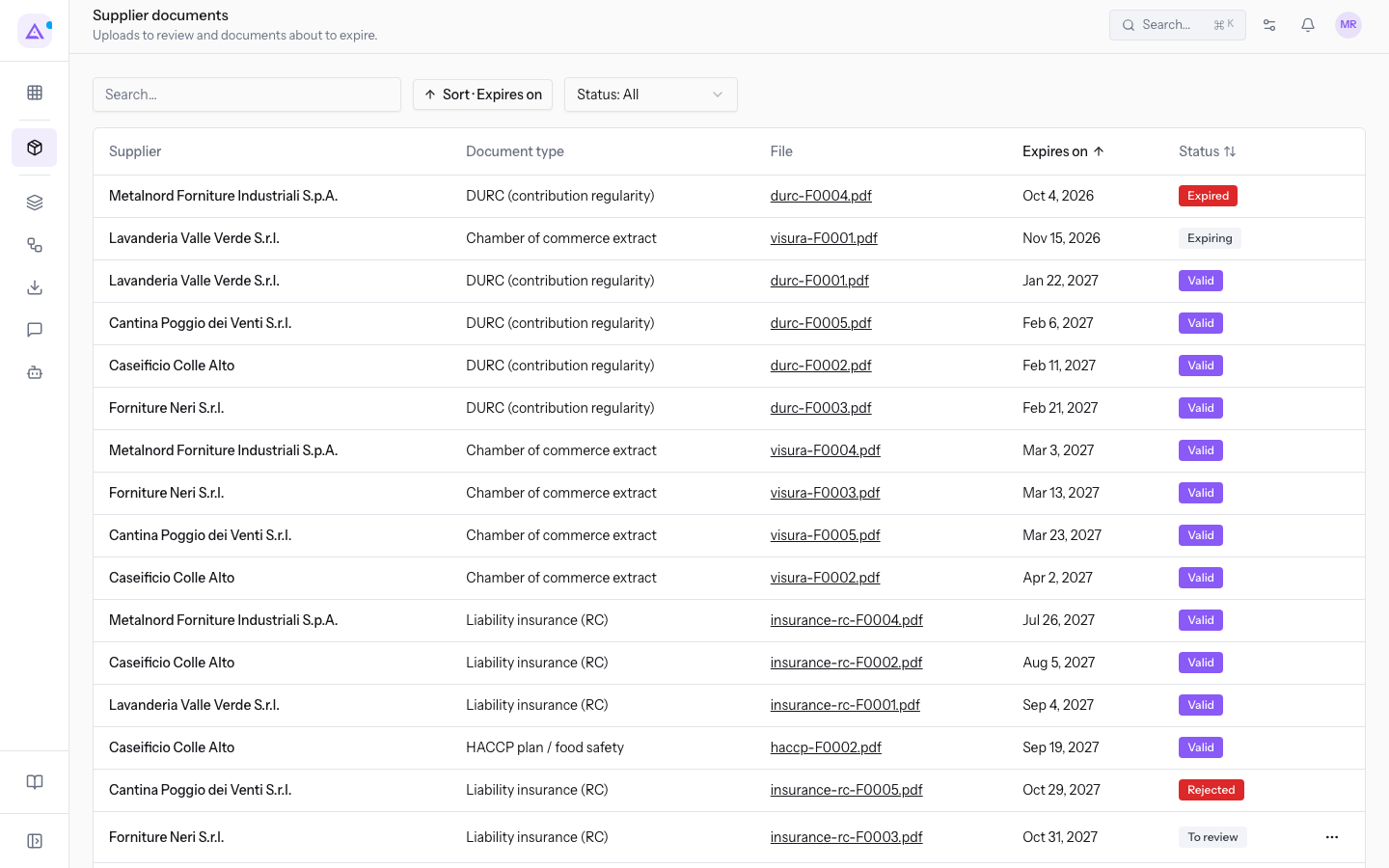
The list has these columns:
- Supplier: the supplier's name, for example
Lavanderia Valle Verde S.r.l.. - Document type: the document type, for example Company register extract or DURC (contribution compliance).
- File: the name of the uploaded file, for example
visura-F0001.pdf. - Expires on: the document's expiry date, for example 15 Nov 2026.
- Status: the document's status.
- To review: the document has been uploaded by the supplier and is awaiting review.
- Valid: the document is usable and is not close to expiry.
- Expiring: the document is usable but the expiry is within the warning days of its type. For example, the company register extract of
Lavanderia Valle Verde S.r.l.expires on 15 Nov 2026. - Expired: the expiry date has passed. For example, the DURC of
Metalnord Forniture Industriali S.p.A., filedurc-F0004.pdf, expired on 4 Oct 2026. - Rejected: the document was rejected during review.
At the bottom of the page, choose how many rows to show with Rows per page and navigate pages with Next page and Previous page. The Search… field above the list filters the rows.
Click a row to open the supplier's record. For example, click Lavanderia Valle Verde S.r.l. to open the supplier record on Overview, then click Qualification file.
Filtering and sorting the list
Filtering and sorting help you find the documents that need attention.
- If you want to see only the uploads to approve or reject, filter by To review.
- If you want to request a renewal before expiry, filter by Expiring.
- If you want to check the suppliers who have lost a document, filter by Expired.
To filter by status:
- Open the Status filter, which by default shows Status: Everyone.
- Choose a status from To review, Valid, Expiring, Expired, and Rejected.
- To return to all documents, press Clear filters.
The list can only be sorted by two columns:
- Sort by Expires on: sorts by expiry date. This is the default sort.
- Sort by Status: sorts by document status.
Approving or rejecting a document
Approve a document when the file matches the requested type and is addressed to the supplier. Reject it when it cannot be used: the supplier reads the reason and can upload a new document from the portal.
The menu with Approve and Reject appears only on rows of documents under review.
- Open Suppliers › Documents.
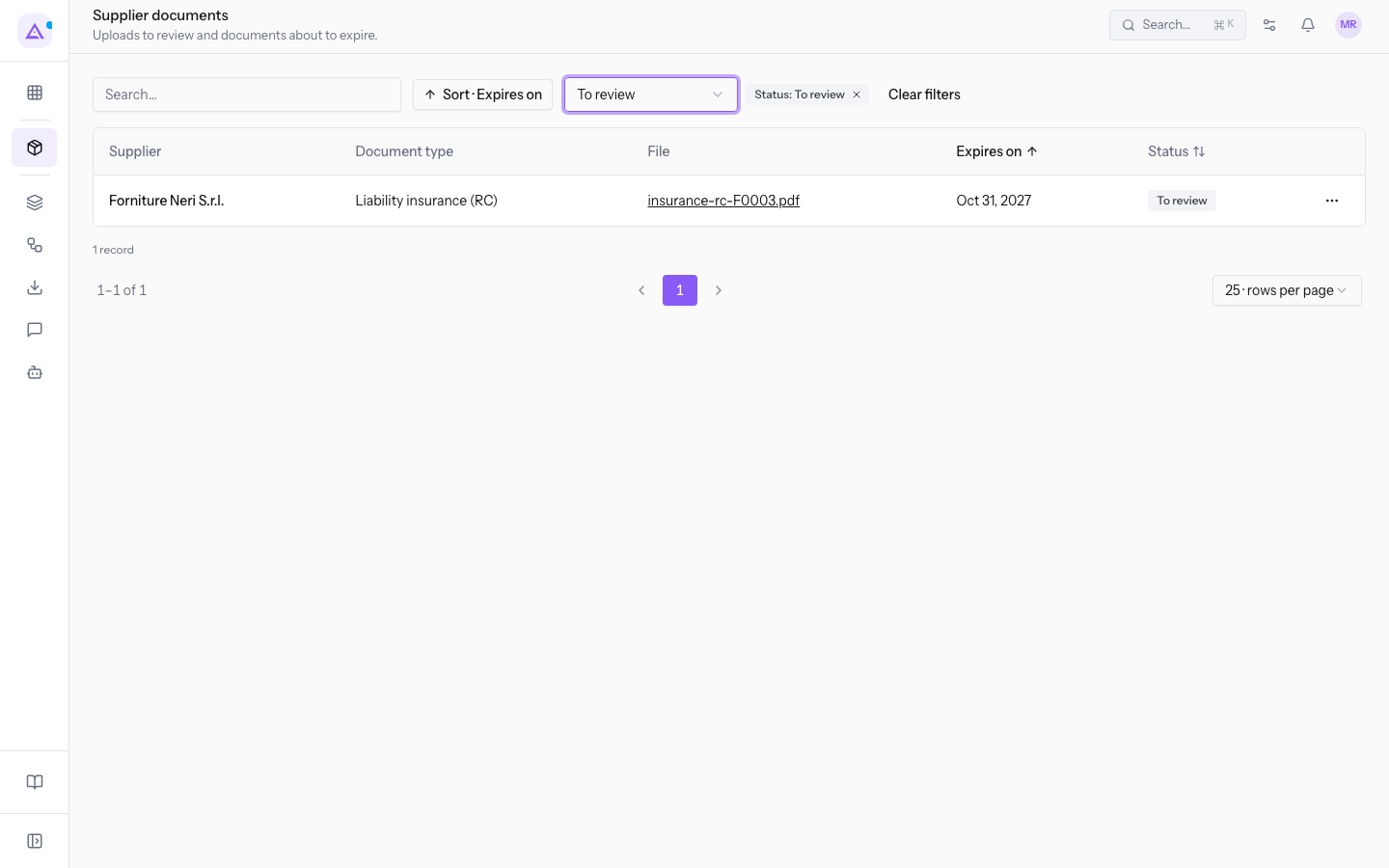
- In the Status filter, choose To review. For example, the liability insurance policy of
Forniture Neri S.r.l., fileinsurance-rc-F0003.pdf, appears.
- Open the ⋯ menu at the end of the document row.
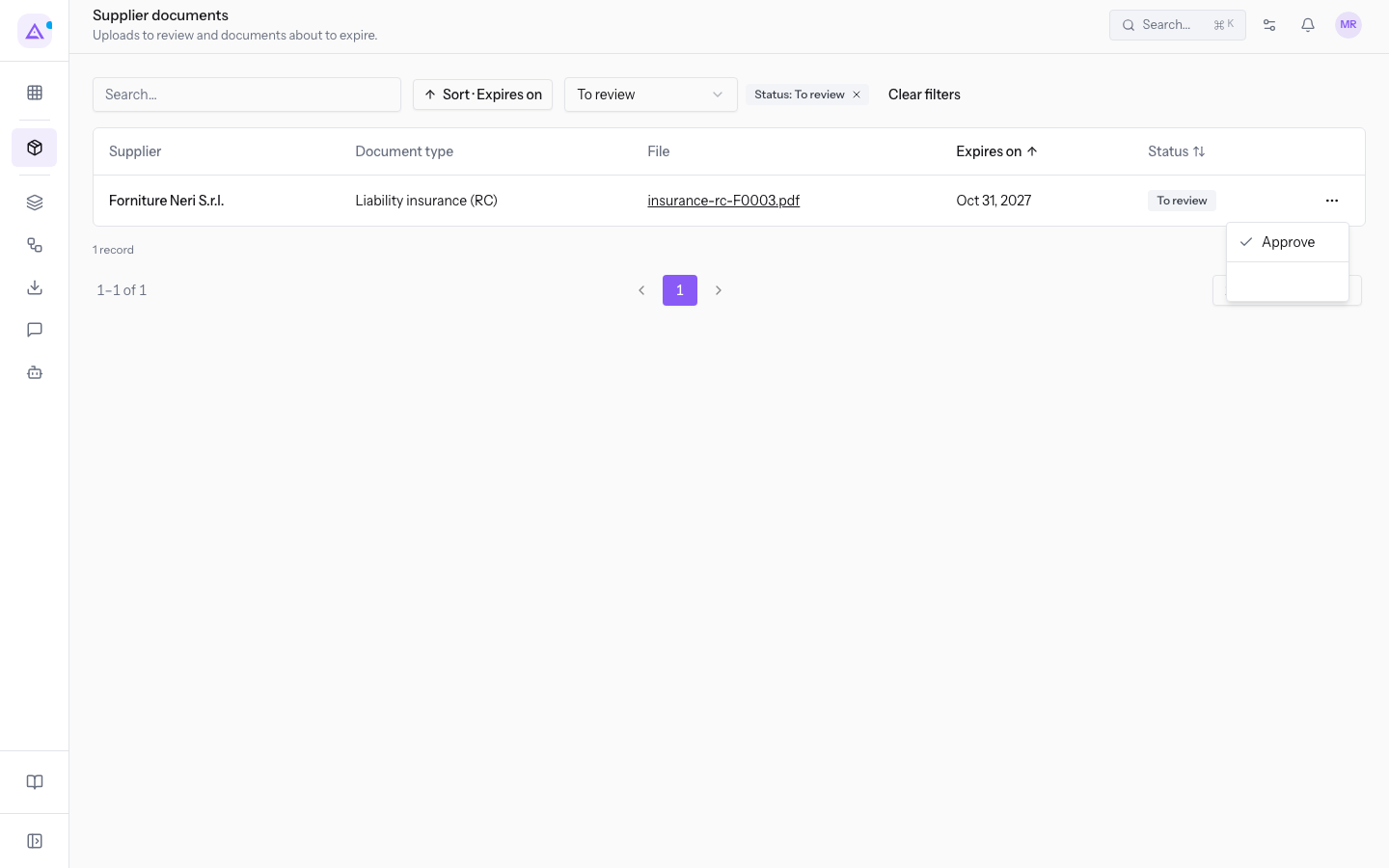
- Choose one of the two options:
- Approve: the document exits review and becomes usable for qualification.
- Reject: the browser opens a window with the question Reason for the rejection (the supplier reads it):. Write the reason and confirm. The document moves to Rejected.
Important: the reason for rejection is visible to the supplier in the portal. Write it for them, indicating what they need to correct.
Note: approving a document recalculates the supplier's qualification immediately. The supplier becomes Qualified only when all mandatory documents are usable.
See it on your company, not on a slide deck.
In 30 minutes we map the software you use today.We show you how much work and how much margin Archimedes gives back.
Show me on my business →What industry are you in?
One tap — it lets us prepare the demo around your world.
What tools do you use today?
Pick the ones you recognise — or just type them. It helps us show you how they migrate.
Last step: your details.
We reply within one working day — and right after, if you like, you pick the demo slot yourself.
We couldn't send your request. Try again, or write to us at [email protected].
By sending, you agree to your data being processed so we can get back to you about the demo. Privacy notice.
Preview form — nothing is sent from this page.
Want to schedule the demo now?
Your call: book the slot you prefer yourself, or we'll call you to arrange it.
Live availability, 30 minutes, instant confirmation. The calendar opens in a new tab.
Lock in your slot ↗We'll get back to you within one working day — and we'll join the call already knowing your world.
The calendar is open in another tab: pick a slot and the demo is booked. Can't see it? Reopen it ↗
Preview page: nothing was sent.
Our calendar is live: take the slot that suits you and the demo is booked. 30 minutes, instant confirmation, no waiting.
Lock in your slot ↗