Suppliers
All modules
Reading a supplier's record
Suppliers · 3 of 10 · 6 min read
A supplier's record gathers on a single page the qualification status, documents, price lists, purchase orders, and product categories of a supplier in the register. You need it, for example, to understand why a supplier is still a candidate, which price lists are active, or how many orders are open.
Opening the record
Before you start: to view the record you need at least the Suppliers module user permission.
- Open Suppliers › Register.
- Click on the supplier's row, for example
Forniture Neri S.r.l..
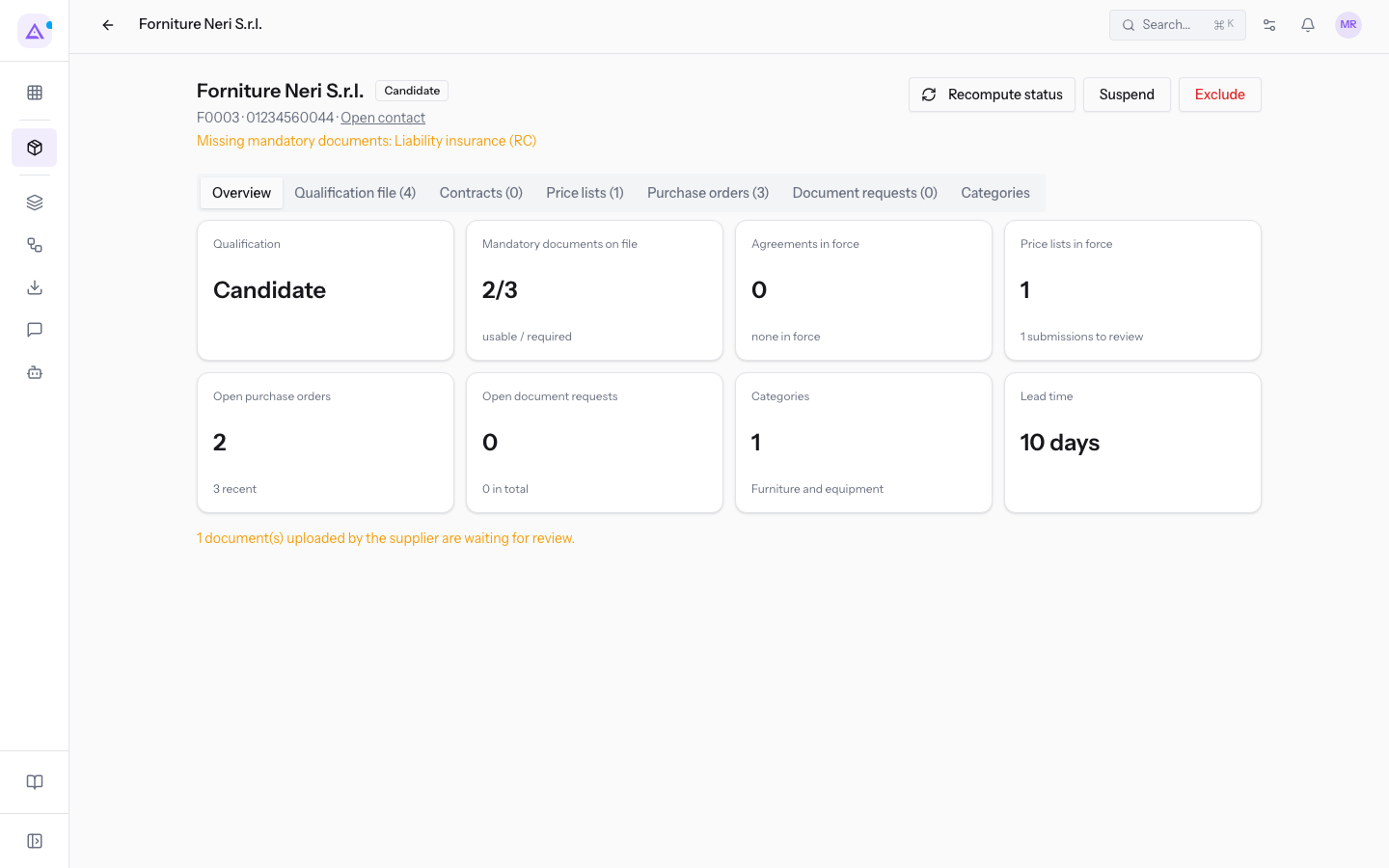
The record opens on the Overview tab.
The header
The header shows who the supplier is and what they are missing to be qualified.
- Name and status: the supplier's name, followed by the qualification status (Candidate, Qualified, Suspended, or Excluded). For example
Forniture Neri S.r.l.is Candidate. - Code and VAT number: below the name appear the supplier code and VAT number, for example
F0003and01234560044. If a value is missing, a dash appears in its place. - Open contact: opens the contact record in the Contacts module. The supplier is a contact marked as a supplier: name, address, and contact details are edited there.
- Reason for suspension or exclusion: appears in red only for a suspended or excluded supplier. For example the record of
Metalnord Forniture Industriali S.p.A.showsDURC expired: no new orders until the renewed one arrives. - Missing mandatory documents: appears only if at least one mandatory document is missing, with the list of documents. For example for
Forniture Neri S.r.l.the line readsMissing mandatory documents: Liability insurance (RC).
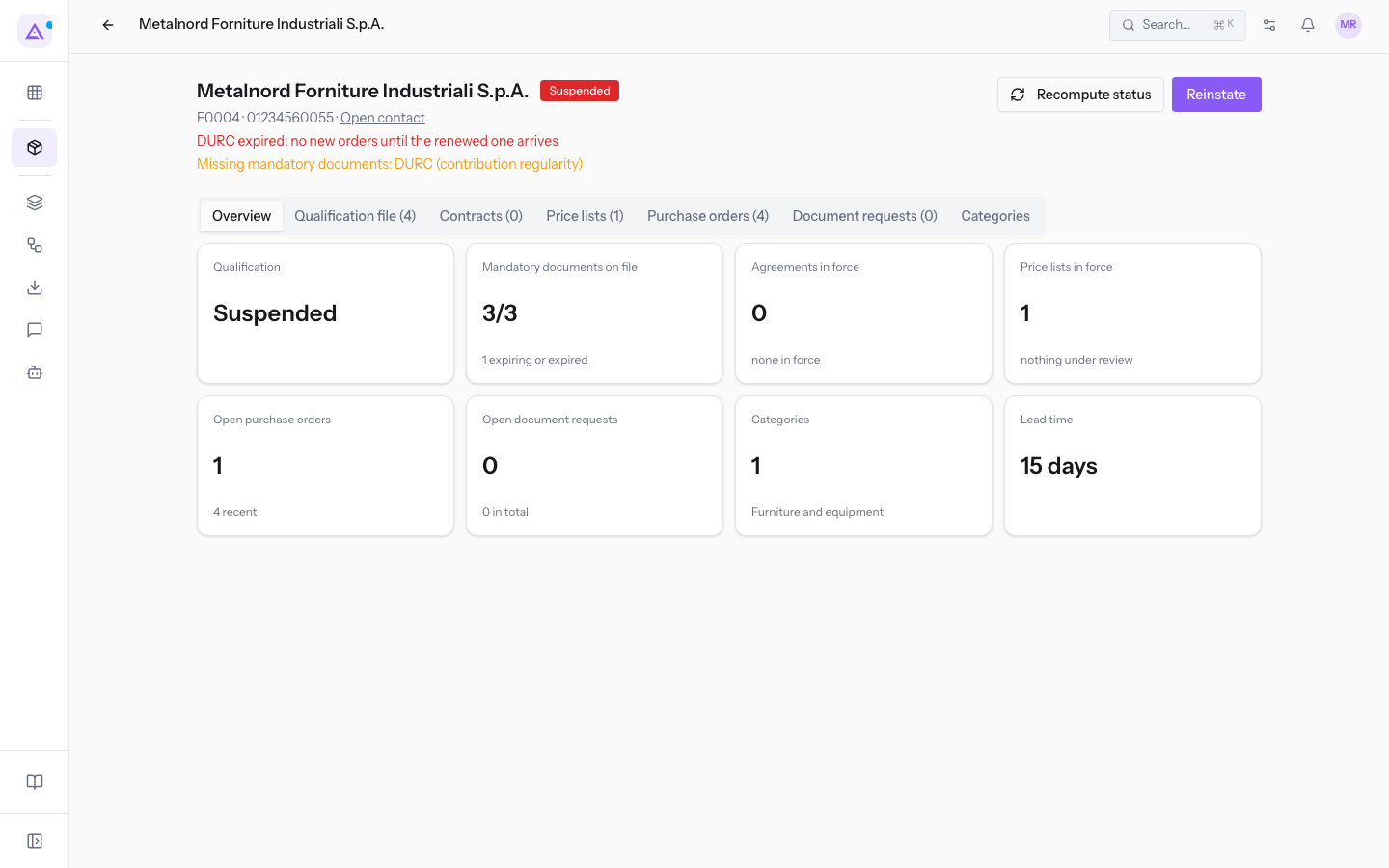
To the right of the header are the action buttons for the supplier.
- Recompute status: recalculates the qualification status from the mandatory documents. The calculation also runs every night.
- Suspend and Exclude: appear for a candidate or qualified supplier.
- Reinstate: appears in place of Suspend and Exclude for a suspended or excluded supplier.
Note: the Qualified status is not assigned manually. A Candidate becomes Qualified when every mandatory document for their categories is usable. Suspension and exclusion remain in place until you use Reinstate. Suspension can also be applied automatically on document expiry if configured.
The Overview tab
The Overview tab summarizes the supplier in a series of panels. Each panel shows a value and, below it, a detail line.
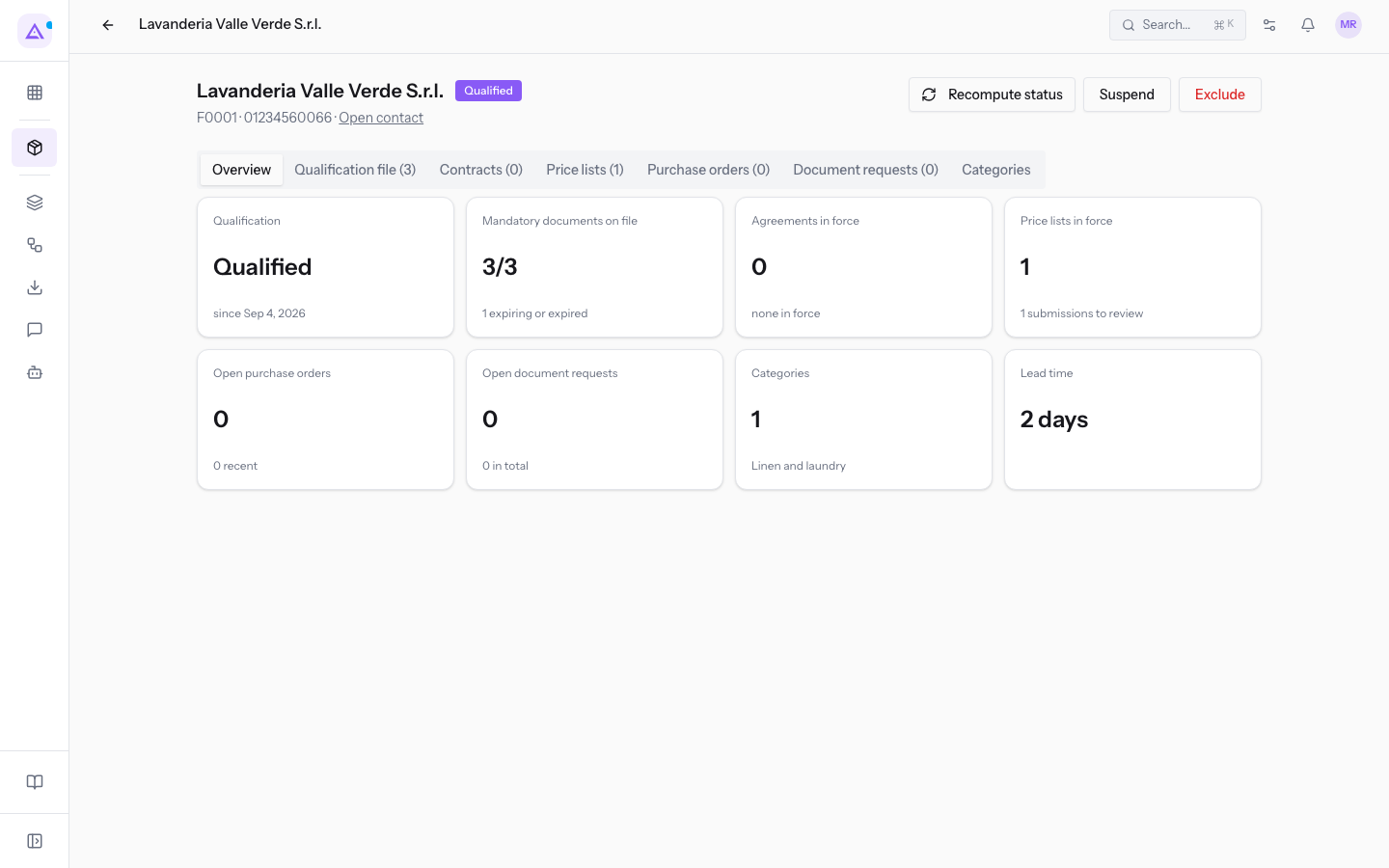
- Qualification: the qualification status. If the supplier is qualified, below appears the date from which they are qualified.
- Mandatory documents on file: the number of valid or expiring documents, out of the number of mandatory documents. If there are expiring or expired documents, their number appears below.
- Price lists in force: the number of the supplier's price lists with an active version. If there are versions awaiting review, their number appears below.
- Open purchase orders: the number of purchase orders that are not concluded and not cancelled, with the number of recent orders shown below. Clicking the panel opens the supplier's purchase orders. For example
Forniture Neri S.r.l.has 2 open orders out of 3 recent ones. The panel appears only if the Purchases module is active. - Categories: the number of product categories for the supplier, with their names below.
- Lead time: the supplier's delivery time in days. The panel appears only if the lead time is specified.
If the supplier has documents uploaded from the portal that are still to be reviewed, a notice with their number appears below the panels.
For example Lavanderia Valle Verde S.r.l. is Qualified, but its Chamber of Commerce extract is expiring: the Mandatory documents on file panel signals the expiry.
The Qualification file tab
The Qualification file tab lists the documents required from the supplier, with their status. The number in parentheses is the number of documents in the file, for example Qualification file (4) for Forniture Neri S.r.l.. From this tab you archive and review documents.
The Price lists tab
The Price lists tab lists the supplier's price lists. The number in parentheses is the number of price lists.
- Open the supplier's record, for example
Forniture Neri S.r.l.. - Click on Price lists.
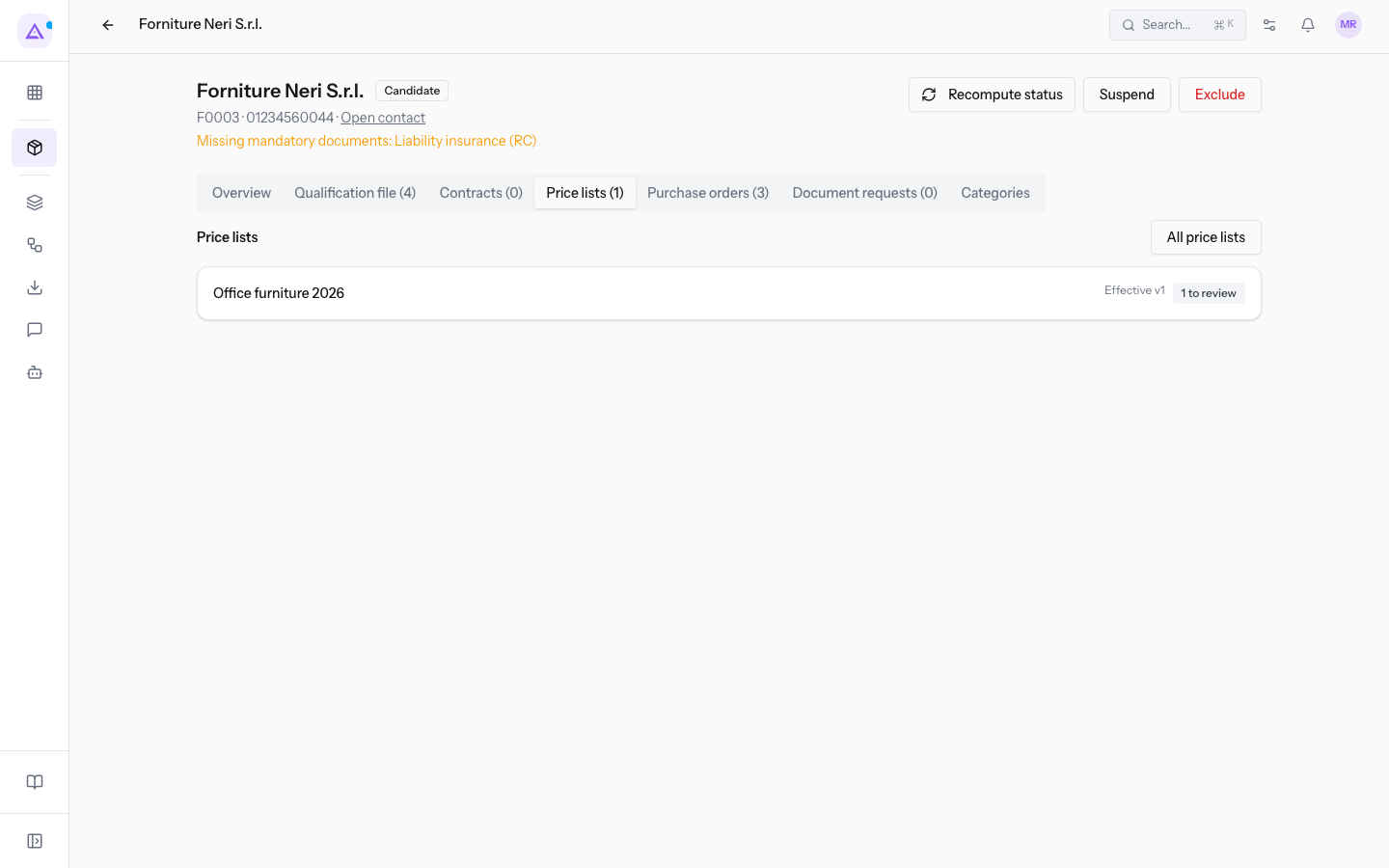
Each row shows:
- Price list name: for example
Office furniture 2026. Clicking on the row opens the price list page. - Active version: the version number of the active version, for example
Effective v1. If no version is active, the row indicates it. - Versions to review: appears only if there are versions awaiting a decision, with their number, for example
1 to review.
The All price lists button opens the list of price lists filtered on this supplier.
The Purchase orders tab
The Purchase orders tab lists the supplier's recent purchase orders. The number in parentheses is the number of orders listed.
Before you start: the tab appears only if the Purchases module is active.
- Open the supplier's record, for example
Forniture Neri S.r.l.. - Click on Purchase orders.
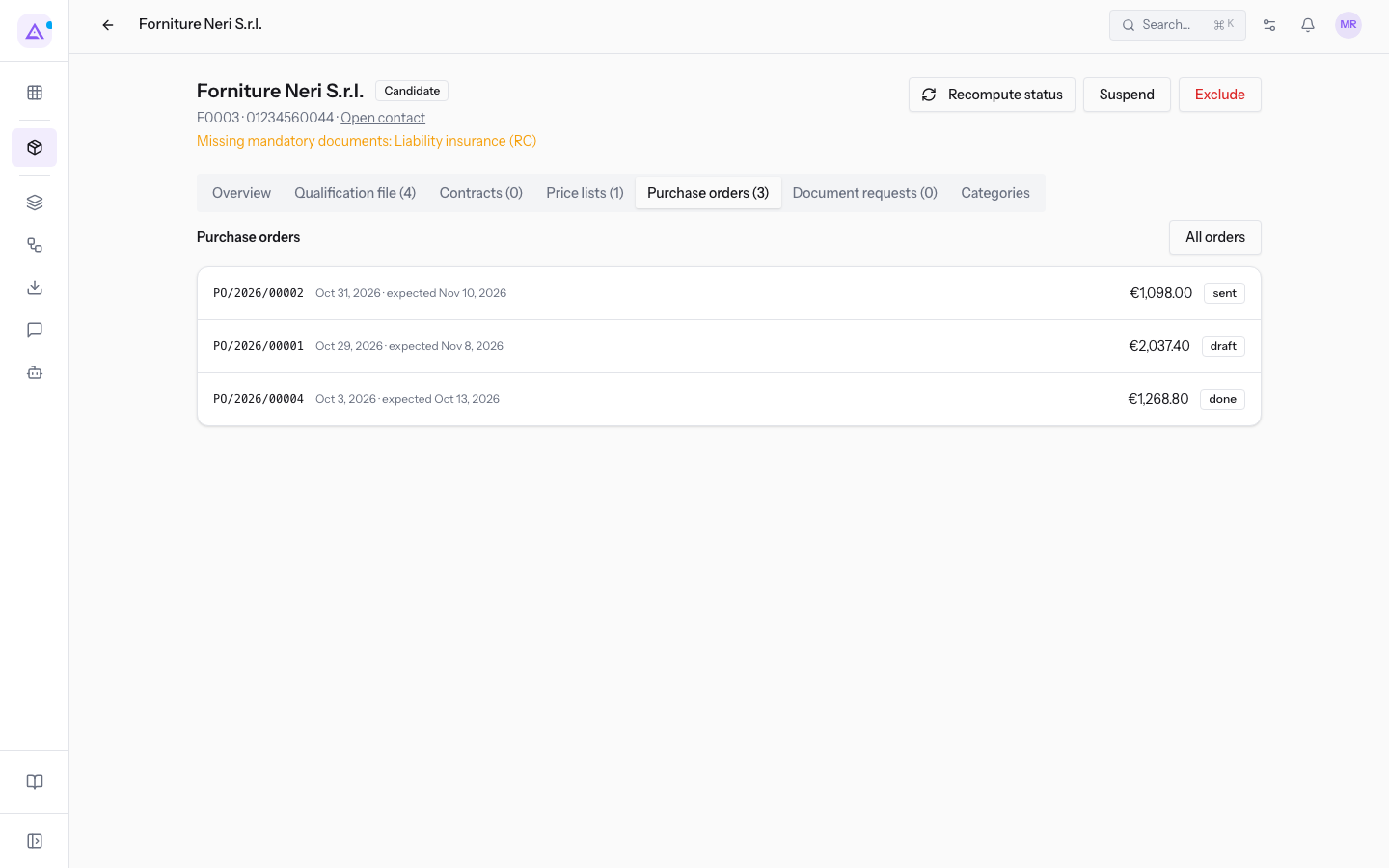
Each row shows the order number, the order date, the expected delivery date, the total, and the status. For example PO/2026/00002 dated 31 Oct 2026, expected 10 Nov 2026, for 1098,00 €. Clicking on the row opens the purchase order.
The All orders button opens the list of purchase orders filtered on this supplier.
The Categories tab
In the Categories tab you choose the supplier's product categories. The mandatory documents required depend on the categories.
- Open the supplier's record, for example
Forniture Neri S.r.l.. - Click on Categories.
- Check the supplier's categories and uncheck those that do not belong to them.
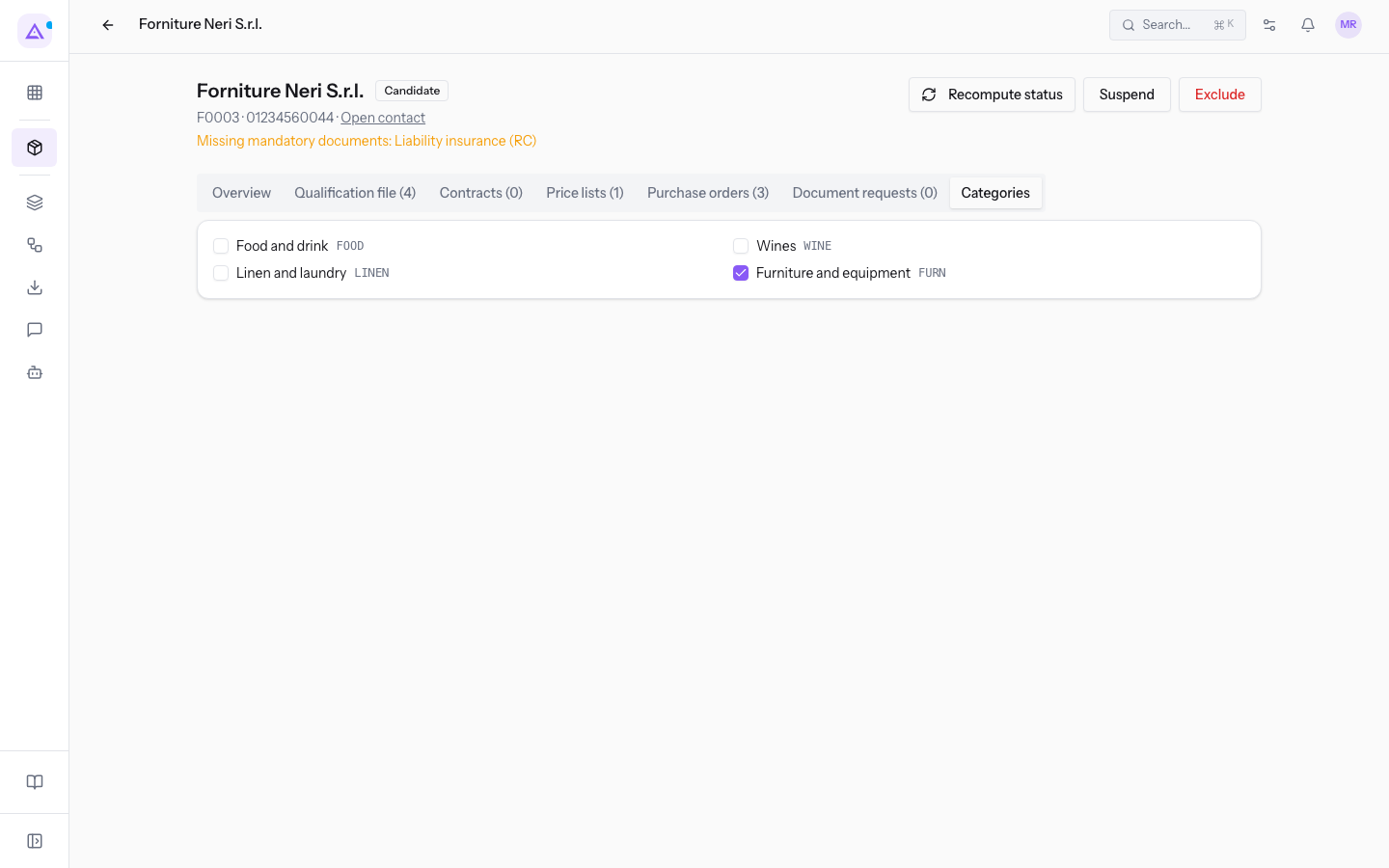
Each category appears with the name and code, for example Food and drink FOOD or Furniture and equipment FURN. The tab lists only active categories. For Forniture Neri S.r.l. only Furniture and equipment FURN is checked.
Important: the selection is saved immediately with each checkbox. There is no save button.
Note: changing categories updates the required documents and recalculates qualification immediately.
Contracts and document requests
Note: the Contracts and Document requests tabs, and the related panels in the Overview, appear only if the Contracts and Documents modules are active. They show the supplier's contracts and the document requests sent to the supplier.
See it on your company, not on a slide deck.
In 30 minutes we map the software you use today.We show you how much work and how much margin Archimedes gives back.
Show me on my business →What industry are you in?
One tap — it lets us prepare the demo around your world.
What tools do you use today?
Pick the ones you recognise — or just type them. It helps us show you how they migrate.
Last step: your details.
We reply within one working day — and right after, if you like, you pick the demo slot yourself.
We couldn't send your request. Try again, or write to us at [email protected].
By sending, you agree to your data being processed so we can get back to you about the demo. Privacy notice.
Preview form — nothing is sent from this page.
Want to schedule the demo now?
Your call: book the slot you prefer yourself, or we'll call you to arrange it.
Live availability, 30 minutes, instant confirmation. The calendar opens in a new tab.
Lock in your slot ↗We'll get back to you within one working day — and we'll join the call already knowing your world.
The calendar is open in another tab: pick a slot and the demo is booked. Can't see it? Reopen it ↗
Preview page: nothing was sent.
Our calendar is live: take the slot that suits you and the demo is booked. 30 minutes, instant confirmation, no waiting.
Lock in your slot ↗