Shipping
All modules
Add a fixed-price carrier
Shipping · 3 of 13 · 5 min read
A fixed-price carrier always charges the same shipping fee, whatever the weight and value of the order. You can use it for a national carrier with a single rate, for example GLS at €12.50, or for delivery with your own vehicles. You can also set a threshold above which shipping becomes free.
Fixed price or rule-based
The Delivery Type field sets how the carrier price is calculated.
- If the carrier rate is the same for every shipment, choose Fixed Price. The carrier charges the amount in the Fixed Price field.
- If the price depends on weight, volume, order value or quantity, choose Based on Rules and define the bands as explained in Calculating tiered shipping prices. For this type the fixed price is not used and the Fixed Price field is not editable.
- If the customer picks up the goods from you, turn on Click & Collect and follow Offer in-store pickup and manage pickup locations. A Click & Collect carrier charges its fixed price, usually 0.
Adding a carrier
Before you start: to create and edit carriers you need the
Delivery Managergroup. TheDelivery Usergroup can see carriers, but cannot edit them.
Carriers are created from the Carriers tab of the Delivery Settings page.
- Open the Delivery Settings page and stay on the Carriers tab.
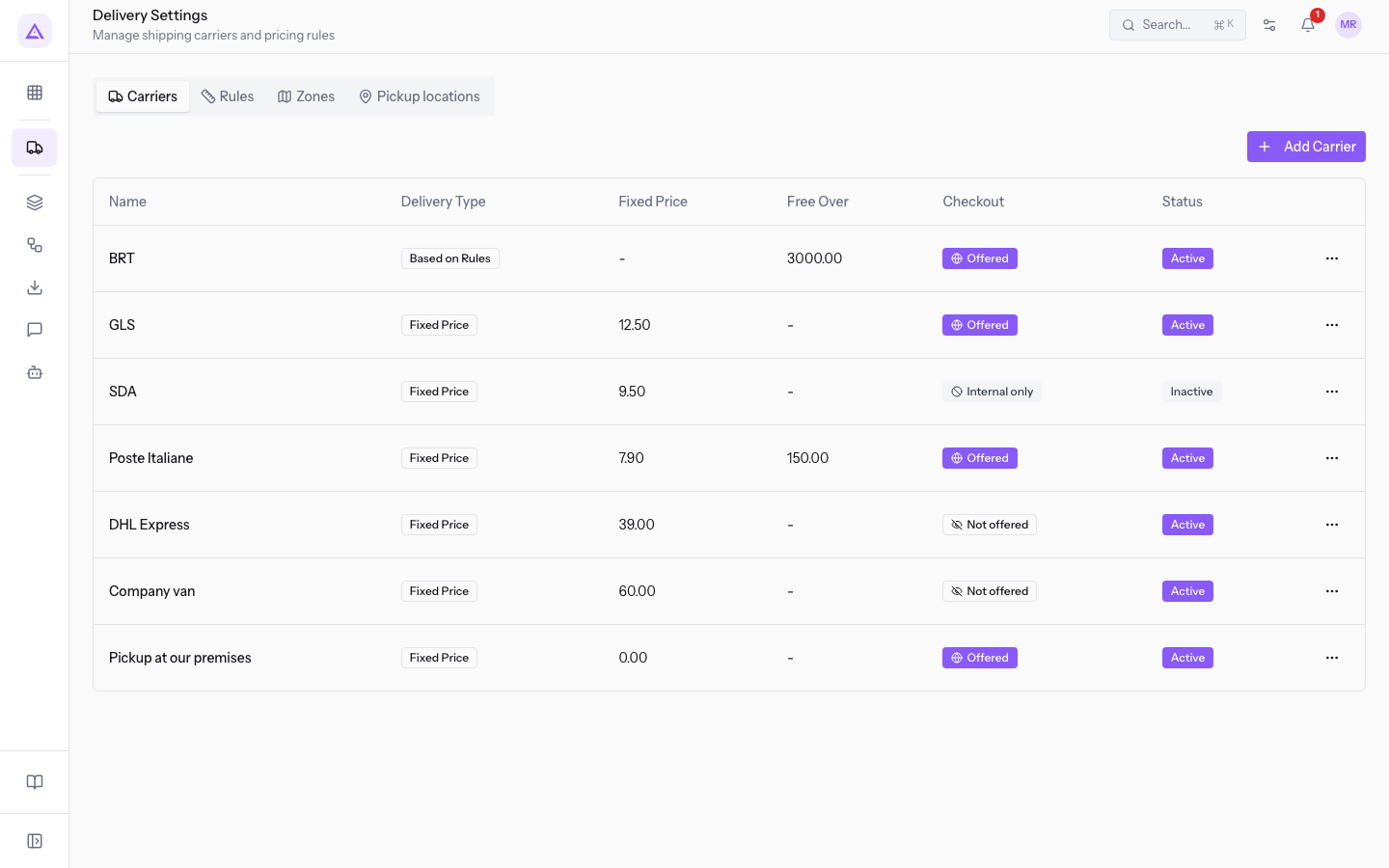
- Press Add Carrier. The Add Carrier window opens.
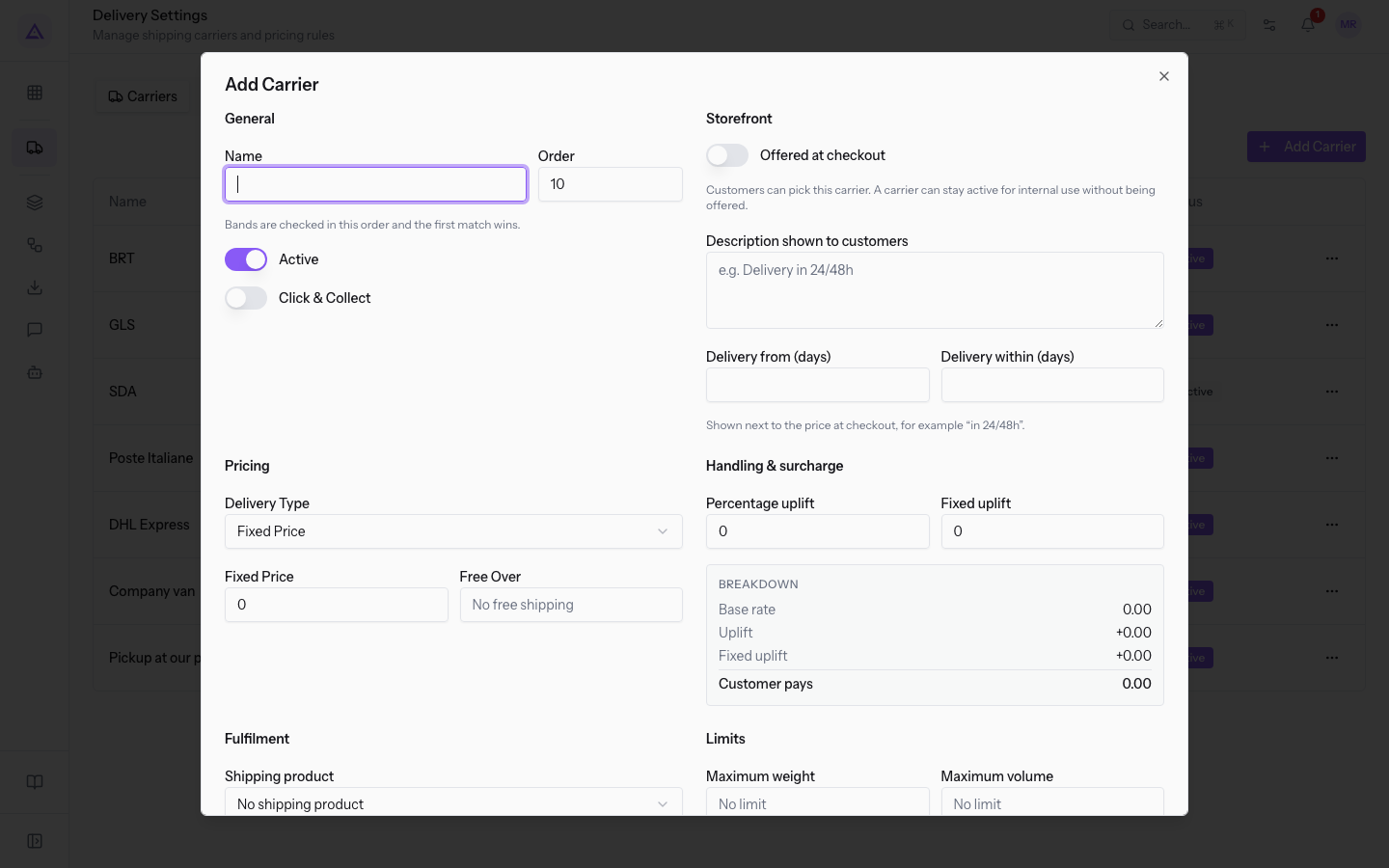
- Fill in the General, Pricing and Fulfilment sections as described below.
- Press Save to create the carrier.
The window also has the Storefront, Handling & surcharge, Limits and Served countries sections.
- To offer the carrier to online shop customers, see Decide which carriers are offered to customers and with what delivery times.
- For surcharges, weight and volume limits and served countries, see Set surcharges, weight limits and served countries.
General section
In the General section you give the carrier a name and decide whether it can be used.
- Name: the name of the carrier, for example GLS. It also becomes the shipping line description on the order. The field is required.
- Order: a number, suggested as
10. Below the field the help text reads "Bands are checked in this order and the first match wins." - Active: on by default. An inactive carrier does not appear anywhere.
- Click & Collect: off by default. Turn it on only for a carrier used for pickup at a pickup point.
Pricing section
In the Pricing section you choose the calculation type and set the price and the free-shipping threshold.
- Delivery Type: how the price is calculated. The suggested value is Fixed Price.
- Fixed Price: the carrier always charges the price in the Fixed Price field.
- Based on Rules: the price comes from the carrier's bands. Below the fields the help text reads "Rule-based carriers price from their bands. The fixed price is not used."
- Fixed Price: the shipping amount, for example €12.50 for GLS. The suggested value is
0. The field can only be edited with the Fixed Price type. - Free Over: the threshold above which shipping costs 0. If you leave it empty, the field shows No free shipping and shipping never becomes free.
How the Free Over threshold applies
Shipping is free when the total of the order's products is equal to or above the threshold.
- The total is calculated on the product and discount lines, tax included and net of discounts.
- The shipping line does not count. So adding shipping never takes an order above the threshold.
- When the threshold is reached, shipping costs 0. Surcharges and zone surcharges are not added.
For example, BRT has Free Over set to €3,000: an order with products worth at least €3,000 tax included gets free BRT shipping.
Note: the threshold is compared with the total tax included, not the taxable amount.
Fulfilment section
In the Fulfilment section you set the product the shipping is recorded on and the address used to track parcels.
- Shipping product: the service product used for the order's shipping line. Below the field the help text reads "The service product shipping is booked against. It carries the VAT rate and the revenue account." The suggested value is No shipping product. The list contains service products, for example [SHIPPING] Shipping costs.
- Tracking URL Template: the address of the carrier's tracking page. The placeholder shows an example,
https://track.example.com/{tracking_number}. Below the field the help text reads "Use {tracking_number}. References come from a carrier label integration or staff entry during packing."
Important: choose a Shipping product before offering the carrier to customers. The product determines the shipping VAT and revenue account.
Editing a carrier
You can change the price or threshold of an existing carrier.
- In the Carriers tab open the ⋯ menu at the end of the carrier's row, for example GLS.
- Press Edit. The Edit Carrier window opens with the saved values.
- Change the fields, then press Save.
The Edit Carrier window has the same fields as the Add Carrier window.
Note: shipping already applied to an order does not change on its own when you edit the rate. To update it see Adding shipping to a quote or sales order.
See it on your company, not on a slide deck.
In 30 minutes we map the software you use today.We show you how much work and how much margin Archimedes gives back.
Show me on my business →What industry are you in?
One tap — it lets us prepare the demo around your world.
What tools do you use today?
Pick the ones you recognise — or just type them. It helps us show you how they migrate.
Last step: your details.
We reply within one working day — and right after, if you like, you pick the demo slot yourself.
We couldn't send your request. Try again, or write to us at [email protected].
By sending, you agree to your data being processed so we can get back to you about the demo. Privacy notice.
Preview form — nothing is sent from this page.
Want to schedule the demo now?
Your call: book the slot you prefer yourself, or we'll call you to arrange it.
Live availability, 30 minutes, instant confirmation. The calendar opens in a new tab.
Lock in your slot ↗We'll get back to you within one working day — and we'll join the call already knowing your world.
The calendar is open in another tab: pick a slot and the demo is booked. Can't see it? Reopen it ↗
Preview page: nothing was sent.
Our calendar is live: take the slot that suits you and the demo is booked. 30 minutes, instant confirmation, no waiting.
Lock in your slot ↗