Shipping
All modules
Overview of shipping settings and the carrier list
Shipping · 2 of 13 · 4 min read
The Delivery Settings page holds the shipping setup: the carriers you ship orders with, the price rules, the zones, and the pickup points. From the carrier list you see in one row how each shipping method is set up, for example a national carrier, a company van, or in-store pickup.
Open the shipping settings
All of the module's settings are on one page.
Before you start: to create, edit, or delete carriers, rules, zones, and pickup points you need the Delivery Manager group. The Delivery User group sees carriers and rates but cannot change them.
- In the Delivery module menu, press Carriers.
- The Delivery Settings page opens with the subtitle Manage shipping carriers and pricing rules and the Carriers tab already selected.
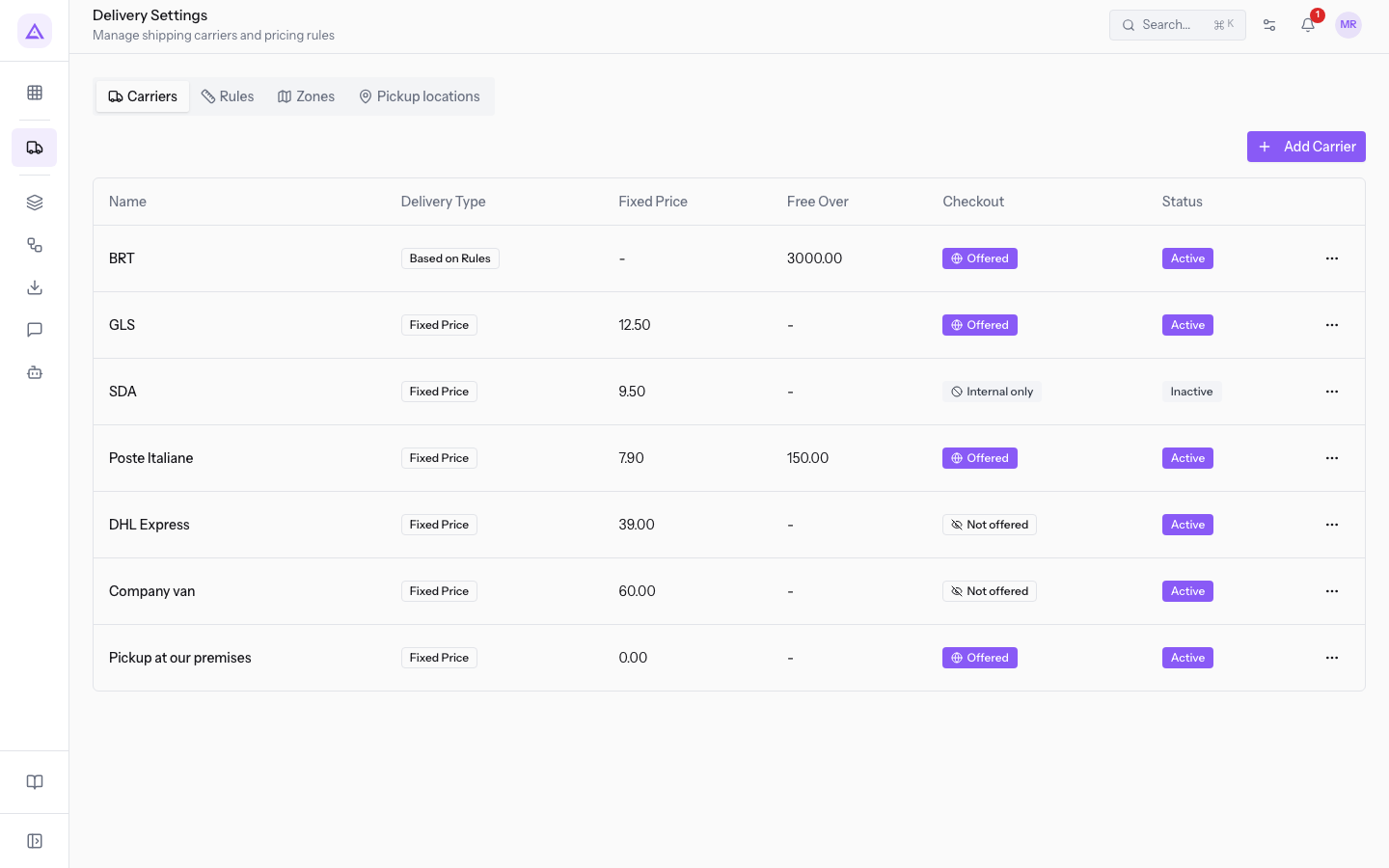
The page has four tabs:
- Carriers: the list of shipping methods and the Add Carrier button. To create a carrier, see Add a fixed-price carrier.
- Rules: the price bands for Based on Rules carriers.
- Zones: areas by postal code or province shared across carriers, with surcharges or exclusions per carrier. See Define shipping zones by postal code, province, or country.
- Pickup locations: the places for Click & Collect carriers. See Offer in-store pickup and manage pickup locations.
Read the carrier list
The Carriers tab shows one row per carrier. In the demo organization the list contains BRT, GLS, SDA, Poste Italiane, DHL Express, Company van, and Pickup at our premises.
The columns are:
- Name: the carrier's name.
- Delivery Type: how the carrier calculates the price.
- Fixed Price: the carrier always charges the same amount. In the demo, every carrier except BRT.
- Based on Rules: the price comes from the bands on the Rules tab, and the fixed price is not used. In the demo, BRT.
- Fixed Price: the amount charged by fixed-price carriers. For Based on Rules carriers the column shows a dash.
- Free Over: the threshold above which shipping becomes free, set on BRT and Poste Italiane in the demo. If the carrier has no threshold the column shows a dash.
- Checkout: whether the carrier is offered to the online shop's customers.
- Offered: the carrier is active and customers can choose it at checkout. In the demo, BRT, GLS, Poste Italiane, and Pickup at our premises.
- Not offered: the carrier is active but does not appear to customers. It stays available on quotes and on orders created in the back office. In the demo, DHL Express and Company van.
- Status: Active or Inactive. An inactive carrier is not available anywhere. In the demo, SDA is Inactive.
Active and offered at checkout are two different settings:
- If customers should choose the carrier, keep it active and offered at checkout.
- If only staff should use the carrier on quotes and orders, keep it active but not offered, like Company van.
- If you no longer want to use the carrier, deactivate it, like SDA.
To set these two options, see Decide which carriers are offered to customers and with what delivery times.
Use a row's menu
Each row in the list has the ⋯ button on the right, which opens the actions for that carrier.
- On the Carriers tab, press ⋯ in the carrier's row, for example GLS.
- Choose one of the options:
- Edit: opens the Edit Carrier window with the carrier's details.
- Manage Rules: opens the Rules tab with the carrier already selected, so you can manage its price bands.
- Delete: asks for confirmation with Delete this item?. If you confirm, the carrier is deleted and the message Deleted appears.
Tip: if a carrier should no longer be used but you want to keep its setup, deactivate it from Edit instead of deleting it.
See it on your company, not on a slide deck.
In 30 minutes we map the software you use today.We show you how much work and how much margin Archimedes gives back.
Show me on my business →What industry are you in?
One tap — it lets us prepare the demo around your world.
What tools do you use today?
Pick the ones you recognise — or just type them. It helps us show you how they migrate.
Last step: your details.
We reply within one working day — and right after, if you like, you pick the demo slot yourself.
We couldn't send your request. Try again, or write to us at [email protected].
By sending, you agree to your data being processed so we can get back to you about the demo. Privacy notice.
Preview form — nothing is sent from this page.
Want to schedule the demo now?
Your call: book the slot you prefer yourself, or we'll call you to arrange it.
Live availability, 30 minutes, instant confirmation. The calendar opens in a new tab.
Lock in your slot ↗We'll get back to you within one working day — and we'll join the call already knowing your world.
The calendar is open in another tab: pick a slot and the demo is booked. Can't see it? Reopen it ↗
Preview page: nothing was sent.
Our calendar is live: take the slot that suits you and the demo is booked. 30 minutes, instant confirmation, no waiting.
Lock in your slot ↗