Shipping
All modules
Track the shipments of an order delivered in several parts
Shipping · 13 of 13 · 4 min read
A sales order can ship in several deliveries, for example when part of the goods is not yet available or when a shipment is cancelled and redone with another carrier. This page shows you how to find all the deliveries of an order, how to read each delivery's form, and how to tell from the order's form whether all the goods have left.
How orders and deliveries are linked
Each delivery is a stock transfer with operation WH: Deliveries. The delivery shows the number of the sales order it comes from, so searching for the order number finds all its deliveries.
- If a delivery is validated with part of the goods, the rest moves to a new delivery. This delivery shows Backorder of with the reference of the first one. For example WH/OUT/00002, with the LED desk lamp of order S00003, is the backorder of WH/OUT/00001.
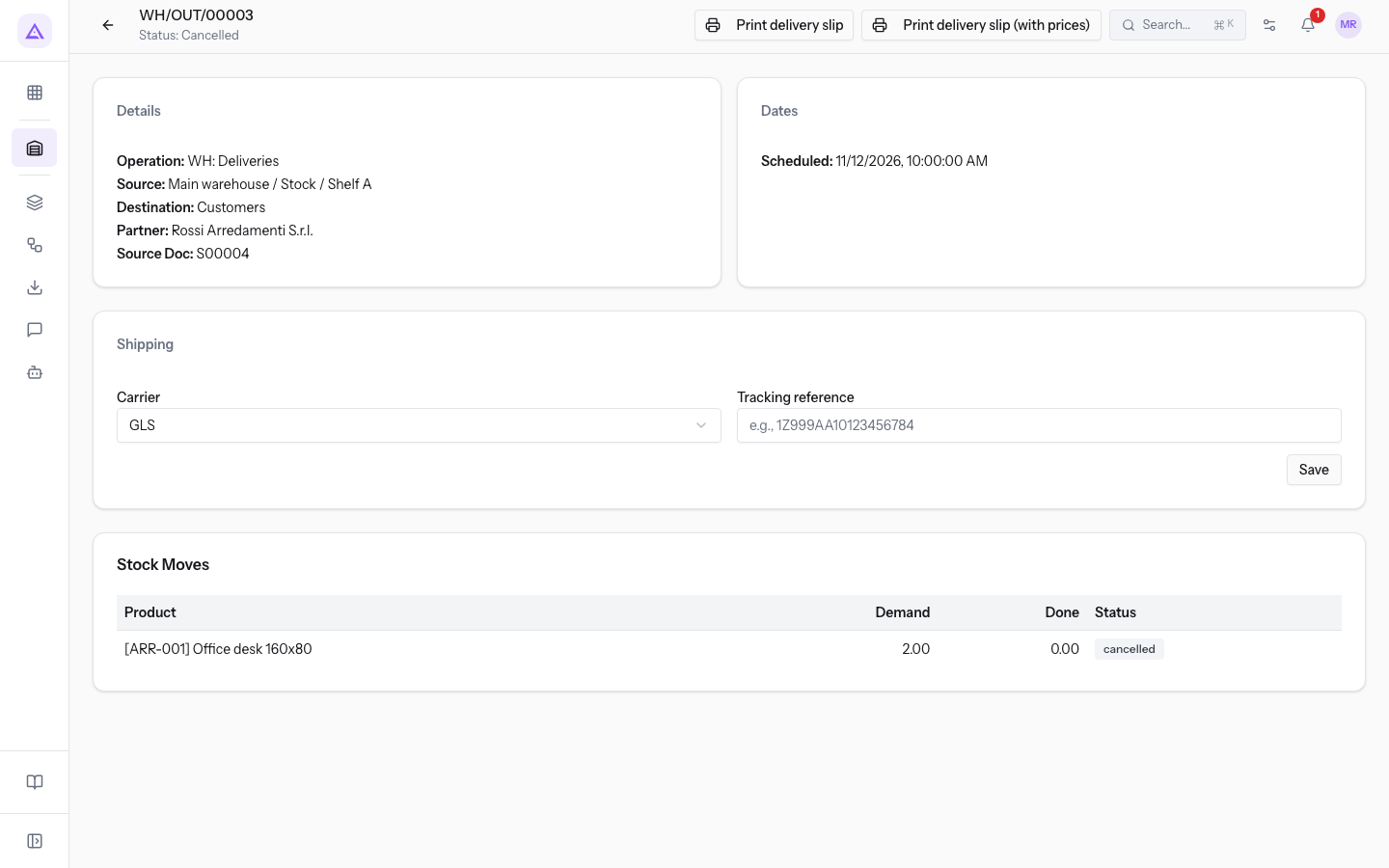
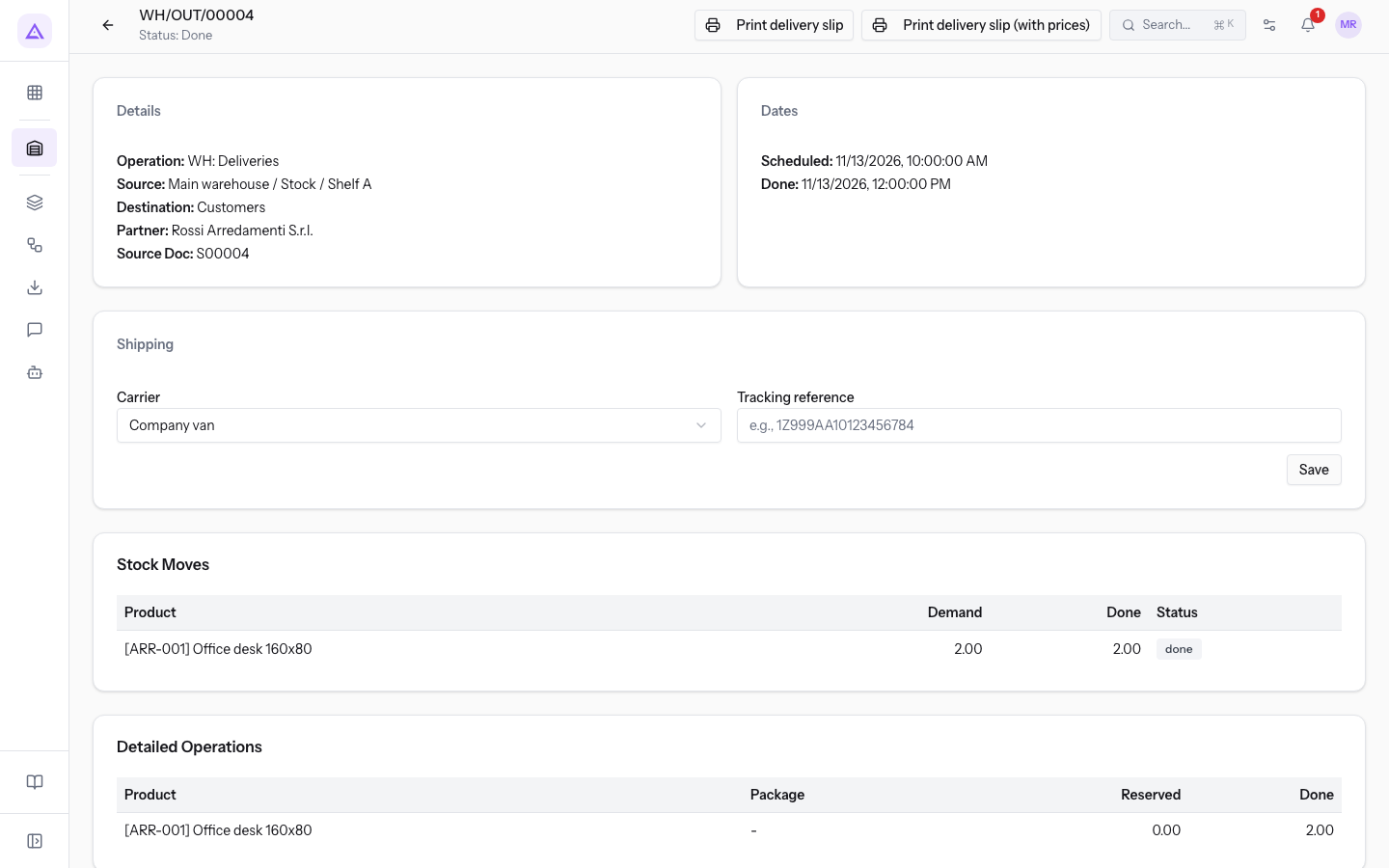
- If a delivery is cancelled, it stays in the list with the status Cancelled, and the goods leave with another delivery of the same order. WH/OUT/00003 of order S00004, with the carrier GLS, is cancelled; the goods left with WH/OUT/00004 and the carrier Company van.
Finding the deliveries of an order
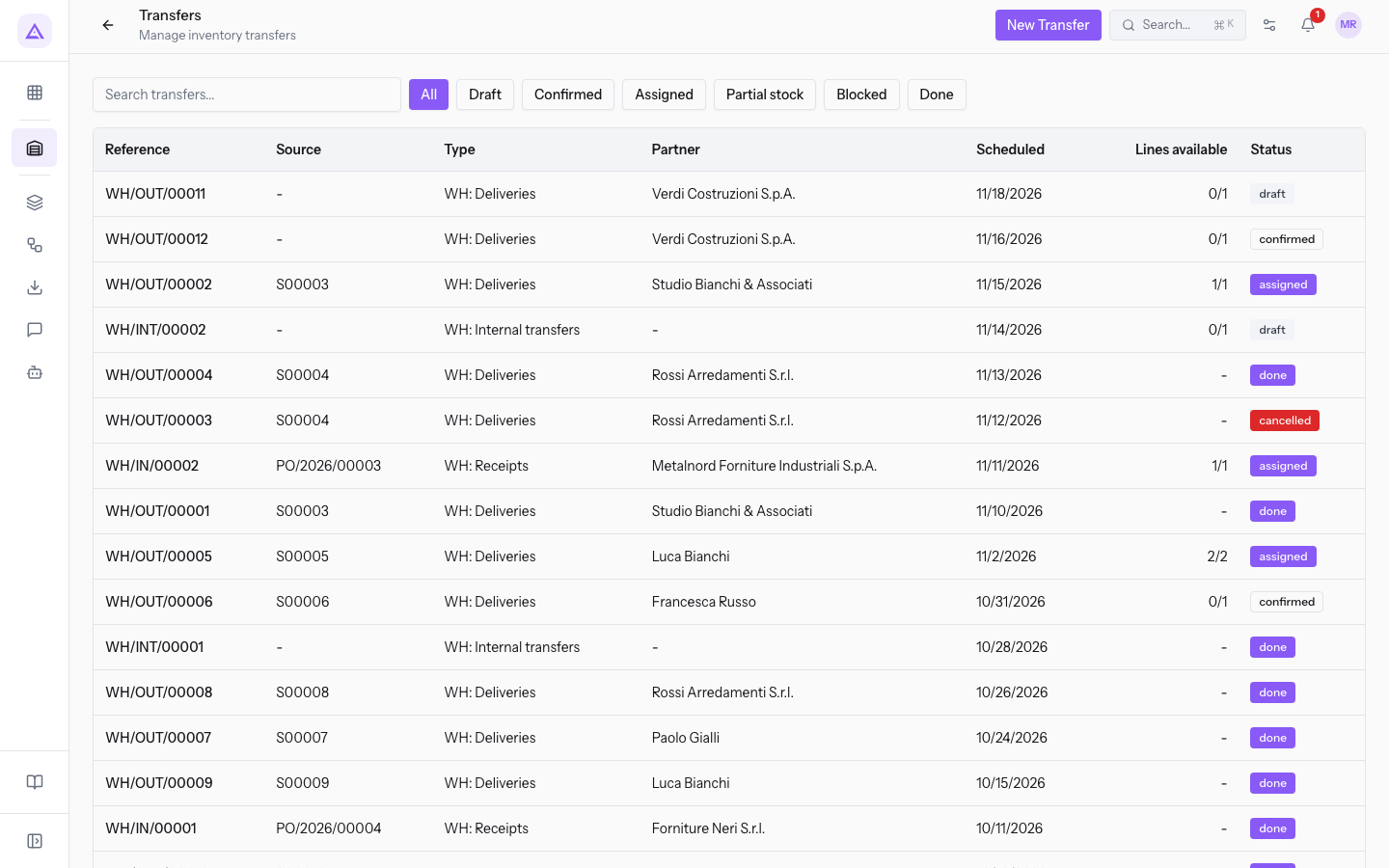
The Transfers list shows all stock transfers, including deliveries to customers.
- Go to Inventory › Transfers.
- In the search field, type the order number, for example
S00003, and press Enter. The list shows the deliveries of that order.
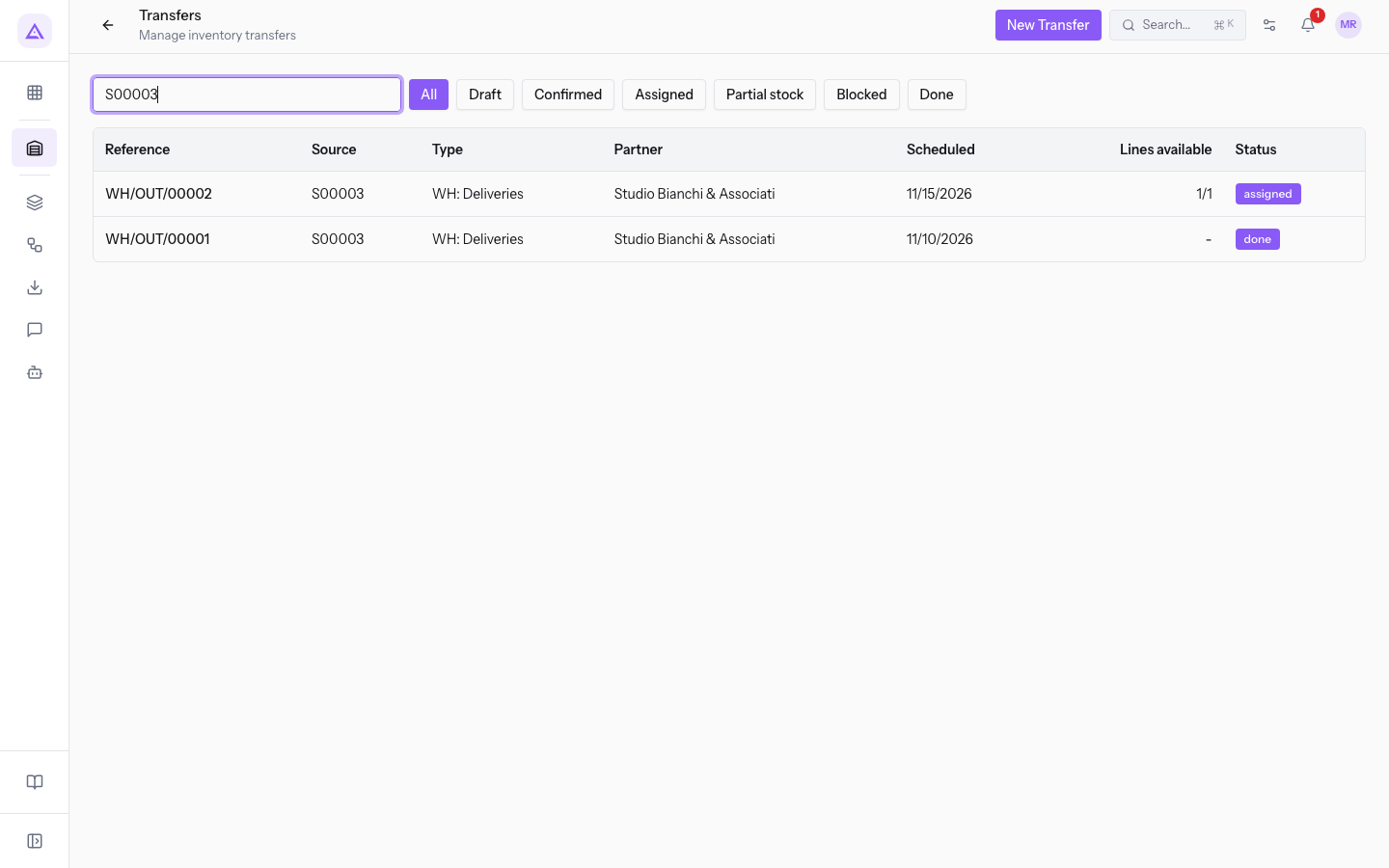
- Press the row of a delivery to open its form.
The list has the columns Reference, Source, Type, Partner, Scheduled, Lines available and Status. Above the list, the filters All, Draft, Confirmed, Assigned, Partial stock, Blocked and Done narrow the rows by status.
Reading a delivery's form
The form title is the delivery's reference, and under the title the status appears, such as Done, Ready or Cancelled.
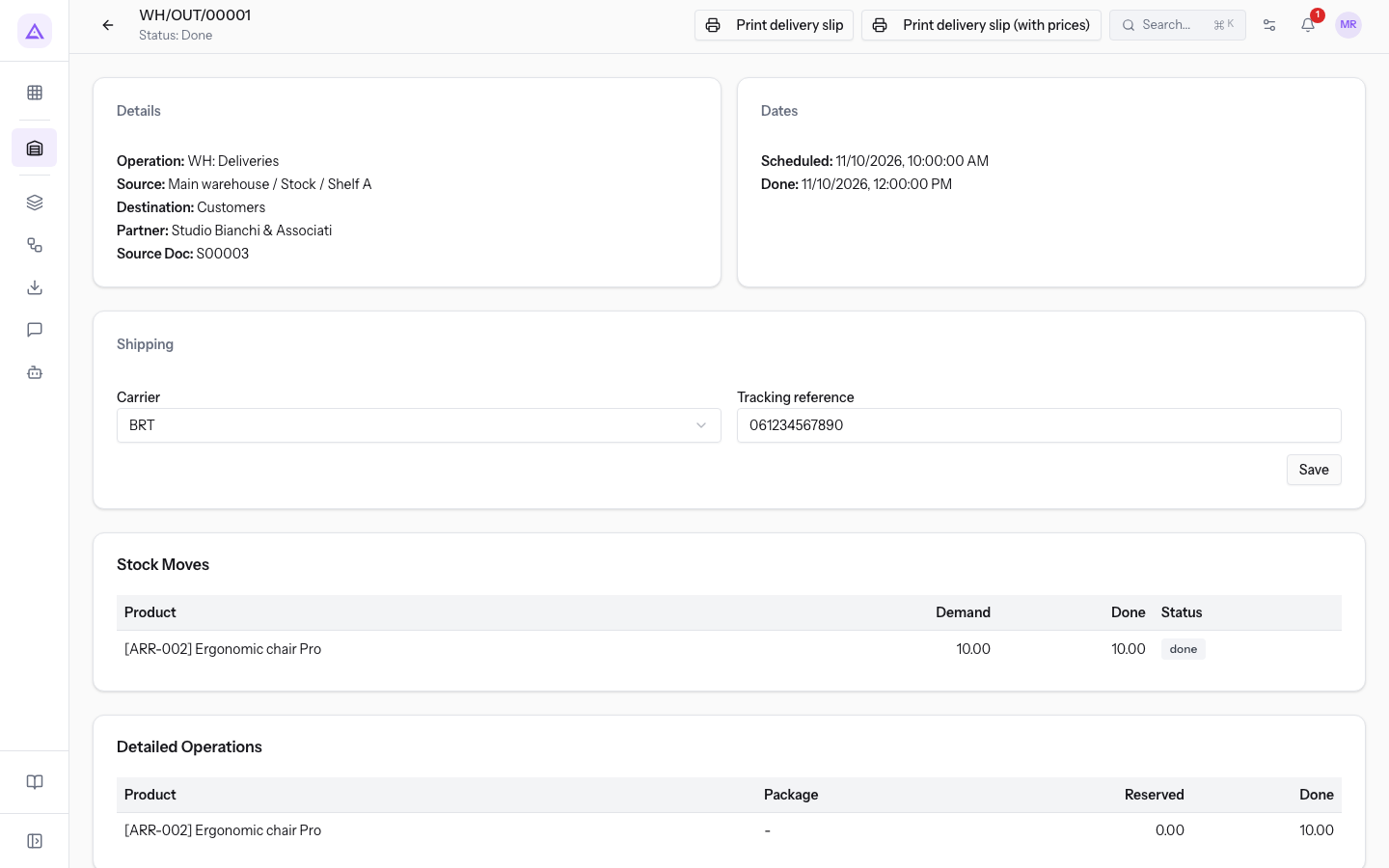
The Details panel contains:
- Operation: the type of operation. For customer deliveries it is
WH: Deliveries. - Source: the location the goods leave from, for example
Main warehouse / Stock / Shelf A. - Destination: the location the goods go to. For customer deliveries it is
Customers. - Partner: the customer of the order. It appears only if the delivery has a partner.
- Source Doc: the number of the sales order the delivery comes from. It appears only if the delivery has a source document.
The Dates panel contains:
- Scheduled: the expected delivery date. If it is not set, a dash appears.
- Done: the date the delivery was validated. It appears only for completed deliveries.
- Backorder of: the reference of the delivery this one was created from. It appears only on deliveries created for the rest of another. Press the reference to open the previous delivery.
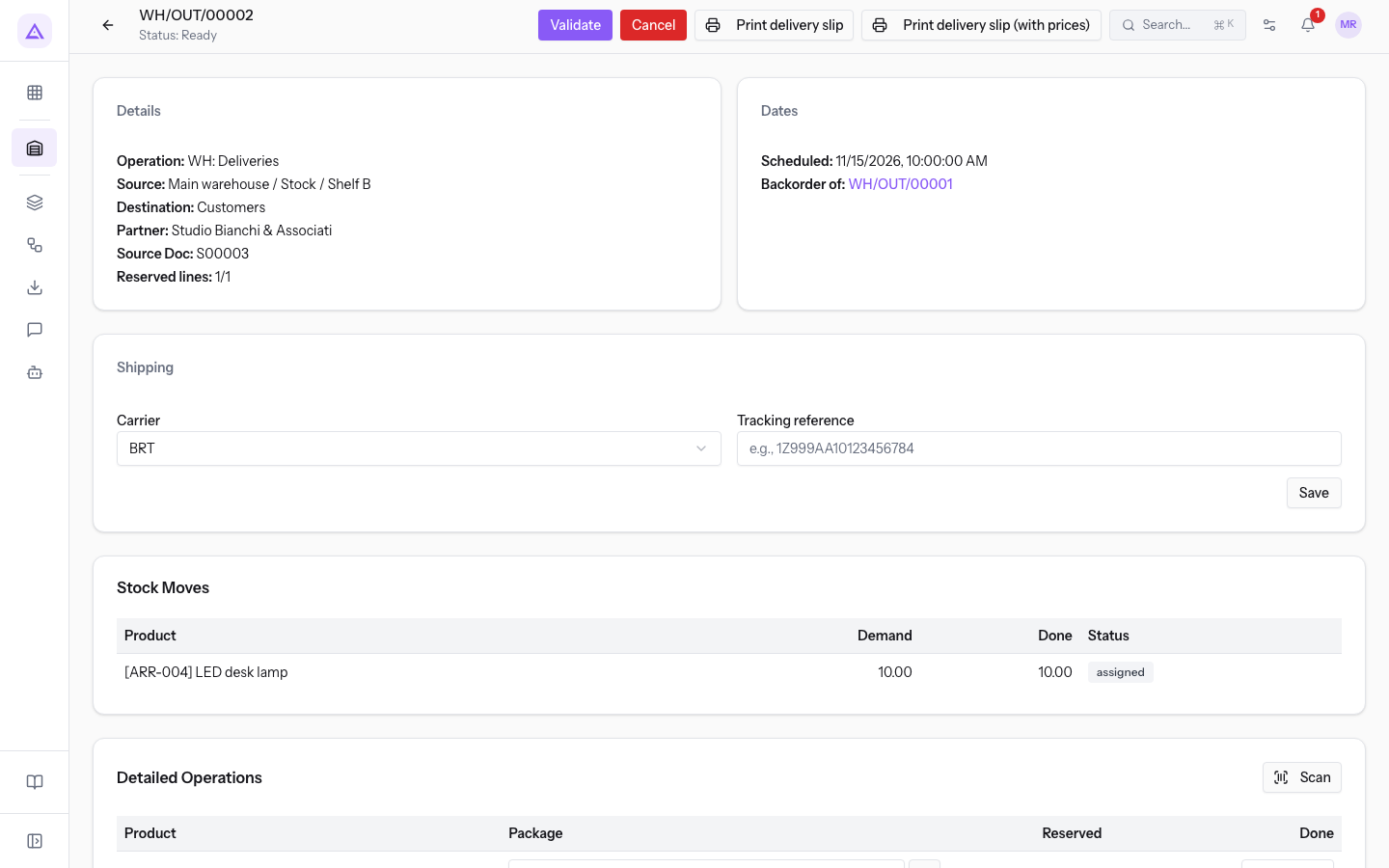
The Shipping panel shows the carrier and the tracking number of the delivery: BRT and 061234567890 for WH/OUT/00001. Below, the Stock Moves table shows for each product the requested quantity (Demand) and the quantity done (Done).
Note: the Validate and Cancel buttons appear only on deliveries that are not yet done or cancelled, like WH/OUT/00002 in status Ready. Done or cancelled deliveries show only Print delivery slip and Print delivery slip (with prices).
Example: order shipped in two deliveries
Order S00003 of Studio Bianchi & Associati ships in two deliveries with the carrier BRT.
- WH/OUT/00001: status Done, with the Ergonomic chair Pro (10 units).
- WH/OUT/00002: status Ready, with the LED desk lamp (10 units). In the Dates panel it shows Backorder of WH/OUT/00001.
Example: cancelled and redone delivery
Order S00004 of Rossi Arredamenti S.r.l. has two deliveries.
- WH/OUT/00003: status Cancelled, carrier GLS, without a tracking number.
- WH/OUT/00004: status Done, carrier Company van.
Checking the delivery status on the sales order
In the header of the sales order form, next to the order status, a badge shows how far the delivery has gone.
- Partially Delivered: part of the goods has left and the rest is still on an open delivery. S00003 is in this state, with WH/OUT/00002 still Ready.
- Delivered: all the goods of the order have left. S00004 is in this state, delivered with WH/OUT/00004. A cancelled delivery does not count.
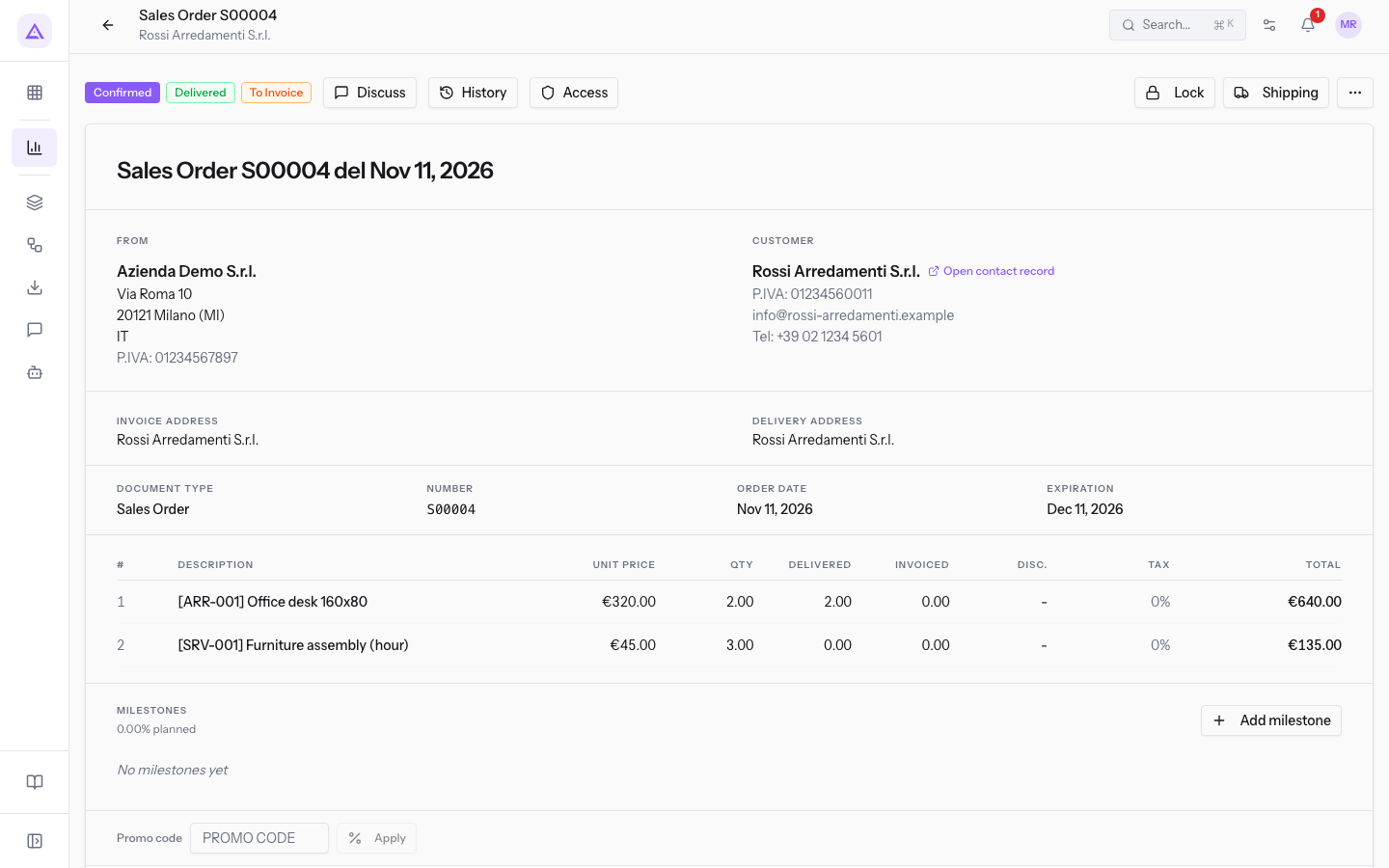
The header also shows the Shipping button, which is used to add or recalculate the shipping cost: see Adding shipping to a quote or sales order.
See it on your company, not on a slide deck.
In 30 minutes we map the software you use today.We show you how much work and how much margin Archimedes gives back.
Show me on my business →What industry are you in?
One tap — it lets us prepare the demo around your world.
What tools do you use today?
Pick the ones you recognise — or just type them. It helps us show you how they migrate.
Last step: your details.
We reply within one working day — and right after, if you like, you pick the demo slot yourself.
We couldn't send your request. Try again, or write to us at [email protected].
By sending, you agree to your data being processed so we can get back to you about the demo. Privacy notice.
Preview form — nothing is sent from this page.
Want to schedule the demo now?
Your call: book the slot you prefer yourself, or we'll call you to arrange it.
Live availability, 30 minutes, instant confirmation. The calendar opens in a new tab.
Lock in your slot ↗We'll get back to you within one working day — and we'll join the call already knowing your world.
The calendar is open in another tab: pick a slot and the demo is booked. Can't see it? Reopen it ↗
Preview page: nothing was sent.
Our calendar is live: take the slot that suits you and the demo is booked. 30 minutes, instant confirmation, no waiting.
Lock in your slot ↗