Shipping
All modules
Set surcharges, weight limits and served countries
Shipping · 5 of 13 · 5 min read
In the carrier window you can add a surcharge to the shipping price, set the maximum weight and volume of the cart, and choose the countries the carrier delivers to. These settings decide what the customer pays and for which orders the carrier is offered: for example a surcharge on the GLS rate, a weight cap for Poste Italiane, or a carrier only for Europe.
When to use these settings
Surcharges, limits and countries work in different ways.
- If you want to recover a handling cost on top of the carrier's rate, set a surcharge. The customer pays the base rate plus the surcharge.
- If the carrier does not accept parcels over a certain weight or volume, set a limit. The carrier is not offered for carts that exceed it.
- If the carrier delivers only to some countries, choose them in Served countries. If you leave the field empty, the carrier serves all countries.
- If you want a surcharge or an exclusion for an area smaller than a country (postal code or province), use zones: read Apply a surcharge or exclude a carrier in a zone.
Open the carrier window
Surcharges, limits and countries are set in the same window where carriers are created.
Before you start: to edit a carrier you need the
Delivery Managergroup.
- Open the Delivery Settings page and the Carriers tab.
- Open the ⋯ menu of the carrier row, for example GLS, and choose Edit. The Edit Carrier window opens. For a new carrier use Add Carrier: read Add a fixed-price carrier.
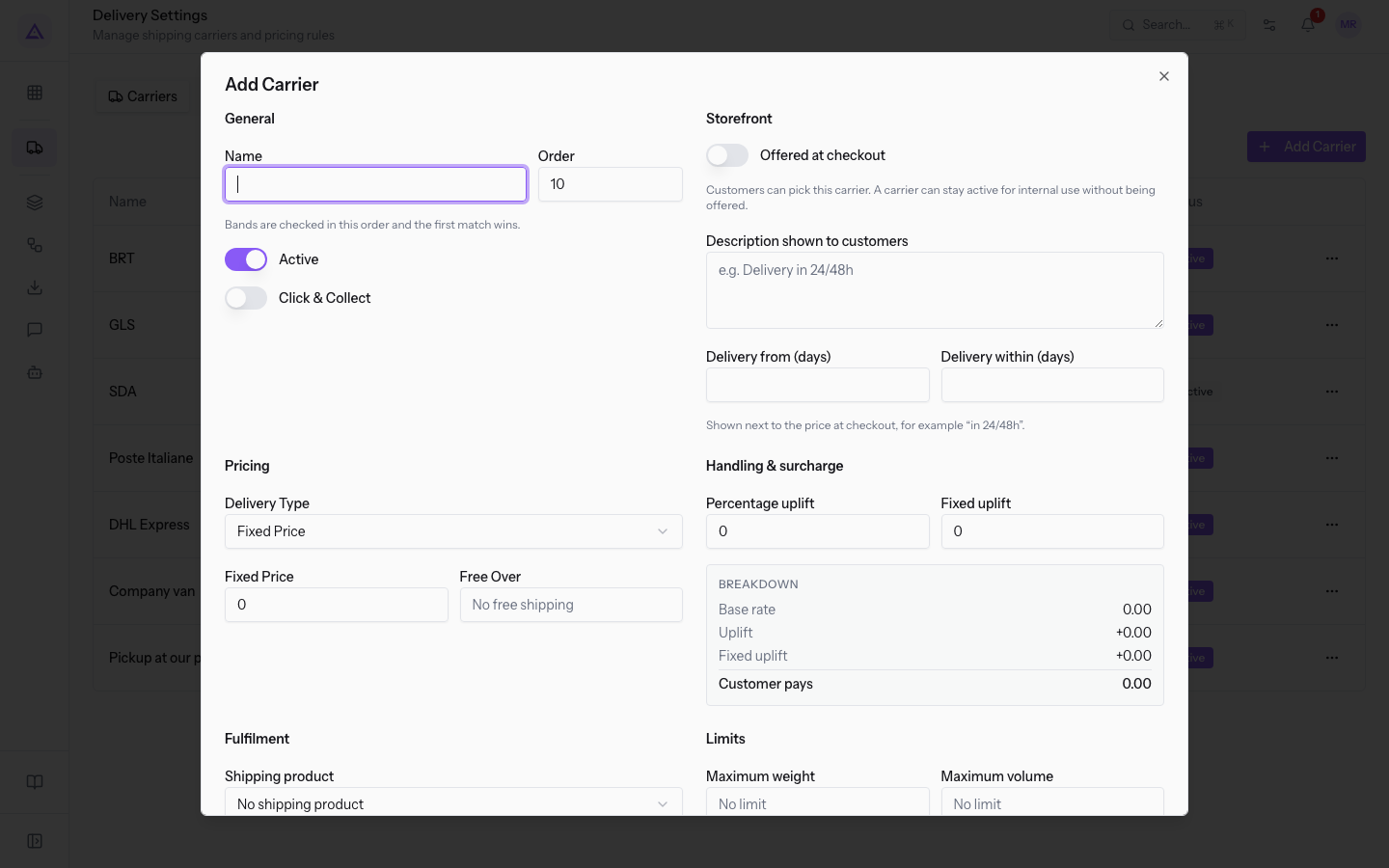
- Fill in the Handling & surcharge, Limits and Served countries sections as described below.
- Press Save.
Note: if you change the rate of a carrier already applied to a quote or an order, the order's shipping may be out of date. In the order the shipping button is highlighted and the window offers Re-rate: read Adding shipping to a quote or sales order.
Set surcharges
Surcharges are added to what the carrier's rate table gives: the fixed price or the band that matches the cart. You can use a percentage surcharge, a fixed one, or both.
- In the Handling & surcharge section enter the Percentage uplift, for example
5for GLS. - Enter the Fixed uplift: with
1, every GLS shipment costs €1.00 more. - Check the result in the Breakdown box.
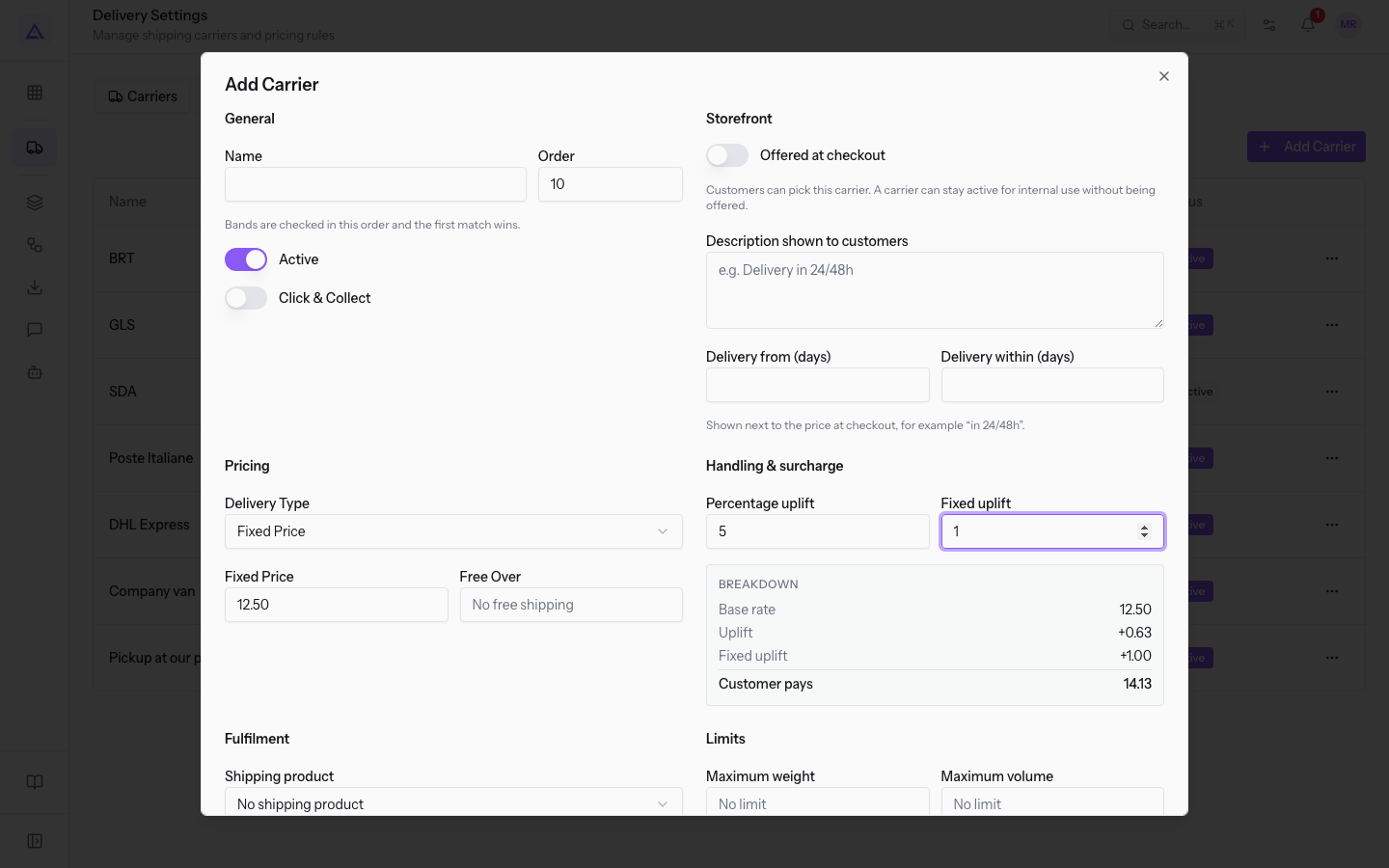
The fields of the section:
- Percentage uplift: the percentage added to the base rate. The default value is
0. - Fixed uplift: the amount added to every shipment. The default value is
0.
The Breakdown box updates as you type and shows the price line by line:
- Base rate: what the carrier's rate table gives, before the surcharge. For a Fixed Price carrier it is the carrier's fixed price and is not changed here. For a Based on Rules carrier it is a field where you enter a test amount. The proposed value is
10. Below the box appears the help text "What the carrier's own pricing produces, before your uplift.". - Uplift: the amount corresponding to the percentage surcharge.
- Fixed uplift: the fixed amount added.
- Customer pays: the total shipping cost, that is the base rate plus the two surcharges.
Note: the Breakdown box uses the same calculation applied at checkout and on orders, so the total you see is what the customer pays for that base rate.
Set weight and volume limits
Limits exclude the carrier from carts that are too heavy or too large. A cart exactly at the limit is still fine; one that exceeds it makes the carrier disappear.
- In the Limits section enter the Maximum weight, for example 30 for Poste Italiane or 70 for DHL Express.
- If needed, enter the Maximum volume.
The fields of the section:
- Maximum weight: the weight above which the carrier is not offered. If empty, it shows No limit.
- Maximum volume: the volume above which the carrier is not offered. If empty, it shows No limit.
Below the fields appears the help text "The carrier disappears from checkout when the cart exceeds these. Leave empty for no limit.".
Important: the limit also applies in the back office. The carrier does not appear among the eligible ones in the shipping window of a quote or an order whose cart exceeds the limit. The cart weight comes from the weight of the products.
Choose the served countries
Served countries limit the carrier to shipping addresses in those countries. For example DHL Express serves Italy, Switzerland, France, Germany and Austria, and BRT serves Italy, San Marino and Vatican City.
- In the Served countries section press the All countries field. The list of countries opens.
- Type part of the name in Search a country to narrow the list. If no country matches the text, No country matches appears.
- Press the countries to add. The field shows the number of chosen countries followed by "selected".
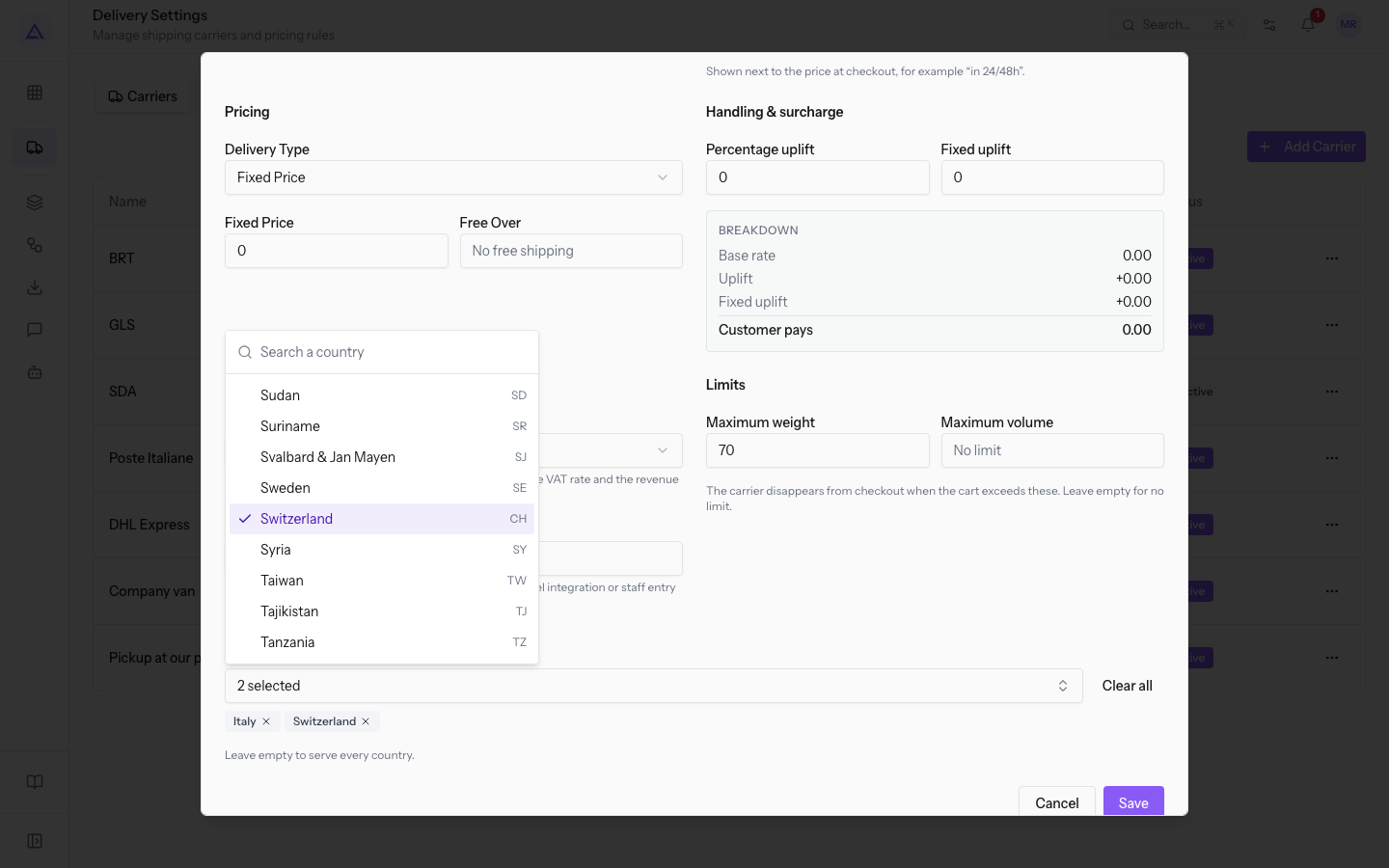
- To remove all chosen countries use Clear all. The carrier goes back to serving all countries.
Below the field appears the help text "Leave empty to serve every country.".
Important: if the carrier has served countries and the order's shipping address has no country, the carrier is not offered. Check that customers have the country in their address.
To exclude the carrier from part of a country, like the islands, use zones: read Define shipping zones by postal code, province, or country.
See it on your company, not on a slide deck.
In 30 minutes we map the software you use today.We show you how much work and how much margin Archimedes gives back.
Show me on my business →What industry are you in?
One tap — it lets us prepare the demo around your world.
What tools do you use today?
Pick the ones you recognise — or just type them. It helps us show you how they migrate.
Last step: your details.
We reply within one working day — and right after, if you like, you pick the demo slot yourself.
We couldn't send your request. Try again, or write to us at [email protected].
By sending, you agree to your data being processed so we can get back to you about the demo. Privacy notice.
Preview form — nothing is sent from this page.
Want to schedule the demo now?
Your call: book the slot you prefer yourself, or we'll call you to arrange it.
Live availability, 30 minutes, instant confirmation. The calendar opens in a new tab.
Lock in your slot ↗We'll get back to you within one working day — and we'll join the call already knowing your world.
The calendar is open in another tab: pick a slot and the demo is booked. Can't see it? Reopen it ↗
Preview page: nothing was sent.
Our calendar is live: take the slot that suits you and the demo is booked. 30 minutes, instant confirmation, no waiting.
Lock in your slot ↗