Shipping
All modules
Calculating tiered shipping prices
Shipping · 6 of 13 · 5 min read
A Based on Rules carrier calculates the shipping price with price bands. A band is a rule based on weight, volume, net order price, or quantity. Use it when the price changes with the cart, for example one rate for parcels up to 10 kg and another for pallets.
When to use price bands
The carrier's Delivery Type field decides how the price is calculated.
- If the carrier always costs the same amount, choose Fixed Price. The carrier always charges its fixed price, and the Rules tab has no effect on it.
- If the price depends on the cart, choose Based on Rules. The price comes from the bands. The carrier's fixed price is not used.
To choose the delivery type, see Add a fixed-price carrier.
In the demo, the BRT carrier is Based on Rules and has three weight bands:
- up to 10 kg: €9.90;
- up to 50 kg: €14.90;
- up to 500 kg: €19.90 plus €0.10 per kg.
How the bands are read
Bands are evaluated from top to bottom. The first band whose condition matches sets the price.
- A band's price is the base price plus the per-unit price multiplied by the value of the variable.
- If no band matches, the carrier is not offered for that cart. For example, BRT is not offered for a 600 kg cart.
- If the cart reaches the carrier's Free Over threshold, shipping is free. BRT's threshold is €3,000.
Important: put the bands with the lowest values at the top. A
<=500 band placed above a<=10 band also matches light carts, so the<=10 band is never used.
Opening a carrier's rules
A carrier's bands are managed in the Rules tab of the Delivery Settings page, described in the shipping settings overview.
Before you start: editing rules requires the
Delivery Managergroup.
- Open the Rules tab. Until you choose a carrier, the tab shows the message "Select a carrier above to manage its price bands."
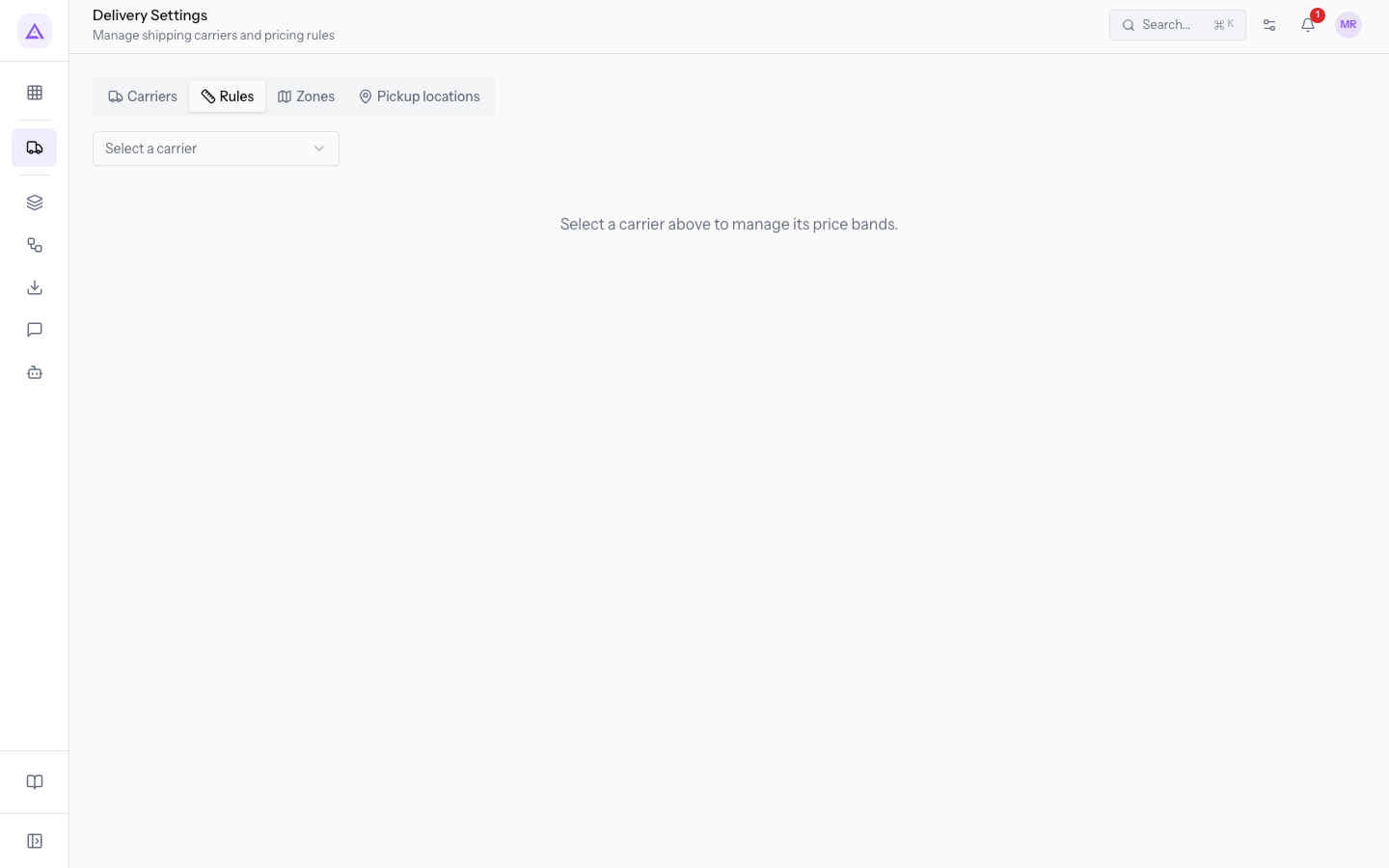
- In the Carrier field, choose the carrier, for example
BRT.
Alternatively, from the Carriers tab, use the Manage Rules item in the carrier row's menu.
The tab shows the title Rules (BRT), the help text on evaluation order, the list of bands, the Add Rule button, and the Worked example panel. If the carrier has no bands, the message No rules for this carrier appears.
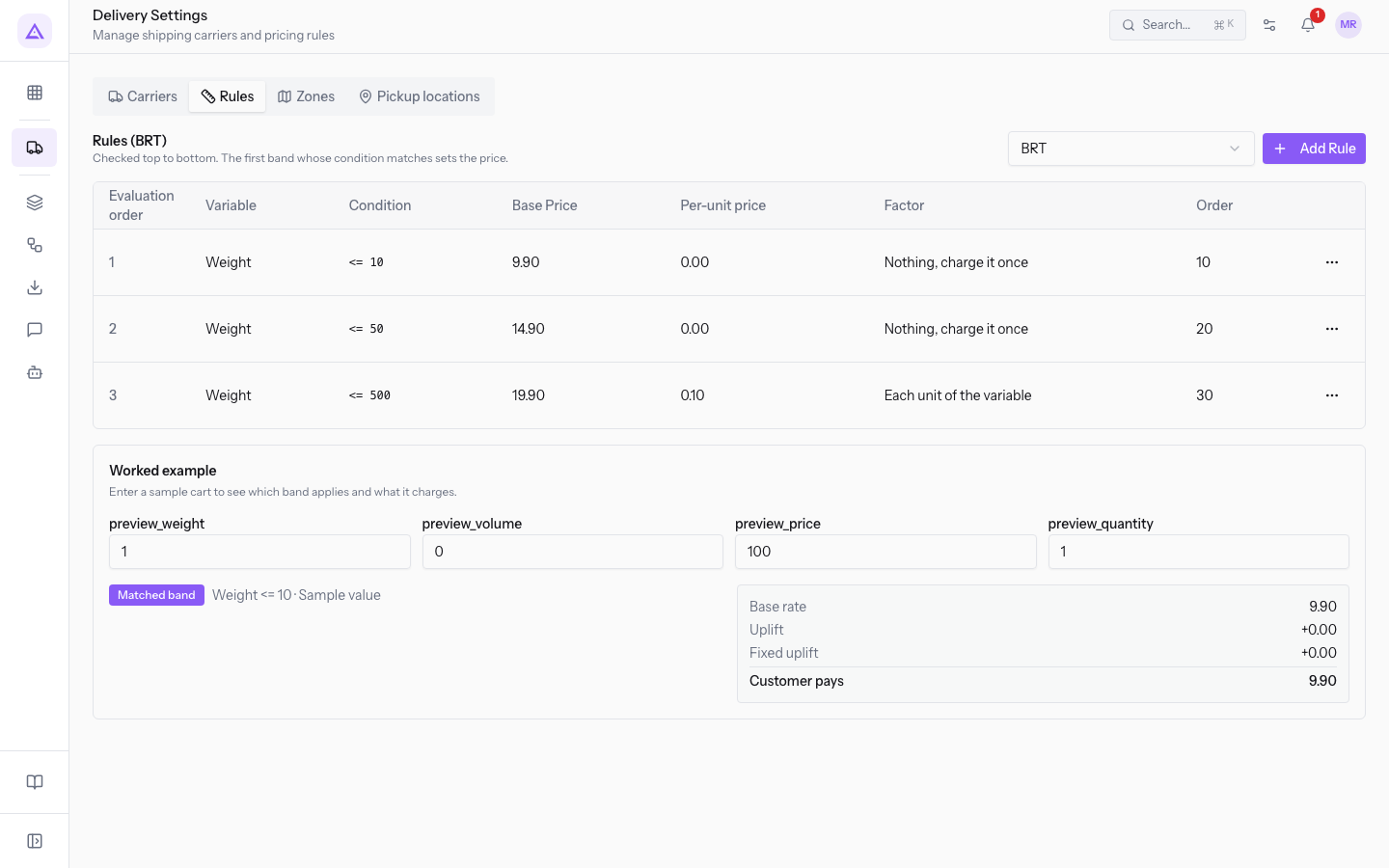
Each row in the list shows one band:
- Evaluation order: the band's position in the evaluation: 1, 2, and 3 for BRT.
- Variable: the measure the band is based on. All BRT bands use Weight.
- Condition: the operator and the value:
<=10 for BRT's first band. - Base Price: the fixed part of the band: €9.90 for BRT's first band.
- Per-unit price: the amount for each unit of the variable: €0.10 in the band up to 500 kg.
- Factor: how the per-unit price is applied, Each unit of the variable or Nothing, charge it once.
- Order: the number that sets the evaluation order: 10, 20, and 30 for BRT.
Adding a price band
Add one band for each rate tier of the carrier.
- In the Rules tab, with the carrier selected, press Add Rule. The Add Rule window opens.
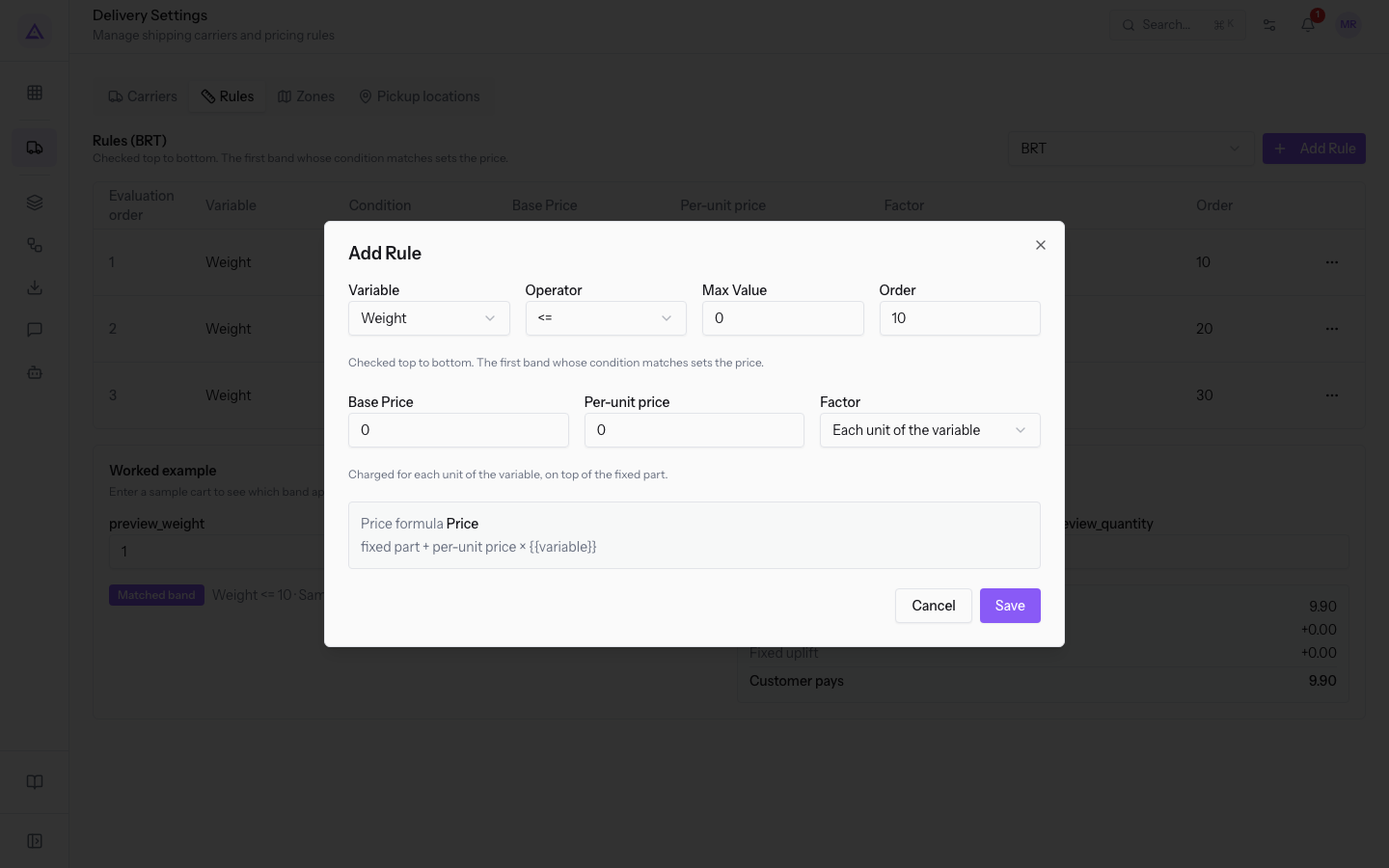
- Fill in the fields and press Save.
The fields in the window are:
- Variable: the cart measure compared with the band. The default is Weight.
- Weight: the cart's weight in kg.
- Volume: the cart's volume.
- Order Price (net): the net order price.
- Quantity: the cart's quantity.
- Operator: the comparison between the variable and the value. The options are
<=,<,>=, and>. The default is<=. - Max Value: the value the variable is compared with:
10for BRT's band up to 10 kg. - Order: the band's position. Lower numbers are evaluated first. The proposed value is
10. - Base Price: the fixed part of the band, charged when the band matches: €19.90 for BRT's band up to 500 kg.
- Per-unit price: the amount charged for each unit of the variable, on top of the fixed part, for example €0.10 per kg.
- Factor: decides how the per-unit price is applied.
- Each unit of the variable: the per-unit price is multiplied by the value of the variable. This is the default.
- Nothing, charge it once: the per-unit price is charged only once. BRT uses this option in the bands up to 10 kg and up to 50 kg.
- Price formula: shows the band's formula, the base price plus the per-unit price multiplied by the variable.
If the band has only a fixed price, leave Per-unit price at 0. If the rate grows with weight, enter a Per-unit price and choose Each unit of the variable.
Editing or deleting a band
Edit a band when the carrier's rate changes. The Edit Rule window has the same fields as the Add Rule window.
Note: changes apply to new shipping calculations. On an order that already has shipping, the shipping window offers Re-rate when the rate changes. See Adding shipping to a quote or sales order.
Checking the bands with the worked example
The Worked example panel shows which band applies to a sample cart and how much it charges. Use it after every change to the bands.
- In the Worked example panel, enter the sample cart's values: weight, volume, price, and quantity.
- Read the Matched band and the calculated price.
For example, with a weight of 120 kg, BRT applies the band up to 500 kg: €19.90 plus €0.10 × 120, which is €31.90.
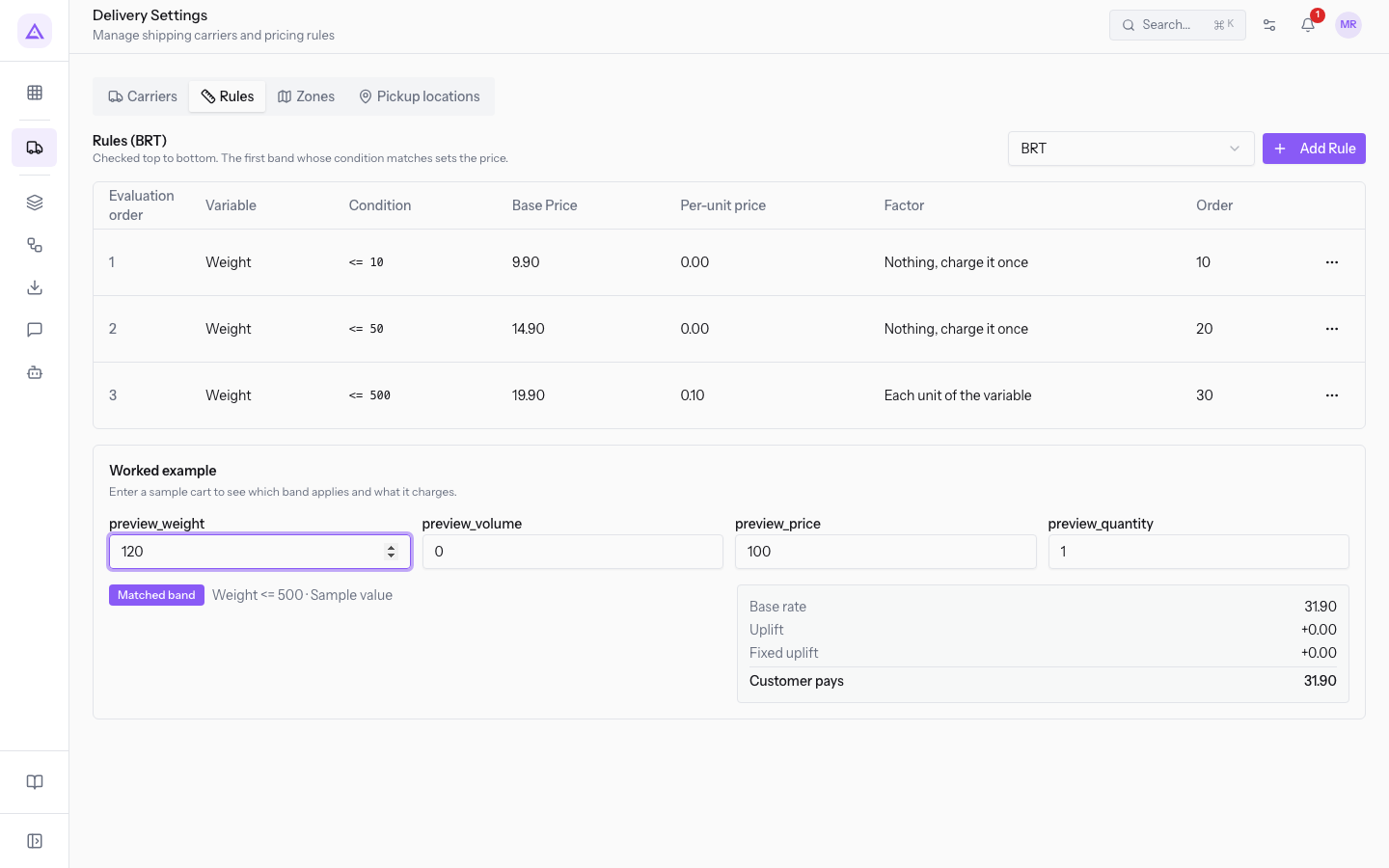
The panel can also show these messages:
- "No band matches this value — this carrier will not be offered for a cart like this": no band covers the value, like 600 kg for BRT.
- "Free-shipping threshold reached": the cart reaches the Free Over threshold, like an order price of €3,500 for BRT.
- "This carrier always charges its fixed price.": the chosen carrier is set to Fixed Price, like GLS, and the bands are not used.
To limit a Based on Rules carrier by weight or by country, see Set surcharges, weight limits and served countries.
See it on your company, not on a slide deck.
In 30 minutes we map the software you use today.We show you how much work and how much margin Archimedes gives back.
Show me on my business →What industry are you in?
One tap — it lets us prepare the demo around your world.
What tools do you use today?
Pick the ones you recognise — or just type them. It helps us show you how they migrate.
Last step: your details.
We reply within one working day — and right after, if you like, you pick the demo slot yourself.
We couldn't send your request. Try again, or write to us at [email protected].
By sending, you agree to your data being processed so we can get back to you about the demo. Privacy notice.
Preview form — nothing is sent from this page.
Want to schedule the demo now?
Your call: book the slot you prefer yourself, or we'll call you to arrange it.
Live availability, 30 minutes, instant confirmation. The calendar opens in a new tab.
Lock in your slot ↗We'll get back to you within one working day — and we'll join the call already knowing your world.
The calendar is open in another tab: pick a slot and the demo is booked. Can't see it? Reopen it ↗
Preview page: nothing was sent.
Our calendar is live: take the slot that suits you and the demo is booked. 30 minutes, instant confirmation, no waiting.
Lock in your slot ↗