Shipping
All modules
Decide which carriers are offered to customers and with what delivery times
Shipping · 4 of 13 · 3 min read
In the Storefront section of the carrier window, choose which carriers customers can select at checkout. Here you also set the description and delivery days shown with the carrier, for example Delivery in 24/48h for an express carrier.
Active and Offered at checkout
A carrier has two separate switches: Active in the General section and Offered at checkout in the Storefront section.
- Active: an inactive carrier does not appear anywhere.
- Offered at checkout: customers can choose this carrier. A carrier can stay active for internal use without being offered.
To pick the combination:
- If the carrier should appear to online shop customers, turn on both Active and Offered at checkout.
- If the carrier is only for staff on quotes and orders created in the back office, leave Active on and Offered at checkout off.
- If you no longer use the carrier, turn off Active.
Important: before turning on Offered at checkout, set the Shipping product in the Fulfilment section. It is the service product the shipment is recorded against, and it carries the VAT rate and the revenue account.
Reading the Checkout column of the carriers list
On the Delivery Settings page, Carriers tab, the Checkout column shows how each carrier is offered to customers, next to the Status column (Active or Inactive). For a full description of the list, see the shipping settings overview.
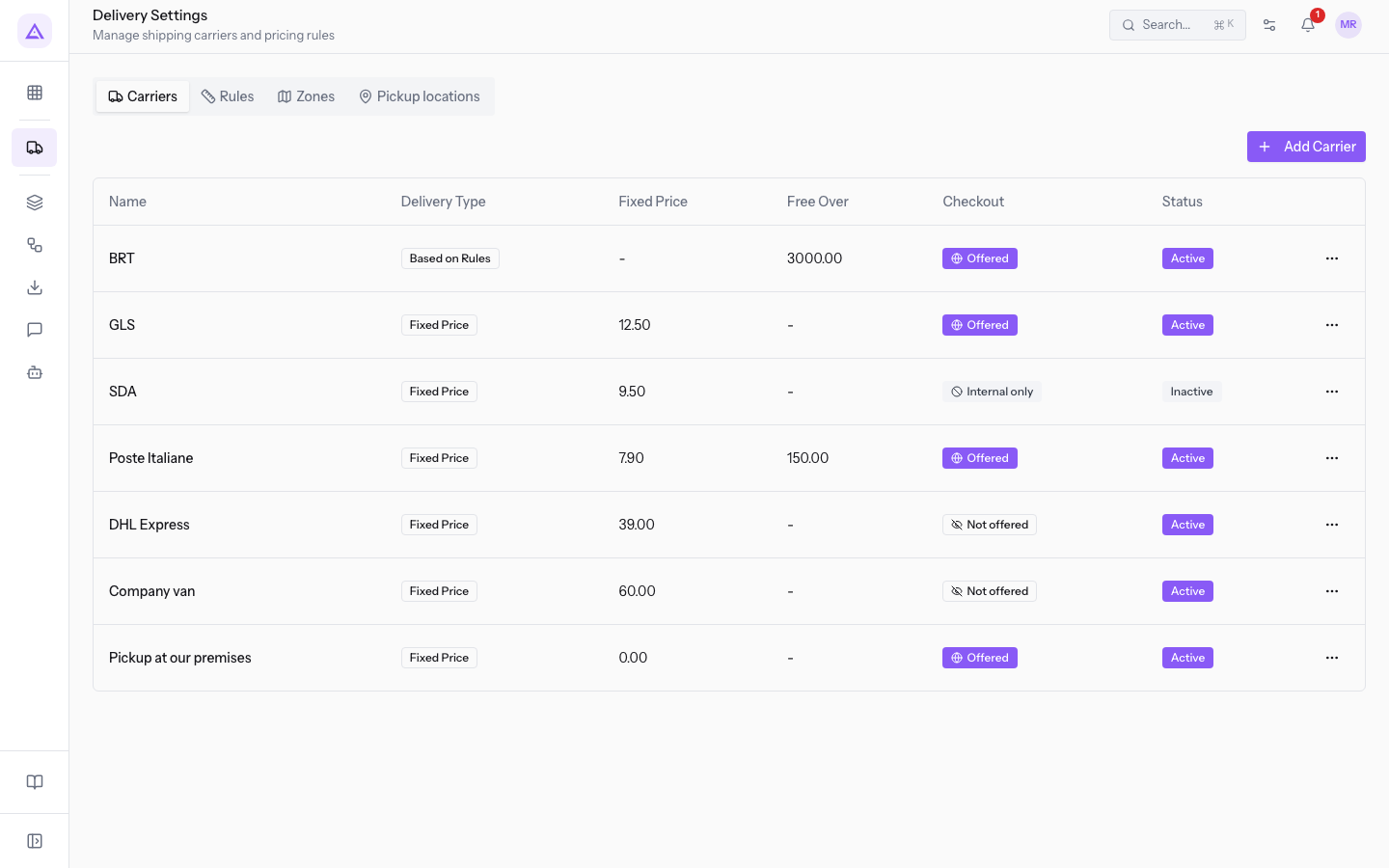
In the demo organization the column shows these values:
- Offered: BRT, GLS, Poste Italiane and Pickup at our premises, all with status Active. Customers see them at checkout.
- Not offered: DHL Express and Company van, with status Active. They are used only by the office on quotes and back-office orders.
- Internal only: SDA, with status Inactive. It cannot be used.
Offering a carrier at checkout
Open the carrier window and set the Storefront section.
- On the Delivery Settings page, Carriers tab, open the carrier to edit or press Add Carrier to create a new one.
- In the Fulfilment section, choose the shipping product, [SHIPPING] Shipping costs in the demo.
- In the Storefront section, turn on Offered at checkout.
- Fill in Description shown to customers, Delivery from (days) and Delivery within (days).
- Press Save.
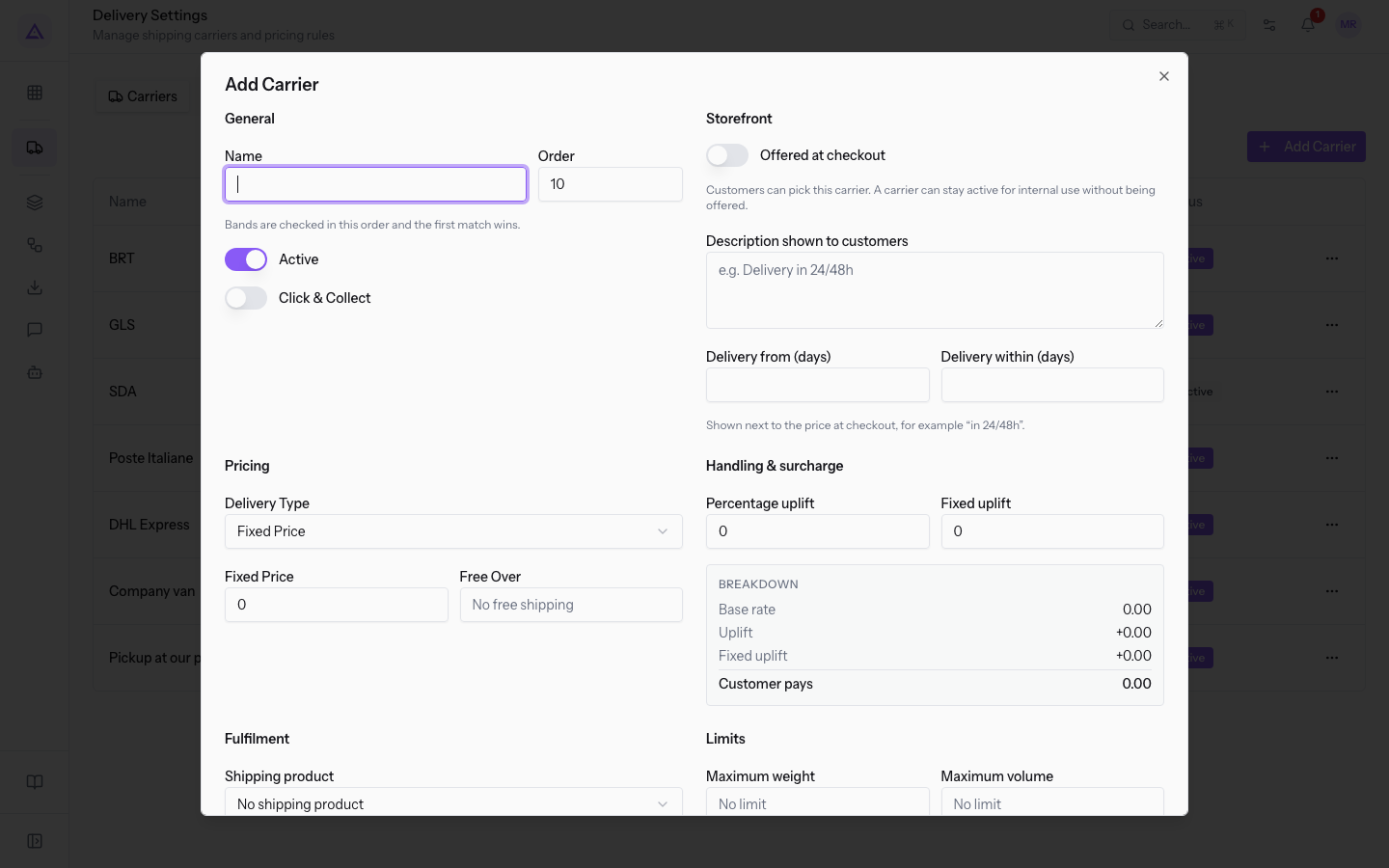
The fields in the Storefront section:
- Offered at checkout: switch. Customers can choose this carrier. In the window of a new carrier it is off.
- Description shown to customers: the text shown next to the price at checkout. The placeholder is
e.g. Delivery in 24/48h. The field is optional. - Delivery from (days): the minimum number of delivery days. The field is optional.
- Delivery within (days): the maximum number of delivery days. The field is optional.
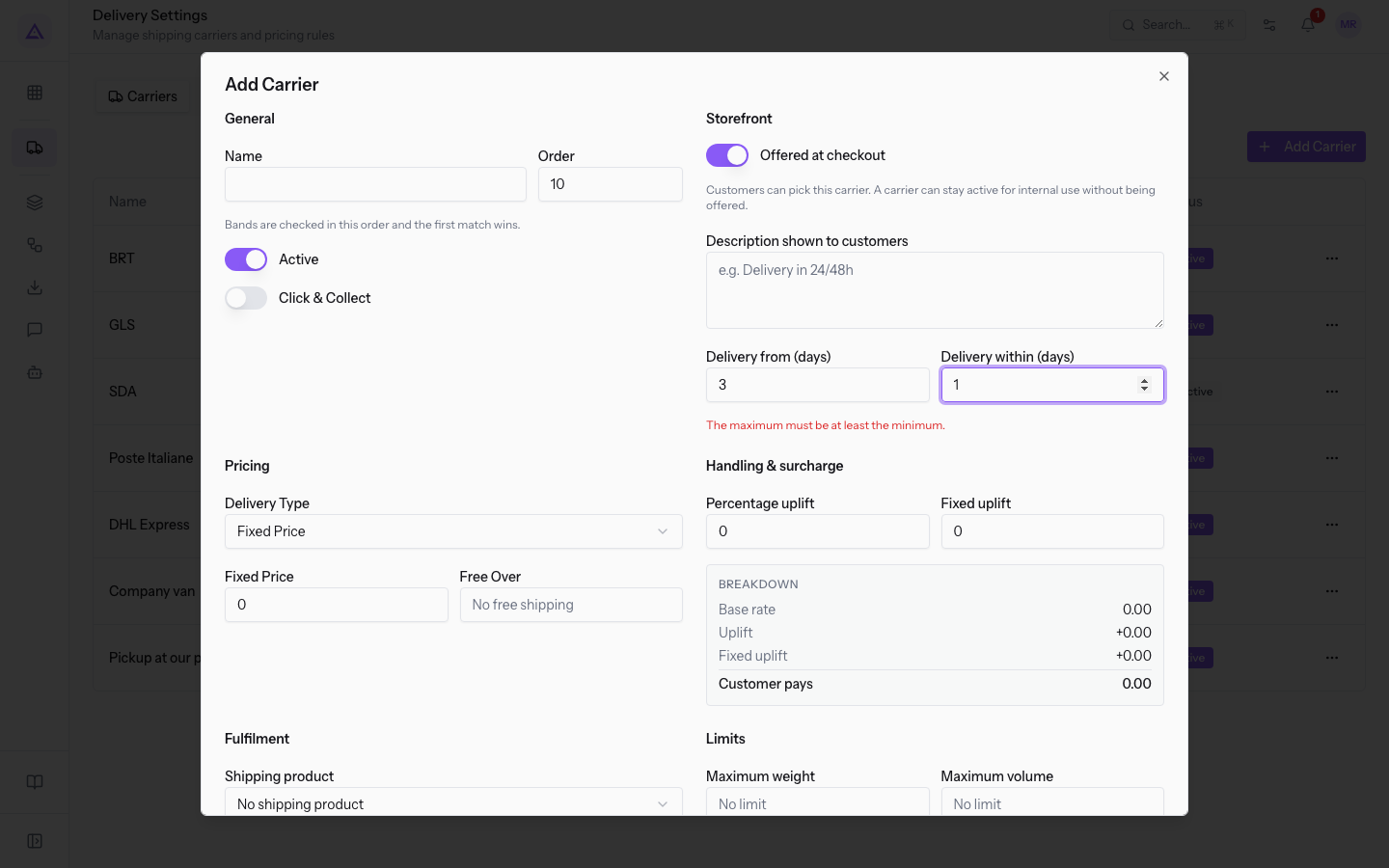
If the value of Delivery within (days) is lower than Delivery from (days), the window shows the message The maximum must be at least the minimum. That happens with 3 in Delivery from (days) and 1 in Delivery within (days). Fix one of the two values before saving.
Note: carriers offered at checkout use the same rates as quotes and back-office orders. To apply shipping to a back-office order, see Adding shipping to a quote or sales order.
Removing a carrier from checkout
To reserve a carrier for staff, turn off the checkout offer and leave it active.
- On the Carriers tab, open the carrier, for example DHL Express.
- In the Storefront section, turn off Offered at checkout.
- Leave Active on in the General section.
- Press Save.
The carrier no longer appears to online shop customers. It remains available on quotes and back-office orders.
See it on your company, not on a slide deck.
In 30 minutes we map the software you use today.We show you how much work and how much margin Archimedes gives back.
Show me on my business →What industry are you in?
One tap — it lets us prepare the demo around your world.
What tools do you use today?
Pick the ones you recognise — or just type them. It helps us show you how they migrate.
Last step: your details.
We reply within one working day — and right after, if you like, you pick the demo slot yourself.
We couldn't send your request. Try again, or write to us at [email protected].
By sending, you agree to your data being processed so we can get back to you about the demo. Privacy notice.
Preview form — nothing is sent from this page.
Want to schedule the demo now?
Your call: book the slot you prefer yourself, or we'll call you to arrange it.
Live availability, 30 minutes, instant confirmation. The calendar opens in a new tab.
Lock in your slot ↗We'll get back to you within one working day — and we'll join the call already knowing your world.
The calendar is open in another tab: pick a slot and the demo is booked. Can't see it? Reopen it ↗
Preview page: nothing was sent.
Our calendar is live: take the slot that suits you and the demo is booked. 30 minutes, instant confirmation, no waiting.
Lock in your slot ↗