Shipping
All modules
Printing the delivery note (DDT) for a delivery
Shipping · 12 of 13 · 4 min read
The delivery note (DDT) travels with the goods of a delivery to the customer. From a delivery's page you can print two copies: one without prices, to put in the package, and one with the prices from the sales order, for example for the customer or for accounting.
Which copy to print
The delivery page has two buttons, Print delivery slip and Print delivery slip (with prices). The two copies have the same lines. Only the presence of prices changes.
- Print delivery slip: the copy without prices. It is the warehouse copy: whoever prepares the goods uses it as a reference, and the customer finds it in the package.
- Print delivery slip (with prices): the copy with the unit price of each product and the total. The prices come from the sales order the delivery was created from, so they are the prices applied to the customer.
If the goods travel in a package the recipient can open, choose Print delivery slip. If the customer needs to see the amounts, choose Print delivery slip (with prices).
Note: if the delivery does not come from a sales order, for example an internal transfer, the copy with prices leaves the price column empty.
The DDT lists only the products of that delivery. If an order ships in several deliveries, each DDT describes only the goods in the package it travels with. To follow an order shipped in several parts, read Track the shipments of an order delivered in several parts.
Printing the DDT
The DDT is printed from the delivery's page, in the Inventory module.
- Go to Inventory › Transfers.
- Press the delivery's row, for example
WH/OUT/00001. The page shows the status (Done) and the details: operationWH: Deliveries, partner Studio Bianchi & Associati, carrierBRT.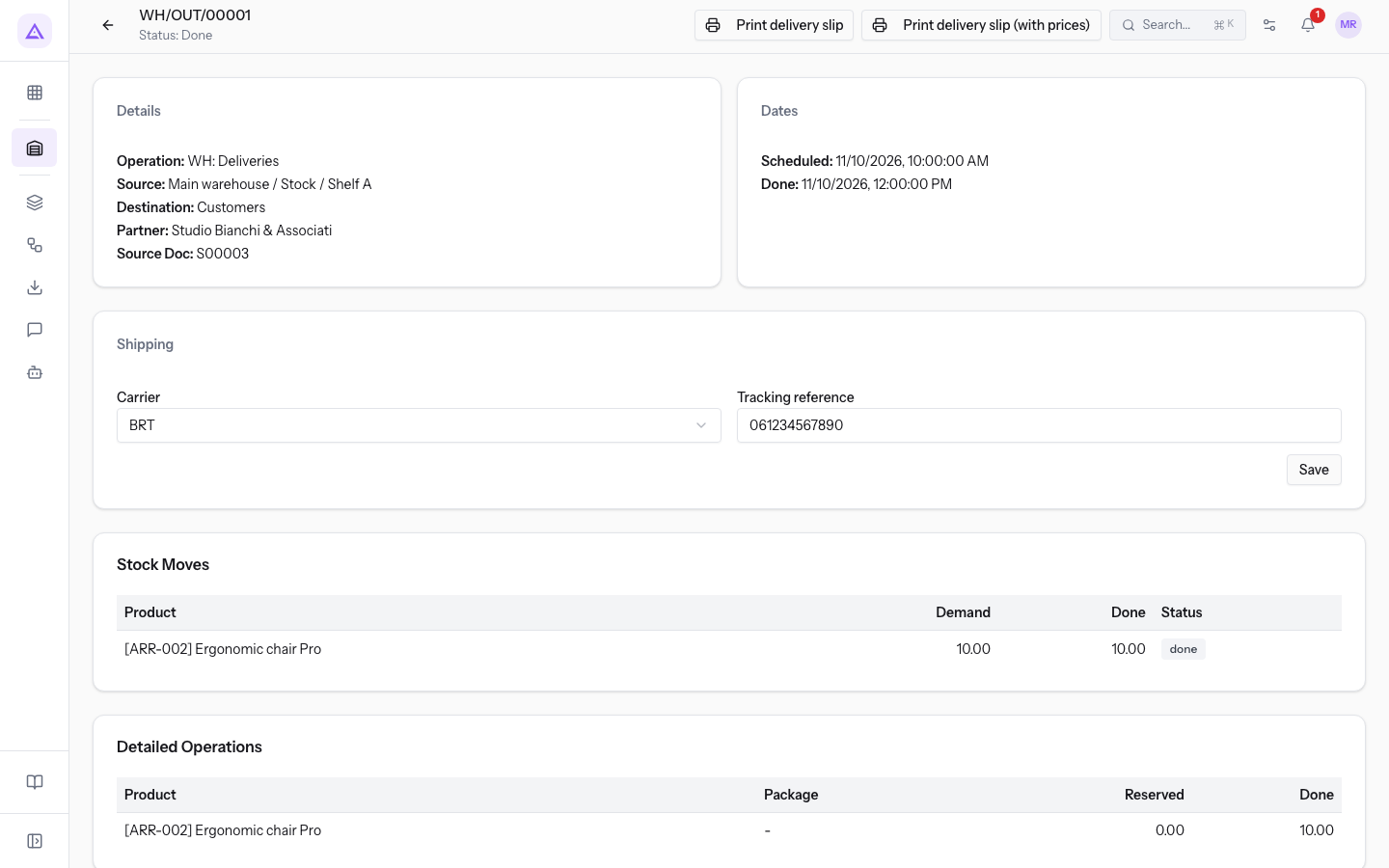
- Press Print delivery slip for the copy without prices, or Print delivery slip (with prices) for the copy with prices.
- The document opens as a PDF, in A4 portrait format. Print it or save it from the browser.
Delivery WH/OUT/00004 for Rossi Arredamenti S.r.l. has the same two buttons. The carrier is Company van and the tracking number is empty.
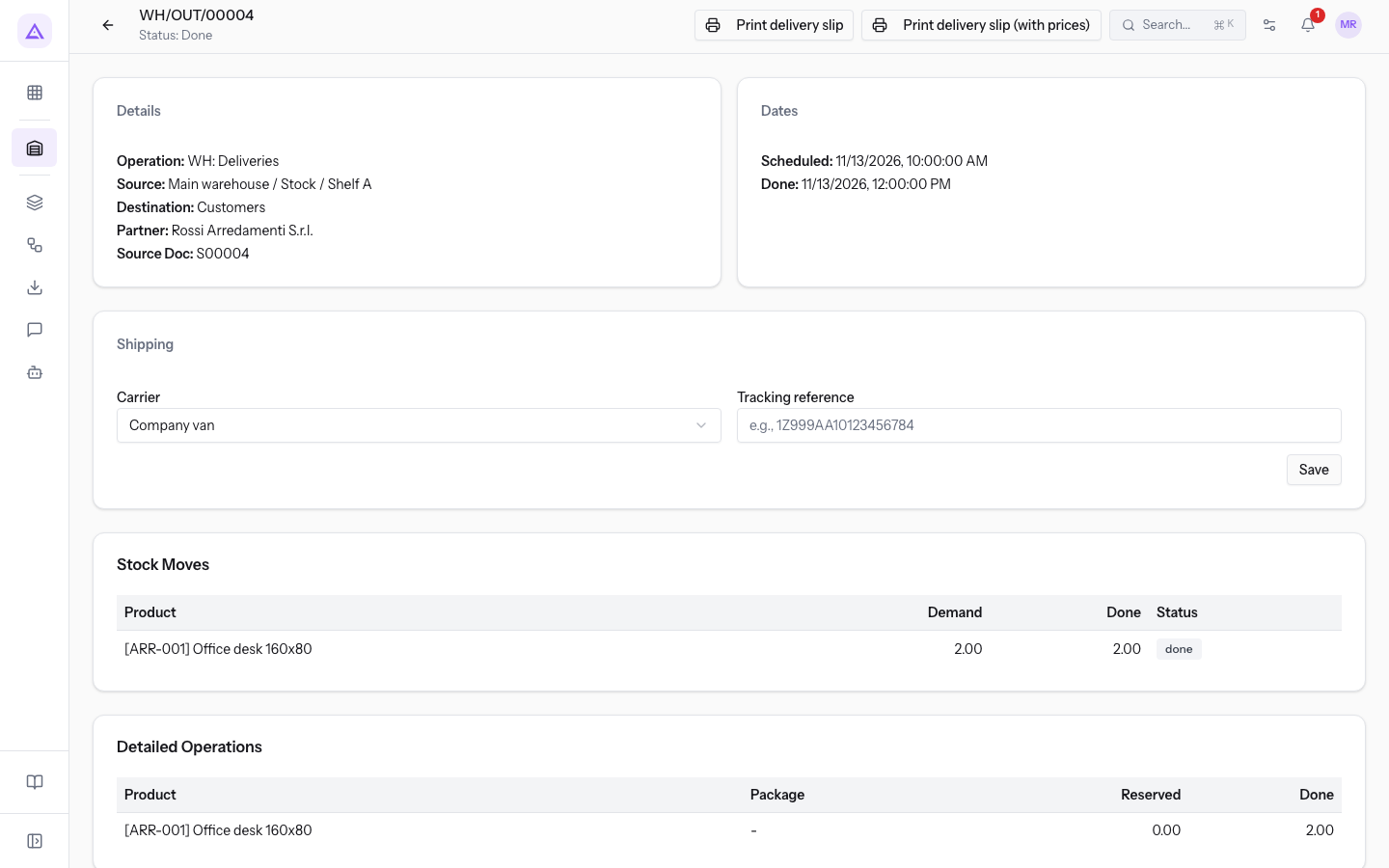
When you print the DDT, the application fills in these details by itself:
- Carrier: it is the one set on the delivery. If the delivery has none, it is the one from the sales order. To change it, read Set carrier and tracking number on a delivery.
- Tracking number: it is printed if the delivery has one:
061234567890forWH/OUT/00001. - Address: it is the customer's delivery address. If the customer has none, it is their default address.
- Language: the DDT is printed in the customer's preferred language, if it is Italian, English or German. Otherwise it is printed in the application language.
- Quantities: before validation the DDT shows the reserved quantities. After validation it shows the quantities actually delivered.
The DDT number
The DDT number is different from the delivery reference. WH/OUT/00001 is the internal reference of the transfer. The DDT number identifies the document for the customer and for the Agenzia delle Entrate.
- The number is assigned when the delivery is validated.
- If you print the DDT of a delivery not yet validated, the delivery reference appears in place of the DDT number.
Important: do not validate a delivery just to get a new DDT number. Validation closes the transfer and updates the warehouse stock.
Setting the prefixes of DDT numbers
The prefixes of DDT numbers are set on the delivery operation type, WH: Deliveries.
- Go to Inventory › Settings › Operation Types.
- Open the delivery operation type.
- Fill in the DDT Prefix field.
- DDT Prefix: the prefix with which the outgoing transport documents of this operation type start, for example
DDT/00001. The field is independent of the Sequence Prefix, which is only used for internal numbering, as inWH/OUT/00001, and which customers do not see.
See it on your company, not on a slide deck.
In 30 minutes we map the software you use today.We show you how much work and how much margin Archimedes gives back.
Show me on my business →What industry are you in?
One tap — it lets us prepare the demo around your world.
What tools do you use today?
Pick the ones you recognise — or just type them. It helps us show you how they migrate.
Last step: your details.
We reply within one working day — and right after, if you like, you pick the demo slot yourself.
We couldn't send your request. Try again, or write to us at [email protected].
By sending, you agree to your data being processed so we can get back to you about the demo. Privacy notice.
Preview form — nothing is sent from this page.
Want to schedule the demo now?
Your call: book the slot you prefer yourself, or we'll call you to arrange it.
Live availability, 30 minutes, instant confirmation. The calendar opens in a new tab.
Lock in your slot ↗We'll get back to you within one working day — and we'll join the call already knowing your world.
The calendar is open in another tab: pick a slot and the demo is booked. Can't see it? Reopen it ↗
Preview page: nothing was sent.
Our calendar is live: take the slot that suits you and the demo is booked. 30 minutes, instant confirmation, no waiting.
Lock in your slot ↗