Marketing
All modules
Finding the drafts written by the Ghostwriter
Marketing · 9 of 10 · 5 min read
The Content Drafts page (Marketing › Content Drafts menu) collects the texts saved by the Ghostwriter, the AI agent that writes content. Below the title the page reads Saved Ghostwriter outputs. Copy-paste to LinkedIn manually. Here you can find a draft, for example a LinkedIn post, an X thread, a blog article introduction or a newsletter. You can search for it, filter it by channel or by score, copy its text and open its record.
Where drafts come from
The page has no button to create a draft. Every draft is created in one of two ways.
- From a conversation with Ari in Ghostwriter mode, for example when you choose the channel to write for from a paper. For details read Choosing the research papers to start from.
- From the daily run of the autonomous Ghostwriter agent. In this case the draft record shows the run that produced it.
In a conversation with Ari the Ghostwriter always writes with the default voice profile. The daily run uses the profile chosen in the agent settings, or the default one if you do not choose one.
Note: publication to the channel is not automatic. You copy the text and paste it into the channel yourself, for example LinkedIn.
Opening the list of drafts
The list shows drafts from the most recent to the least recent.
- Open Marketing › Content Drafts.
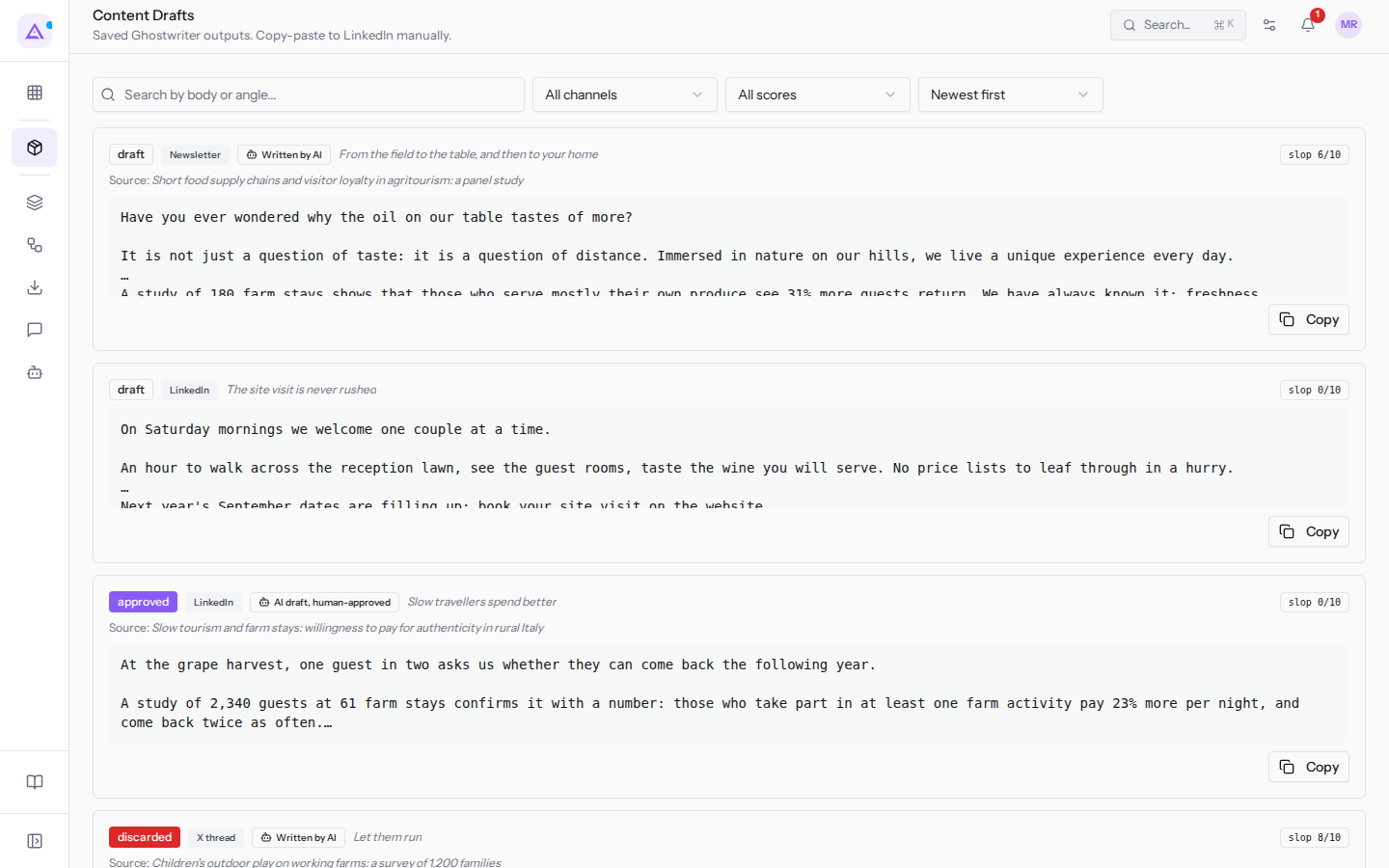
Each draft appears as a card with this information:
- Status: the technical value of the status,
draft(awaiting approval),approved,posted(published) ordiscarded. No button on the page or on the record brings a draft todiscarded. - Channel: LinkedIn, X thread, Blog intro or Newsletter.
- Origin:
Written by AIif the text was written by the agent,AI draft, human-approvedif the text was written by the Ghostwriter in a conversation with Ari and saved by a person. If the last edit was made by a person, including a click on Approve or Mark posted in the record, the indication does not appear. - Angle: the slant of the text, in italics next to the labels. It only appears if the draft has one.
- Slop score: indicates from 0 to 10 how AI-written the text sounds, in the form
slop 6/10. The lower the value, the better. It does not appear if the draft has no score. - Source: the title of the article the draft originated from. It only appears if the draft comes from an article.
- Text: the first lines of the text. The full text is in the draft's record.
- Copy: copies the full text of the draft.
Searching for a draft
The search finds drafts based on the text or the angle.
- Type a word in the Search by body or angle... field, for example
field. - The list updates as you type and shows only the drafts found.
Filtering by channel and by score
The two filters are used together with the search. The list loads at most the 50 drafts best suited to the search, score and sorting, and the channel filter selects only among these.
- If you are looking for texts for a single channel, use the channel filter.
- If you are looking for texts to rewrite before approving them, use the score filter.
- Open the All channels filter and choose a channel.
- Open the All scores filter and choose an option.
Channel filter options:
- All channels: shows drafts from all channels. This is the initial value.
- LinkedIn, X thread, Blog intro, Newsletter: show only the drafts for the chosen channel.
Score filter options:
- All scores: shows all drafts. This is the initial value.
- High AI sound (6–10): shows only the drafts with a slop score of 6 or above.
Sorting drafts
Sorting changes the order of drafts in the list.
- Open the Newest first menu and choose a sorting option.
Options:
- Newest first: from the most recently created draft. This is the initial value.
- Highest AI sound: from the highest slop score to the lowest. Use it to find the texts to review first.
- Lowest AI sound: from the lowest slop score to the highest. Use it to find the texts closest to publication first.
Copying the text of a draft
You can copy the text without opening the record.
- In the draft card click Copy. The full text is copied to the clipboard, even if you only see the beginning in the list; for a moment the button shows
Copied!. - Paste the text into the channel.
Opening a draft
In a draft's record you can read the full text, its provenance and the anti-slop filter's findings. From there you can approve the draft or mark it as published.
- Click on the draft card, for example the newsletter
From the field to the table, and then to your home. - The draft's record opens. To return to the list click Drafts.
To approve, publish or delete a draft read Reviewing, approving and publishing a draft.
See it on your company, not on a slide deck.
In 30 minutes we map the software you use today.We show you how much work and how much margin Archimedes gives back.
Show me on my business →What industry are you in?
One tap — it lets us prepare the demo around your world.
What tools do you use today?
Pick the ones you recognise — or just type them. It helps us show you how they migrate.
Last step: your details.
We reply within one working day — and right after, if you like, you pick the demo slot yourself.
We couldn't send your request. Try again, or write to us at [email protected].
By sending, you agree to your data being processed so we can get back to you about the demo. Privacy notice.
Preview form — nothing is sent from this page.
Want to schedule the demo now?
Your call: book the slot you prefer yourself, or we'll call you to arrange it.
Live availability, 30 minutes, instant confirmation. The calendar opens in a new tab.
Lock in your slot ↗We'll get back to you within one working day — and we'll join the call already knowing your world.
The calendar is open in another tab: pick a slot and the demo is booked. Can't see it? Reopen it ↗
Preview page: nothing was sent.
Our calendar is live: take the slot that suits you and the demo is booked. 30 minutes, instant confirmation, no waiting.
Lock in your slot ↗