Marketing
All modules
Viewing and editing a persona
Marketing · 4 of 10 · 5 min read
The persona's record shows the full profile on a single page: role, industry, jobs to be done, pain points, goals, objections, and the channels they frequent. From here you can edit the persona, archive it when you no longer need it, or delete it — for example, to update the goals of the Food and wine couple persona or to set aside Hiking groups.
Opening a persona's record
The record opens from the persona list, described in Describing your audience with personas.
- In the Marketing menu, click Personas.
- Click the persona's name, for example
Food and wine couple.
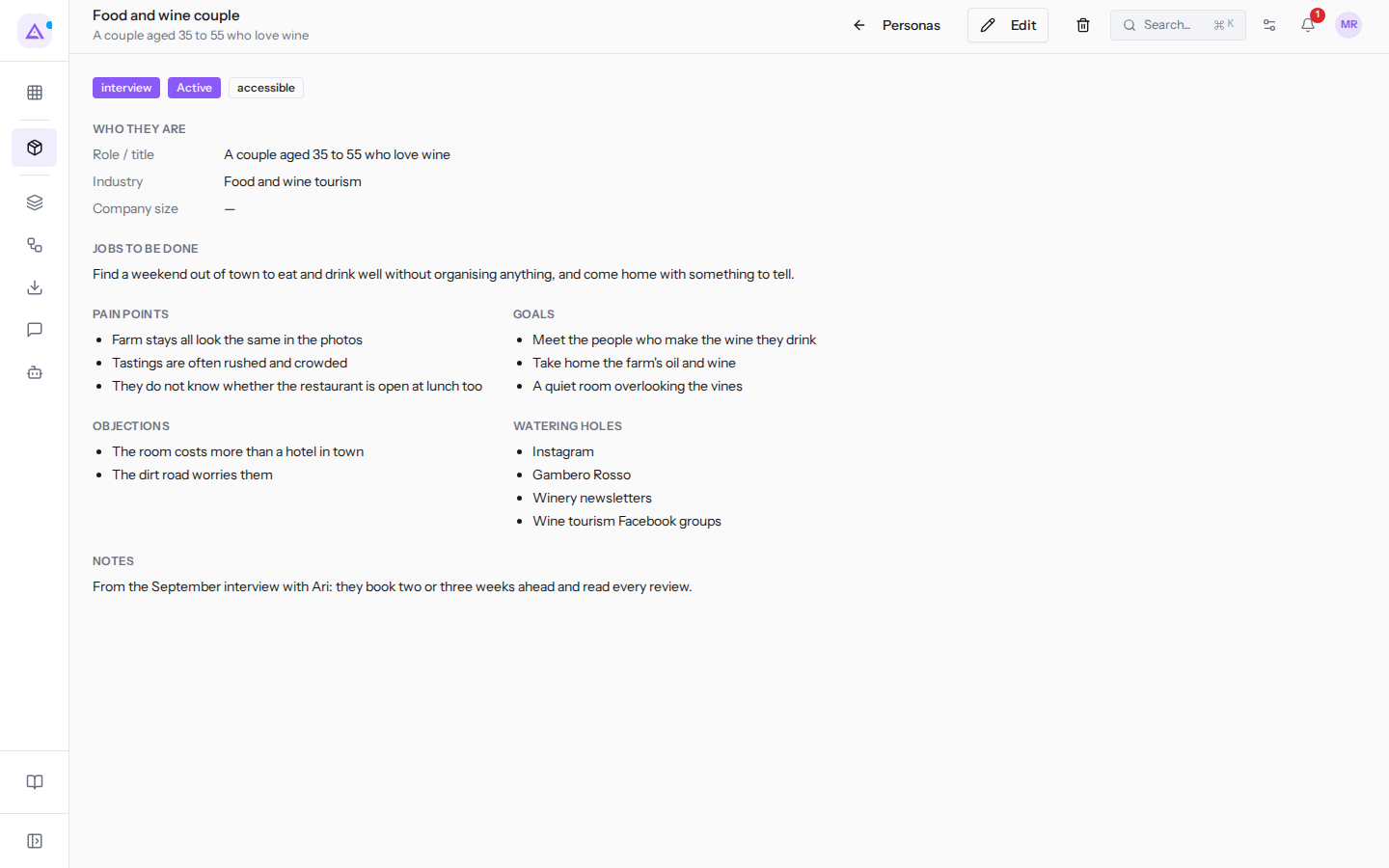
At the top is the persona's name as the title, and below it, their role, for example A couple aged 35 to 55 who love wine. If the role is empty, Marketing persona appears in its place.
To the right of the title are three buttons:
- Personas: returns to the persona list.
- Edit: opens the dialog to edit the persona.
- the trash icon: deletes the persona, after a confirmation.
Reading the record
Below the title, three labels summarise the persona's status:
- Origin: how the persona was created. Shows
manualfor a manually written persona,interviewfor one created through the guided interview with Ari,importedfor an imported one. If the origin is not specified, showsmanual. ActiveorArchived: whether the persona is active or archived.- Language register: the chosen register, for example
accessible. The label only appears if the register is set.
The record is divided into sections:
Who they are: theRole / title,Industry, andCompany sizefields.Jobs to be done: the tasks the persona wants to accomplish, as free text.Pain points: the problems they encounter, one per entry.Goals: the goals, one per entry.Objections: the purchase objections, one per entry.Watering holes: the places and channels they frequent, one per entry, for exampleInstagramandGambero RossoforFood and wine couple.Notes: free-form notes. The section only appears if notes are filled in.
An empty field shows a dash.
Editing a persona
The edit dialog has the same fields as the creation form, already filled in with the current values. The meaning of each field is explained in Creating a persona.
- In the persona's record, click Edit. The dialog opens with the persona's name in the title, for example
Edit Food and wine couple. - Edit the fields.
- Click Save. The dialog closes and the record shows the new values. To close without saving, click Cancel.
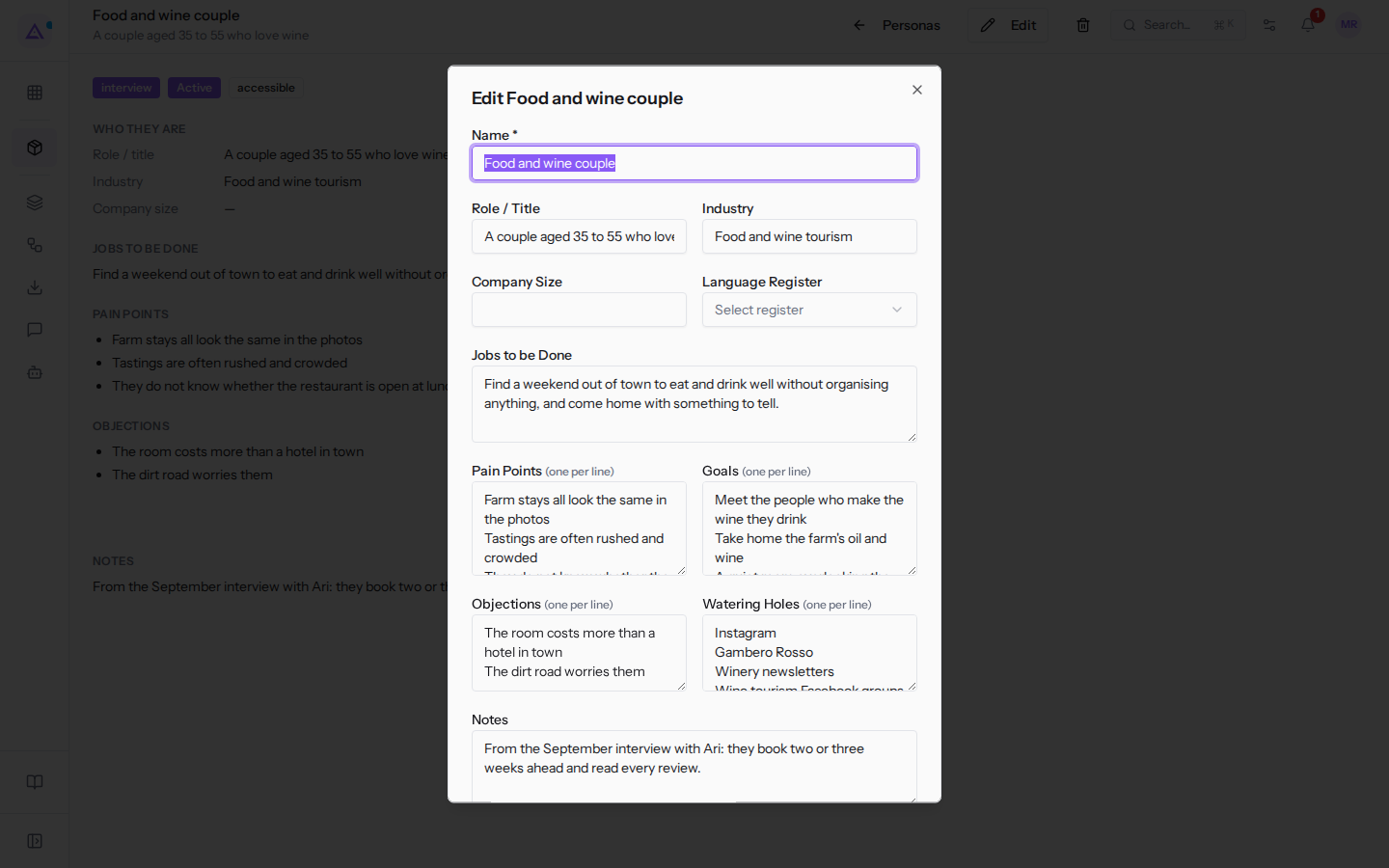
The dialog fields:
- Name: the persona's name. The field is required.
- Role / Title: the role or brief description, for example
A couple aged 35 to 55 who love wine. It also appears below the record's title. - Industry: the industry, for example
Food and wine tourism. - Company Size: the company size.
- Language Register: the language register to use with the persona. The field may appear empty (Select register) even if a register is set: if you do not change it, the current value is kept. Choose from Select register:
- Formal
- Informal
- Technical
- Accessible
- Jobs to be Done: the tasks the persona wants to accomplish, as free text.
- Pain Points (one per line): the problems, one per line. Each line becomes an entry in the
Pain pointssection. - Goals (one per line): the goals, one per line.
- Objections (one per line): the objections, one per line.
- Watering Holes (one per line): the places and channels frequented, one per line.
- Notes: free-form notes, for example the sources of information about the persona.
- Active: the toggle that indicates whether the persona is active. It is on for active personas.
Archiving a persona
Archive a persona when you no longer want to use it but want to keep its profile. An archived persona remains in the list with the Archived label and retains its record with all fields, but it is no longer used to calculate paper scores: after archiving it, recalculate the scores. It can become active again at any time.
- If the persona describes an audience you no longer target but might return to, archive it.
- If the persona is a duplicate or an error, delete it (see the next section).
- Open the persona's record and click Edit.
- Turn off the Active toggle.
- Click Save. The record shows the
Archivedlabel, as forHiking groups.
To reactivate an archived persona, repeat the same steps and turn on the Active toggle.
Deleting a persona
Only users in the Marketing Manager group can delete a persona. The trash icon also appears for other users, but for them the deletion does not succeed.
- In the persona's record, click the trash icon. The
Delete persona?confirmation opens. - The confirmation warns that the persona «will be soft-deleted». Click Delete to delete the persona, or Cancel to cancel. After deletion you return to the persona list.
The deleted persona no longer appears in the list, but its data remains in the database. It cannot be restored from the interface: recovering it requires a database intervention.
See it on your company, not on a slide deck.
In 30 minutes we map the software you use today.We show you how much work and how much margin Archimedes gives back.
Show me on my business →What industry are you in?
One tap — it lets us prepare the demo around your world.
What tools do you use today?
Pick the ones you recognise — or just type them. It helps us show you how they migrate.
Last step: your details.
We reply within one working day — and right after, if you like, you pick the demo slot yourself.
We couldn't send your request. Try again, or write to us at [email protected].
By sending, you agree to your data being processed so we can get back to you about the demo. Privacy notice.
Preview form — nothing is sent from this page.
Want to schedule the demo now?
Your call: book the slot you prefer yourself, or we'll call you to arrange it.
Live availability, 30 minutes, instant confirmation. The calendar opens in a new tab.
Lock in your slot ↗We'll get back to you within one working day — and we'll join the call already knowing your world.
The calendar is open in another tab: pick a slot and the demo is booked. Can't see it? Reopen it ↗
Preview page: nothing was sent.
Our calendar is live: take the slot that suits you and the demo is booked. 30 minutes, instant confirmation, no waiting.
Lock in your slot ↗