Marketing
All modules
Reading a paper and its recommendation
Marketing · 8 of 10 · 6 min read
A paper's record brings together on one page everything the module knows about a scientific paper from the feed: the score, the reason for the score, the writing recommendation, the abstract, and the full text. From here you can select the paper for writing, mark it as seen, and open it on the source.
Opening a paper's record
Every paper in the feed has its own record, reachable from the paper list.
- In the Marketing menu, open the Papers entry.
- Click on the title of a paper, either from the featured ones or from the full list, for example
Slow tourism and farm stays: willingness to pay for authenticity in rural Italy.
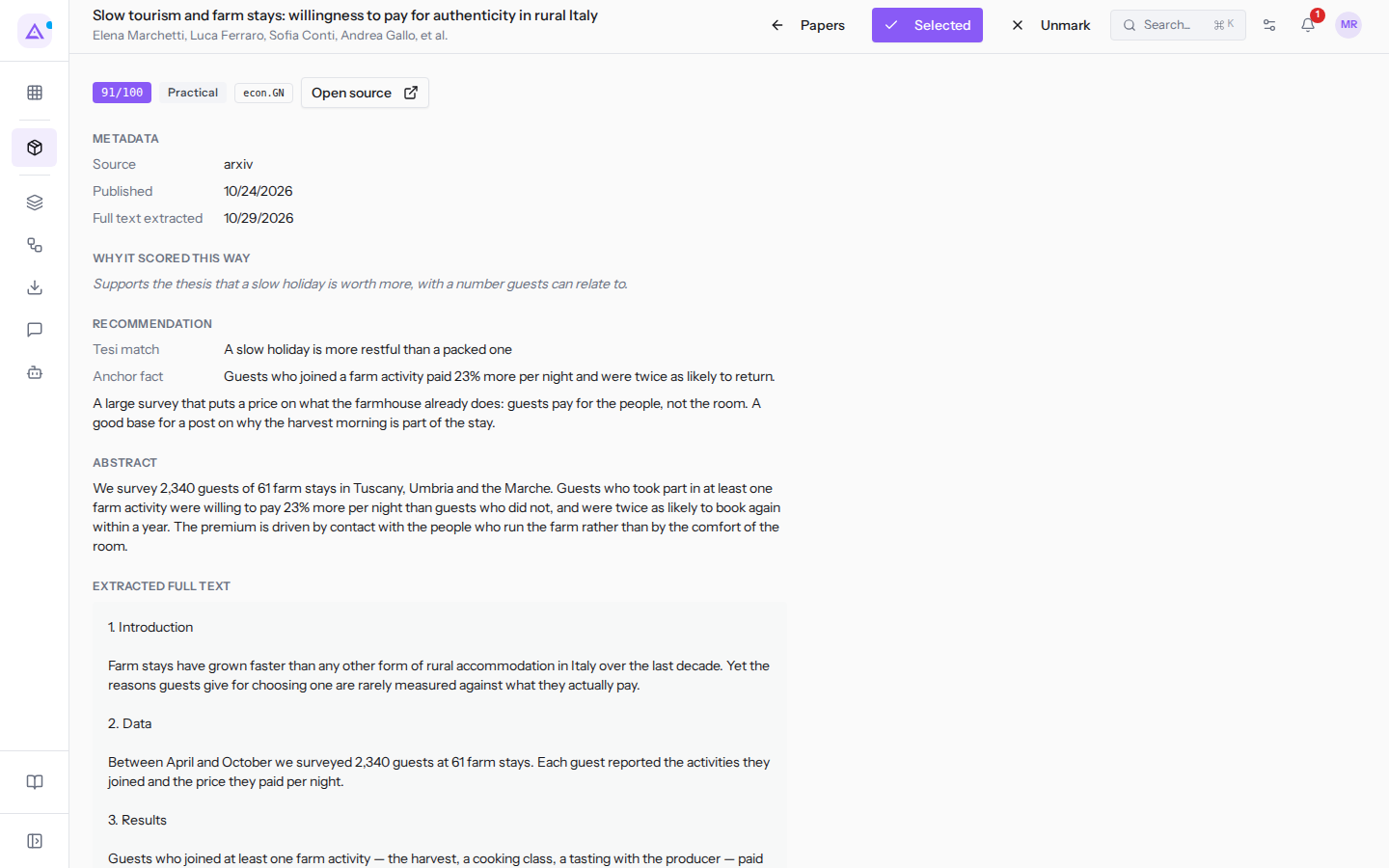
At the top of the record there are the paper title and, below it, the authors. If there are more than four authors, the record shows the first four followed by et al..
For choosing papers from the list, using search and understanding the featured papers, see Choosing the research papers to start from.
Record buttons
The buttons next to the title act on the open paper.
- Papers: goes back to the paper list.
- Select / Selected: selects the paper or removes the selection. On a selected paper the button shows Selected with a tick mark.
- Mark seen / Unmark: marks the paper as seen or removes the mark. On an already marked paper the button shows Unmark.
The same Select and Mark seen buttons appear on the rows of the full list, not on featured papers: the state you set on the record is the same one you see in the list.
Score, angle, and categories
Below the title a row of labels summarises the paper.
- Score: a value from 0 to 100, for example
91/100, calculated by comparing the paper with the voice profile and the personas. If the paper does not yet have a score, the label shows—. - Angle: the recommended angle for writing about the paper. It appears only if the paper has a recommendation.
ContrarianPracticalMethodologicalVulnerableConnection
- Categories: the source's categories, for example
econ.GNandcs.CY. - Open source: opens the paper's page on the source in a new browser tab. It appears only if the paper has an address.
Note: the score depends on the voice profile and the personas in effect when it was calculated. If you modify them, the score remains as it was until you trigger a recalculation from the paper list, described in Choosing the research papers to start from.
Metadata
The Metadata section shows where the paper comes from and whether its full text has already been extracted.
Source: the paper's source, for examplearxiv.Published: the paper's publication date.Full text extracted: the date on which the full text was extracted from the PDF. If the text has not yet been extracted, the field shows-.
Why it scored this way and Recommendation
These two sections explain the score and suggest how to write about the paper. Why it scored this way appears when the paper has a reason for its score, Recommendation when it has a recommendation: a paper can have the former without the latter. For a paper without a score the record goes from Metadata straight to Abstract.
Why it scored this way: the reason for the score, in one sentence. The same text appears below the title in the rows of the full list.Recommendation: the writing recommendation.Tesi match: the voice profile thesis the paper connects with, for example «A slow holiday is more restful than a packed one». If it is missing, the field shows—.Anchor fact: the paper fact on which to base the text.- Summary: a brief summary of the paper, below the two fields. It appears only if the recommendation contains one.
The recommendation also indicates the persona to speak to. The record does not show it: you find it as Speak to: on the featured papers in the list.
Abstract and Extracted full text
The last two sections contain the paper's text.
Abstract: the paper's abstract. If it is missing, the section shows—.Extracted full text: the full text extracted from the PDF, in a scrollable box.
If the full text has not yet been extracted, as for Team retreats in rural venues: effects on cohesion measured over six months, the section shows Not extracted yet. and the Extract PDF button, which downloads the paper's PDF from the source and extracts its text.
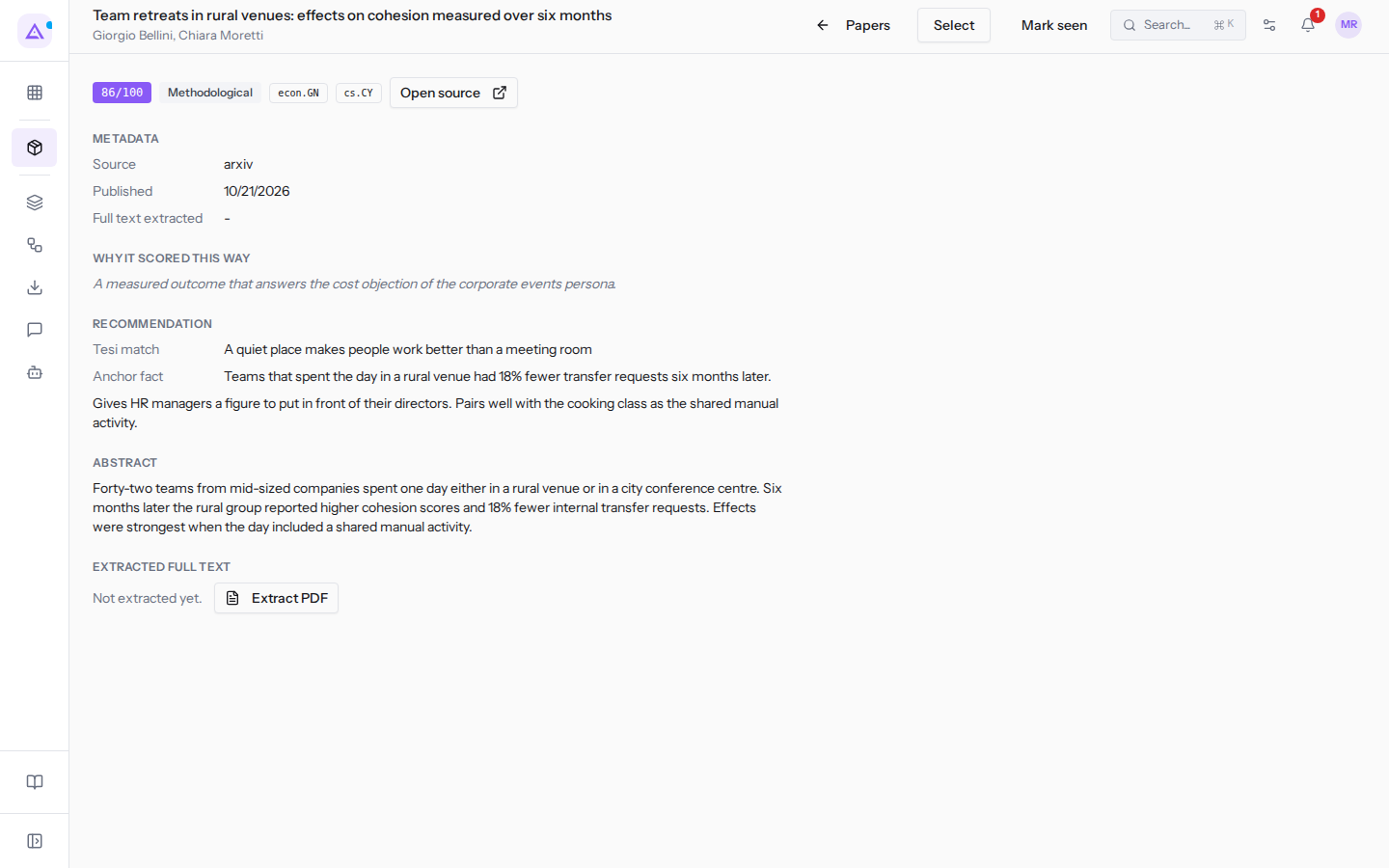
To extract the full text:
- Open the paper's record.
- In the
Extracted full textsection click Extract PDF. During extraction the button remains disabled.
Once extraction is complete the section shows the text and the Full text extracted field shows the date. If extraction fails, for example because the PDF is unreachable, the page shows no message: the section remains Not extracted yet..
Note: it is not necessary to extract the text before having a draft written. If the full text is missing, the module extracts it on its own when you start the Ghostwriter from the
Draftmenu of a featured paper; the operation takes 10-30 seconds.
Selecting a paper for writing
The selection indicates the papers you want to start from for writing. Multiple papers can remain selected at the same time. The Ghostwriter's daily run writes its drafts from the selected papers that do not yet have a draft.
- Open the paper's record.
- Click Select. The button becomes Selected.
- To remove the selection click Selected.
When you have a draft written from a featured paper using the Draft menu, the module makes that paper the only selected one and switches the conversation with Ari to Ghostwriter mode, with the voice profile, the paper context, and the anti-slop filter. Any previous selections on other papers are therefore removed.
The record does not have the Draft menu: to have a draft written, go back to the list with Papers and use the menu of a featured paper, described in Choosing the research papers to start from. The drafts produced can be found in Finding the drafts written by the Ghostwriter.
See it on your company, not on a slide deck.
In 30 minutes we map the software you use today.We show you how much work and how much margin Archimedes gives back.
Show me on my business →What industry are you in?
One tap — it lets us prepare the demo around your world.
What tools do you use today?
Pick the ones you recognise — or just type them. It helps us show you how they migrate.
Last step: your details.
We reply within one working day — and right after, if you like, you pick the demo slot yourself.
We couldn't send your request. Try again, or write to us at [email protected].
By sending, you agree to your data being processed so we can get back to you about the demo. Privacy notice.
Preview form — nothing is sent from this page.
Want to schedule the demo now?
Your call: book the slot you prefer yourself, or we'll call you to arrange it.
Live availability, 30 minutes, instant confirmation. The calendar opens in a new tab.
Lock in your slot ↗We'll get back to you within one working day — and we'll join the call already knowing your world.
The calendar is open in another tab: pick a slot and the demo is booked. Can't see it? Reopen it ↗
Preview page: nothing was sent.
Our calendar is live: take the slot that suits you and the demo is booked. 30 minutes, instant confirmation, no waiting.
Lock in your slot ↗