Marketing
All modules
Creating a persona
Marketing · 3 of 10 · 5 min read
A persona describes a type of customer you target, for example a family looking for a countryside weekend, a couple getting married who are looking for a venue, or someone who organises corporate events. You can create it manually using the New Persona dialog or ask Ari for a guided interview that proposes personas for you to confirm.
Manually or with Ari's interview
Both methods produce the same type of record. What differs is the recorded origin and the way you collect the information.
- If you already know how to describe the type of customer, create it manually using the New Persona dialog. The record shows the origin
manual. - If you want to start from your recent real customers, ask Ari for the guided interview. Ari asks one question at a time and proposes up to 4 personas (usually between 2 and 4, never more than the real customers you described), which become records only after your confirmation. The recorded origin is
interview.
Creating a persona manually
The New Persona dialog gathers all the persona's fields on a single screen.
- Open Marketing › Personas. The Marketing Personas page opens with the list of personas.
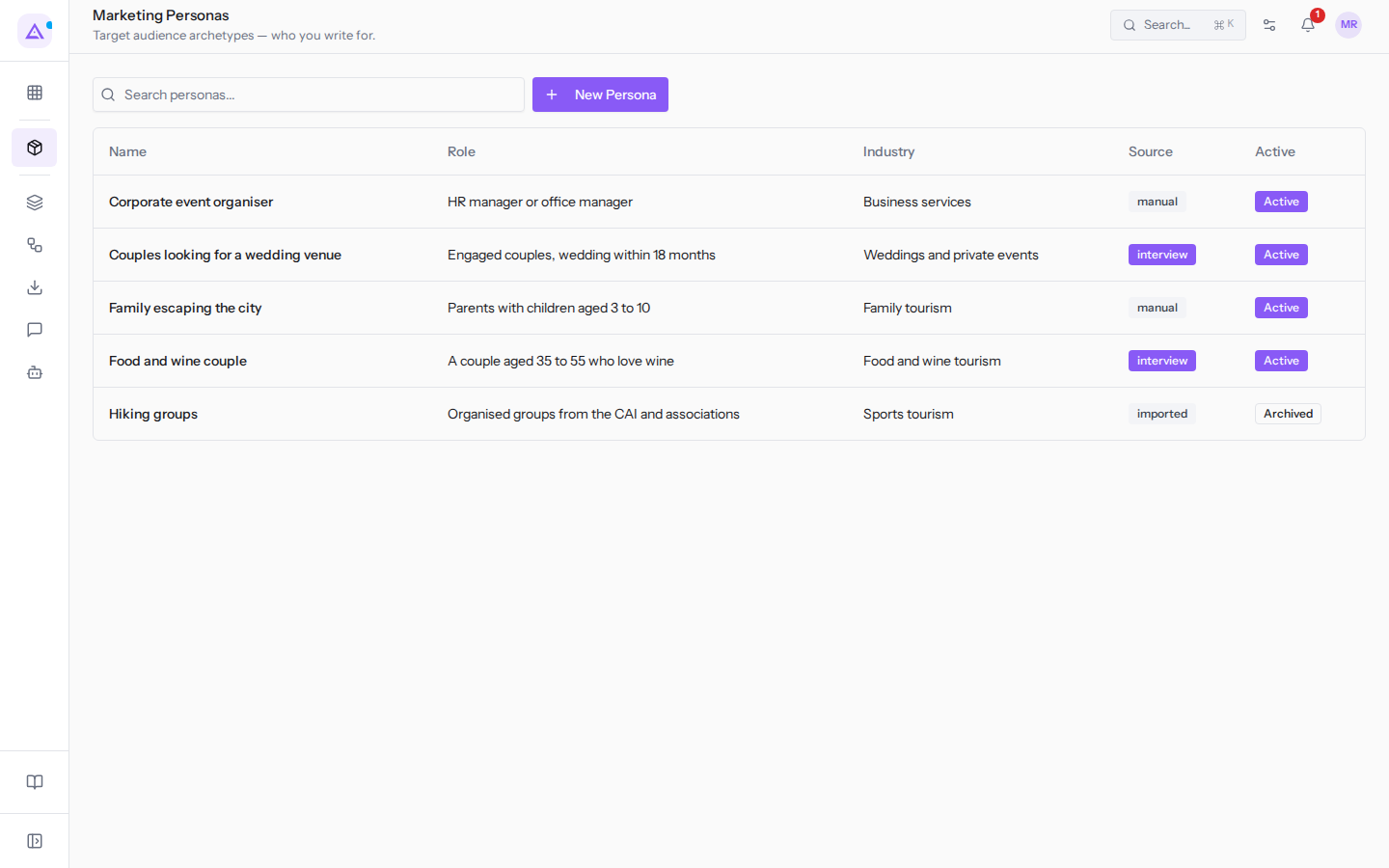
- Click New Persona. The New Persona dialog opens.
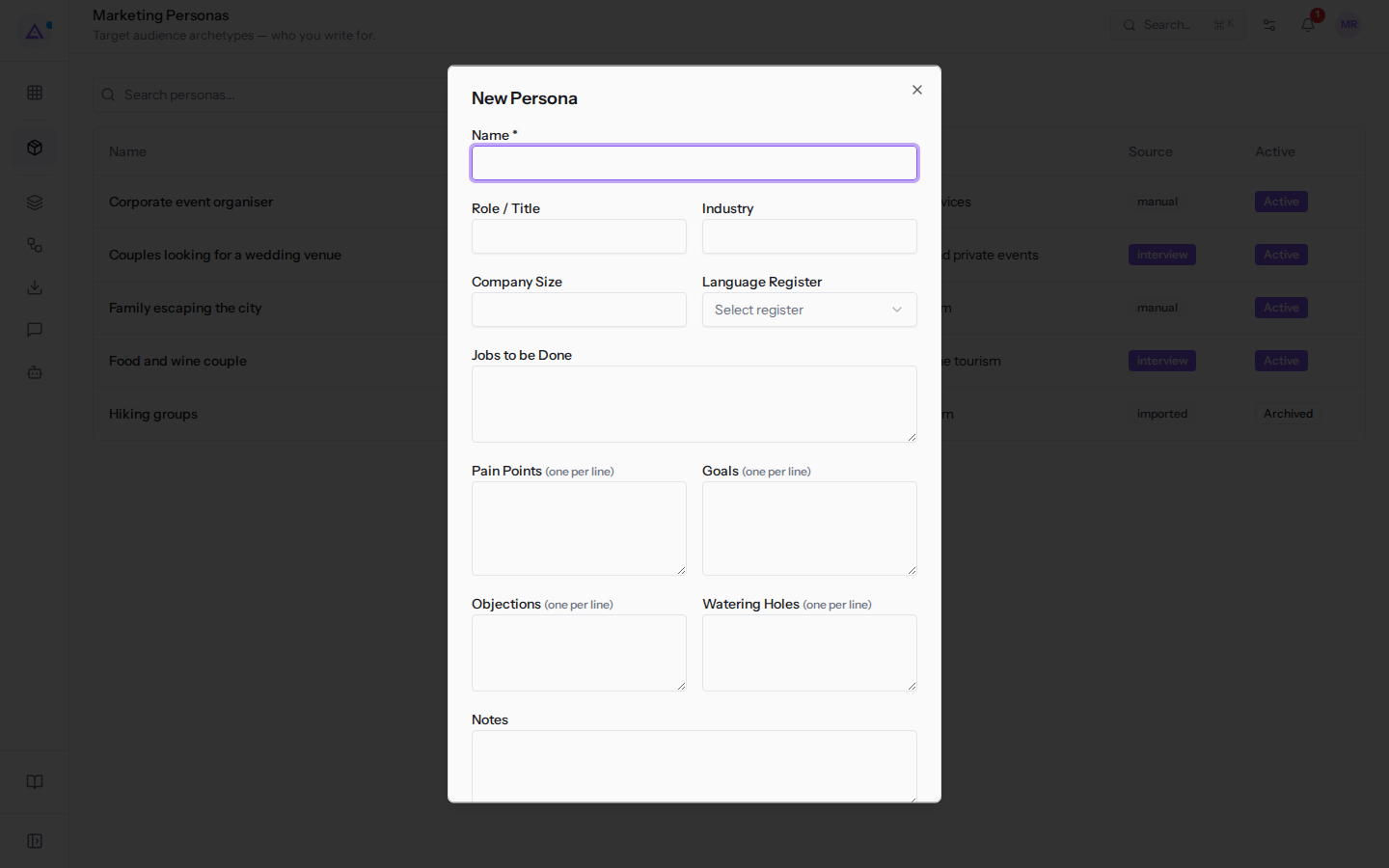
- Fill in the fields described below. Only Name is required.
- Click Create. The new persona's record opens. To close the dialog without saving click Cancel.
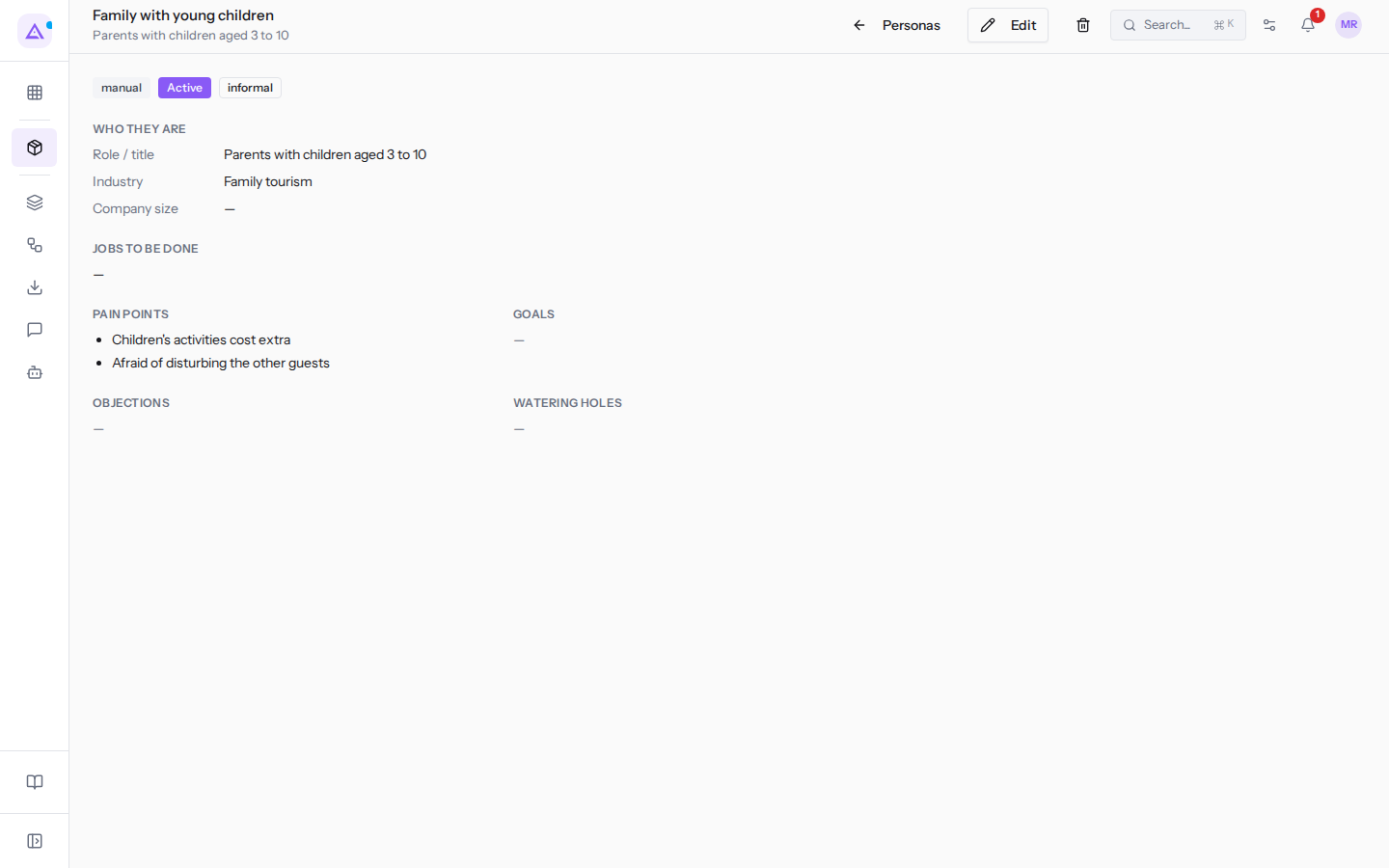
The record shows the name as the title and the role below it. It then shows the origin (manual), status (Active), and language register labels, and the fields divided into sections. Fields left empty appear with a dash. To edit the persona use Edit, as described in Viewing and editing a persona.
The New Persona dialog fields
Each field describes an aspect of the type of customer. The examples come from the Family escaping the city persona.
- Name: the name by which you recognise the persona in the list and in the record. The field is required. For example
Family escaping the city. - Role / Title: who the persona is, in a few words. It appears below the record title. For example
Parents with children aged 3 to 10. - Industry: the sector or reference context. For example
Family tourism. - Company Size: the company size, if the persona represents a company. For a private customer you can leave it empty, as in the example persona.
- Language Register: the register to use when writing to this persona. Choose an option from the Select register menu. In the record the value appears as a lowercase label, for example
informal. In the example persona it is Informal.- Formal: formal register.
- Informal: informal register.
- Technical: technical register.
- Accessible: register accessible to everyone.
- Jobs to be Done: what the persona wants to achieve when choosing your services. For example
Give the children a few days outdoors, with animals and room to run, while the parents rest. - Pain Points (one per line): the problems or annoyances the persona encounters. Write one entry per line. For example
Children's activities cost extraandAfraid of disturbing the other guests. - Goals (one per line): the outcomes the persona is looking for. One entry per line. For example
Somewhere close, within a two-hour drive. - Objections (one per line): the doubts that hold them back before choosing. One entry per line. For example
Is the pool fenced?andWhat do we do if it rains? - Watering Holes (one per line): the places, online and offline, where the persona looks for information. One entry per line. For example
Parenting blogs,School WhatsApp groups,Facebook. - Notes: any other useful observations, as free text.
- Active: the toggle is on by default. An active persona appears as
Activein the record. Turn it off if you want to create it already archived.
In fields marked «one per line» each line becomes a separate entry and empty lines are ignored. The record shows the entries as a list under the corresponding section.
Creating personas with Ari's interview
As an alternative to the dialog you can ask Ari to build the personas. Ari conducts an interview about real customers and proposes personas for you to confirm.
- Open Ari from the sidebar.
- Ask Ari to build your marketing personas. Ari opens the interview with an initial question about recent customers and continues with one question at a time.
- Answer the questions. At the end Ari proposes between 2 and 4 draft personas.
- Review the proposed personas: for each one you can click Edit to correct it, Discard to discard it, or Save to save it. Only the personas you save are created.
Each confirmed persona is created as active, with origin interview. To be saved it must have at least a name and Jobs to be Done. After saving you will find it in the list in Describing your audience with personas and you can edit it like a manually created persona.
See it on your company, not on a slide deck.
In 30 minutes we map the software you use today.We show you how much work and how much margin Archimedes gives back.
Show me on my business →What industry are you in?
One tap — it lets us prepare the demo around your world.
What tools do you use today?
Pick the ones you recognise — or just type them. It helps us show you how they migrate.
Last step: your details.
We reply within one working day — and right after, if you like, you pick the demo slot yourself.
We couldn't send your request. Try again, or write to us at [email protected].
By sending, you agree to your data being processed so we can get back to you about the demo. Privacy notice.
Preview form — nothing is sent from this page.
Want to schedule the demo now?
Your call: book the slot you prefer yourself, or we'll call you to arrange it.
Live availability, 30 minutes, instant confirmation. The calendar opens in a new tab.
Lock in your slot ↗We'll get back to you within one working day — and we'll join the call already knowing your world.
The calendar is open in another tab: pick a slot and the demo is booked. Can't see it? Reopen it ↗
Preview page: nothing was sent.
Our calendar is live: take the slot that suits you and the demo is booked. 30 minutes, instant confirmation, no waiting.
Lock in your slot ↗