Marketing
All modules
Setting up voice profiles
Marketing · 5 of 10 · 4 min read
A voice profile describes how the organisation writes: language, topics, positions, text samples, and words to use or avoid. The Ghostwriter writes drafts using the default profile, unless asked otherwise. You can keep multiple profiles, for example one for Italian guests, one for foreign guests, and one for corporate events.
Default profile and additional profiles
The organisation can have multiple voice profiles, but only one is the default.
- If you almost always write for the same audience and in the same language, keep a single profile and make it the default.
- If you also write for a different audience or in another language, create an additional profile and choose it in the settings of the autonomous Ghostwriter agent: in a conversation with Ari the Ghostwriter always uses the default profile.
- If you create a profile and mark it as the default, the profile that was previously the default stops being the default.
- When you create the first profile, the Set as default profile checkbox is already active and the profile becomes the default.
Important: changing the default profile changes the tone of all drafts written afterwards. Paper scores depend on the voice profile in effect when they are calculated: after a profile change, recalculate them as explained in Choosing the research papers to start from.
Viewing voice profiles
The Voice Profiles page lists the organisation's profiles. The default profile appears first.
- In the Marketing menu, click Voice Profile.
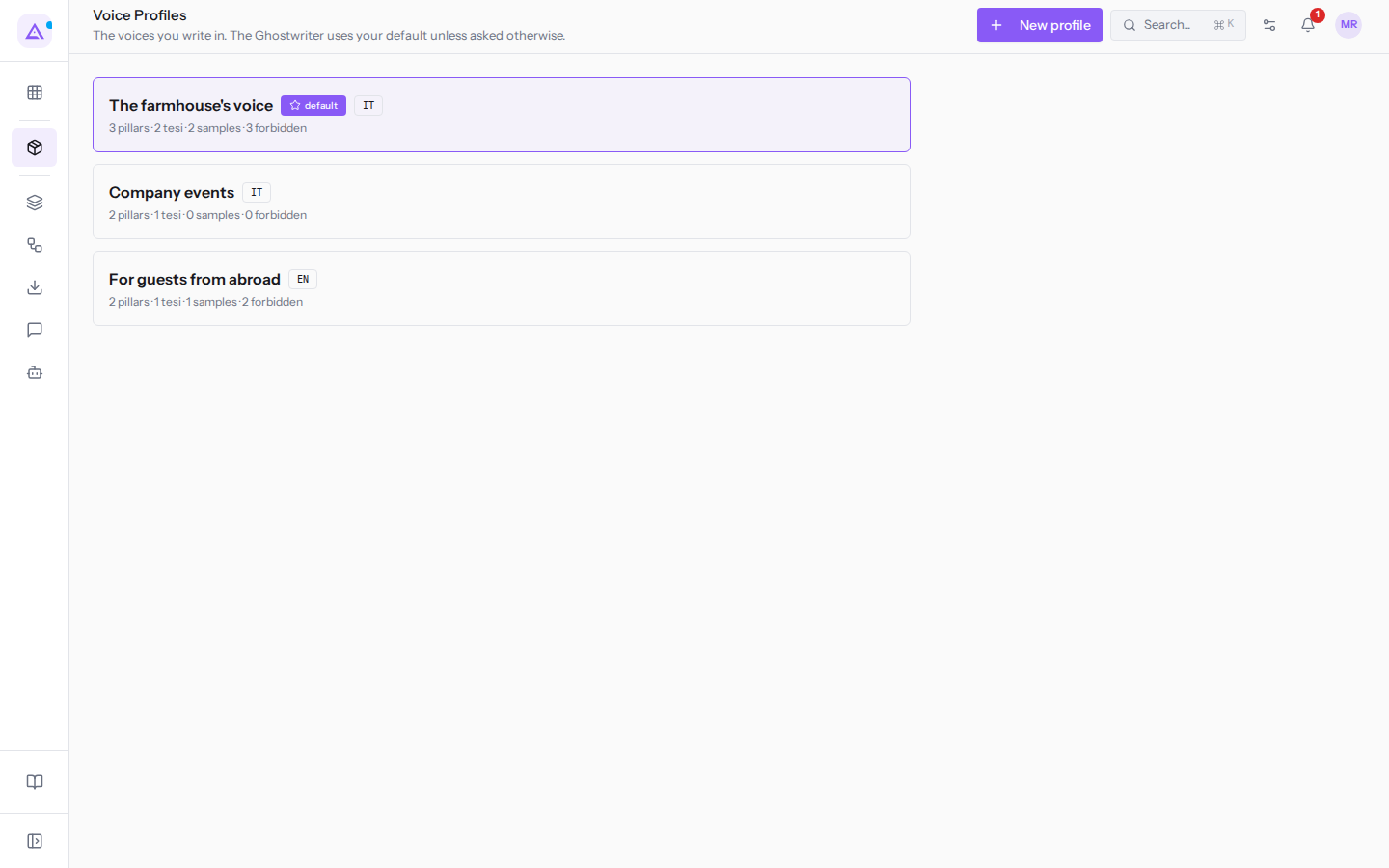
Each card shows:
- the profile name, for example
The farmhouse's voice; - the
defaultlabel on the default profile; - the language, for example
IT; - the number of pillars, theses, text samples, and forbidden phrases, for example
3 pillars · 2 tesi · 2 samples · 3 forbidden.
To open a profile, edit it, make it the default, or delete it, see Managing a voice profile.
Creating a voice profile
Create a profile for each voice you write with. Creating a profile requires the «Marketing User» or «Marketing Manager» group.
- In the Marketing menu, click Voice Profile.
- Click New profile. The New voice profile dialog opens.
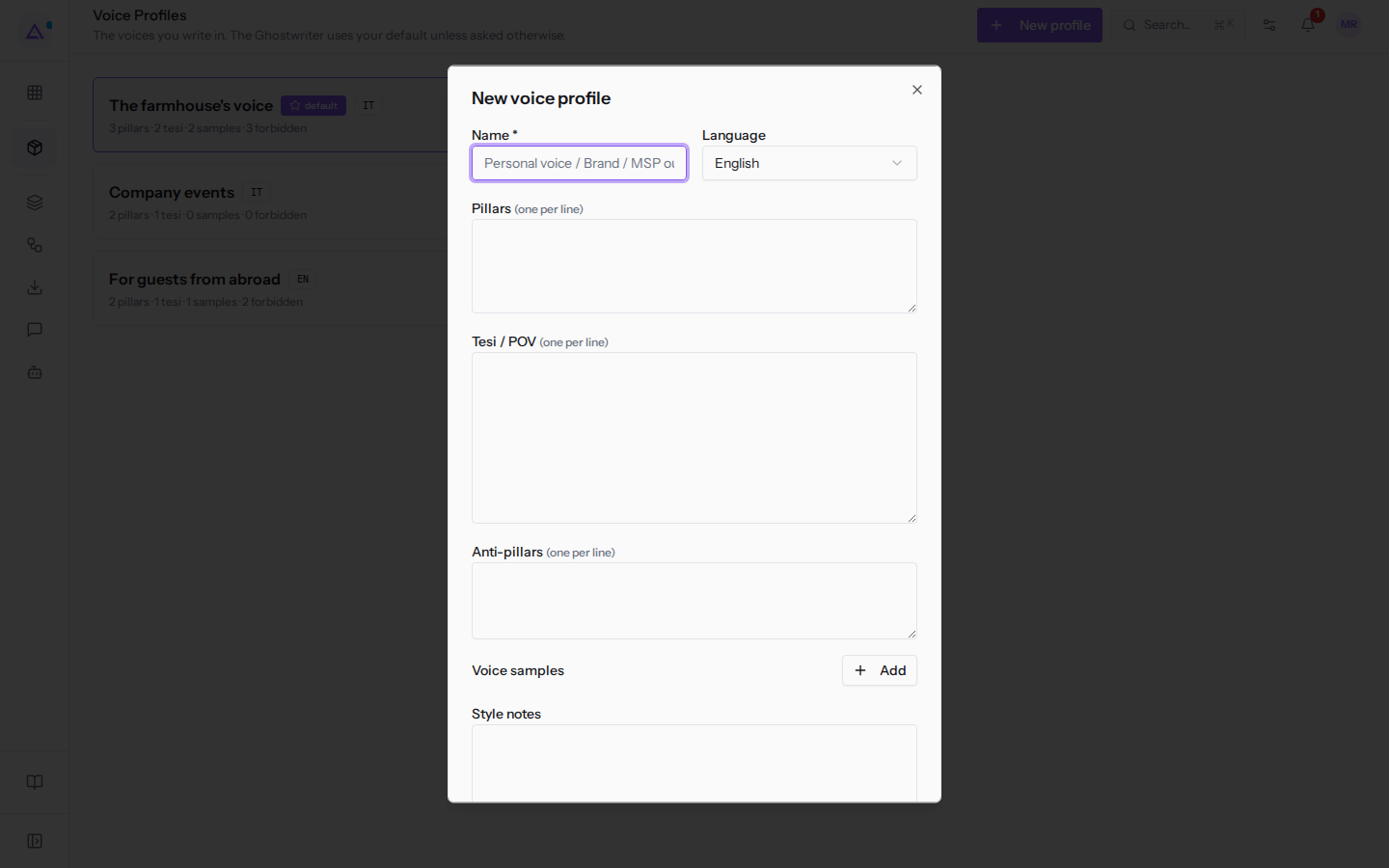
- Fill in the fields described below.
- To add a text sample, click Add next to «Voice samples». A field for the label (
label) and one for the text appear; the X to the right of the label removes the sample.
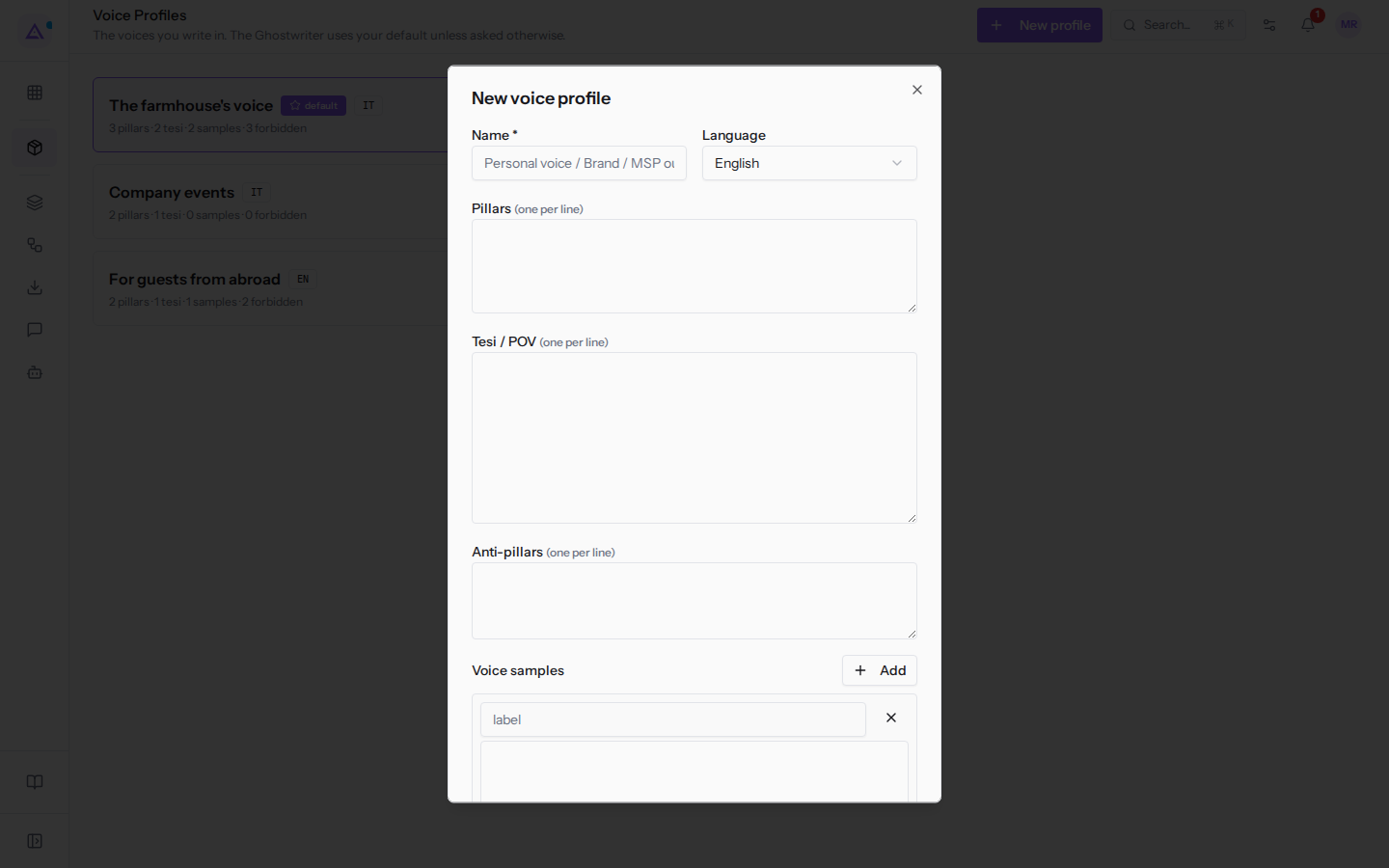
- Click Create. To close without saving, click Cancel.
Dialog fields
The Ghostwriter receives the content of these fields as instructions every time it writes with the profile. Empty fields are not passed.
- Name: the profile name, for example
The farmhouse's voice. The field is required. - «Language»: the language in which the Ghostwriter writes texts. The initial value is English.
- English: texts in English.
- Italiano: texts in Italian.
- Pillars (one per line): the topics on which the organisation wants to be recognised as competent. Write one topic per line.
- Tesi / POV (one per line): the positions the organisation holds. Every Ghostwriter text must reinforce, clarify, or compare at least one of these theses. Write one thesis per line.
- Anti-pillars (one per line): the topics the organisation does not cover. The Ghostwriter never frames a text around these topics. Write one topic per line.
- «Voice samples»: texts written by the organisation, to be used as a model. The Ghostwriter reproduces their rhythm, vocabulary, and structure. Each sample has a label and a text. A sample without text is not used.
- Style notes: free-form style guidance, for example sentence length or register. If you leave the field empty, the profile receives a generic system style note.
- Forbidden phrases (one per line): phrases the Ghostwriter must never use. Write one phrase per line.
- Words to use: words to prefer in texts.
- Words to avoid: words not to use in texts.
- Set as default profile: makes the profile the default. It is unchecked when the dialog opens, except when you create the first profile: in that case it is already checked. If you check it, the previous default profile stops being the default.
Setting up the profile with Ari
As an alternative to the dialog, Ari can guide you through an interview that builds the voice profile.
- Open Ari from the sidebar.
- Ask Ari to help you set up your voice profile, for example with «Help me set up my voice profile».
- Answer the questions. Ari asks one question at a time: first it asks for the profile name, then moves on to the pillars.
The interview covers pillars, theses, anti-pillars, text samples, style notes, and forbidden phrases, and takes between 5 and 10 minutes. At the end, Ari proposes the profile for review in the conversation. The profile is saved only with a separate confirmation.
See it on your company, not on a slide deck.
In 30 minutes we map the software you use today.We show you how much work and how much margin Archimedes gives back.
Show me on my business →What industry are you in?
One tap — it lets us prepare the demo around your world.
What tools do you use today?
Pick the ones you recognise — or just type them. It helps us show you how they migrate.
Last step: your details.
We reply within one working day — and right after, if you like, you pick the demo slot yourself.
We couldn't send your request. Try again, or write to us at [email protected].
By sending, you agree to your data being processed so we can get back to you about the demo. Privacy notice.
Preview form — nothing is sent from this page.
Want to schedule the demo now?
Your call: book the slot you prefer yourself, or we'll call you to arrange it.
Live availability, 30 minutes, instant confirmation. The calendar opens in a new tab.
Lock in your slot ↗We'll get back to you within one working day — and we'll join the call already knowing your world.
The calendar is open in another tab: pick a slot and the demo is booked. Can't see it? Reopen it ↗
Preview page: nothing was sent.
Our calendar is live: take the slot that suits you and the demo is booked. 30 minutes, instant confirmation, no waiting.
Lock in your slot ↗