Open Banking
All modules
Set up reconciliation rules
Open Banking · 14 of 15 · 4 min read
Reconciliation rules tell Archimedes how to handle statement lines that match certain criteria: match them to invoices, post them to an account, or leave them for a person.
For example: Bank fees and charges, Customer invoice receipts or Transfers over €5,000 to review.
Open the reconciliation rules
You manage rules from the Reconciliation Rules page, which opens from the bank accounts screen.
- Open Invoices › Banking.
- On the Configure the rest of automatic reconciliation: row, press Reconcile rules.
The page shows the list of rules for the organization.
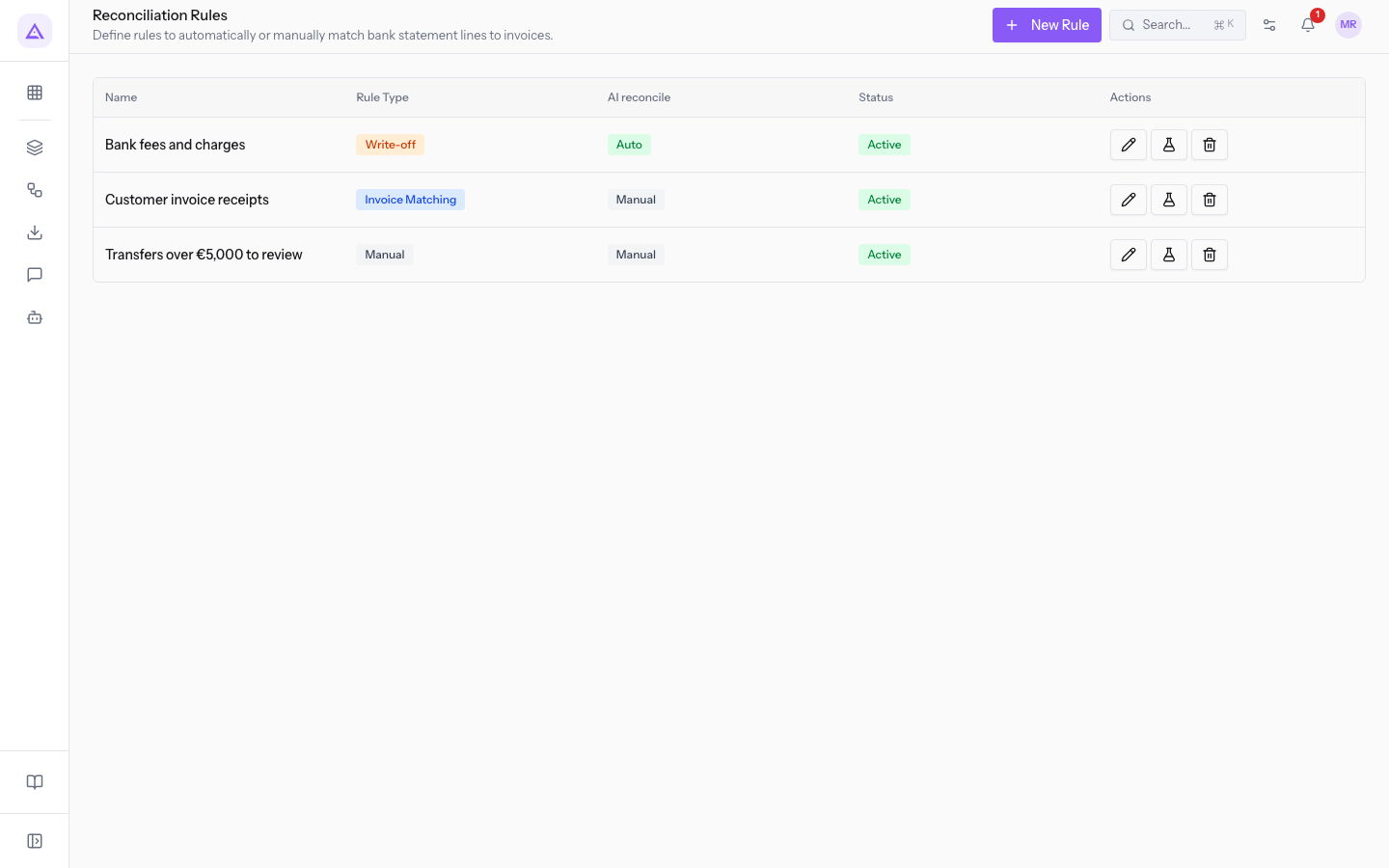
The list columns are:
- Name: the name of the rule.
- Rule Type: the type chosen for the rule, that is Write-off, Invoice Matching or Manual.
- AI reconcile: shows whether the rule applies automatically (Auto) or not (Manual).
- Status: Active or Inactive.
- Actions: the actions to edit, test and delete the rule.
Choose the rule type
The rule type decides what happens to statement lines that match the criteria. Choose the type before filling in the rest: with Write-off the window shows extra fields.
- If the transaction has no invoice to match and must always be posted to the same account, for example a bank account maintenance fee, choose Write-off. The transaction is posted to the Write-off Account.
- If the transaction settles an invoice, such as a customer invoice receipt, choose Invoice Matching. This is the type suggested when you create a rule.
- If you want transactions of a certain kind checked by a person, such as transfers above a certain threshold, choose Manual.
Create a rule
Create one rule for each group of transactions you want to handle the same way.
- On the Reconciliation Rules page, press New Rule. The New Rule window opens.
- Enter the rule Name.
- Choose the Rule Type.
- Fill in the Match Criteria and, for the Write-off type, the Write-off Settings.
- Press Save. The Created message appears.
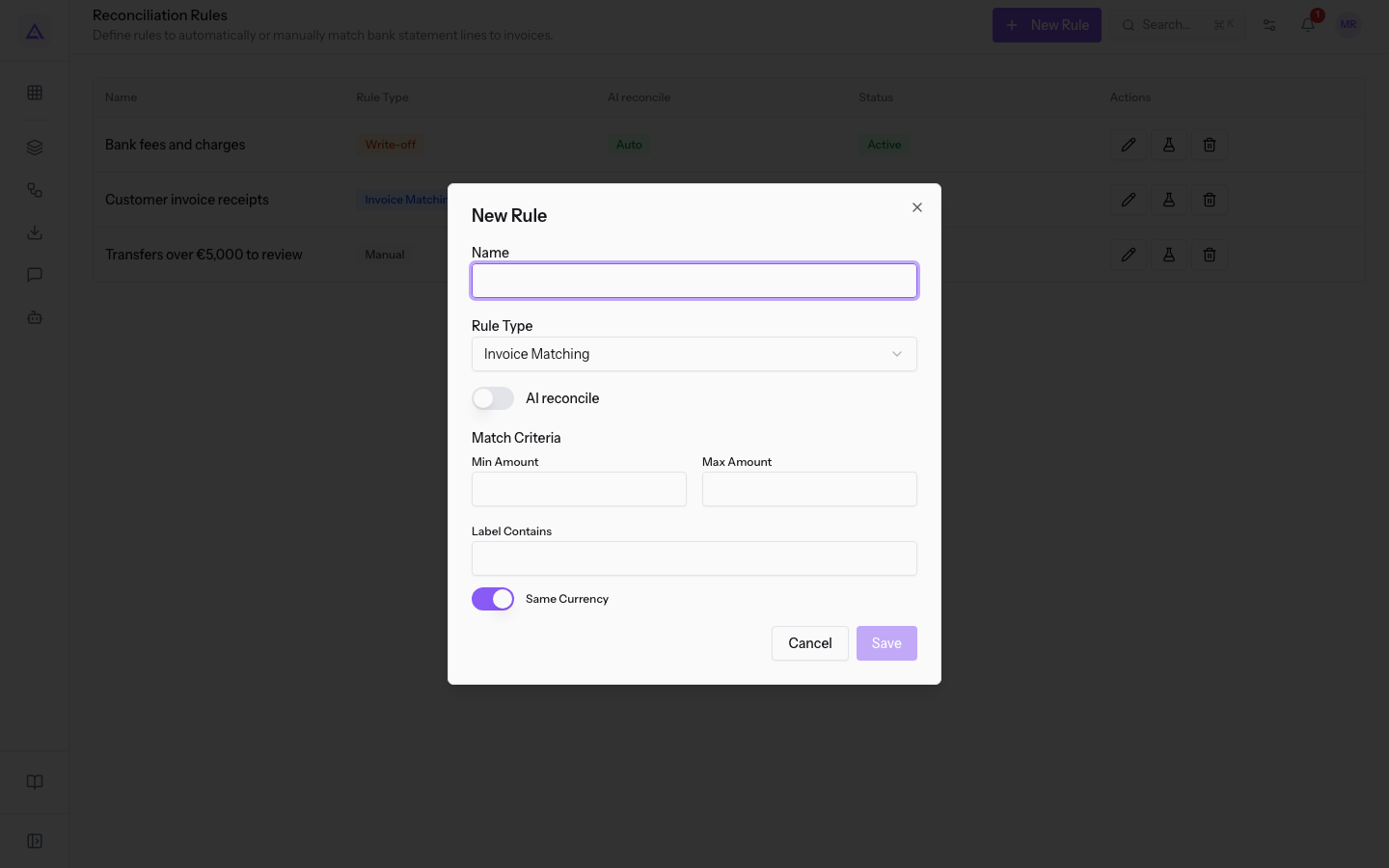
The window fields are:
- Name: the name the rule shows in the list.
- Rule Type: the type of the rule. The suggested value is Invoice Matching.
- Write-off
- Invoice Matching
- Manual
- AI reconcile: the switch that makes the rule apply automatically.
Match criteria
The criteria decide which statement lines the rule applies to. They are present for all rule types.
- Min Amount: the lowest amount the rule applies to.
- Max Amount: the highest amount the rule applies to.
- Label Contains: the text the transaction description must contain.
- Same Currency: the criterion on the transaction currency.
Write-off settings
The Write-off Settings section appears only when the Rule Type is Write-off.
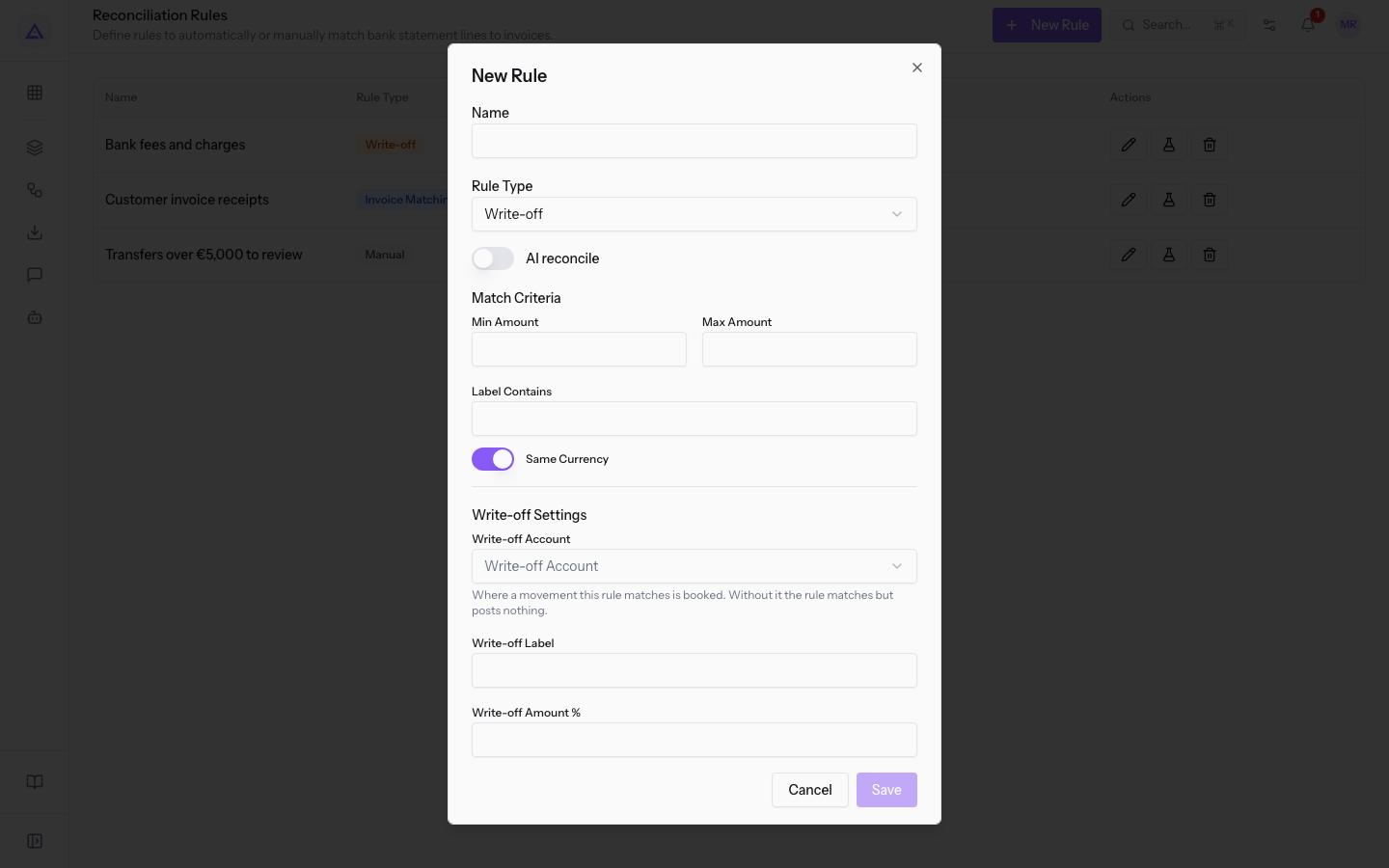
- Write-off Account: the account a transaction matching the rule is posted to. Without an account the rule recognizes the transaction but posts nothing.
- Write-off Label: the label of the entry.
- Write-off Amount %: the percentage of the amount to post.
Important: on a Write-off rule always fill in the Write-off Account. Without an account the rule posts nothing.
Edit a rule
You can change any field of an existing rule, for example the amount threshold of a rule.
- On the Reconciliation Rules page, in the rule's Actions column, use the edit action. The Edit Rule window opens, with the same fields as the New Rule window.
- Change the fields you need.
- Press Save. The Updated message appears. To close without saving, press Cancel.
Delete a rule
Delete a rule you no longer need.
- In the rule's Actions column, use the delete action.
- Confirm the question Delete this reconciliation rule?. The Deleted message appears.
To use the rules on a bank account's transactions, see Reconcile transactions with automatic suggestions. To recognize the customer or supplier from the bank's text, see Recognize customers and suppliers from the bank text.
See it on your company, not on a slide deck.
In 30 minutes we map the software you use today.We show you how much work and how much margin Archimedes gives back.
Show me on my business →What industry are you in?
One tap — it lets us prepare the demo around your world.
What tools do you use today?
Pick the ones you recognise — or just type them. It helps us show you how they migrate.
Last step: your details.
We reply within one working day — and right after, if you like, you pick the demo slot yourself.
We couldn't send your request. Try again, or write to us at [email protected].
By sending, you agree to your data being processed so we can get back to you about the demo. Privacy notice.
Preview form — nothing is sent from this page.
Want to schedule the demo now?
Your call: book the slot you prefer yourself, or we'll call you to arrange it.
Live availability, 30 minutes, instant confirmation. The calendar opens in a new tab.
Lock in your slot ↗We'll get back to you within one working day — and we'll join the call already knowing your world.
The calendar is open in another tab: pick a slot and the demo is booked. Can't see it? Reopen it ↗
Preview page: nothing was sent.
Our calendar is live: take the slot that suits you and the demo is booked. 30 minutes, instant confirmation, no waiting.
Lock in your slot ↗