Open Banking
All modules
Manually matching a transaction to an invoice and undoing a reconciliation
Open Banking · 11 of 15 · 4 min read
Manual matching links a bank account transaction to an open invoice you choose, when automatic reconciliation doesn't find the match or you don't want to use its suggestion. From the same screen you can also undo a reconciliation made by mistake, for example a payment matched to the wrong invoice.
When to match by hand
Transactions appear on the account page when you sync or import a bank statement. Every unreconciled transaction has the Match button; every reconciled transaction has the Undo button.
- If the AI reconcile panel suggests the right invoice, approve the suggestion: see Reconcile transactions with automatic suggestions.
- If the suggestion is missing or wrong, match the transaction yourself with Match or Match by hand.
- If the payment is larger than the invoice, assign the amount due to the invoice and keep the rest as customer credit.
- If no document is posted yet for a payment, post the supplier invoice first and then come back to match the transaction.
Choosing the invoice from the suggestions panel
In the suggestions panel, transactions for which no invoice was found are in the section Nothing matched — pick the invoice yourself.
- Open Invoices › Banking and press
Main Current Account. - Press AI reconcile.
- Press Match by hand next to the transaction.
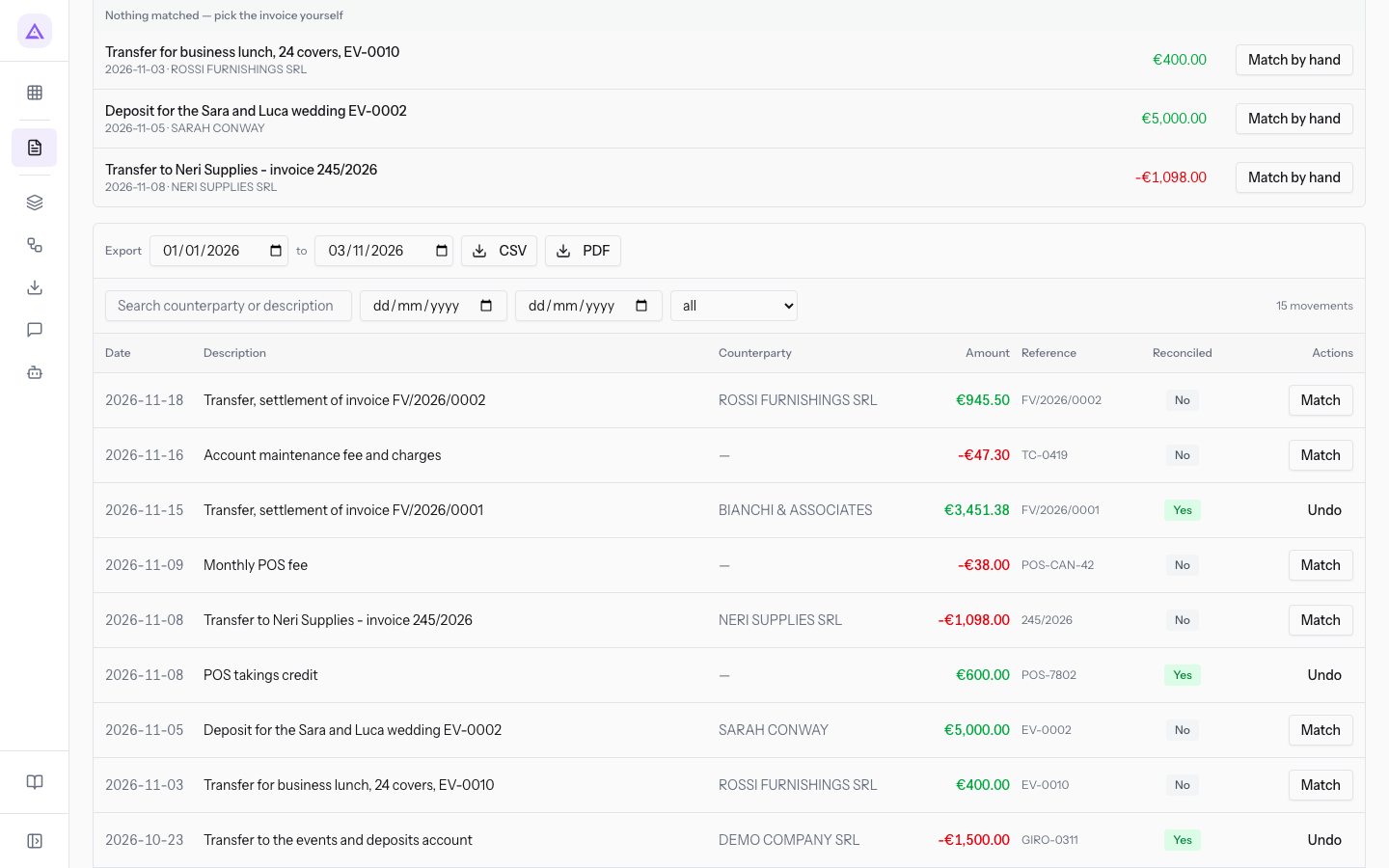
Matching a transaction from the transaction list
You can also match an unreconciled transaction directly from the list, without going through the suggestions panel.
- Open Invoices › Banking and press
Main Current Account. - Search for the transaction with the search box, for example
Lunch, or use the reconciliation menu. For filters see Search and filter a bank account's transactions. - Press Match in the transaction's row. The Match by hand panel opens: here, on the transfer of €945.50 from Rossi Arredamenti S.r.l. for FV/2026/0002.
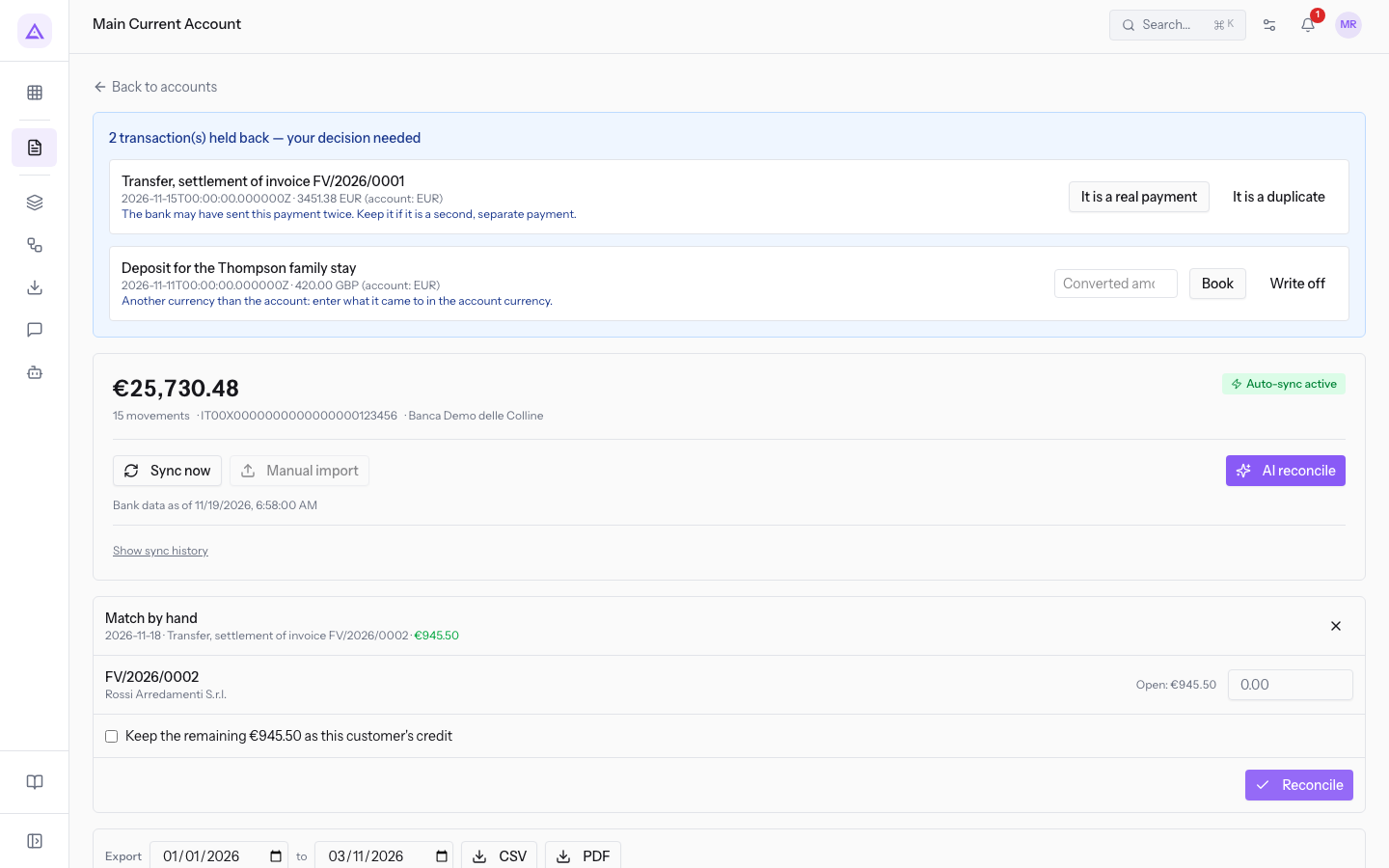
- In the amount box next to the invoice, enter how much of the transaction to assign to it.
- Press Reconcile.
Fields in the panel:
- Amount box: the part of the transaction to assign to the invoice. Next to it, Open shows how much of the invoice is still unpaid.
- Keep the remaining €945.50 as this customer's credit: checkbox, unchecked by default. The amount in the text is the part of the transaction not yet assigned; with the amount box empty it is the whole transaction.
- Account the credit goes to…: menu that appears only when you tick the credit checkbox. Choose the account where the customer credit will be recorded.
- Reconcile: records the match.
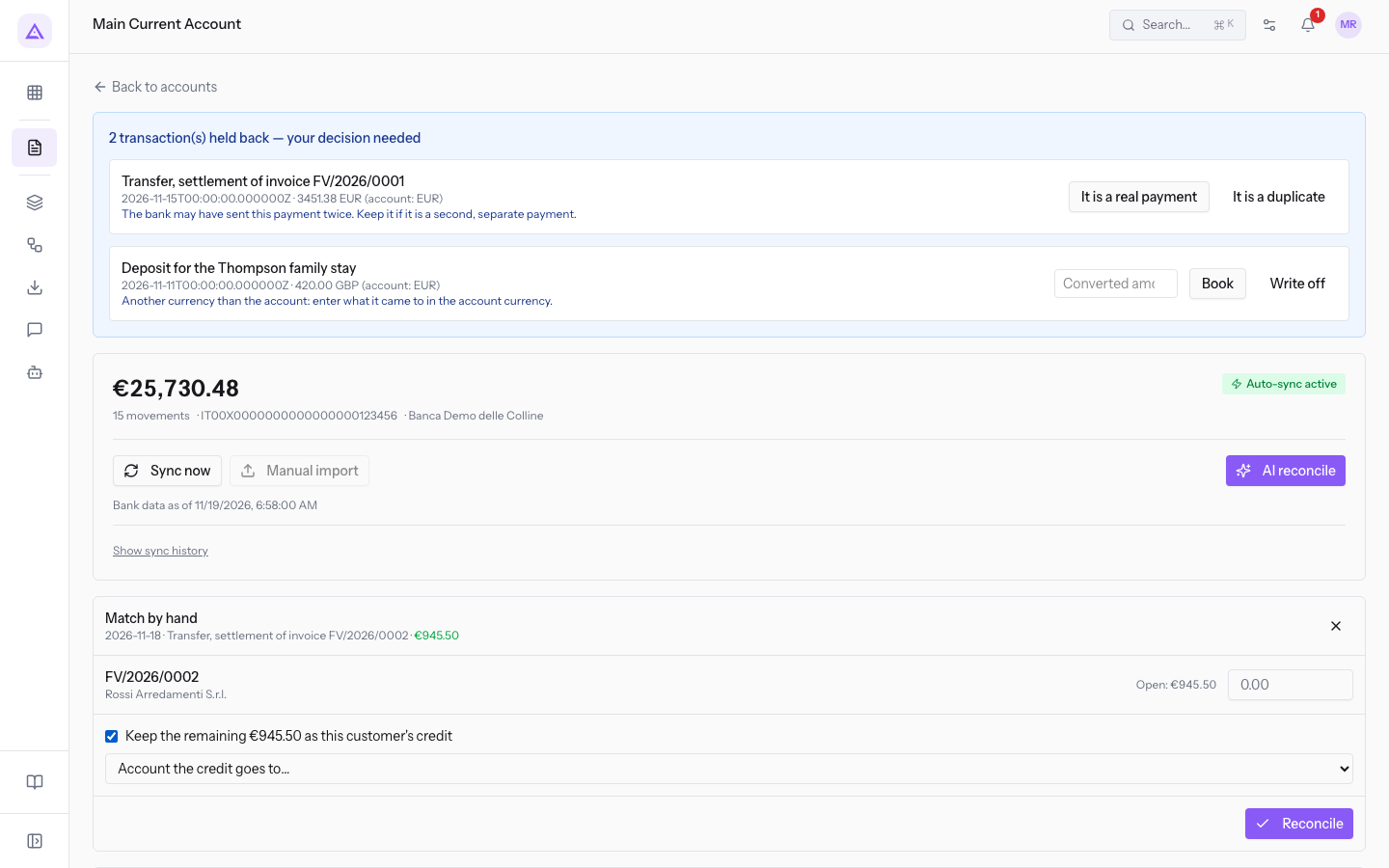
Note: the checkbox text changes with the transaction. On the business lunch from Rossi Arredamenti S.r.l. it shows Keep the remaining €400.00 as this customer's credit.
Transactions with no document to match
A transaction can only be matched to a posted document that is still open.
For example, on the transfer of €1,098.00 to Forniture Neri S.r.l., the panel shows No posted document is still open for this movement. and shows neither the amount box nor Reconcile.
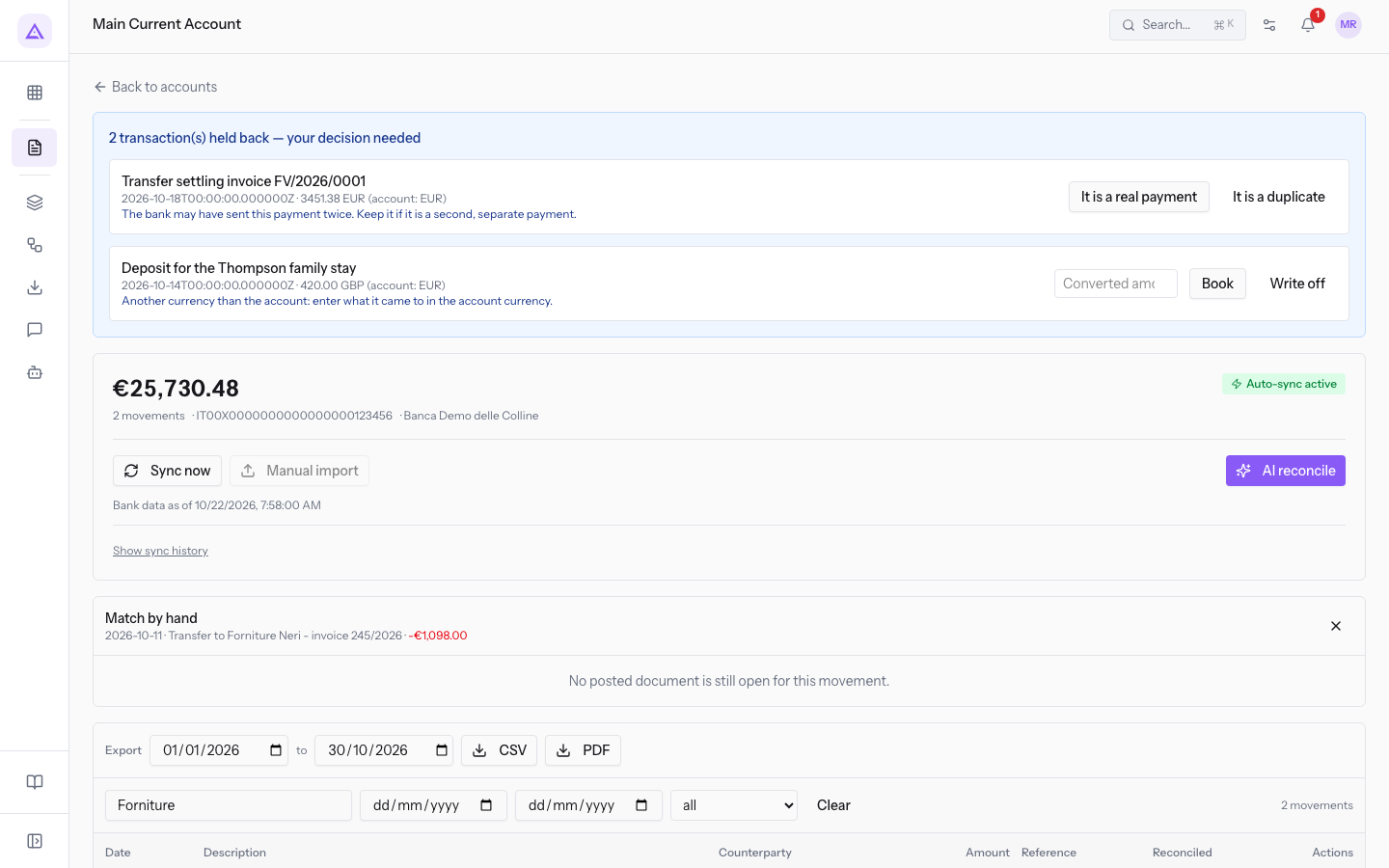
Tip: post the supplier invoice first, then reopen the transaction and press Match.
Undoing a reconciliation
Undo removes the match of an already reconciled transaction, for example the transfer settling FV/2026/0001 from Studio Bianchi & Associati.
- Open Invoices › Banking and press
Main Current Account. - Search for the transaction with
Bianchi. - Press Undo in the transaction's row.
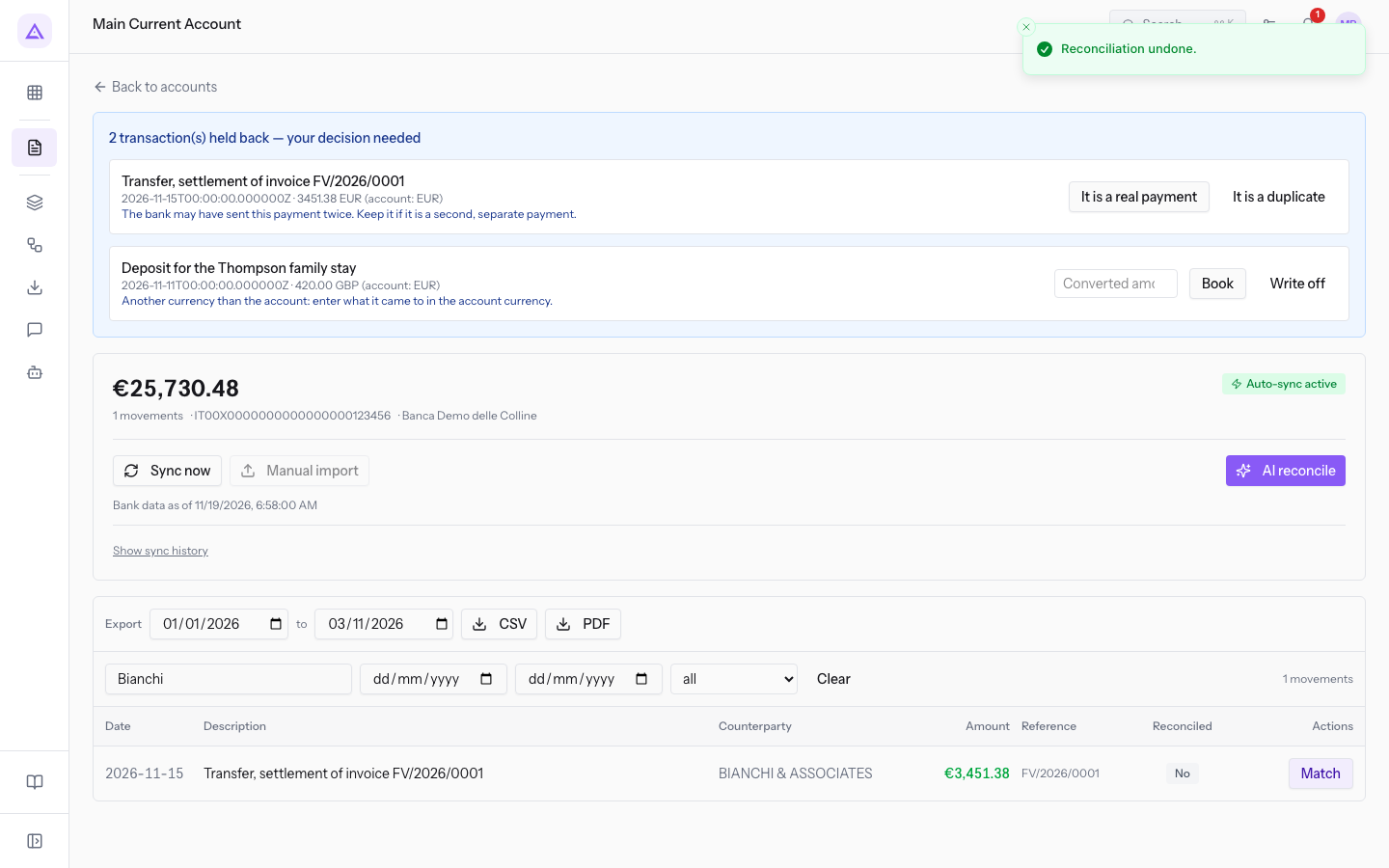
The message Reconciliation undone. appears. The transaction is open again: the row shows Match instead of Undo, and you can match it to the right invoice using the procedure described above.
Important: after undoing, the transaction is no longer reconciled. Match it again, because it stays among the transactions to reconcile.
For reconciling bank statements in accounting see Reconcile the bank statement.
See it on your company, not on a slide deck.
In 30 minutes we map the software you use today.We show you how much work and how much margin Archimedes gives back.
Show me on my business →What industry are you in?
One tap — it lets us prepare the demo around your world.
What tools do you use today?
Pick the ones you recognise — or just type them. It helps us show you how they migrate.
Last step: your details.
We reply within one working day — and right after, if you like, you pick the demo slot yourself.
We couldn't send your request. Try again, or write to us at [email protected].
By sending, you agree to your data being processed so we can get back to you about the demo. Privacy notice.
Preview form — nothing is sent from this page.
Want to schedule the demo now?
Your call: book the slot you prefer yourself, or we'll call you to arrange it.
Live availability, 30 minutes, instant confirmation. The calendar opens in a new tab.
Lock in your slot ↗We'll get back to you within one working day — and we'll join the call already knowing your world.
The calendar is open in another tab: pick a slot and the demo is booked. Can't see it? Reopen it ↗
Preview page: nothing was sent.
Our calendar is live: take the slot that suits you and the demo is booked. 30 minutes, instant confirmation, no waiting.
Lock in your slot ↗