Open Banking
All modules
Reconnect a bank account when the bank consent expires
Open Banking · 7 of 15 · 4 min read
A bank account connected to the bank downloads transactions through a consent you give your bank. The consent has a limited duration. When it expires, you reconnect the account to renew it, for example on the account Events and Deposits Account (CRD1, Demo Rural Bank).
Why the consent expires
The European PSD2 rules allow Archimedes only read-only access to your accounts, and only for 90 days. Archimedes cannot make payments. When the 90 days end, the bank stops sending transactions until you renew the consent.
The Consent expiring badge in the Banking list flags a consent that is about to expire.
- If the consent is about to expire, you can renew it right away with the Reconnect bank button. If the bank replies that the authorization is still valid, the bank window does not open and a message says that renewal is not needed.
- If the consent has already expired, reconnect the account. To cover the period without transactions, you can also import a bank statement.
Important: renew the consent with Reconnect bank and not by connecting the account again. Reconnect bank updates the connection that already exists. A new connection would be rejected as a duplicate, or it would create a second connection on the same bank journal.
Recognize an account with an expired consent
An account with an expired consent is recognized both in the account list and on its page.
- Open Invoices › Banking.
- Find the account card. An account with an expired consent shows the Reauthorize badge instead of Auto-sync active. For example
Events and Deposits Accountshows Reauthorize and a Last sync stuck at 30 September, whileMain Current Accountshows Auto-sync active.
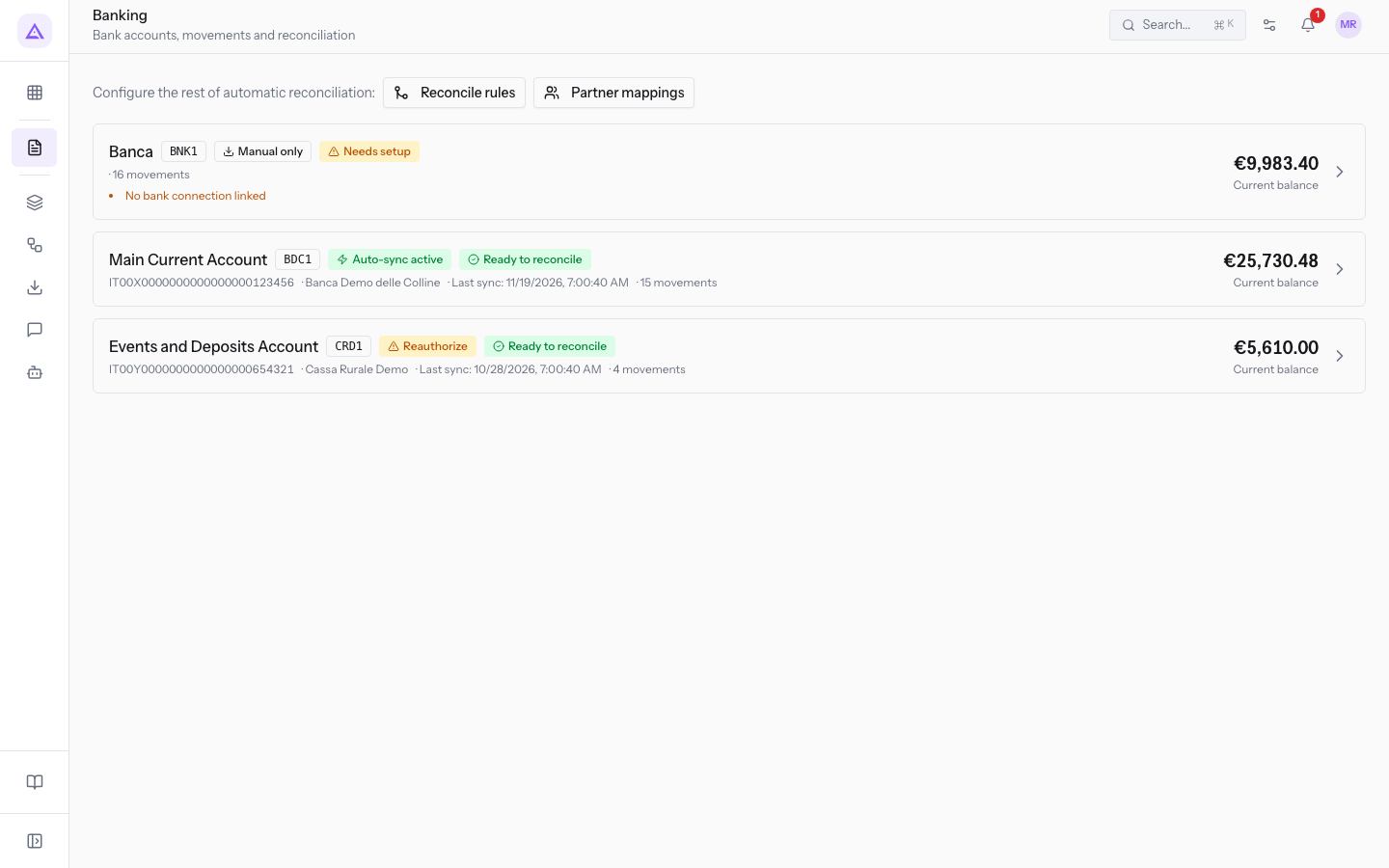
- Press the account card to open it.
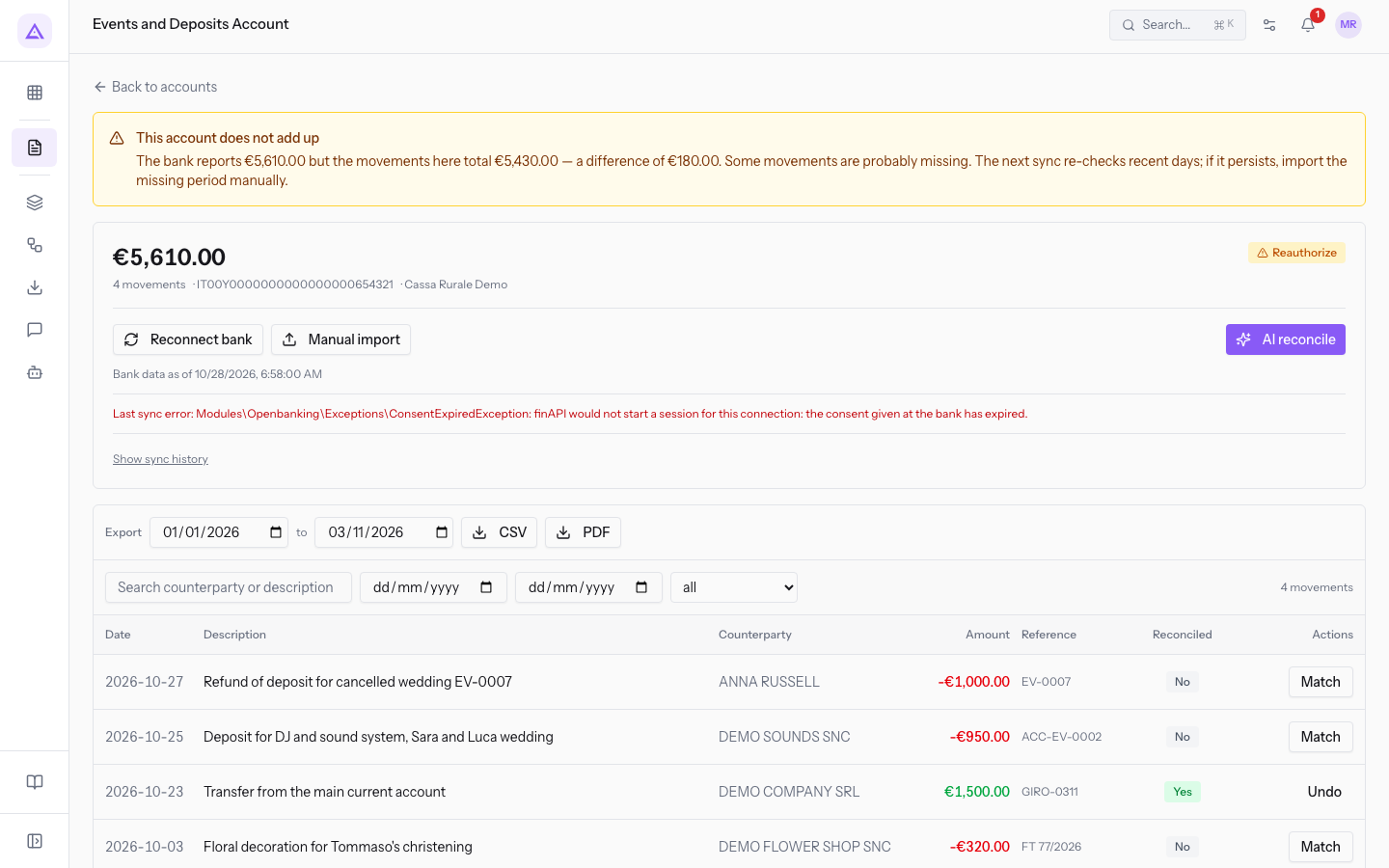
On the page of an account with an expired consent you find:
- Reconnect bank: the button that renews the consent. It appears in place of Sync now.
- Manual import: the button to import a bank statement from a file. With sync stopped, it lets you upload the missing transactions. See Import a bank statement from a CSV or CAMT.053 file.
- AI reconcile: stays available for the transactions already present.
Transactions downloaded before the expiry stay on the account page: Events and Deposits Account still shows its 4 transactions and a balance of €5,610.00.
Note: on
Events and Deposits Accountthe balance reported by the bank differs from the total of the transactions present, with a difference of €180.00. To understand why, see Understand why the bank balance doesn't match the transactions. For the sync history, see Sync an account with the bank and read the history.
Reconnect the account
The renewal uses the same window you open when you connect an account for the first time, but it works on the connection that already exists.
Before you start: to connect, sync, and disconnect an account you need the Open Banking Manager group. The Open Banking User group can only view.
- Open Invoices › Banking and press the account, for example
Events and Deposits Account. - Press Reconnect bank. The Connect a bank account window opens.
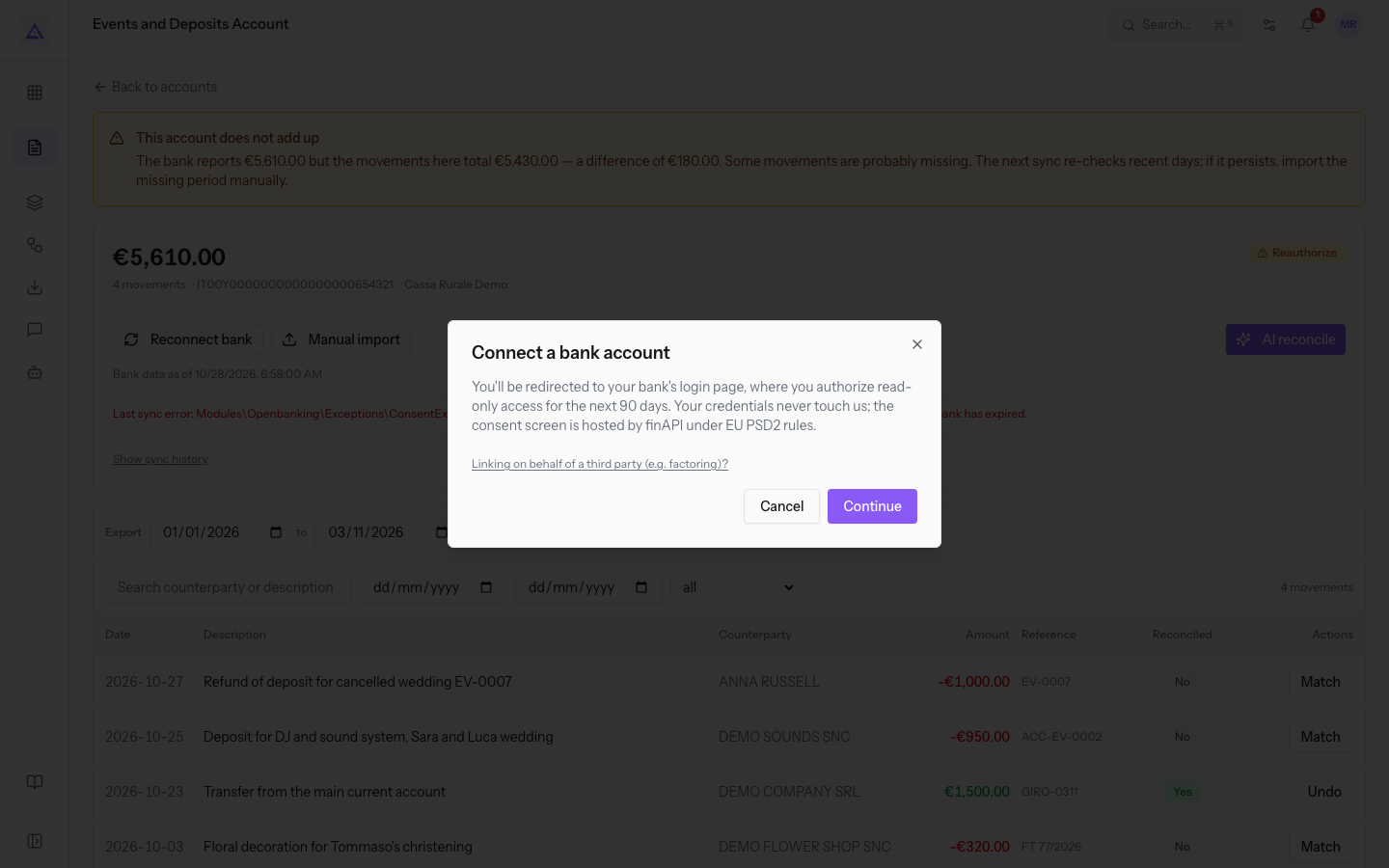
- Read the text of the window. It says you will be redirected to your bank's login page, where you will authorize read-only access for the next 90 days, and that your credentials do not pass through Archimedes.
- Press Continue. The consent page opens in a separate window. There you log in to your bank and confirm the authorization. If the browser blocks separate windows, an error message appears.
The window buttons are:
- Continue: opens the bank page to renew the consent.
- Cancel and the × in the corner: close the window without changing the connection.
Important: in the demo organization do not press Continue. The button opens the real bank page.
For the other items in the window, such as connecting the account of a third party, see Connect a bank account.
See it on your company, not on a slide deck.
In 30 minutes we map the software you use today.We show you how much work and how much margin Archimedes gives back.
Show me on my business →What industry are you in?
One tap — it lets us prepare the demo around your world.
What tools do you use today?
Pick the ones you recognise — or just type them. It helps us show you how they migrate.
Last step: your details.
We reply within one working day — and right after, if you like, you pick the demo slot yourself.
We couldn't send your request. Try again, or write to us at [email protected].
By sending, you agree to your data being processed so we can get back to you about the demo. Privacy notice.
Preview form — nothing is sent from this page.
Want to schedule the demo now?
Your call: book the slot you prefer yourself, or we'll call you to arrange it.
Live availability, 30 minutes, instant confirmation. The calendar opens in a new tab.
Lock in your slot ↗We'll get back to you within one working day — and we'll join the call already knowing your world.
The calendar is open in another tab: pick a slot and the demo is booked. Can't see it? Reopen it ↗
Preview page: nothing was sent.
Our calendar is live: take the slot that suits you and the demo is booked. 30 minutes, instant confirmation, no waiting.
Lock in your slot ↗