Open Banking
All modules
Reconcile transactions with automatic suggestions
Open Banking · 10 of 15 · 5 min read
Automatic reconciliation reviews the unreconciled transactions of an account. For each one, it suggests the document to match, for example the invoice collected with a bank transfer or the expense of a bank fee. With the suggestions panel, you approve the safe suggestions all together, check the uncertain ones one by one, and match by hand the transactions that have no suggestion.
How the suggestions are divided
The search covers all unreconciled transactions of the account, including those in older or already confirmed statements. Each transaction ends up in one of three groups, counted in the summary at the top of the panel:
- auto-confirmable: suggestions with high confidence. The percentage appears on a green background. You can apply them all together with Apply safe matches.
- to review: suggestions with lower confidence. The percentage appears on a yellow background. You must approve or reject each one.
- no match: transactions for which no document was found. They are listed at the bottom of the panel, in the section Nothing matched — pick the invoice yourself.
Choose based on the group:
- If the suggestion is auto-confirmable and the summary is enough for you, use Apply safe matches. On the
Main Current Account, for example, the transfer settling FV/2026/0002 from Rossi Arredamenti S.r.l. and the account maintenance fee are auto-confirmable. - If the suggestion is to review, such as the monthly POS fee, read the reason and, if needed, press Explain before approving or rejecting it.
- If the transaction has no match, match it yourself with Match by hand, as described in Manually matching a transaction to an invoice and undoing a reconciliation.
Open the suggestions panel
The panel opens from the account page, in the action bar.
- Go to Invoices › Banking.
- Press the account, for example
Main Current Account. - Press AI reconcile. The suggestions panel appears above the list of transactions.
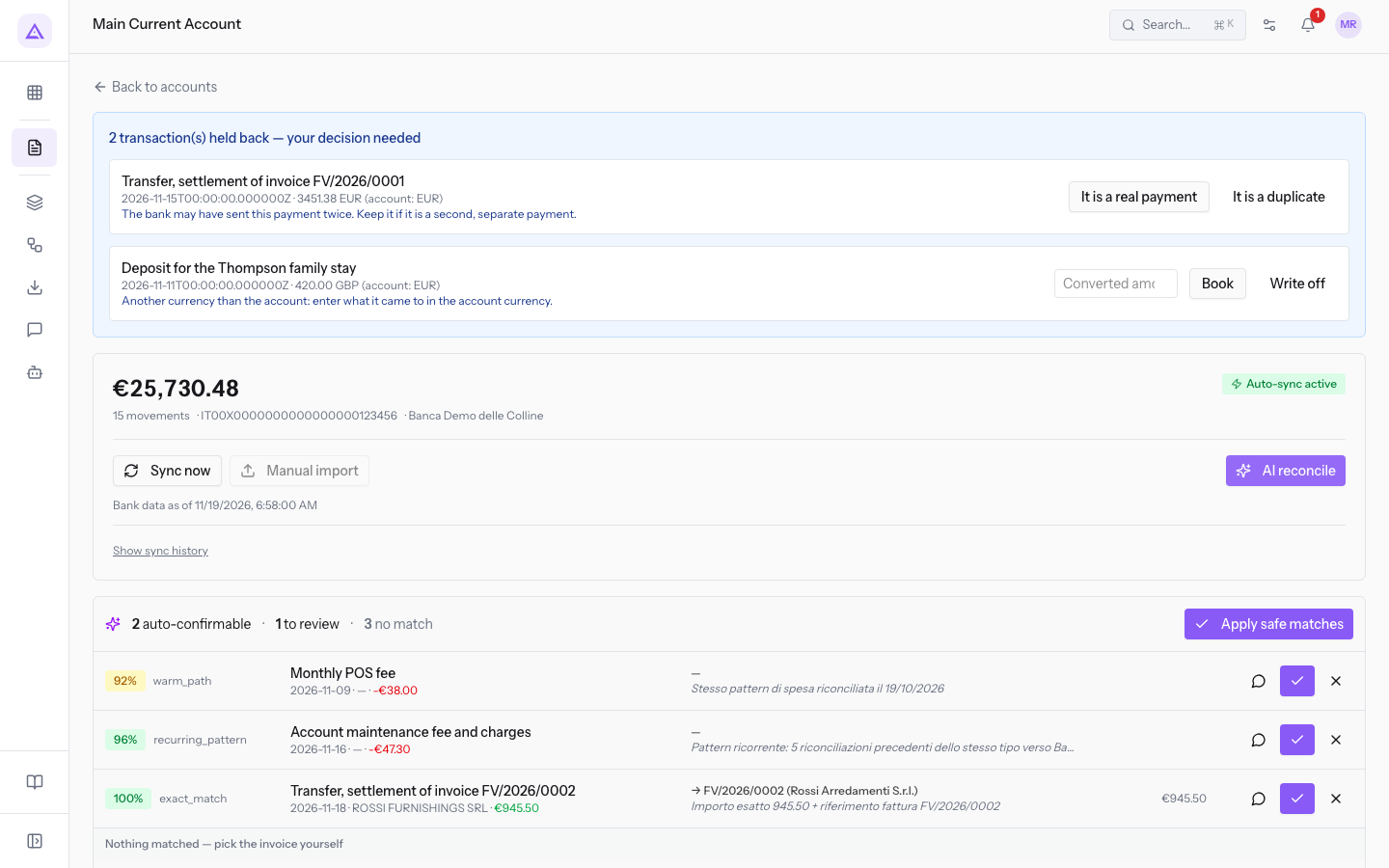
If there is nothing to suggest, the panel shows Nothing to propose. To learn how the rest of the page works, see Read a bank account page.
Read a suggestion
Auto-confirmable and to-review suggestions each take one row, with this information:
- Confidence percentage: how confident reconciliation is that the suggestion is correct. It is green for auto-confirmable suggestions and yellow for to-review ones.
- Strategy: the criterion used to find the suggestion, written next to the percentage.
- Transaction: the transaction description and, below it, the date, the counterparty and the amount. Incoming amounts are green, outgoing amounts are red.
- Suggested document: the invoices to match, with the customer or supplier name, preceded by an arrow, for example → FV/2026/0002 (Rossi Arredamenti S.r.l.). If there is more than one invoice, the numbers are joined by a plus sign. If the suggestion does not concern an invoice, such as an expense, a dash appears instead of the document.
- Reason: why the suggestion was made, in italics below the document. It may say that the amount matches and the description contains the invoice reference, or that it is a recurring expense such as the account maintenance fee.
- Amount: the sum assigned to the suggested documents.
- Actions: Explain, the check-mark button to approve, and the cross button to reject.
Apply safe matches in bulk
Apply safe matches approves all auto-confirmable suggestions at once. To-review suggestions stay in the panel.
- Open the panel with AI reconcile.
- Check the number of auto-confirmable suggestions in the summary.
- Press Apply safe matches. The button appears only when there is at least one auto-confirmable suggestion.
The suggestions are applied one after another, not all at the same time. Each approval creates an accounting entry that can change the situation for the following suggestions. Successful ones leave the panel, and their transactions are marked as reconciled.
If some suggestions fail, the message Reconciled N; M could not be reconciled — each one says why below. appears, with the numbers in place of N and M. Each failed suggestion stays in the panel and shows the reason below it.
Note: an approval can be refused, for example because of a lock date or an invoice recorded before accounting was enabled. The reason appears in an orange box below the suggestion.
Approve or reject one suggestion at a time
Check suggestions one by one when they need review, or when you want to verify an auto-confirmable suggestion before applying it.
-
Read the reason and the suggested document.
-
For a fuller explanation, press Explain. The AI says box opens below the suggestion, with the confidence, the chosen strategy and a written explanation. Press Explain again to close the box.
-
To accept the suggestion, press the check-mark button. The transaction is reconciled and the suggestion leaves the panel.
-
To discard it, press the cross button. The rejection is recorded, and the suggestion leaves the panel only after it is recorded.
If an approval fails, the reason appears in a message and stays in a box below the suggestion, which remains in the panel. When you try again, the box is removed.
Transactions without a suggestion
Transactions without a match are listed in the section Nothing matched — pick the invoice yourself, each with its description, date, counterparty and amount.
- In the transaction row, press Match by hand.
- Choose the invoice and the amount in the Match by hand panel that opens, as described in Manually matching a transaction to an invoice and undoing a reconciliation.
Tip: a transaction reconciled with a wrong suggestion can be undone from the transactions list. The procedure is in Manually matching a transaction to an invoice and undoing a reconciliation.
See it on your company, not on a slide deck.
In 30 minutes we map the software you use today.We show you how much work and how much margin Archimedes gives back.
Show me on my business →What industry are you in?
One tap — it lets us prepare the demo around your world.
What tools do you use today?
Pick the ones you recognise — or just type them. It helps us show you how they migrate.
Last step: your details.
We reply within one working day — and right after, if you like, you pick the demo slot yourself.
We couldn't send your request. Try again, or write to us at [email protected].
By sending, you agree to your data being processed so we can get back to you about the demo. Privacy notice.
Preview form — nothing is sent from this page.
Want to schedule the demo now?
Your call: book the slot you prefer yourself, or we'll call you to arrange it.
Live availability, 30 minutes, instant confirmation. The calendar opens in a new tab.
Lock in your slot ↗We'll get back to you within one working day — and we'll join the call already knowing your world.
The calendar is open in another tab: pick a slot and the demo is booked. Can't see it? Reopen it ↗
Preview page: nothing was sent.
Our calendar is live: take the slot that suits you and the demo is booked. 30 minutes, instant confirmation, no waiting.
Lock in your slot ↗