Agorà
All modules
Manage pledges and deposits
Agorà · 7 of 12 · 2 min read
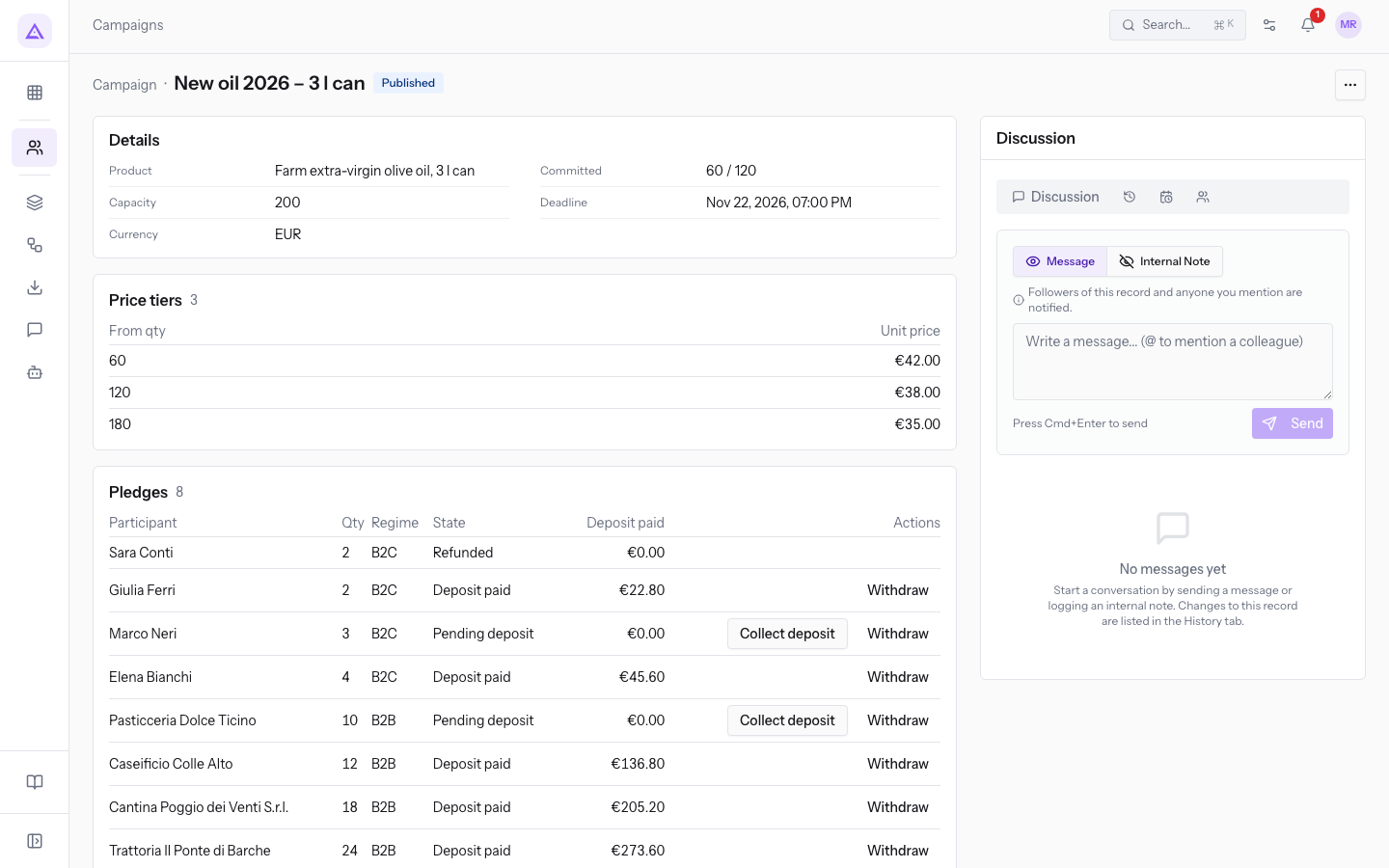
The record's Pledges section shows participant, quantity, regime, state and recorded deposit. Its actions update simulated payments; they do not charge cards or establish that money was received at a bank.
Before collecting a deposit
Your organisation must be enabled as an organiser and your user must belong to Agorà Manager. Check that the campaign is still Published or Threshold met, with a deadline that has not passed. The action does not enforce these campaign checks and may remain available after confirmation or closure.
- Open the campaign from Agorà › Campaigns.
- Find the Pending deposit row in Pledges.
- Check its quantity and recorded maximum price. The deposit is maximum × quantity × percentage, rounded to two decimals.
- Press Collect deposit. The ledger updates, the pledge becomes Deposit paid and its quantity enters Committed. Reaching the threshold changes the badge to Threshold met.
Resolve all pending deposits before confirmation. Collecting a deposit afterwards does not automatically assign the final price or move that pledge to Balance due.
Withdraw a pledge
Withdraw is available only in Pending deposit, Deposit paid and Balance due. It is unavailable in Balance paid.
- Before a deposit: the pledge becomes Withdrawn, with no payment movement.
- B2B after a deposit: it becomes Withdrawn, leaving the recorded deposit with the campaign. It is excluded from later refunds of committed pledges.
- B2C after a deposit: the product attempts a refund and changes it to Refunded if successful. Funds remaining after confirmation may be insufficient; see refund limits.
- Check the regime, state and withdrawal consequences.
- Press Withdraw on the row. There is no confirmation dialog.
- Check the result. Ask support if it fails; do not report a completed refund.
These are software rules. They do not establish contractual validity or whether a statutory withdrawal right applies, which also depends on time limits and exceptions. The product does not assess those conditions.
Follow-up checks
A withdrawal can reduce committed quantity without correcting the Threshold met badge. Check the quantity before confirming. The section shows only the first page of pledges; the total can exceed visible rows. Ask support for missing records.
Notifications are sending attempts, not delivery confirmations. Campaign events target only contacts of committed pledges; pending pledges are excluded. Check outcomes in Email.
Reference screenshots
See it on your company, not on a slide deck.
In 30 minutes we map the software you use today.We show you how much work and how much margin Archimedes gives back.
Show me on my business →What industry are you in?
One tap — it lets us prepare the demo around your world.
What tools do you use today?
Pick the ones you recognise — or just type them. It helps us show you how they migrate.
Last step: your details.
We reply within one working day — and right after, if you like, you pick the demo slot yourself.
We couldn't send your request. Try again, or write to us at [email protected].
By sending, you agree to your data being processed so we can get back to you about the demo. Privacy notice.
Preview form — nothing is sent from this page.
Want to schedule the demo now?
Your call: book the slot you prefer yourself, or we'll call you to arrange it.
Live availability, 30 minutes, instant confirmation. The calendar opens in a new tab.
Lock in your slot ↗We'll get back to you within one working day — and we'll join the call already knowing your world.
The calendar is open in another tab: pick a slot and the demo is booked. Can't see it? Reopen it ↗
Preview page: nothing was sent.
Our calendar is live: take the slot that suits you and the demo is booked. 30 minutes, instant confirmation, no waiting.
Lock in your slot ↗