Availability
All modules
Recording organization closures
Availability · 4 of 10 · 3 min read
Closures are full days on which the entire organization is closed, regardless of the default schedule. They are used for a summer closure, a long weekend, or a maintenance day.
When to use a closure
A closure applies to the entire organization. It belongs to the organization and not to the schedule, so it remains valid even if you change the default schedule (Choosing which schedule applies to the whole organization).
- If the entire organization is closed for one or more full days, record a closure.
- If only one appointment booking schedule needs to be closed, close that date in the schedule itself with a date exception. The exception applies only to that schedule: for example, «Booking hours for tours and site visits» is closed on the day of the Grape harvest festival.
- If only one person is absent, do not record a closure: the closure applies to everyone.
In the example, four closures are already recorded: Closed for kitchen maintenance, Immaculate Conception long weekend, Winter closure and Summer closure.
National holidays
National holidays are already handled by the application. Do not add them as closures.
The holidays already included are:
- New Year's Day;
- Epiphany;
- Easter and Easter Monday;
- Liberation Day;
- Workers' Day;
- Republic Day;
- Ferragosto;
- Saint Francis of Assisi;
- All Saints' Day;
- Immaculate Conception;
- Christmas;
- St. Stephen's Day.
If a day is both a closure and a national holiday, it counts as a closure. A national holiday takes precedence over a closed day in the working-hours week.
Adding a closure
Closures are added and deleted by administrators, members of the Availability Administrator group, and anyone with the Organization role.
- Open Management › Organization › Defaults.
- Scroll to the Closures panel, below Working hours.
- Fill in Name, for example
Summer closure.
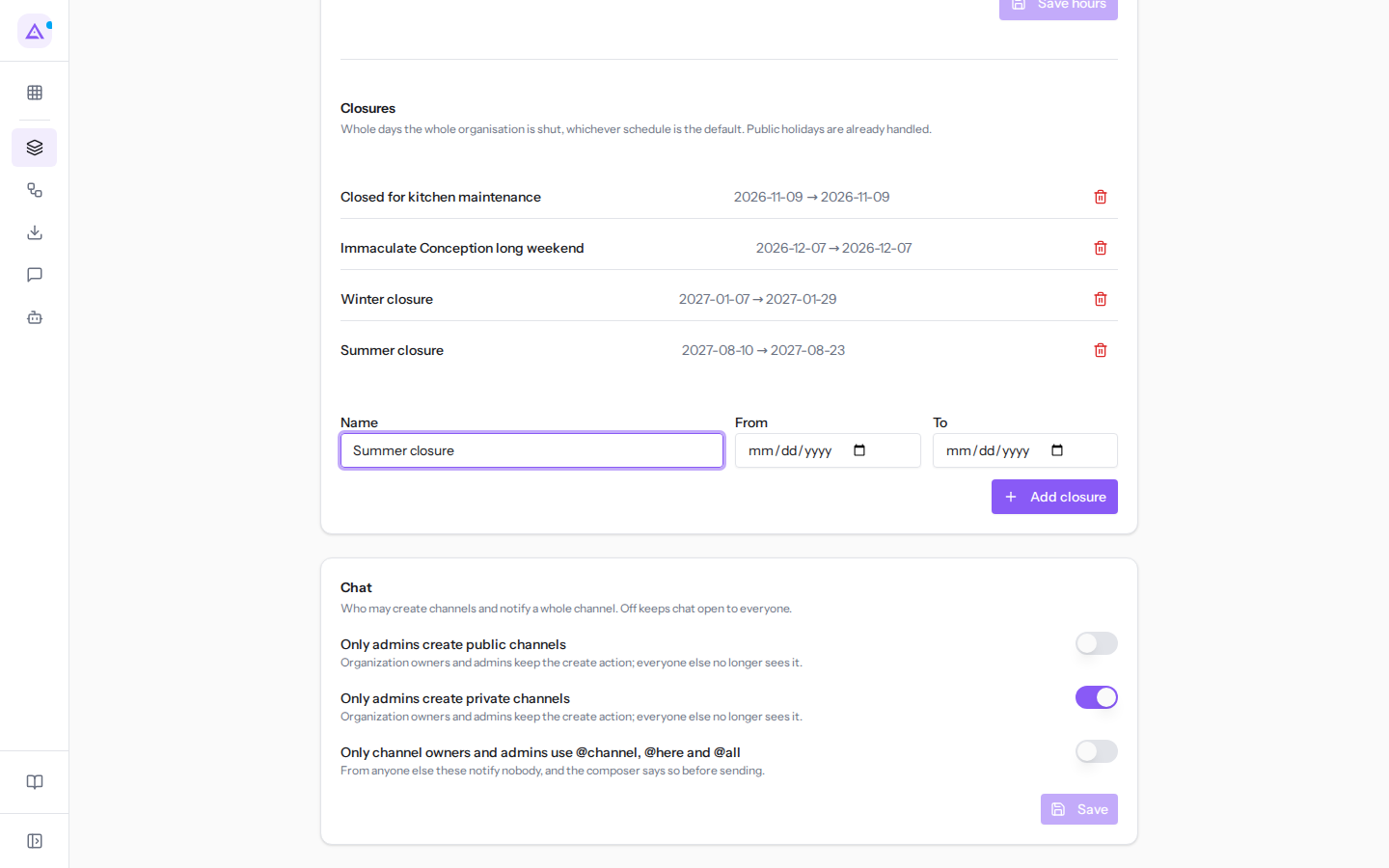
- Enter the dates in From and To.
- Press Add closure. The message Closure added appears and the closure is added to the list.
The form fields:
- Name: the name of the closure, which also appears in the Calendar. This field is required.
- From: the first day of the closure. This field is required.
- To: the last day of the closure. For a single-day closure, enter the same date as From. This field is required.
If any of the three fields is missing, the closure is not added and the message Name, start date, and end date are required. appears.
Note: a closure covers full days. To close only part of a day, modify the working hours.
Deleting a closure
Delete a closure when the organization remains open on those days.
- In the Closures panel, press the bin icon on the closure's row.
- Confirm the message «Delete closure "Summer closure"?».
- The message Closure deleted appears.
What a closure changes
A closure makes every day from From to To a non-working day. The effect is automatic.
- Calendar: the closure days are shaded and show the name of the closure.
- Deadlines: a deadline never falls on a non-working day. A deadline that falls on a closure day moves to the next working day.
- Appointment bookings: booking pages do not offer time slots on organization closure days, regardless of the availability schedule of the appointment type.
- Shifts: shifts already planned for those days remain in place; move or cancel them from the shift planning view.
Important: national holidays do not remove time slots from booking pages. To stop receiving bookings on a national holiday, close that date in the availability schedule of the appointment type.
See it on your company, not on a slide deck.
In 30 minutes we map the software you use today.We show you how much work and how much margin Archimedes gives back.
Show me on my business →What industry are you in?
One tap — it lets us prepare the demo around your world.
What tools do you use today?
Pick the ones you recognise — or just type them. It helps us show you how they migrate.
Last step: your details.
We reply within one working day — and right after, if you like, you pick the demo slot yourself.
We couldn't send your request. Try again, or write to us at [email protected].
By sending, you agree to your data being processed so we can get back to you about the demo. Privacy notice.
Preview form — nothing is sent from this page.
Want to schedule the demo now?
Your call: book the slot you prefer yourself, or we'll call you to arrange it.
Live availability, 30 minutes, instant confirmation. The calendar opens in a new tab.
Lock in your slot ↗We'll get back to you within one working day — and we'll join the call already knowing your world.
The calendar is open in another tab: pick a slot and the demo is booked. Can't see it? Reopen it ↗
Preview page: nothing was sent.
Our calendar is live: take the slot that suits you and the demo is booked. 30 minutes, instant confirmation, no waiting.
Lock in your slot ↗