Availability
All modules
Understanding which time slots are offered to people booking
Availability · 8 of 10 · 5 min read
The booking page for an appointment type only shows the time slots when the host is genuinely free. This article explains how those time slots are calculated. This helps you understand why a slot appears or is missing.
How available time slots are calculated
The calculation starts with the time ranges in the type's availability schedule. It then removes everything that occupies the host. What remains is divided into slots of the type's duration.
- The availability schedule's time ranges. For each day, the weekly ranges apply. If that day has a date exception, the exception completely replaces the weekly schedule. A Closed all day exception closes the date even if the weekly schedule has ranges.
- Organization closures are always removed. A schedule exception does not override them.
- Appointments already booked with the host are removed.
- Events from the host's external calendars are only removed when the calendar is reliable. A disabled, never-read, or outdated calendar removes nothing.
- What remains is divided into slots of the type's duration, and past slots are not offered.
If a type has no schedule, or if its schedule is archived or has no ranges, the type offers no slots. It does not mean always open.
Important: national public holidays are not removed from bookable slots. The calculation only removes organization closures and closed dates in the schedule. To stop receiving bookings on a public holiday, add a Closed all day exception for that date.
Note: time slots are recalculated every time the booking page is opened. When someone books the last available slot, that slot disappears from the page immediately.
Checking the type's availability schedule
The starting point is the availability schedule linked to the type. The Wedding site visit, for example, uses Booking hours for tours and site visits.
- Open Appointments › Settings › Booking setup and the Availability tab.
- In the Time field, choose the schedule to check.
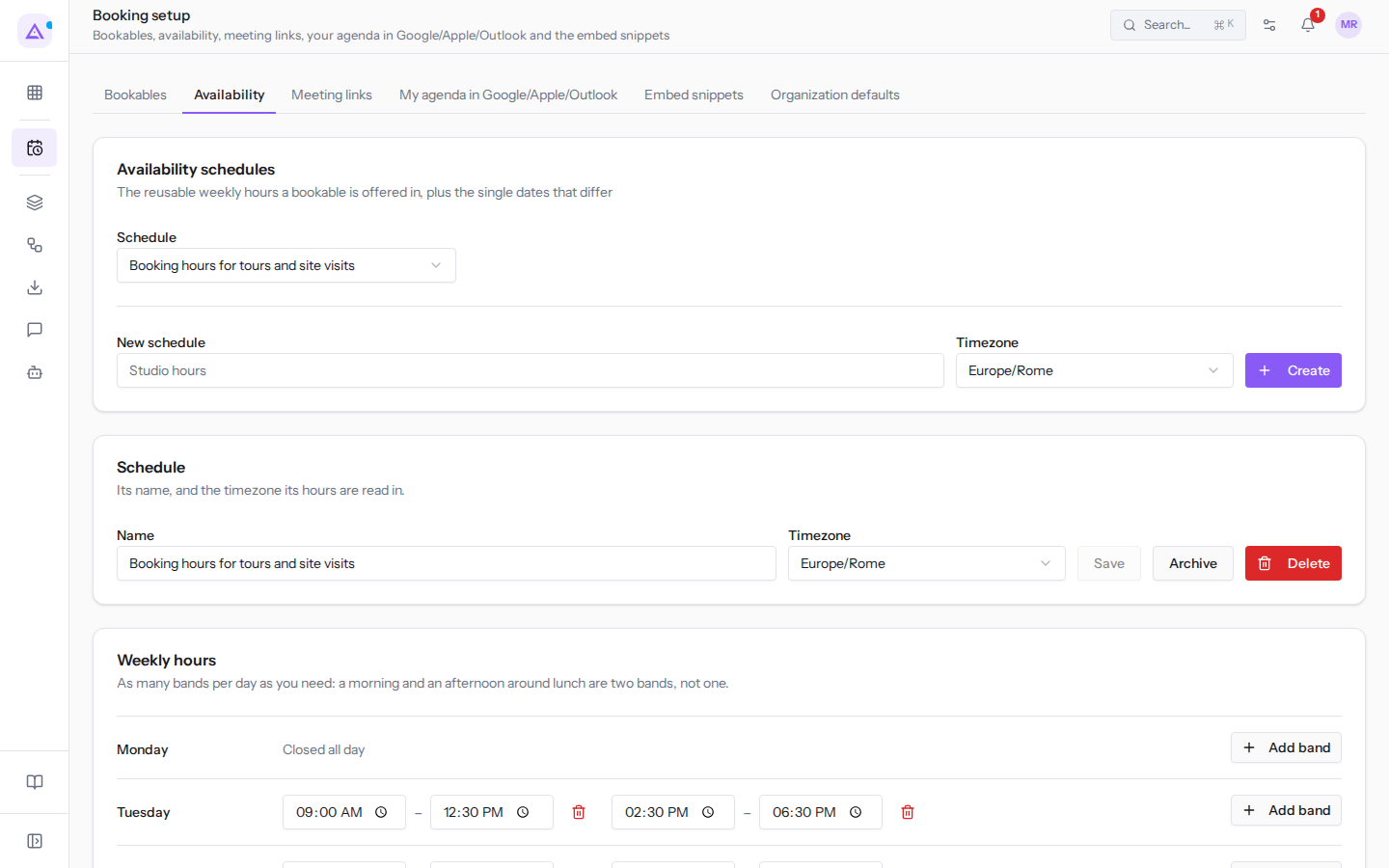
The tab shows:
- Name: the name of the schedule.
- Time zone: the timezone in which the ranges are read (
Europe/Romein the example). The day of a booking is also counted in this timezone. - Each day's ranges, with a start and end: for visits, Tuesday through Saturday,
09:00–12:30and14:30–18:30. A day with no ranges, such as Monday and Sunday in this schedule, offers no slots. - Date exceptions. Each one has the Date and Reason fields, the Closed all day checkbox, and, if the day is not closed, its ranges.
To see the details of an exception, press the pencil icon on its row.
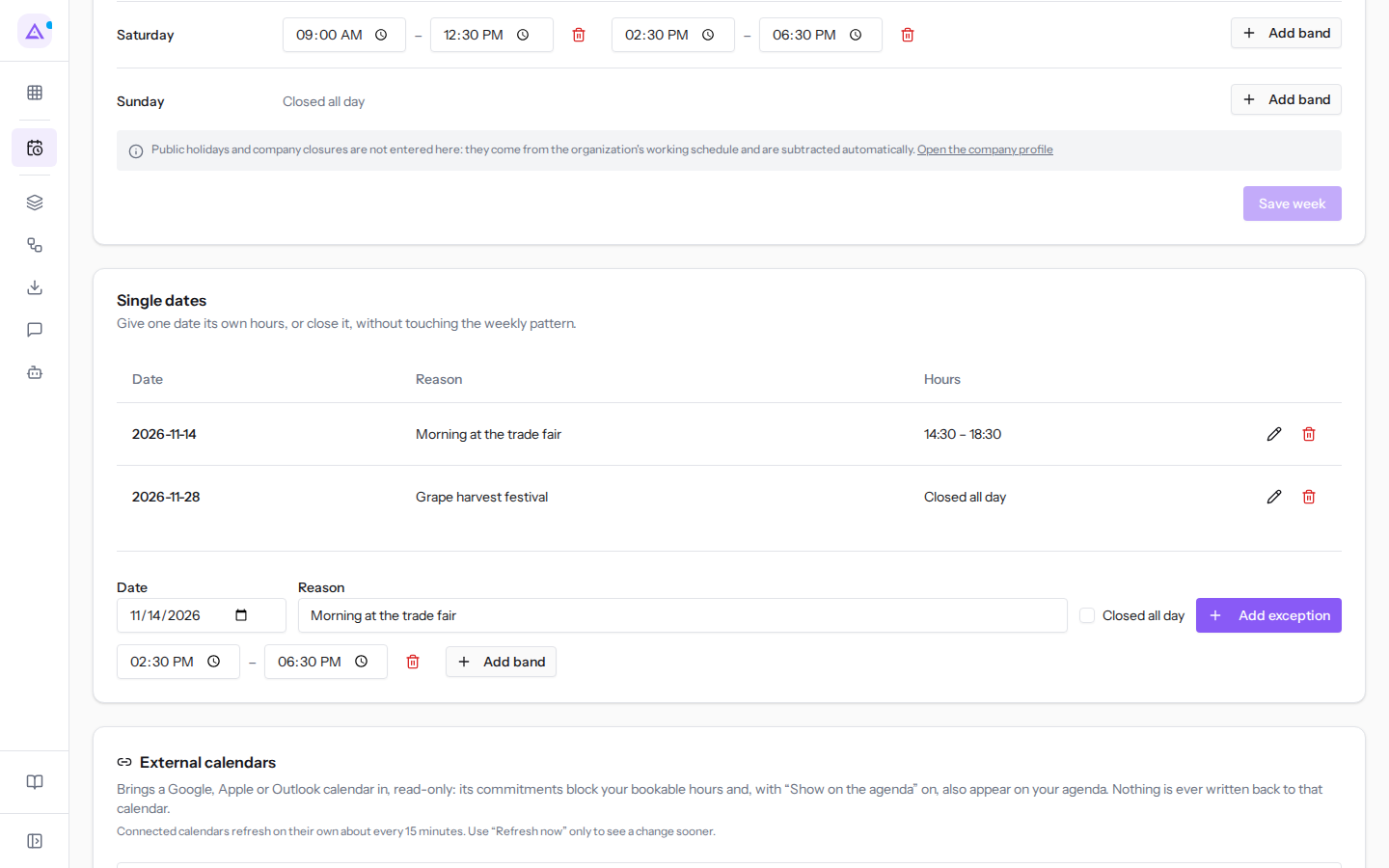
In the example, Booking hours for tours and site visits has two exceptions:
2026-11-14, reasonMorning at the trade fair: only the14:30–18:30range. On that date, the morning offers no slots.2026-11-28, reasonGrape harvest festival: Closed all day. On that date, the type offers no slots.
Organization closures do not appear here: they apply to all schedules. To see organization closures, press Open the company profile.
Checking the host's external calendars
Events from a Google, Apple, or Outlook calendar linked to the host remove slots from the booking page. The calendar is read only: nothing is written to the linked calendar.
- In the Availability tab, scroll down to the linked calendars, below the schedules.
- Check the status of each of the host's calendars.
In the example:
- «Work Google» by Mario Rossi is up to date and its events are removed.
- «Family iCloud» is disabled: the row shows the Enable button. Its events remove nothing.
- «Kitchen Outlook» cannot be read and shows the message Not readable. Busy times are NOT being blocked — your booking page may offer times you are busy. In this state, the booking page may offer slots when the person is busy.
Note: an external calendar only removes slots if it is linked to a person assigned to an appointment type. The calendar updates automatically approximately every 15 minutes.
The Show on the agenda toggle only decides whether events also appear in the person's agenda. It does not affect the slot calculation.
How free time becomes bookable slots
Each block of free time is divided into slots of the type's duration. The first slot starts at the beginning of the free block, not at the opening hour. A block too short for the type's duration offers no slots.
Example with the Wedding site visit type (Duration 90 min, Hosts Mario Rossi) and a Tuesday with no commitments:
- The
09:00–12:30range offers 09:00–10:30 and 10:30–12:00. The 30 minutes from 12:00 to 12:30 are not enough for a site visit and are not offered. - The
14:30–18:30range offers 14:30–16:00 and 16:00–17:30. The hour from 17:30 to 18:30 is not offered.
An existing commitment shifts the slots that follow. In the example, on a Wednesday when Work Google keeps Mario Rossi busy from 15:00 to 17:00, the afternoon offers only 17:00: from 14:30 to 15:00 the time is too short, and after the commitment the free block resumes at 17:00 and runs until 18:30.
In the same case, the Wedding site visit offers no slots on 2026-11-28, closed for the Grape harvest festival. On 2026-11-14 it only offers the afternoon.
Understanding why a type offers no slots
A type is offered online when it is active, has a schedule with real ranges and a host, and that host still has free time. The status of each type, for example Bookable or No slots, is shown in the Embed snippets tab of Booking setup.
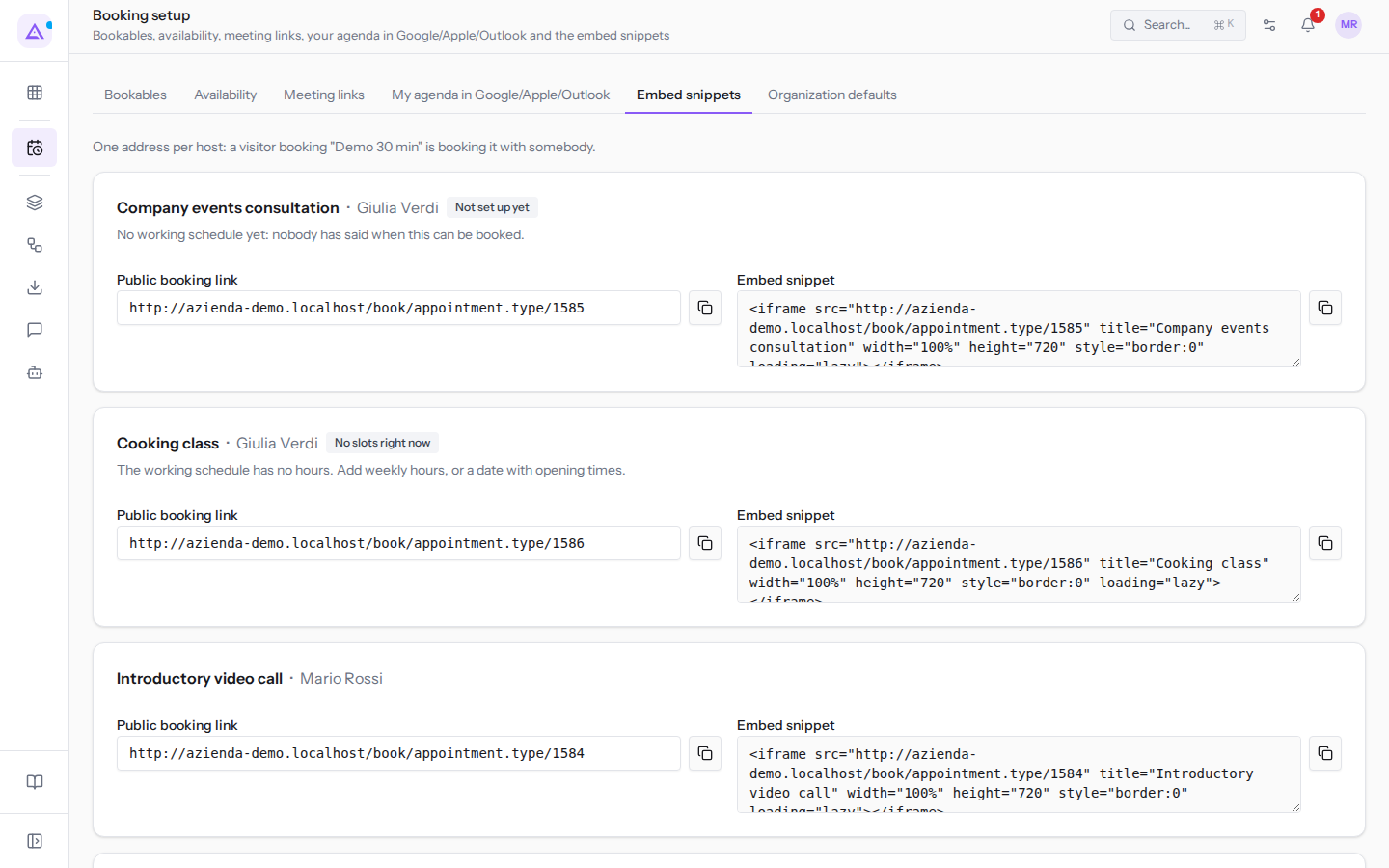
In the example, the Cooking class shows No slots: its schedule Cooking class hours has no ranges. What to do for each status is explained in Understanding why a type cannot be booked. If the type shows Bookable but a specific day offers nothing, check in order: the date exceptions in its schedule, organization closures, the host's appointments, and the events in their external calendars.
See it on your company, not on a slide deck.
In 30 minutes we map the software you use today.We show you how much work and how much margin Archimedes gives back.
Show me on my business →What industry are you in?
One tap — it lets us prepare the demo around your world.
What tools do you use today?
Pick the ones you recognise — or just type them. It helps us show you how they migrate.
Last step: your details.
We reply within one working day — and right after, if you like, you pick the demo slot yourself.
We couldn't send your request. Try again, or write to us at [email protected].
By sending, you agree to your data being processed so we can get back to you about the demo. Privacy notice.
Preview form — nothing is sent from this page.
Want to schedule the demo now?
Your call: book the slot you prefer yourself, or we'll call you to arrange it.
Live availability, 30 minutes, instant confirmation. The calendar opens in a new tab.
Lock in your slot ↗We'll get back to you within one working day — and we'll join the call already knowing your world.
The calendar is open in another tab: pick a slot and the demo is booked. Can't see it? Reopen it ↗
Preview page: nothing was sent.
Our calendar is live: take the slot that suits you and the demo is booked. 30 minutes, instant confirmation, no waiting.
Lock in your slot ↗