Availability
All modules
Connecting a host's Google, Apple or Outlook calendar
Availability · 6 of 10 · 5 min read
Connect the calendar a host already uses — for example Google Calendar, Apple Calendar or Outlook — to their profile. This prevents anyone booking from choosing times when the host has other commitments. For example, you can connect Mario Rossi's work calendar; he carries out the Wedding site visit.
How an external calendar works
The external calendar is read in read-only mode. Its events block the host's bookable time slots. Nothing is ever written to the connected calendar.
The connection uses the calendar's secret address, not the account credentials. Only https addresses are accepted.
The calendar only blocks time slots if you connect it to a person assigned to an appointment type. In the example, the people are Giulia Verdi and Mario Rossi.
- If the host records their commitments in an external calendar, connect that calendar to avoid receiving bookings at those times.
- If the host uses multiple calendars — for example a work one and a personal one — connect them one at a time, each with its own name.
- If you only want to see Archimedes appointments and deadlines in Google, Apple or Outlook, do not connect an external calendar: use the My agenda in Google/Apple/Outlook tab.
Note: if no one is yet assigned to an appointment type, the section displays the message «There is nobody to connect a calendar for yet. Only people assigned to an appointment type have booking slots an external calendar could protect — assign a host to an appointment type first.»
Finding the calendar's secret address
Before connecting the calendar, copy its secret address from the service that hosts it. Below the connection form there are instructions for Google Calendar, Outlook on the web and Apple Calendar (iCloud).
Google Calendar:
- Open Google Calendar from a computer, click the gear icon at the top right, then «Settings».
- In the left-hand column, under «Settings for my calendars», click the host's calendar.
- Click «Integrate calendar» and copy the link under «Secret address in iCal format» using the copy button next to it.
- Paste it into the Secret calendar address field.
Important: do not use «Public address in iCal format», which only works if the calendar is public. Do not use «Export calendar» either: it downloads a file instead of providing an address. With a work or school account, the secret address may be missing because the administrator has disabled it: ask them.
Outlook on the web:
- Open Settings (the gear icon) › «Calendar» › «Shared calendars».
- Under «Publish a calendar» choose the calendar and «Can view all details», then click «Publish».
- Copy the ICS link that appears and paste it into the Secret calendar address field.
Apple Calendar (iCloud):
- In the Calendar app on iPhone or iPad, tap «Calendars», then the info button (i) next to the iCloud calendar.
- Turn on «Public Calendar».
- Tap «Share Link», copy the link and paste it into the Secret calendar address field.
Important: treat this address like a password: anyone who has it can read the entire calendar. Archimedes stores it encrypted and never shows it again.
Connecting the calendar
The connection form is in the External calendars section, below the availability hours.
- Open Appointments › Settings › Booking setup and the Availability tab.
- Scroll to the External calendars section.
- Fill in the form fields.
- Click Connect calendar.
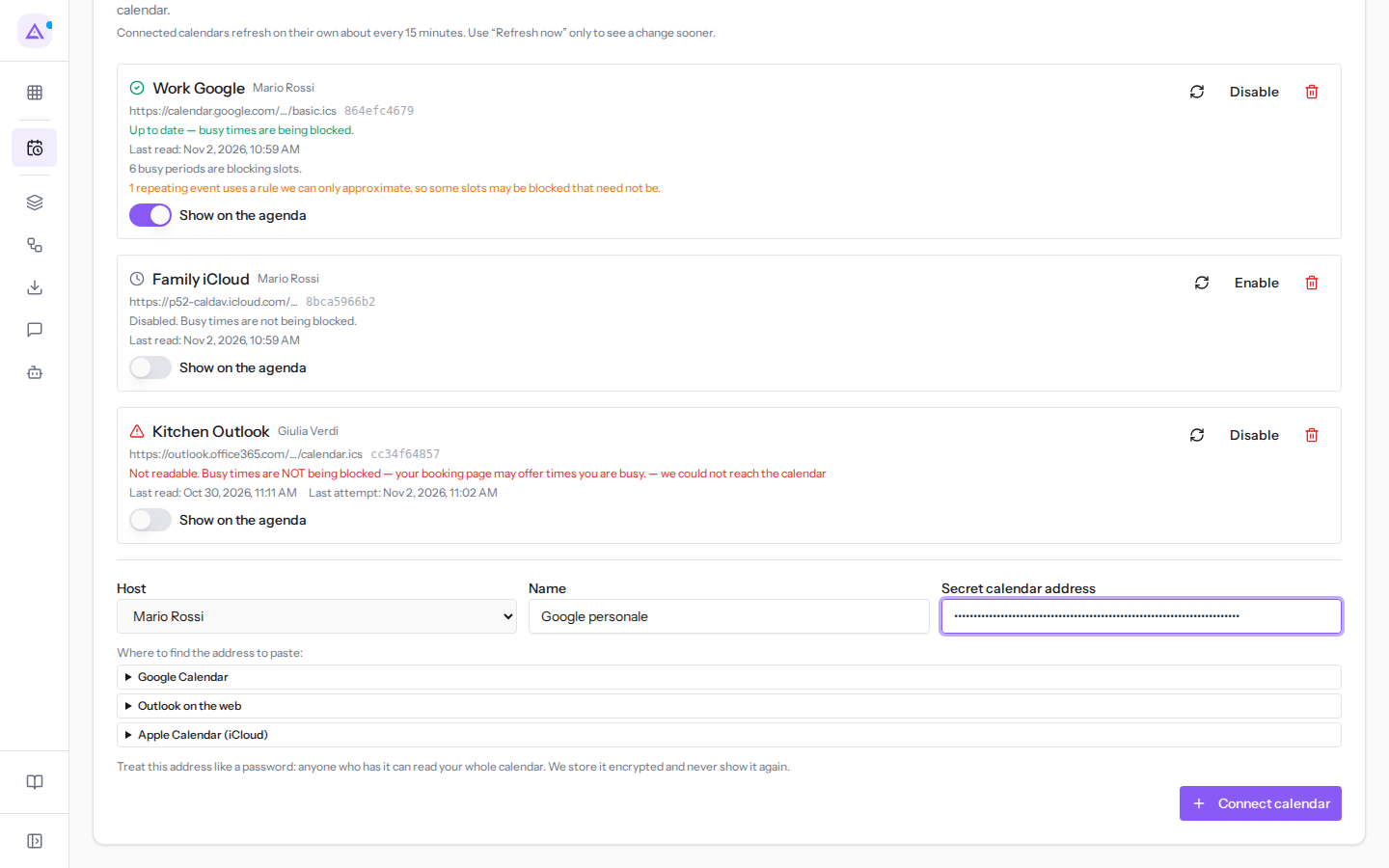
The form fields:
- Host: the host to whom the calendar belongs. The list only shows people assigned to an appointment type, for example Giulia Verdi and Mario Rossi.
- Name: the name by which the calendar appears in the section, for example
Google personale. Used to distinguish multiple calendars belonging to the same person. - Secret calendar address: the address copied from Google, Outlook or Apple. For Google it takes the form
https://calendar.google.com/calendar/ical/…/basic.ics.
After connecting
After clicking Connect calendar, the message «Calendar connected. Checking it now…» appears. The calendar is then read and its events remove time slots from the booking page.
Connected calendars update automatically approximately every 15 minutes. The calendar appears in the section's list with its status and controls: Checking that an external calendar is blocking time slots explains what each status means.
Note: with Show on the agenda enabled, the calendar's events also appear in the host's agenda.
Messages during connection
If the address or person are not valid, the calendar is not connected and a message appears.
- «Only https addresses are accepted. Copy the secret address exactly as your provider gives it.»: the address does not start with https. Copy it again from the service without modifying it.
- «Remove the username and password from the address.»: the address contains credentials. Remove them and try again.
- «That calendar is already connected to this host.»: the same address is already connected to the chosen person.
- «This host already has the maximum number of connected calendars.»: disconnect one of the person's calendars before connecting another.
See it on your company, not on a slide deck.
In 30 minutes we map the software you use today.We show you how much work and how much margin Archimedes gives back.
Show me on my business →What industry are you in?
One tap — it lets us prepare the demo around your world.
What tools do you use today?
Pick the ones you recognise — or just type them. It helps us show you how they migrate.
Last step: your details.
We reply within one working day — and right after, if you like, you pick the demo slot yourself.
We couldn't send your request. Try again, or write to us at [email protected].
By sending, you agree to your data being processed so we can get back to you about the demo. Privacy notice.
Preview form — nothing is sent from this page.
Want to schedule the demo now?
Your call: book the slot you prefer yourself, or we'll call you to arrange it.
Live availability, 30 minutes, instant confirmation. The calendar opens in a new tab.
Lock in your slot ↗We'll get back to you within one working day — and we'll join the call already knowing your world.
The calendar is open in another tab: pick a slot and the demo is booked. Can't see it? Reopen it ↗
Preview page: nothing was sent.
Our calendar is live: take the slot that suits you and the demo is booked. 30 minutes, instant confirmation, no waiting.
Lock in your slot ↗