Availability
All modules
Choosing which schedule applies to the whole organization
Availability · 3 of 10 · 4 min read
The organization can have multiple working schedules, one for each way employees work. Only one is the default: its week defines the opening hours of the entire organization. Here you choose which schedule acts as the default, for example Full time 40 hours or Morning part-time 20 hours, or you create a new one.
What the default schedule is used for
The default schedule determines the week you see and edit in the Working hours panel. The schedules saved on that page apply to the default schedule.
- Employees without their own schedule are required to work according to the default schedule.
- Deadlines never fall on a non-working day: the closed days of the default week count towards their calculation.
- Closures belong to the organization and remain valid regardless of the default schedule. If you change the default schedule, the recorded closures do not change.
When to choose a different schedule:
- If the organization permanently switches to another already defined working week, for example
Morning part-time 20 hours, choose it as the default. - If none of the existing schedules work, create a new schedule and then edit its week in the Working hours panel.
- If you only need to change the opening hours of the current week, there is no need to change the schedule: edit the week as described in Setting the organization's working hours.
Seeing which schedule is the default
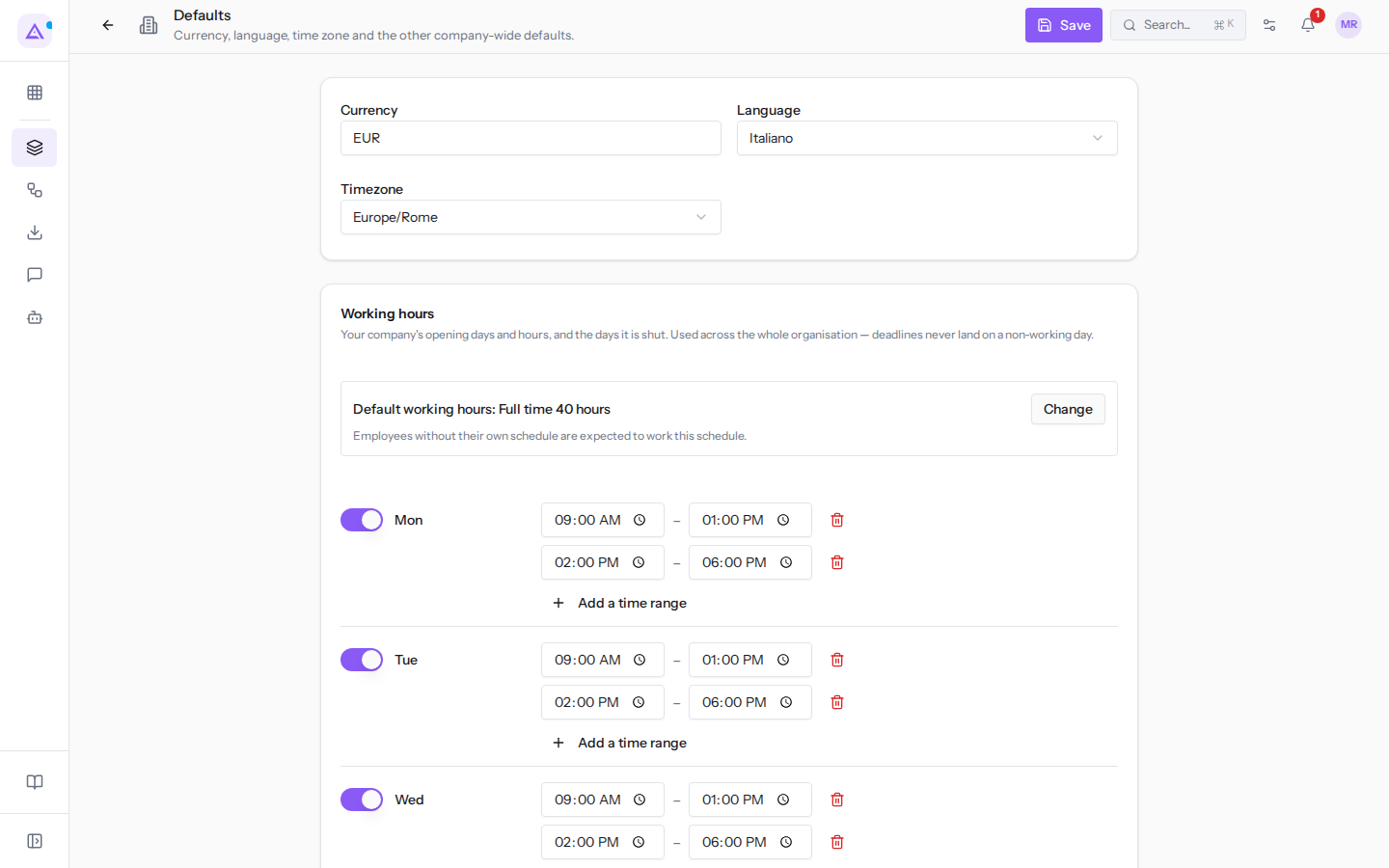
The default schedule is shown in the Working hours panel on the Defaults page.
The default schedule can be changed by administrators, those with the Availability Administrator group and those with the Organization role.
- Open Management › Organization › Defaults.
- In the Working hours panel, read the line «Default working hours: Full time 40 hours». Next to it is the Change button.
Choosing a different default schedule
The Default working hours dialog lists the organization's working schedules.
- In the Working hours panel, press Change. The Default working hours dialog opens.
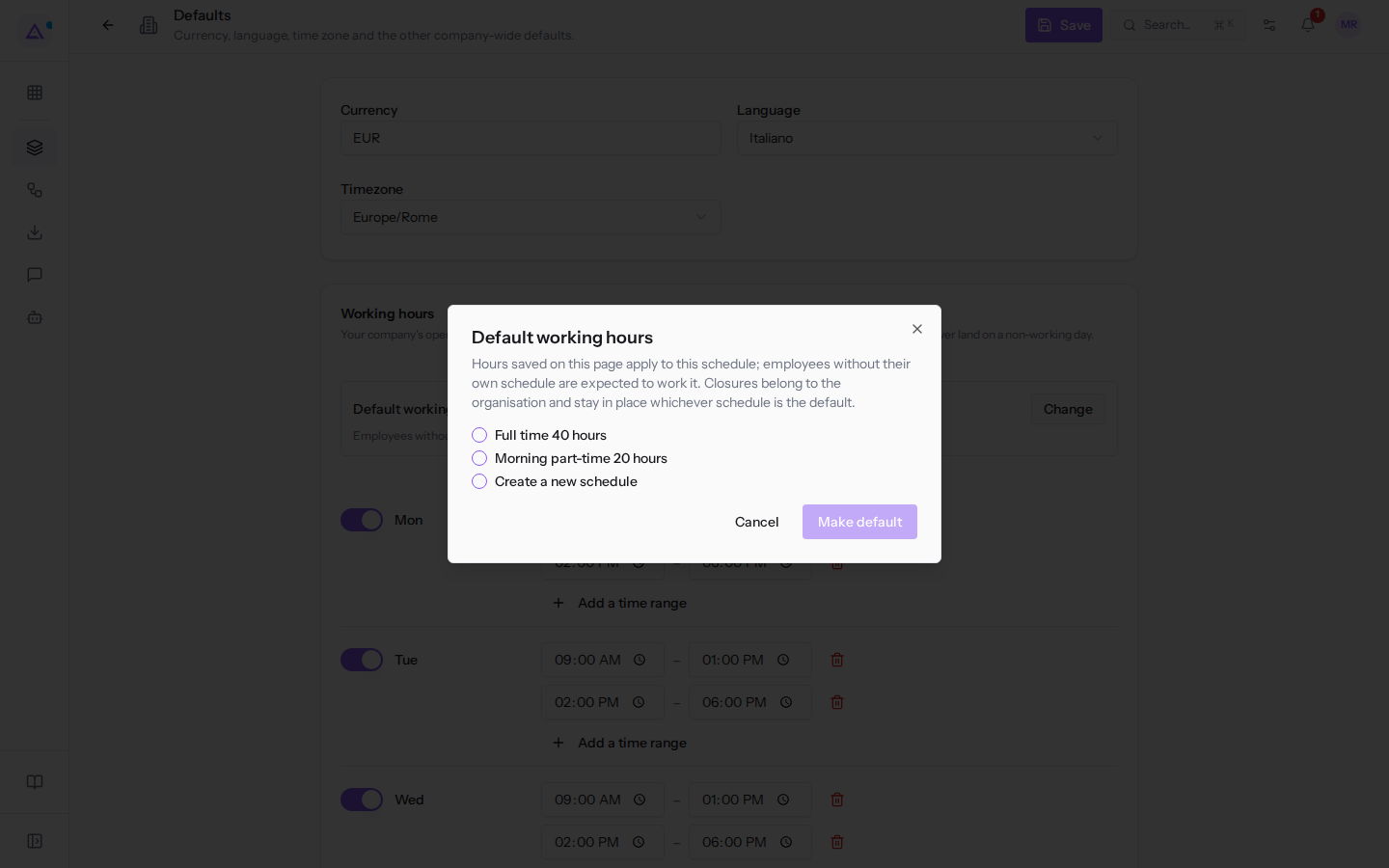
- Select the schedule that should apply to the entire organization, for example Morning part-time 20 hours.
- Press Make default to confirm, or Cancel to close the dialog without changing anything.
The dialog elements:
- Schedule list: the organization's working schedules. In the example they are Full time 40 hours and Morning part-time 20 hours.
- Create a new schedule: shows the field to create a schedule. See the next section.
- Make default: makes the selected schedule the default.
- Cancel, or the close icon at the top right: closes the dialog without changing anything.
After the change, the Working hours panel shows the week of the chosen schedule, and the changes you save with Save hours apply to that schedule.
Creating a new default schedule
Create a new schedule when none of the existing ones describes the organization's week.
- In the Working hours panel, press Change.
- In the dialog, press Create a new schedule.
- Fill in Name of the new schedule.
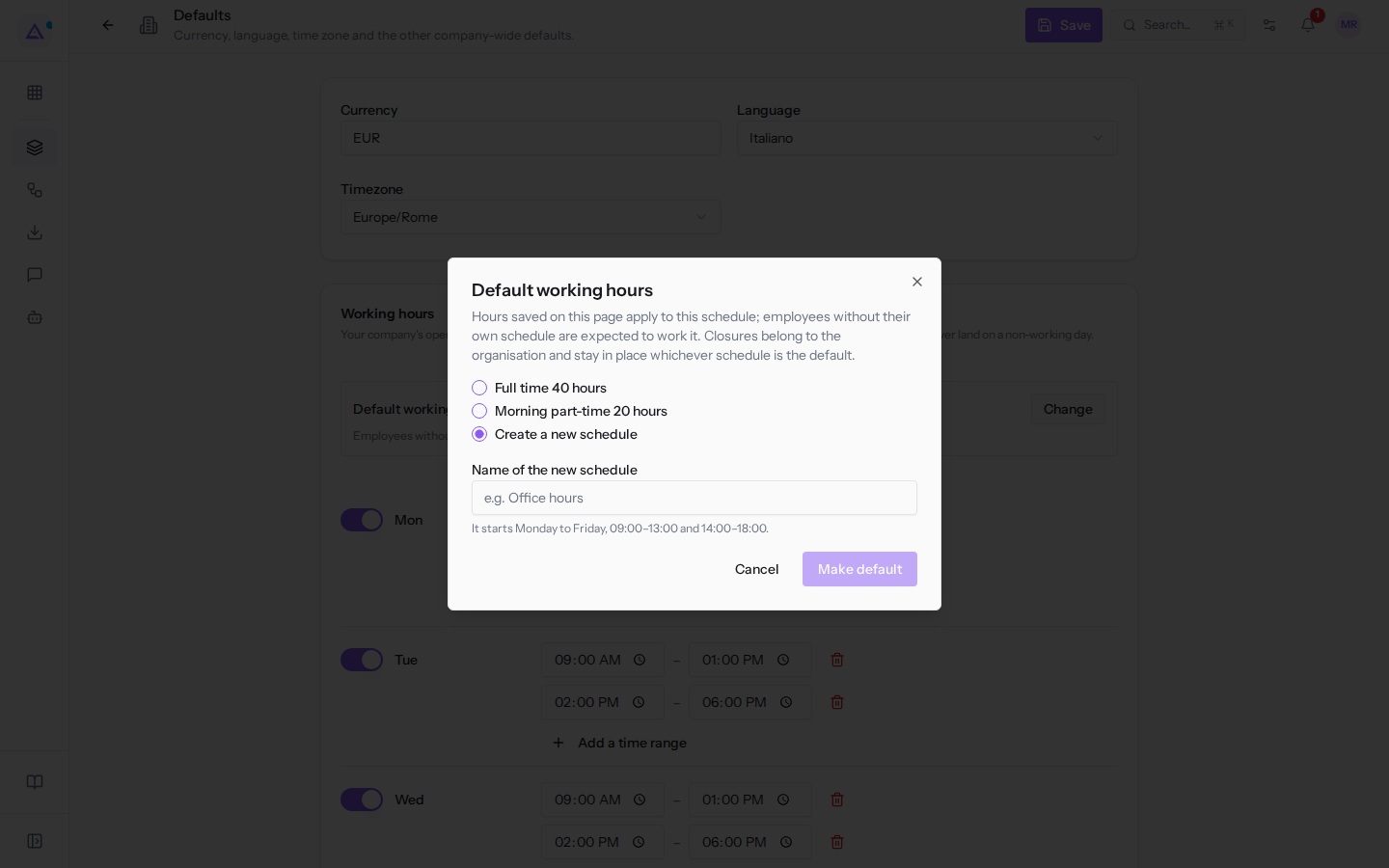
- Press Make default.
- Edit the week in the Working hours panel and press Save hours, as described in Setting the organization's working hours.
The dialog field:
- Name of the new schedule: the name by which the schedule appears in the list.
A new schedule starts from the Monday-to-Friday week, 09:00–13:00 and 14:00–18:00.
Organization with no default schedule
If the organization has not yet chosen a schedule, the Working hours panel shows the message «The organisation has no default working hours yet. Choose one of your schedules or create a new one, then edit its week here.»
- Press Choose or create default working hours.
- Choose an existing schedule or create a new one, as described in the previous sections.
- Edit the week and press Save hours.
Important: until a default schedule is set, the week cannot be edited. Those who are not administrators see the message «Ask an administrator to choose the default working hours first.»
See it on your company, not on a slide deck.
In 30 minutes we map the software you use today.We show you how much work and how much margin Archimedes gives back.
Show me on my business →What industry are you in?
One tap — it lets us prepare the demo around your world.
What tools do you use today?
Pick the ones you recognise — or just type them. It helps us show you how they migrate.
Last step: your details.
We reply within one working day — and right after, if you like, you pick the demo slot yourself.
We couldn't send your request. Try again, or write to us at [email protected].
By sending, you agree to your data being processed so we can get back to you about the demo. Privacy notice.
Preview form — nothing is sent from this page.
Want to schedule the demo now?
Your call: book the slot you prefer yourself, or we'll call you to arrange it.
Live availability, 30 minutes, instant confirmation. The calendar opens in a new tab.
Lock in your slot ↗We'll get back to you within one working day — and we'll join the call already knowing your world.
The calendar is open in another tab: pick a slot and the demo is booked. Can't see it? Reopen it ↗
Preview page: nothing was sent.
Our calendar is live: take the slot that suits you and the demo is booked. 30 minutes, instant confirmation, no waiting.
Lock in your slot ↗