Availability
All modules
Checking that an external calendar is blocking time slots
Availability · 7 of 10 · 5 min read
Every Google, Apple (iCloud) or Outlook calendar connected to a host shows its status. The status shows whether the events in that calendar are removing time slots from the booking page. Check it when a host receives a booking at a time when they were busy.
To connect a new calendar, read Connecting a host's Google, Apple or Outlook calendar.
Where to see the status
Connected calendars are listed in the «External calendars» section of the Availability tab, below the availability hours. Each row shows the calendar, the person, and the status.
- Open Appointments › Settings › Booking setup and the Availability tab.
- Scroll to the «External calendars» section.
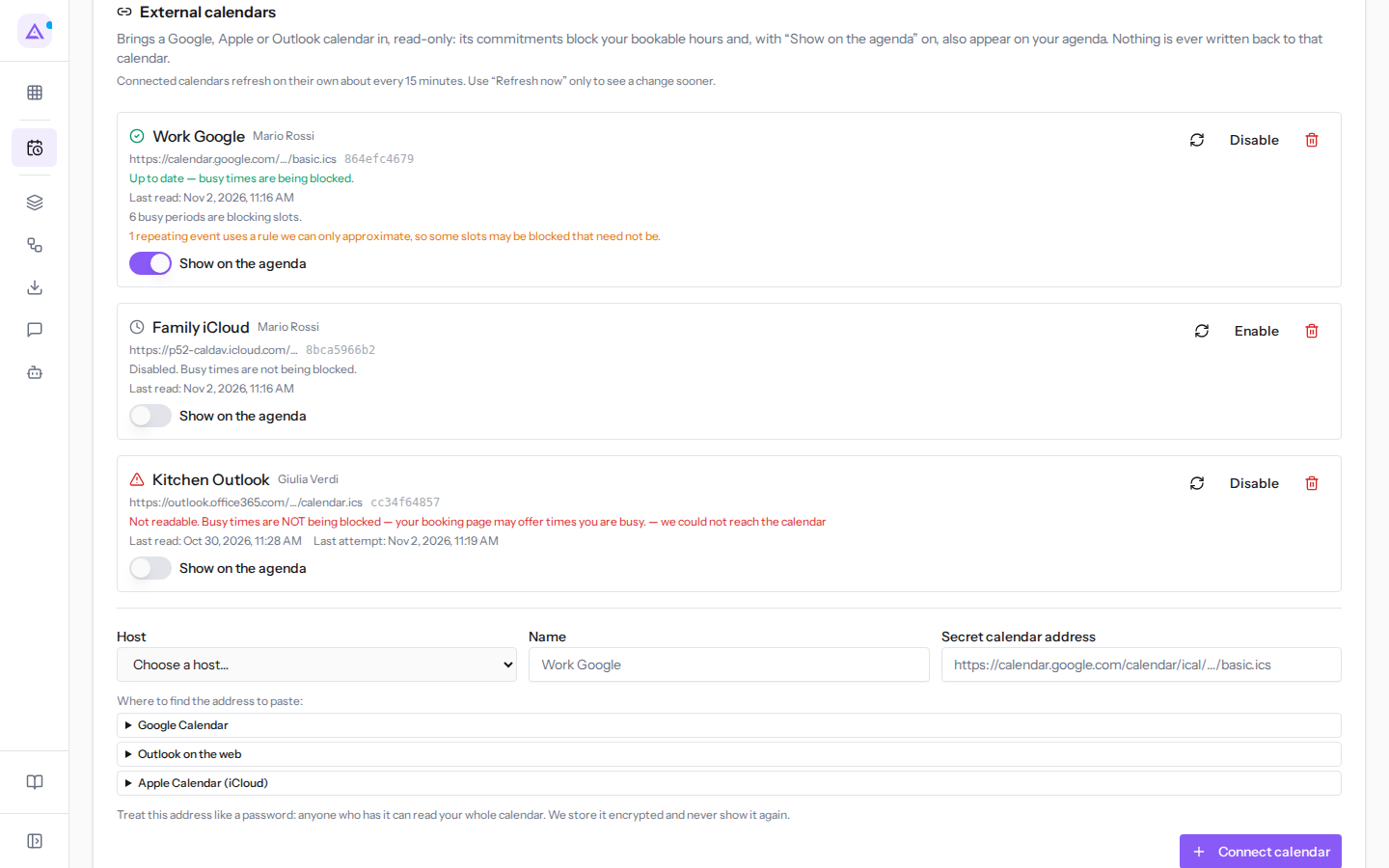
In the example there are three calendars:
Work Googleby Mario Rossi: up to date, with «6 busy periods are blocking slots.» and the warning about a recurring event.Family iCloudby Mario Rossi: disabled.Kitchen Outlookby Giulia Verdi: unreadable, with the reason we could not reach the calendar.
Note: a calendar only blocks time slots if it is connected to a person assigned to an appointment type. If the row shows Nothing reads this calendar. It is connected to something that is not a booking host, so it blocks no slot anywhere, however healthy it looks. Disconnect it and connect it to a host instead., the calendar does not remove any time slots.
If there are no connected calendars, No external calendar is connected. Booking pages currently show every hour your working schedule allows. is displayed.
A calendar's statuses
Connected calendars update themselves approximately every 15 minutes. The status depends on the outcome of the last read.
- Waiting for the first refresh.: the calendar has just been connected and has not yet been read. No action is needed: the first read happens automatically.
- Up to date — busy times are being blocked.: the last read succeeded. Below the status, «Last read: …» appears with the time and the number of events blocking time slots: for
Work Google, «6 busy periods are blocking slots.» - Not read for a while — the last successful refresh is older than expected. Busy times are still being blocked; try “Refresh now”.: the events read last time continue to block time slots, but any added in the meantime may be missing. Press the icon with the two arrows (Refresh now).
- Last refresh failed. Still using the calendar we last read successfully.: a read failed, but the events from the last successful read continue to block time slots.
- Not readable. Busy times are NOT being blocked — your booking page may offer times you are busy.: the calendar cannot be read. Next to it, «Last attempt: …» appears with the time and the reason for the error. This is the case for
Kitchen Outlookby Giulia Verdi. - Disabled. Busy times are not being blocked.: the calendar has been disabled with Disable. It remains connected and can be re-enabled with Enable. This is the case for
Family iCloudby Mario Rossi.
Important: with an unreadable or disabled calendar, the booking page may offer time slots when the host is busy.
Approximated recurring events
An up-to-date calendar may show the warning «… repeating events use rules we can only approximate, so some slots may be blocked that need not be.» Events are still blocked. Some time slots may appear busy even if they are free in the external calendar.
Error reasons
When a calendar cannot be read, the row shows the reason after the status. The reason indicates where to act.
- we could not reach the calendar: the address did not respond. Check that the calendar still exists in the external service.
- the calendar server refused the request: the external service no longer allows reading, for example because the secret address has been reset.
- the address redirects elsewhere; use the final address: the saved address points to another address. The final address is needed.
- the address did not return a calendar: the address opens something that is not a calendar, for example a web page.
- the calendar was empty: the address returned a calendar with no content.
- the calendar is too large: the calendar contains too much data to be read.
The secret address is stored encrypted and is no longer shown. To use a different address, disconnect the calendar and connect it again with the correct address, as described in Connecting a host's Google, Apple or Outlook calendar.
Each row's commands
Each connected calendar has its own commands in the row.
- The icon with the two arrows (Refresh now): reads the calendar immediately, without waiting for the automatic update. Use it only if you want to see a change made in the external calendar sooner.
- Disable: the calendar remains connected but its events stop blocking time slots.
- Enable: appears on a disabled calendar and resumes reading it.
- Show on the agenda: toggle. When active, the calendar's events also appear in the person's agenda. It does not change the blocked time slots.
- The bin icon: removes the calendar, after a confirmation.
To disconnect a calendar:
- In the calendar's row, click the bin icon.
- Confirm the message «Disconnect …? Its busy times stop blocking your booking page immediately.»
When done, Calendar disconnected. is shown.
To suspend a calendar for a period only, use Disable instead of disconnecting it: this way you will not need to paste the secret address again.
Viewing events on the Appointments page
With Show on the agenda active, the calendar's events appear on the Appointments page as grey boxes with the label «Busy · …» followed by the calendar name.
- Open Appointments.
- Click Week.
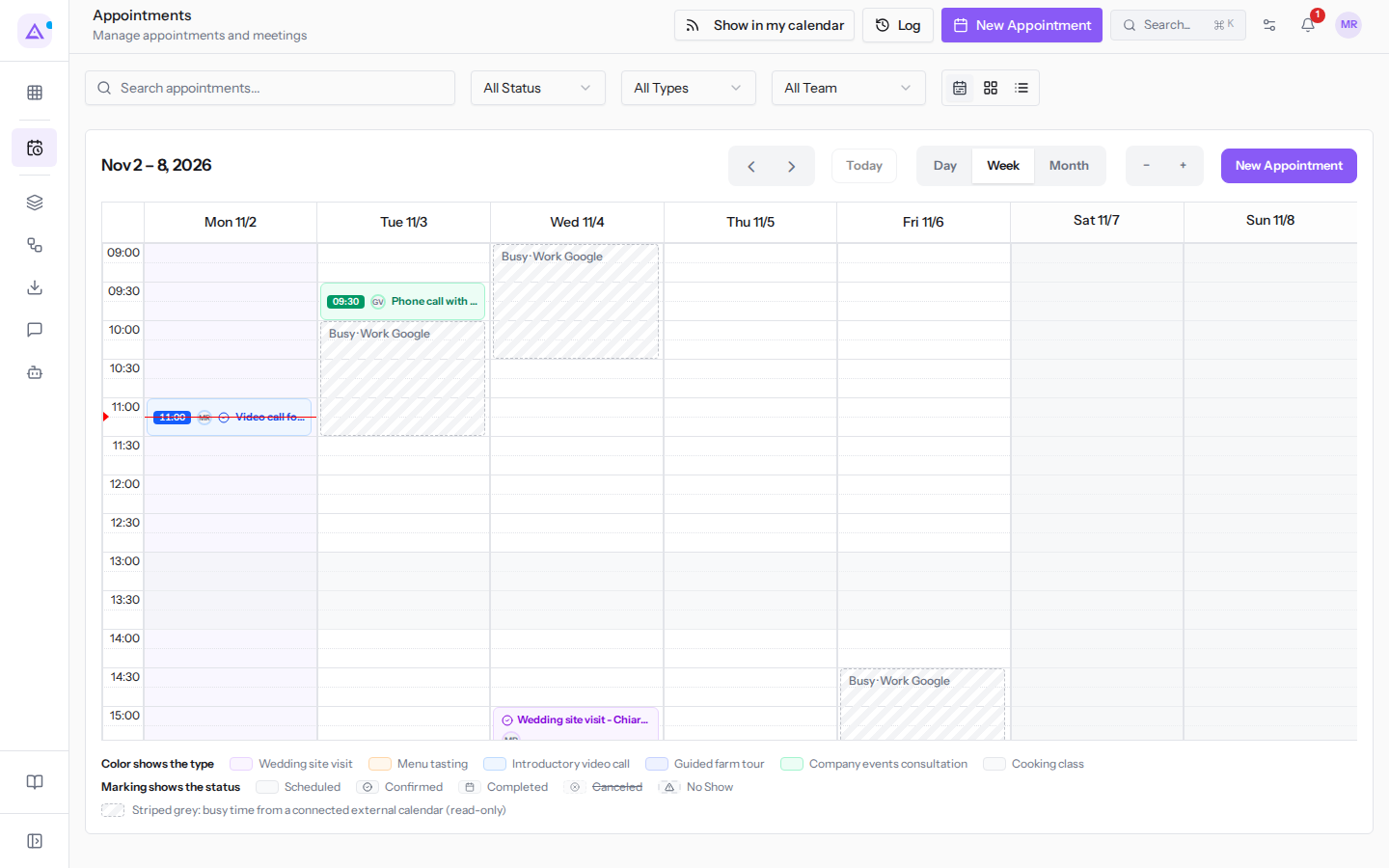
These boxes cannot be opened or moved: they are managed in the external calendar. Hovering over them shows «Busy according to your connected calendar “Work Google”. Managed in that calendar; it cannot be opened or moved here.» At the bottom of the page, the legend identifies them as «Striped grey: busy time from a connected external calendar (read-only)».
To see Archimedes appointments in your Google Calendar, Apple Calendar or Outlook — the opposite direction — read Viewing appointments in Google, Apple or Outlook.
See it on your company, not on a slide deck.
In 30 minutes we map the software you use today.We show you how much work and how much margin Archimedes gives back.
Show me on my business →What industry are you in?
One tap — it lets us prepare the demo around your world.
What tools do you use today?
Pick the ones you recognise — or just type them. It helps us show you how they migrate.
Last step: your details.
We reply within one working day — and right after, if you like, you pick the demo slot yourself.
We couldn't send your request. Try again, or write to us at [email protected].
By sending, you agree to your data being processed so we can get back to you about the demo. Privacy notice.
Preview form — nothing is sent from this page.
Want to schedule the demo now?
Your call: book the slot you prefer yourself, or we'll call you to arrange it.
Live availability, 30 minutes, instant confirmation. The calendar opens in a new tab.
Lock in your slot ↗We'll get back to you within one working day — and we'll join the call already knowing your world.
The calendar is open in another tab: pick a slot and the demo is booked. Can't see it? Reopen it ↗
Preview page: nothing was sent.
Our calendar is live: take the slot that suits you and the demo is booked. 30 minutes, instant confirmation, no waiting.
Lock in your slot ↗