Availability
All modules
Setting the organization's working hours
Availability · 2 of 10 · 3 min read
The Working hours panel shows which days and at what times the company is open, for example Monday to Friday, 09:00–13:00 and 14:00–18:00. It applies to the entire organization.
What opening hours are for
Opening hours tell the application which days are working days:
- a deadline that would fall on a closed day moves to the first working day after;
- the Calendar shades closed days;
- employees without their own schedule are required to work according to this schedule. The row «Default working hours: Full time 40 hours» shows which schedule you are editing.
They are not the hours during which appointments can be booked: those are set for each appointment type, in Setting the hours when bookings are possible. Nor are they an individual employee's schedule, which is chosen on their record in Employees. To choose a different default schedule with Change, see Choosing which schedule applies to the whole organization.
Schedules are modified by administrators, those with the Availability Administrator group and those with the Organization role. Others see the panel in read-only mode, with the message «Only an administrator can change the working hours.»
Editing the week
- Open Management › Organization › Defaults and scroll to the Working hours panel.
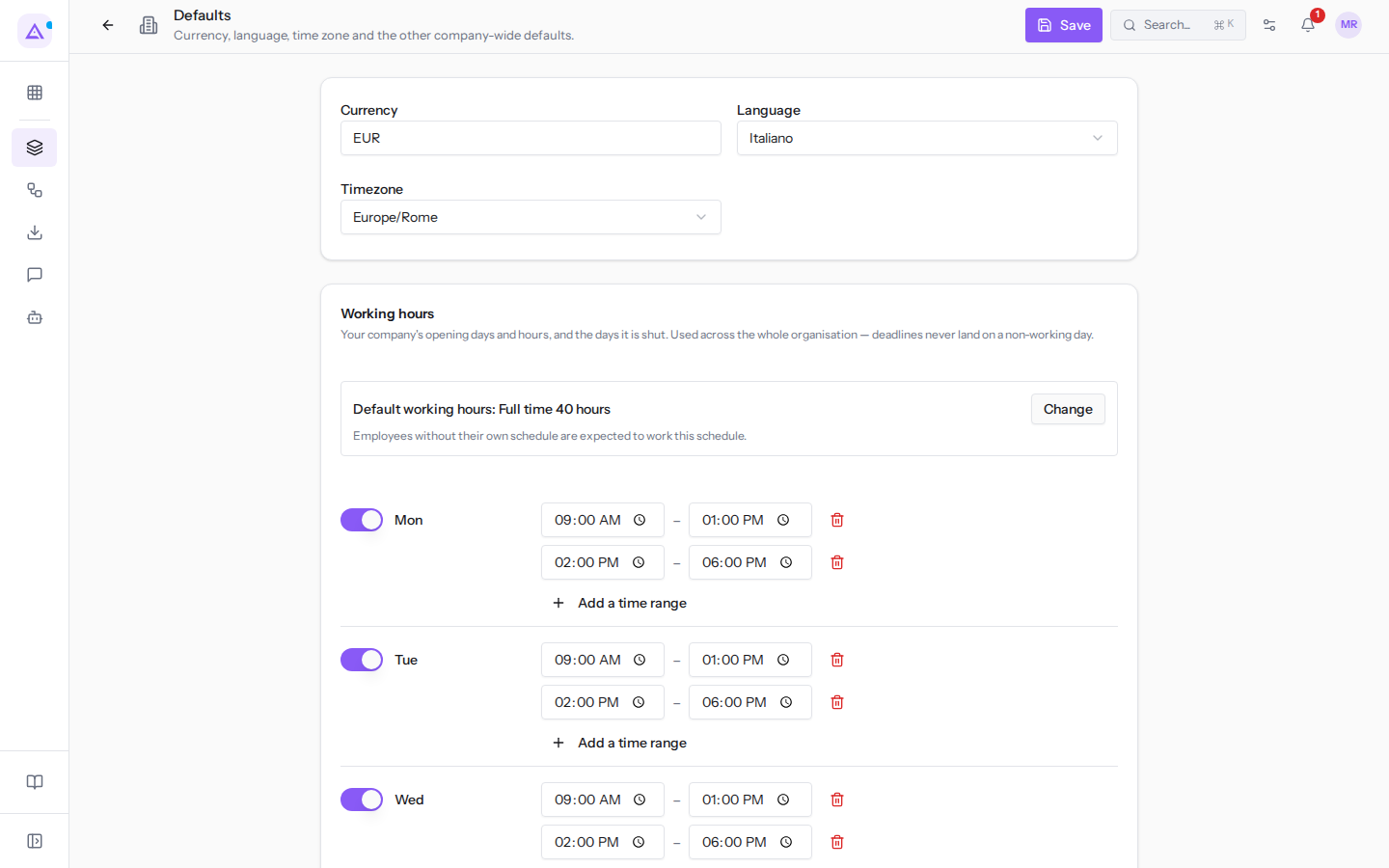
- Turn on the toggle for the days the company is open and turn off the toggle for closed days. A day turned off shows Closed. For example, turn on Sat to open on Saturdays too: a 09:00–18:00 slot appears for you to correct.
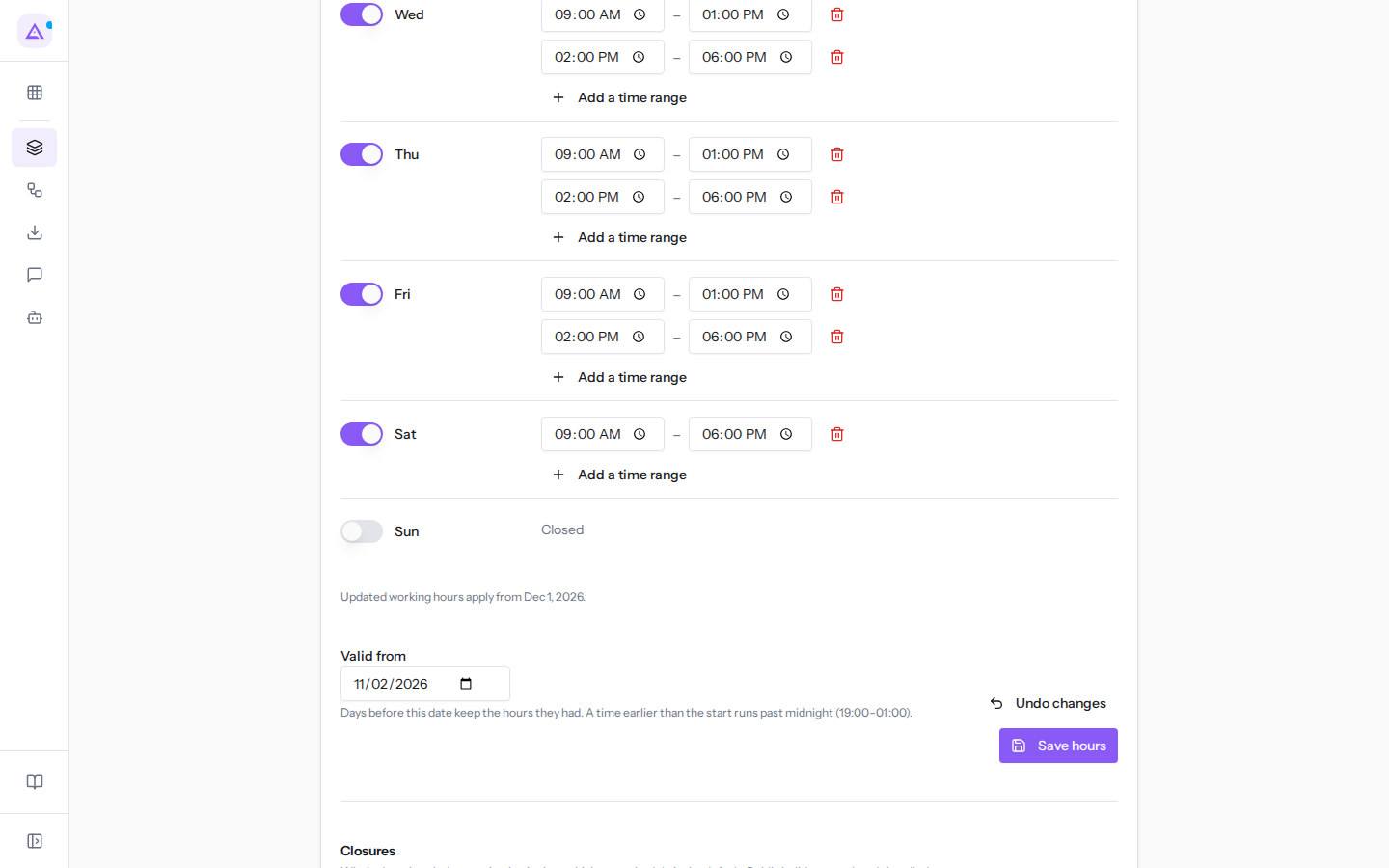
- For each open day, enter the start and end of each slot in the From and To fields. Morning and afternoon are two slots: add one with Add a time range, remove it with the bin icon beside it.
- In Valid from, enter the day from which the new hours apply.
- Press Save hours. The page confirms with «Working hours saved — they apply from …». Undo changes restores the week as it was saved.
A slot that ends before it begins continues past midnight, for example 19:00–01:00 for an evening opening. A slot cannot start and end at the same time, and the week must have at least one open day: if you close them all the page refuses to save with «Keep at least one open day — an empty week is read as "not configured".»
Preparing a schedule change in advance
A change does not rewrite the past: days before Valid from keep the hours they had. This is why a seasonal schedule can be saved weeks in advance, putting its first day in Valid from.
A change saved for the future appears in the panel with the row «Updated working hours apply from …». In the example it says «Updated working hours apply from Dec 1, 2026»: from that day the farmhouse also opens on Saturday mornings. Until then, the panel continues to show the current week, not the future one.
If employees' attendance has already been closed for a period, a change cannot apply to those days. The hours then apply from the day after attendance is closed, and the page says so with «Working hours saved — attendance is closed until the day before, so they apply from …».
See it on your company, not on a slide deck.
In 30 minutes we map the software you use today.We show you how much work and how much margin Archimedes gives back.
Show me on my business →What industry are you in?
One tap — it lets us prepare the demo around your world.
What tools do you use today?
Pick the ones you recognise — or just type them. It helps us show you how they migrate.
Last step: your details.
We reply within one working day — and right after, if you like, you pick the demo slot yourself.
We couldn't send your request. Try again, or write to us at [email protected].
By sending, you agree to your data being processed so we can get back to you about the demo. Privacy notice.
Preview form — nothing is sent from this page.
Want to schedule the demo now?
Your call: book the slot you prefer yourself, or we'll call you to arrange it.
Live availability, 30 minutes, instant confirmation. The calendar opens in a new tab.
Lock in your slot ↗We'll get back to you within one working day — and we'll join the call already knowing your world.
The calendar is open in another tab: pick a slot and the demo is booked. Can't see it? Reopen it ↗
Preview page: nothing was sent.
Our calendar is live: take the slot that suits you and the demo is booked. 30 minutes, instant confirmation, no waiting.
Lock in your slot ↗