Contracts
All modules
Writing contract templates with placeholders
Contracts · 15 of 15 · 5 min read
A contract template holds the base text of a contract. Instead of the data that changes from one contract to another, the text has placeholders. In the Templates tab of Contracts › Settings you write once the texts you reuse, and preview them.
How a contract uses the template
The template provides the starting text. Each contract then keeps its own copy.
- When you create the draft, the contract copies the template's text and fills in the placeholders with its own data. You can choose the template in the contract, or let the contract type suggest it.
- While the contract is in draft, Refresh text recreates the text from the current template. The message Text refreshed appears. Use it after you correct the template.
- Send for signature freezes the text. From then on, changes to the template no longer change the contract.
If you correct a template, the correction applies only to new contracts and to drafts regenerated after the correction. Contracts already sent do not change.
To prepare the text of a draft, see Create a new contract and Prepare a draft: terms, cost items, clauses and text.
Opening the template list
Before you start: the Contracts › Settings item appears only to people responsible for contracts.
Open Contracts › Settings. The Contract types & templates page opens. Switch to the Templates tab.
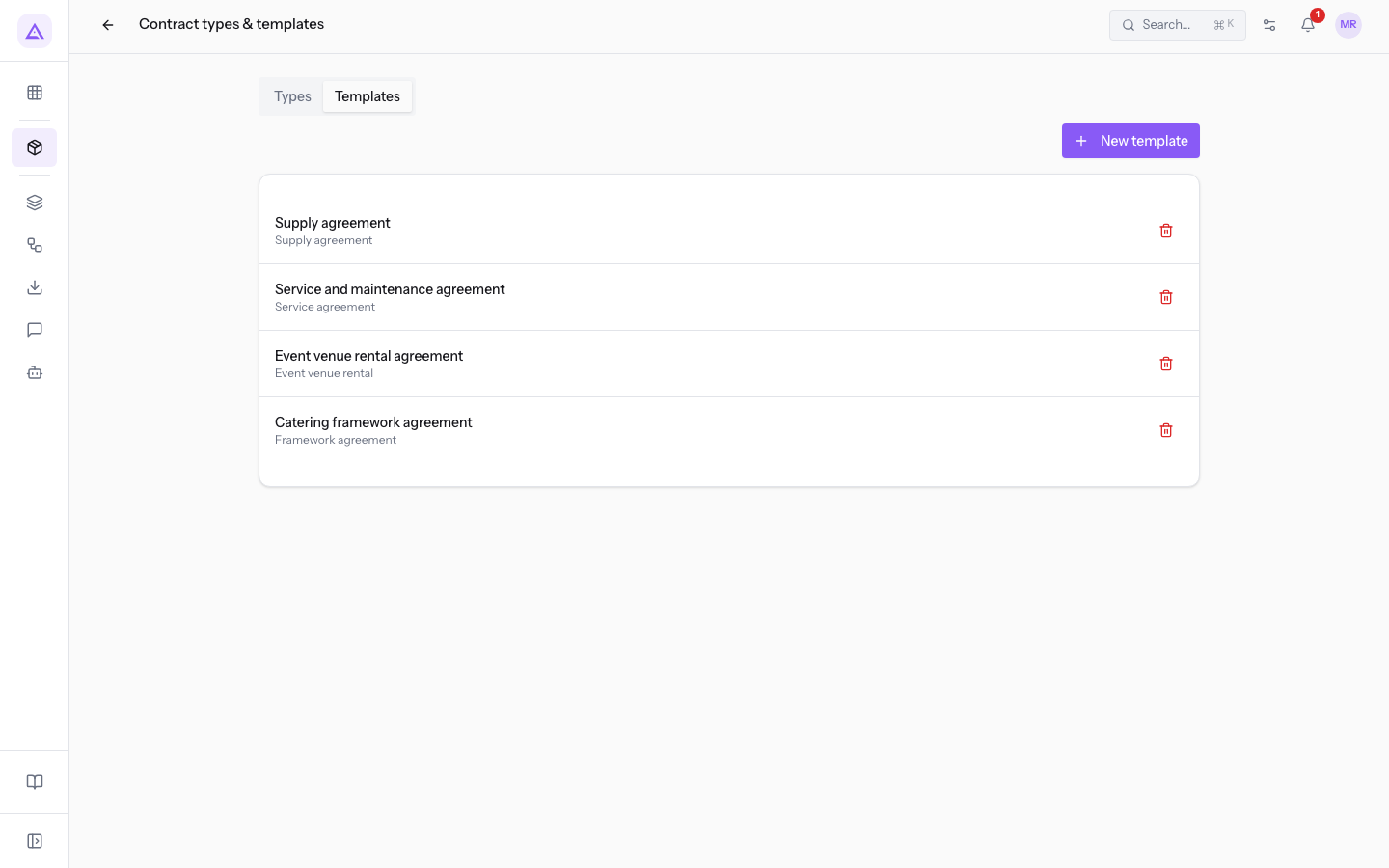
The list shows the name of each template and, below it, its contract type. If the template has no type, a dash appears in place of the type. The demo templates are:
- Supply agreement, type Supply agreement.
- Service and maintenance agreement, type Service agreement.
- Event venue rental agreement, type Event venue rental.
- Catering framework agreement, type Framework agreement.
Next to each row is the Delete icon. Deletion is immediate: the message that appears lets you undo it for a few seconds.
You manage contract types in the Types tab: see Configuring contract types.
Editing a template
Press a template's name: its form opens below the list. Edit the fields and press Save. The message Template saved appears and the form closes.
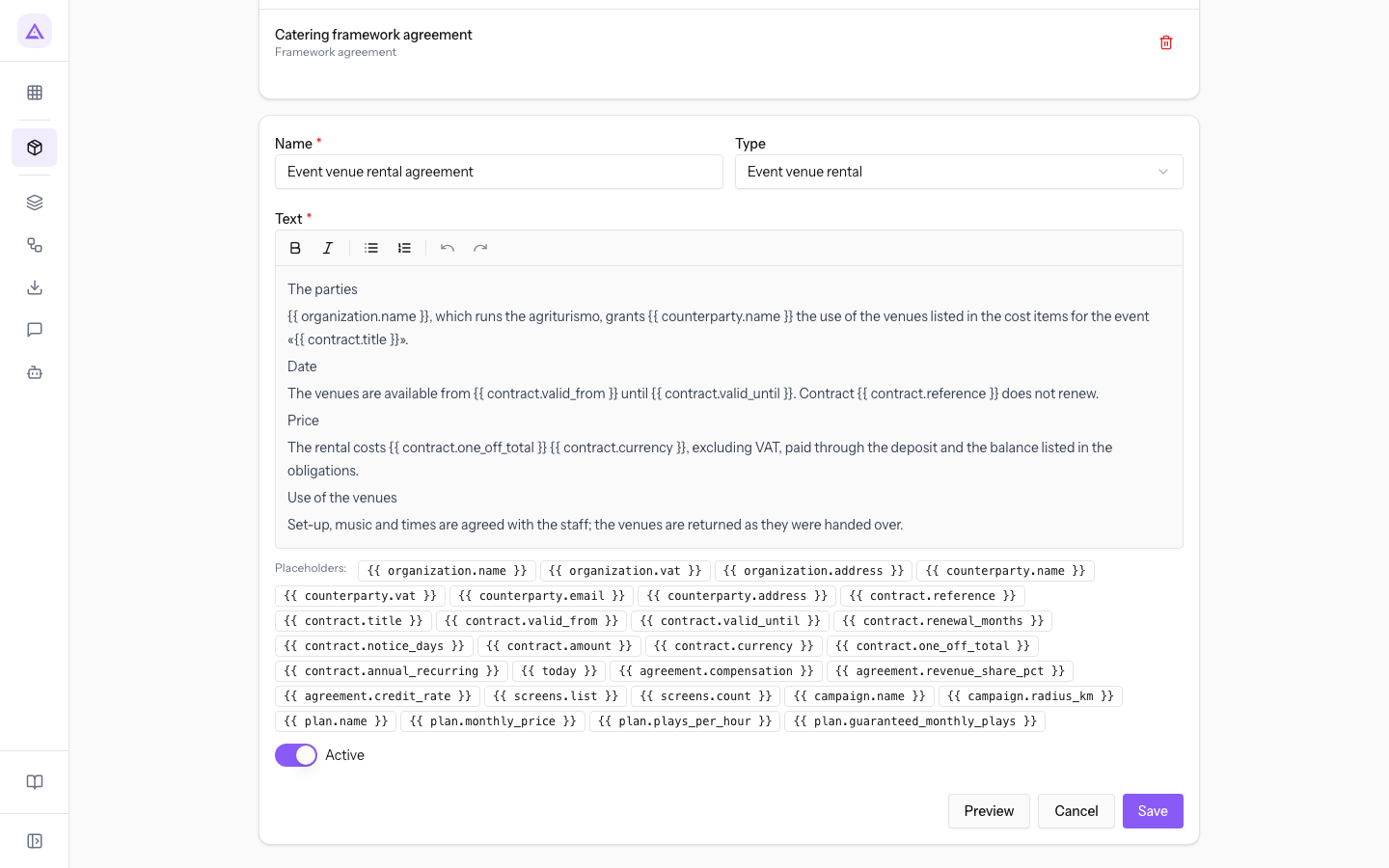
The form contains these fields:
- Name: the template name, which appears in the list and in the template choice for a contract. The field is required.
- Type: the contract type the template belongs to. Choose — if the template has no type.
- Text: the contract text, written in an editor that allows bold, italic, bulleted lists and numbered lists. You can insert placeholders in the text. The field is required.
- Placeholders: the row of available placeholders. Press a placeholder to add it as a new paragraph at the end of the text. Then move it to where you need it.
- Active: when off, the template does not appear in the template choice for a contract. A new template starts active.
Using placeholders
A placeholder is a key enclosed in double curly braces, for example {{ counterparty.name }}. You can add it from the Placeholders row or type it into the text. These are the placeholders of the Contracts module and the data they are replaced with:
organization.name,organization.vat,organization.address: your organization's company name, VAT number and address.counterparty.name,counterparty.vat,counterparty.email,counterparty.address: the counterparty's name, VAT number, email and address. If the counterparty has no VAT number, the tax code is used. The address is the contact's default address, or the first one if there is no default.contract.reference,contract.title: the contract's reference and title. A draft does not have a reference yet.contract.valid_from,contract.valid_until: the start date and the expiry date, in day/month/year format.contract.renewal_months,contract.notice_days: the renewal period in months and the notice period in days.contract.amount,contract.currency: the header amount and the currency. If the contract has no currency, the default one applies.contract.one_off_total,contract.annual_recurring: the total of the one-off cost items and the annual recurring total.today: the date on which the text is filled in.
Amounts use a comma for decimals and a period for thousands.
The Placeholders row also shows the placeholders added by other modules that create contracts, those starting with agreement, screens, campaign and plan. They are filled in only on contracts created by those modules: in any other contract they stay written as they are.
Important: if a key is written incorrectly, the placeholder is not replaced. It stays visible in the contract text exactly as you wrote it. Always check the text with Preview.
Viewing the preview
The preview shows the template text filled in with sample data, not with the data of a contract. The sample data is fictitious, for example Our Company Srl, Counterparty Spa and Sample contract.
In the template form, press Preview. The filled-in text appears below the form.
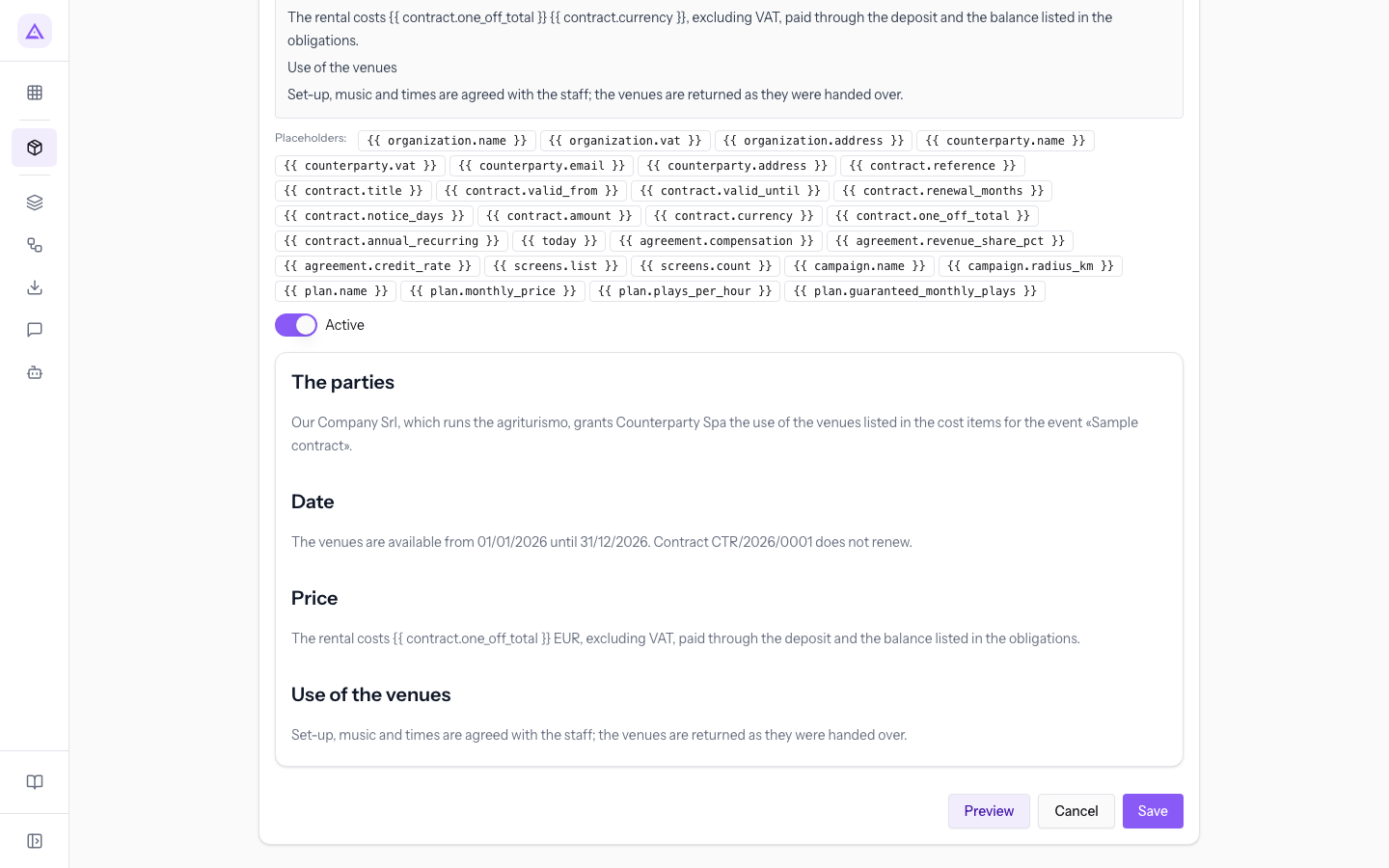
The preview has no sample data for contract.one_off_total, contract.annual_recurring and the placeholders of other modules: these stay written as they are, but in a real contract the first two are filled in.
Note: the preview uses the text currently in the editor, even if it has not been saved yet.
Creating a new template
Create a template for each contract text you reuse.
- In the Templates tab, press New template. An empty form opens below the list, with Type set to — and Active turned on.
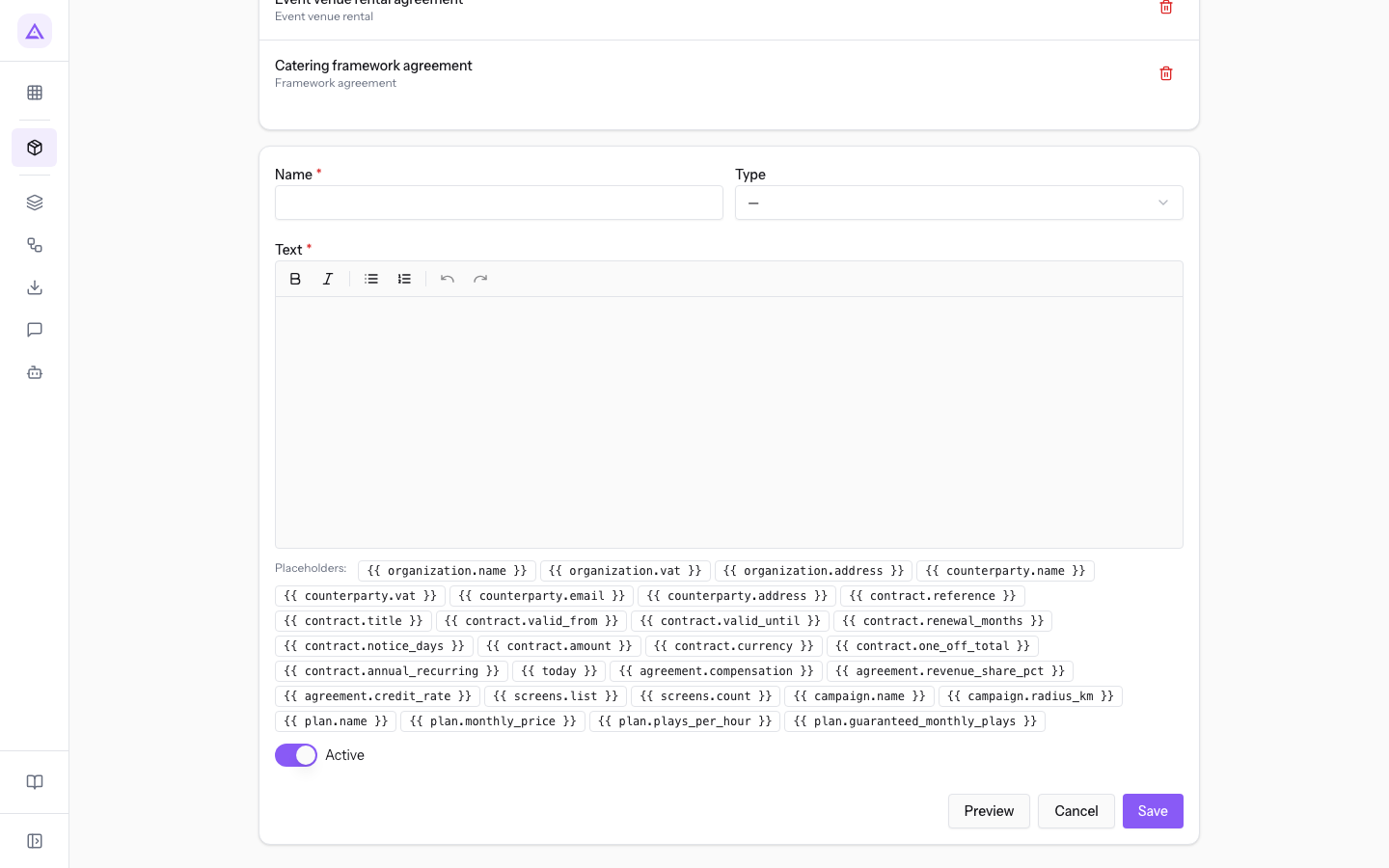
- Fill in Name, choose the Type and write the Text with the placeholders.
- Press Preview to check the filled-in text, then Save. The message Template saved appears.
For a contract type to suggest the new template, select it in the type's Template field: see Configuring contract types.
See it on your company, not on a slide deck.
In 30 minutes we map the software you use today.We show you how much work and how much margin Archimedes gives back.
Show me on my business →What industry are you in?
One tap — it lets us prepare the demo around your world.
What tools do you use today?
Pick the ones you recognise — or just type them. It helps us show you how they migrate.
Last step: your details.
We reply within one working day — and right after, if you like, you pick the demo slot yourself.
We couldn't send your request. Try again, or write to us at [email protected].
By sending, you agree to your data being processed so we can get back to you about the demo. Privacy notice.
Preview form — nothing is sent from this page.
Want to schedule the demo now?
Your call: book the slot you prefer yourself, or we'll call you to arrange it.
Live availability, 30 minutes, instant confirmation. The calendar opens in a new tab.
Lock in your slot ↗We'll get back to you within one working day — and we'll join the call already knowing your world.
The calendar is open in another tab: pick a slot and the demo is booked. Can't see it? Reopen it ↗
Preview page: nothing was sent.
Our calendar is live: take the slot that suits you and the demo is booked. 30 minutes, instant confirmation, no waiting.
Lock in your slot ↗