Helpdesk
All modules
Viewing a ticket's detail page
Helpdesk · 6 of 15 · 4 min read
The ticket page gathers everything about a support request on one page: subject, stage, priority, description, messages, attachments, contact, assignment and SLA deadline. Use it to see where a request stands, for example a projector fault in a room, an invoice request or a booking problem.
Opening a ticket's detail page
The page opens from the Tickets list or from the Pipeline.
- Go to Helpdesk › Tickets.
- Press the ticket row, for example
Projector in the Hall del Camino does not turn on.
Alternatively:
- Go to Helpdesk › Pipeline.
- Choose the board
Room and hall maintenance. - Press the ticket card in the
Waiting for the suppliercolumn,#4593 Projector in the Hall del Camino does not turn on.
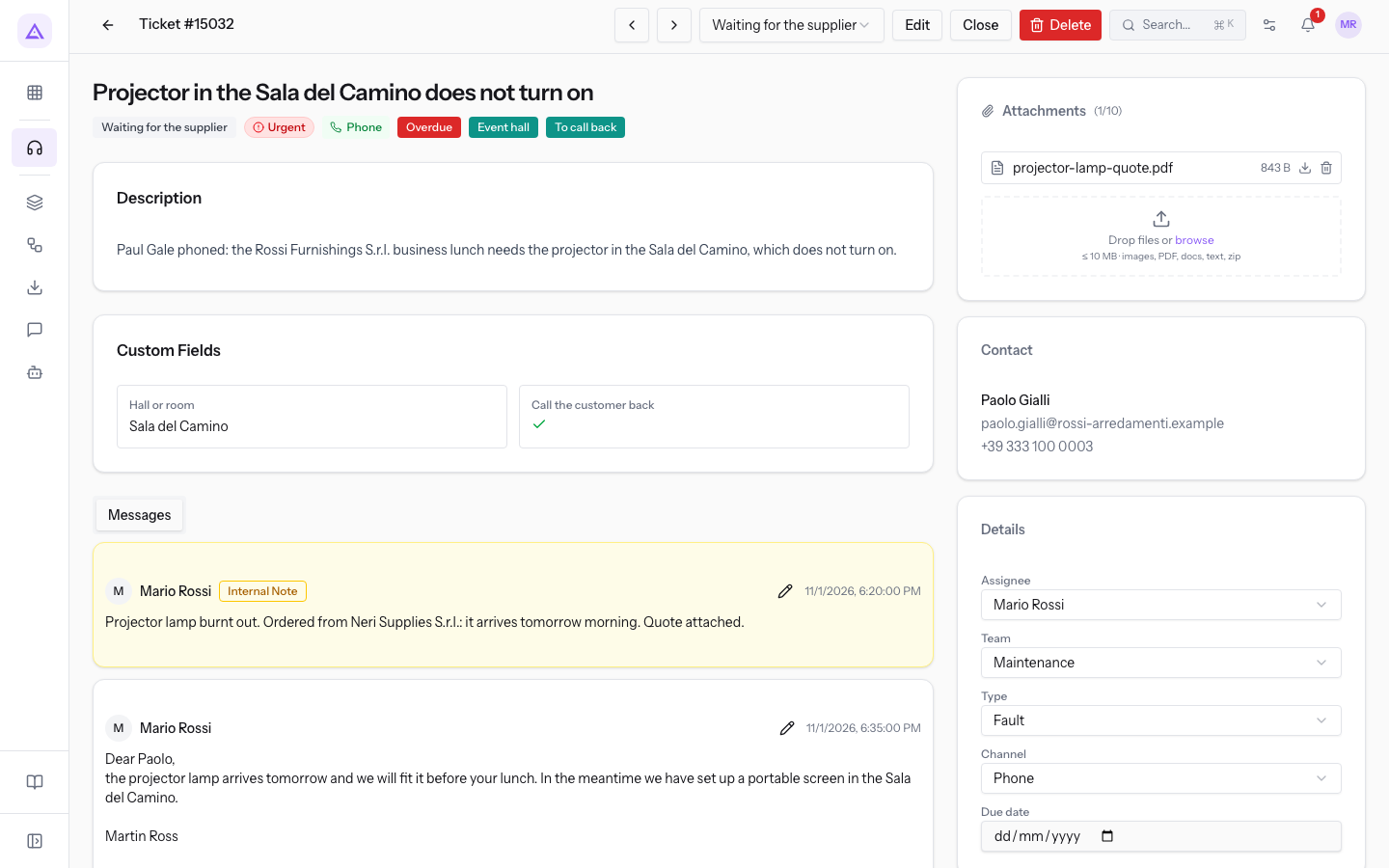
Page header
Before you start: deleting a ticket requires the Helpdesk Manager group. Users with only the Helpdesk User group cannot delete tickets.
The header shows the ticket number and the commands that act on the whole ticket.
- Ticket #4593: the page title, with the ticket number.
- Previous ticket and Next ticket: open the ticket before or after the current one.
- Stage selector: shows the current stage, for example Waiting for the supplier. Press it to choose another stage from the ticket board. On the board
Room and hall maintenancethe stages areReported,Being repaired,Waiting for the supplierandRepaired. - Edit: opens the Edit Ticket window.
- Close: closes the ticket.
- Delete: moves the ticket to the trash.
Note: if the board has a workflow, the selector only allows the stages the workflow permits: The workflow does not allow moving to this stage from the current one.
Important: a stage marked as a closing stage resolves the ticket. Moving the ticket to a non-closing stage reopens it and clears the resolution and closing dates.
Subject, badges and description
Below the header is the ticket subject, followed by a row of badges.
- Stage: the current stage, for example
Waiting for the supplier. - Priority:
Urgent. - Channel: the channel the request came in through, such as
Phone. - Overdue: appears when the SLA deadline has passed.
- Tags: the ticket's tags, such as
Event hallandTo call back.
The Description panel shows the request text. If the ticket has no description, No description provided. appears.
Custom fields
The Custom Fields panel shows the extra ticket fields defined in the helpdesk settings.
Messages tab
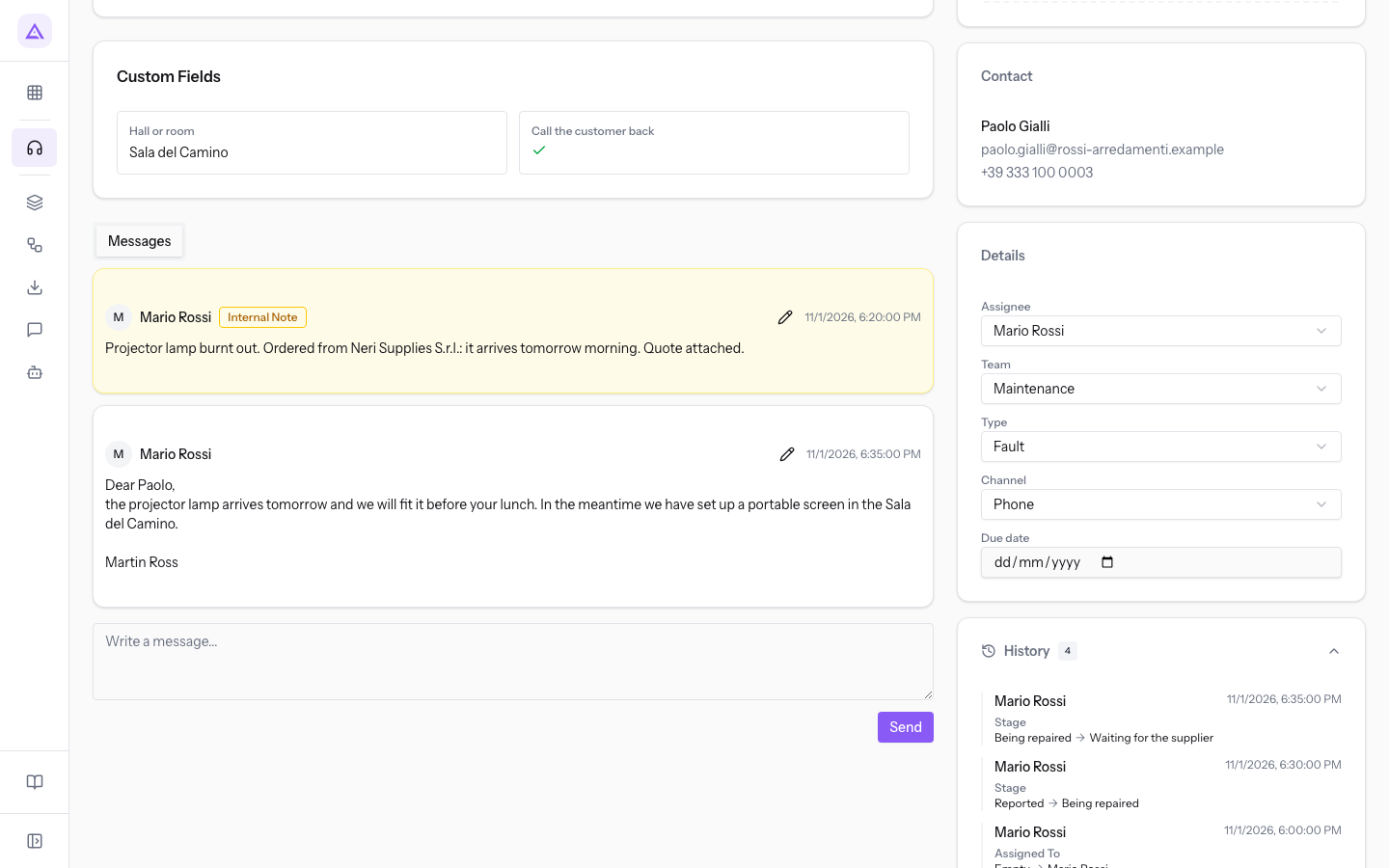
The Messages tab holds the ticket thread: replies to the customer and internal notes.
- Write a message...: the box where you type the text.
- Send: posts the message to the thread.
- Edit message: edits a message you have already sent.
Note: internal notes are not sent to the customer and do not count as a first response.
Right-hand column
The right-hand column gathers attachments, contact, details, history and SLA.
Attachments
The attachments panel lists the ticket's files, for example projector-lamp-quote.pdf.
- Download: downloads the file.
- Remove: removes the file from the ticket.
- browse: opens a file picker to add a file.
Contact
The Contact panel shows the contact linked to the ticket, for example Paul Gale. If the ticket has no contact, No contact appears.
Details
The Details panel shows the ticket's assignment and classification data. Each field is changed directly from the panel.
- Assignee: the user following the ticket, for example
Martin Ross. - Team: the team the ticket is assigned to, such as
Maintenance. - Type: the ticket category, such as
Fault. - Channel: the channel of the request, such as
Phone. - Due date: the date agreed for the ticket. The field is optional.
History
The History panel records changes to the ticket. The button shows the number of entries, for example History 4: press it to open the list. If there are no changes, No history yet appears.
SLA
The SLA panel shows the ticket's SLA deadline.
- ⚠ Overdue: the deadline has passed.
Deadline:followed by the date: the date by which the ticket must be resolved.- No SLA deadline set: no SLA policy applies to the ticket. The ticket does not count toward SLA compliance.
The SLA deadline is the creation date plus the resolution hours of the applicable policy. It is recalculated when the type or priority changes. A resolved or closed ticket keeps its deadline.
See it on your company, not on a slide deck.
In 30 minutes we map the software you use today.We show you how much work and how much margin Archimedes gives back.
Show me on my business →What industry are you in?
One tap — it lets us prepare the demo around your world.
What tools do you use today?
Pick the ones you recognise — or just type them. It helps us show you how they migrate.
Last step: your details.
We reply within one working day — and right after, if you like, you pick the demo slot yourself.
We couldn't send your request. Try again, or write to us at [email protected].
By sending, you agree to your data being processed so we can get back to you about the demo. Privacy notice.
Preview form — nothing is sent from this page.
Want to schedule the demo now?
Your call: book the slot you prefer yourself, or we'll call you to arrange it.
Live availability, 30 minutes, instant confirmation. The calendar opens in a new tab.
Lock in your slot ↗We'll get back to you within one working day — and we'll join the call already knowing your world.
The calendar is open in another tab: pick a slot and the demo is booked. Can't see it? Reopen it ↗
Preview page: nothing was sent.
Our calendar is live: take the slot that suits you and the demo is booked. 30 minutes, instant confirmation, no waiting.
Lock in your slot ↗