Tree of Knowledge
All modules
Attach a file to a page
Tree of Knowledge · 6 of 14 · 3 min read
The Attachments block adds downloadable files to a portal page. From here you upload a file, download it, or delete it.
The Attachments block
The Attachments block sits below the text of every page and stays visible both when reading and when editing. Only pages have this block: sections and reels have no attachments.
Use an attachment for a file to download. Use the page text for what should be read directly in the portal. For a video to watch in the portal, use a reel.
The block shows:
- Upload File: opens the Upload attachment window.
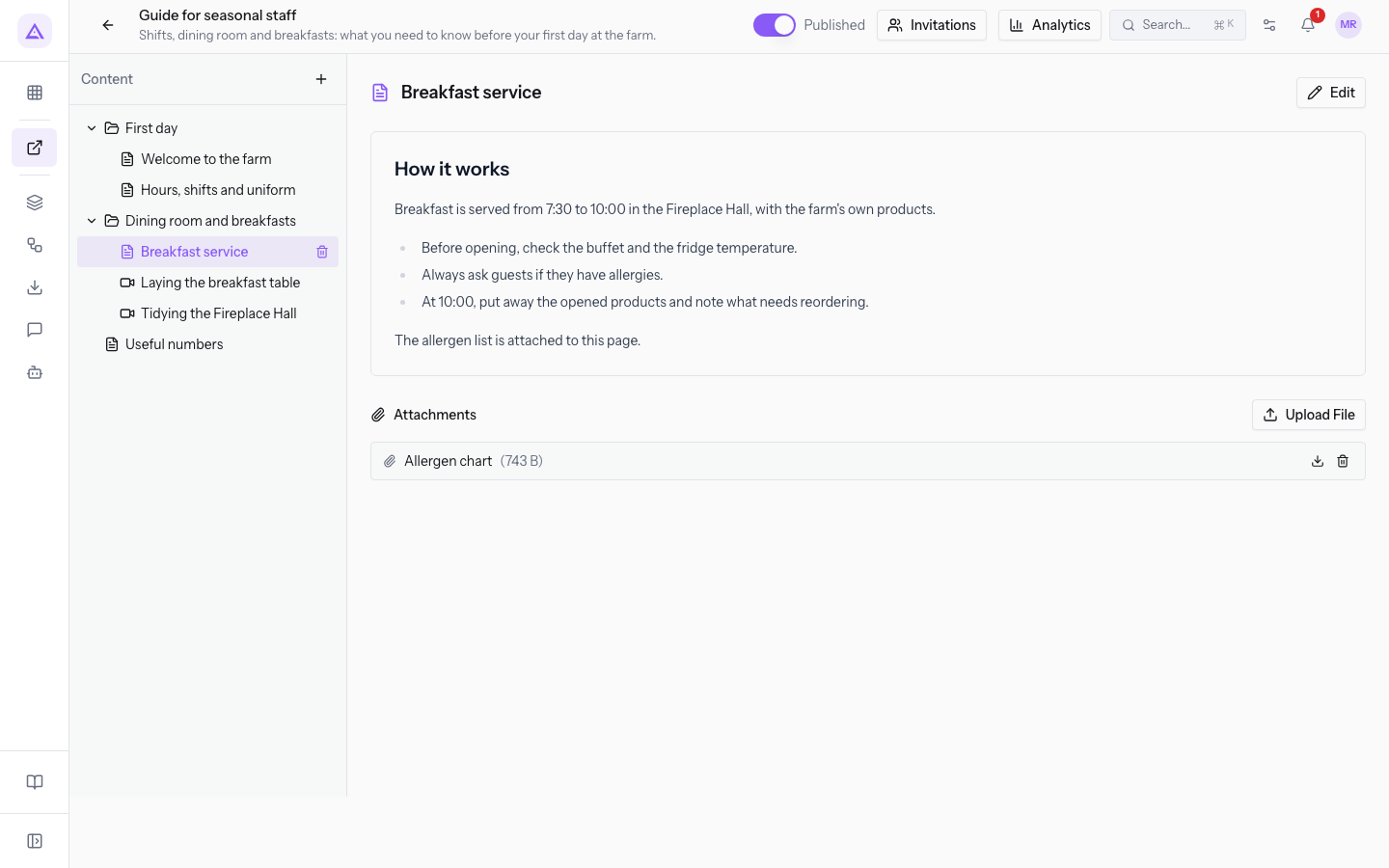
- No attachments yet.: the message that appears when the page has no attachments, as in
Welcome to the farm. - Attachment row: one row for each file, with the most recent attachments at the top, like
Allergen chartinBreakfast service.- Name: the title of the attachment or, if missing, the file name. Pressing it downloads the file.
- Size: the size of the file, in brackets.
- Download icon: downloads the file.
- Trash icon: deletes the attachment, after a confirmation.
Uploading a file
The attachment is saved when the upload finishes: Save Page is not needed. You can also upload a file while the page is in the reading view.
Before you start: to upload or delete an attachment you must be a manager or author of the module. The page must already exist in the tree: to create it, see Build the tree with sections, pages and reels.
-
Open the portal from Tree of Knowledge.
-
In the Content panel, select the page.
-
In the Attachments block, press Upload File.
-
Fill in the fields of the Upload attachment window and press Upload. The button stays disabled until you choose a file.
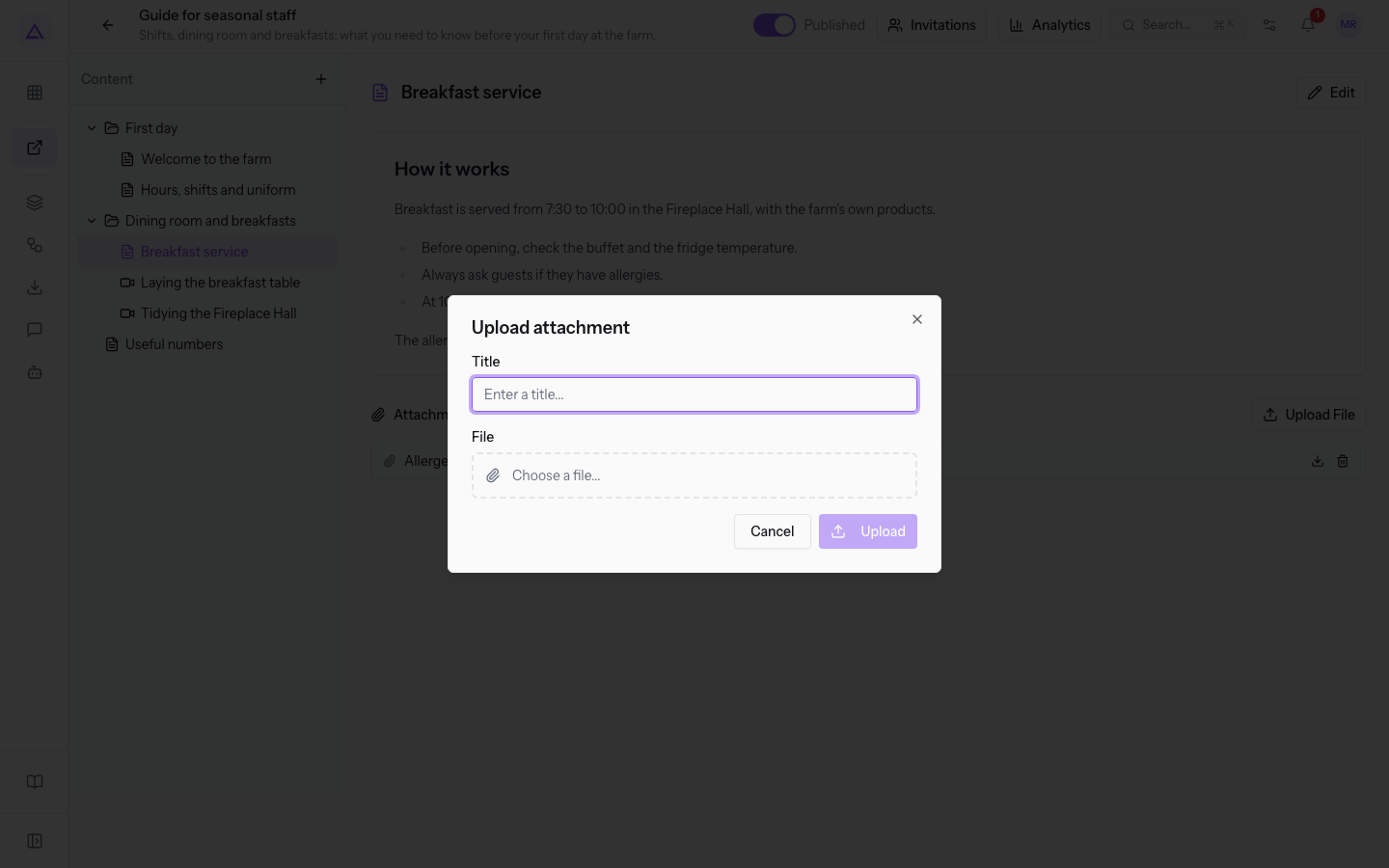
The fields of the window are:
- Title: the name of the attachment in the Attachments block. When you choose the file, the file name without extension is suggested and you can edit it. If you leave it empty, the file name without extension is used.
- File: the file to attach, to be chosen with Choose a file.... The field is required. The limit is 50 MB per file.
During the upload Upload File is disabled and shows Uploading.... A progress bar with the percentage appears above the list. When the transfer reaches 100%, the bar shows Processing.... At the end the attachment appears in the list.
Note: the block has no command to rename or replace an attachment. To change the title or the file, delete the attachment and upload it again.
Deleting an attachment
Press the trash icon in the attachment row and confirm the message Delete this attachment?. The attachment disappears from the Attachments block.
What the visitor sees
Every attachment uploaded here is visible to the visitor. The visitor sees the attachments on the page, with the file name, and can download them: for details, see View the portal as the link recipient.
Important: check the file before uploading it. The window has no option to reserve the attachment for people inside the company.
The visitor can enter only if the portal is published and if they have received a personal link: to create it, see Inviting an external person with a personal link.
Page attachments are documents of the Documents module.
See it on your company, not on a slide deck.
In 30 minutes we map the software you use today.We show you how much work and how much margin Archimedes gives back.
Show me on my business →What industry are you in?
One tap — it lets us prepare the demo around your world.
What tools do you use today?
Pick the ones you recognise — or just type them. It helps us show you how they migrate.
Last step: your details.
We reply within one working day — and right after, if you like, you pick the demo slot yourself.
We couldn't send your request. Try again, or write to us at [email protected].
By sending, you agree to your data being processed so we can get back to you about the demo. Privacy notice.
Preview form — nothing is sent from this page.
Want to schedule the demo now?
Your call: book the slot you prefer yourself, or we'll call you to arrange it.
Live availability, 30 minutes, instant confirmation. The calendar opens in a new tab.
Lock in your slot ↗We'll get back to you within one working day — and we'll join the call already knowing your world.
The calendar is open in another tab: pick a slot and the demo is booked. Can't see it? Reopen it ↗
Preview page: nothing was sent.
Our calendar is live: take the slot that suits you and the demo is booked. 30 minutes, instant confirmation, no waiting.
Lock in your slot ↗