Tree of Knowledge
All modules
Publish a portal or move it back to draft
Tree of Knowledge · 8 of 14 · 3 min read
The switch in the editor decides whether the visitor can open the portal from their link. With the switch you publish the portal or move it back to Draft.
Portal status
The switch is at the top of the portal editor, next to the Invitations and Analytics buttons. The label next to the switch shows the current status.
- Draft: the portal is visible in the editor, but visitors' links do not open the content.
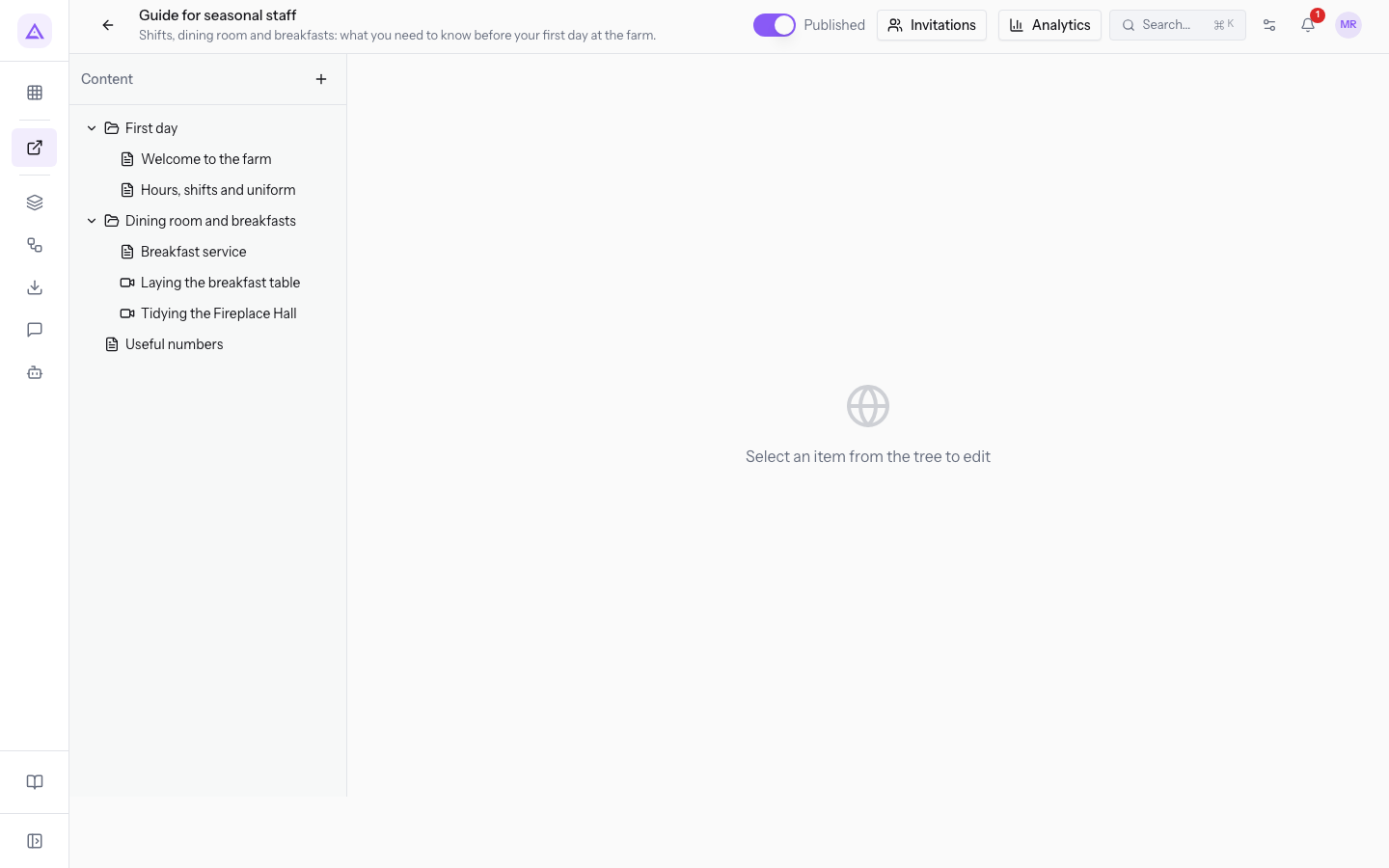
- Published: valid visitor links open the portal.
Choose the status based on what the visitor needs to see:
- If the content is not ready yet, leave the portal in Draft. Invitations can already exist: Francesca Russo is invited to
Report to the shareholders 2026, but her link does not open the portal while it stays in Draft. - If you want to pause access for all visitors, move the portal back to Draft. When you publish it again, the same links open it once more.
- If you want to remove access for a single visitor, revoke their invitation. A revocation cannot be undone.
Publish a portal
Publish the portal when visitors need to be able to open it from their own link. The status change takes effect immediately: no confirmation is asked and there is no save step.
Before you start: the portal status is reserved for module managers. Authors write the content, but do not publish.
- In Tree of Knowledge, press a portal with the Draft badge to open its editor.
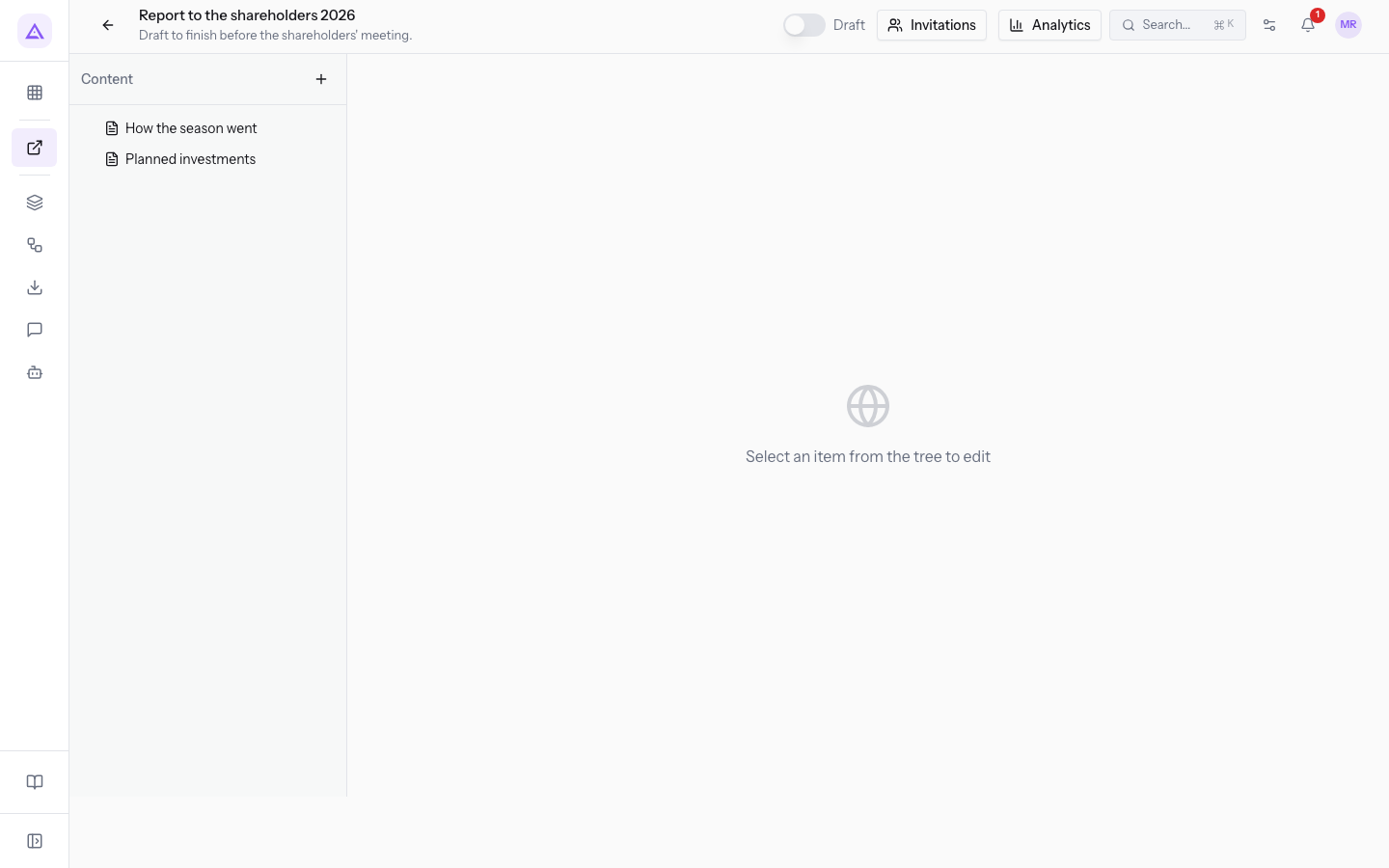
- Press the switch at the top. The label changes from Draft to Published.
To give a person access, an invitation is also needed: see Inviting an external person with a personal link.
Move a portal back to draft
Move the portal back to Draft to pause access for all visitors, without touching individual invitations. This change also takes effect immediately.
Before you start: the portal status is reserved for module managers.
- In Tree of Knowledge, press a portal with the Published badge to open its editor.
- Press the switch at the top. The label changes from Published to Draft.
After the change:
- A visitor who opens the link is refused.
- Invitations are not revoked and the links stay the same.
- An invitation's PIN remains valid and is still requested.
What the visitor sees
The screen the link shows depends on the portal status and the invitation.
- Published portal: the link opens the portal and its content, as described in View the portal as the link recipient.
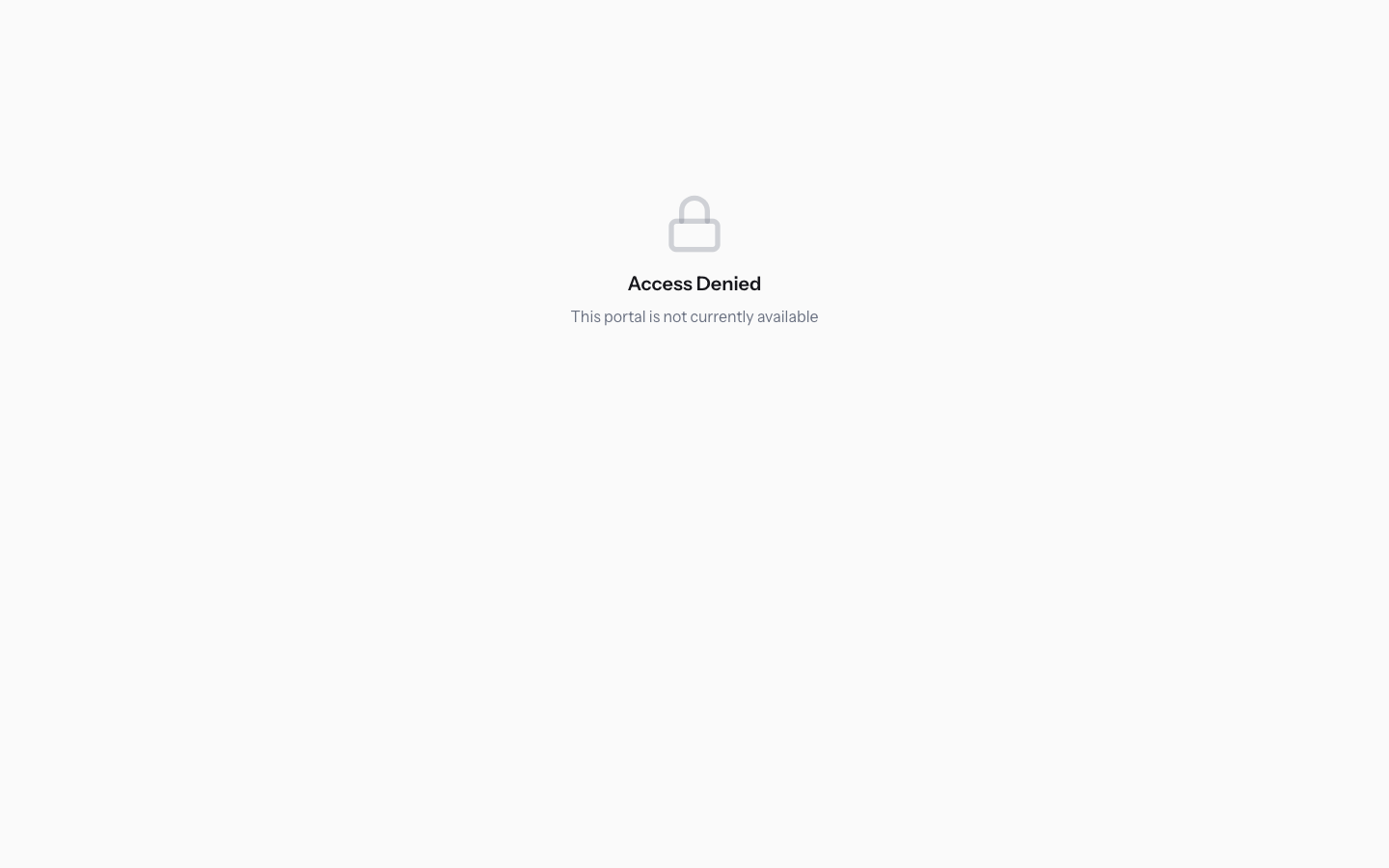
- Draft portal: the screen shows Access Denied with the message This portal is not currently available and does not open the content.
- Draft portal, invitation with PIN: the visitor first sees the portal name and the PIN request. After the PIN they receive the same refusal.
Note: publishing the portal does not reactivate an expired or revoked invitation. The link is checked before the portal status and stays invalid.
Note: a refused opening is not recorded as a visit and does not appear in the activity log.
Status in the Portals list
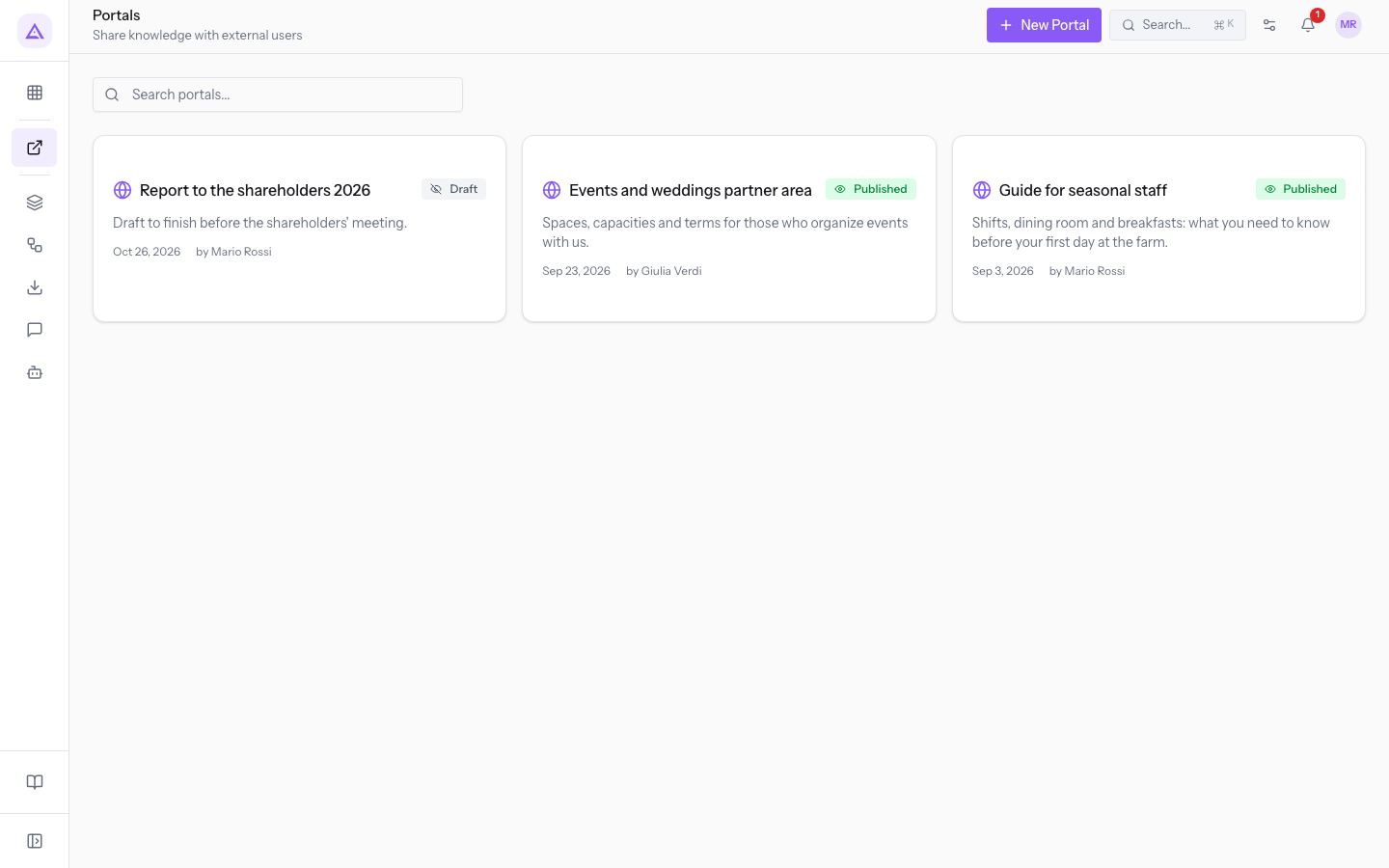
The Portals list shows each portal's status with a badge, Published or Draft. The badge follows the editor switch, so you can check the status from the list without opening the portal. For how to use the list, see Finding a portal in the Tree of Knowledge.
See it on your company, not on a slide deck.
In 30 minutes we map the software you use today.We show you how much work and how much margin Archimedes gives back.
Show me on my business →What industry are you in?
One tap — it lets us prepare the demo around your world.
What tools do you use today?
Pick the ones you recognise — or just type them. It helps us show you how they migrate.
Last step: your details.
We reply within one working day — and right after, if you like, you pick the demo slot yourself.
We couldn't send your request. Try again, or write to us at [email protected].
By sending, you agree to your data being processed so we can get back to you about the demo. Privacy notice.
Preview form — nothing is sent from this page.
Want to schedule the demo now?
Your call: book the slot you prefer yourself, or we'll call you to arrange it.
Live availability, 30 minutes, instant confirmation. The calendar opens in a new tab.
Lock in your slot ↗We'll get back to you within one working day — and we'll join the call already knowing your world.
The calendar is open in another tab: pick a slot and the demo is booked. Can't see it? Reopen it ↗
Preview page: nothing was sent.
Our calendar is live: take the slot that suits you and the demo is booked. 30 minutes, instant confirmation, no waiting.
Lock in your slot ↗