Tree of Knowledge
All modules
Inviting an external person with a personal link
Tree of Knowledge · 9 of 14 · 3 min read
The Manage Invitations window creates a portal's invitations. An invitation gives a person access to the portal and creates their personal link, which you can protect with a PIN.
The Manage Invitations window
The Invitations button in the portal editor opens the Manage Invitations window. At the top is the form to create an invitation, and below it the list of the portal's invitations. On a portal with no invitations, the list shows No invitations yet.
Each row in the list shows the visitor, their email address, the status, the date under Created, and the number of recorded events. To read and manage these rows, see Copy, check and revoke an invitation.
Important: the invitation does not send any email. It creates a link: copy it and send it to the person yourself.
Choosing whether to use the PIN
The PIN is a code the visitor enters to get into the portal from their own link. You choose one invitation at a time, so the same portal can have invitations with a PIN and invitations without one.
- If you want the link alone not to be enough to get in, set a PIN. In the portal
Events and weddings partner area, the invitation forLuca Bianchihas a PIN, and the list shows the PIN badge. - If the visitor should get in with the link alone, leave the field empty, as with the invitation for
Paolo Gialliin the same portal.
Important: the PIN cannot be recovered after creation. Give it to the visitor when you create the invitation.
Note: the PIN is checked once per browser session.
Creating an invitation
Before you start: you need the module manager role, because authors see invitations as read-only. You also need a privacy notice published for the organization. The link screen records the visitor's email, IP and reading time: without a privacy notice the invitation is not created. If the list does not change after Invite, check the privacy notice.
Create one invitation per person: each invitation has its own link, so the statistics attribute each visit to the individual visitor.
- From Tree of Knowledge, open the portal.
- Press Invitations. The Manage Invitations window opens.
- Fill in the form at the top.
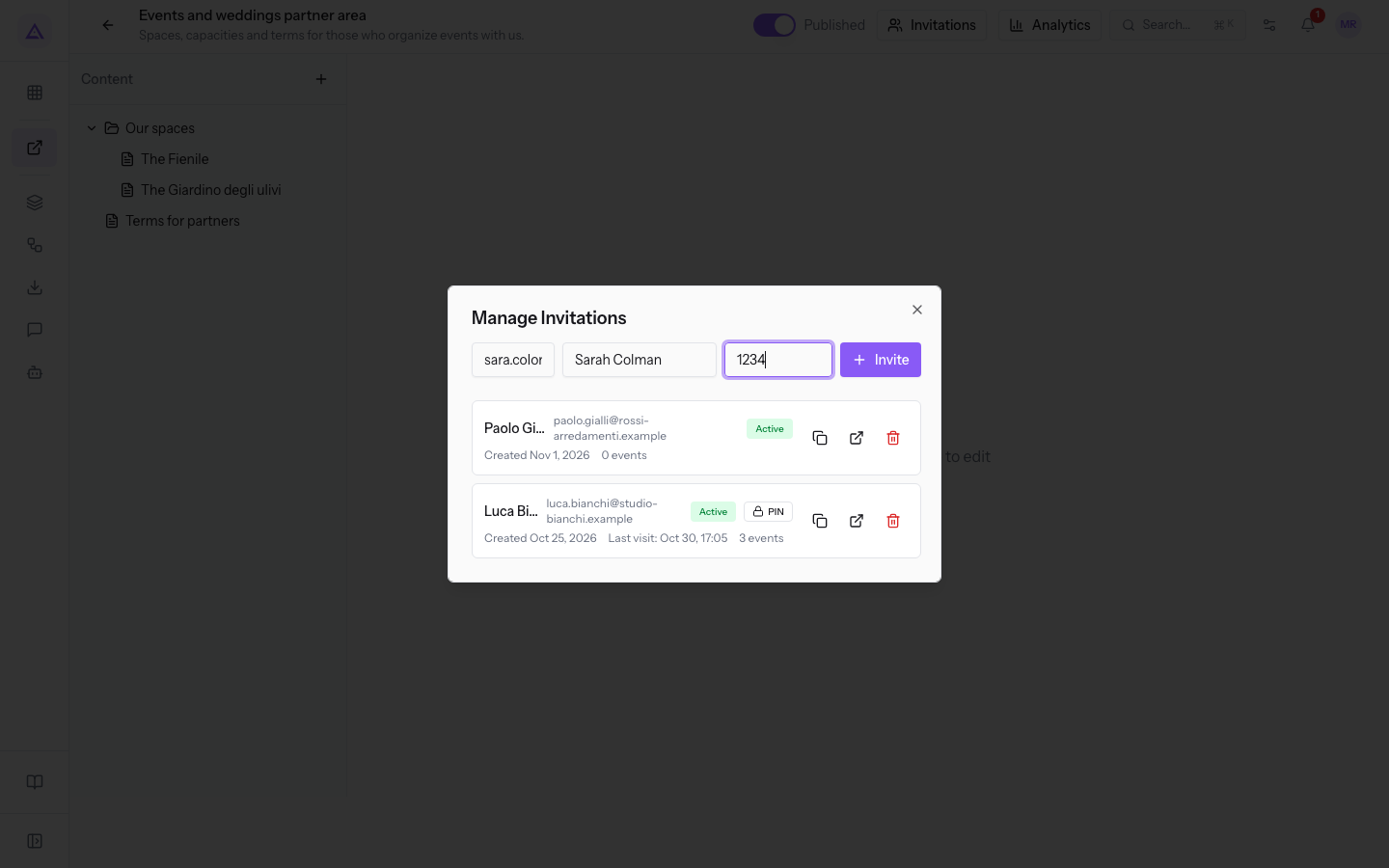
- Press Invite.
- In the list, press the copy icon on the invitation's row and send the link to the person. If the invitation has a PIN, give it to them together with the link.
The form fields are these:
- Email address: the visitor's address. The field is required: Invite stays disabled while it is empty.
- Name (optional): the visitor's name. If you leave it empty, the invitation shows only the email address in the list, such as
[email protected]. - PIN (optional): the code to enter from the link, 4 to 8 digits. The field accepts digits only. With fewer than 4 digits, Invite stays disabled.
Note: the window has no field for the invitation's expiry.
Note: the link only opens if the portal is published. An invitation on a portal in Draft, such as
Report to the shareholders 2026, gives no access while the portal stays in Draft. For what appears when you open the link, see View the portal as the link recipient.
See it on your company, not on a slide deck.
In 30 minutes we map the software you use today.We show you how much work and how much margin Archimedes gives back.
Show me on my business →What industry are you in?
One tap — it lets us prepare the demo around your world.
What tools do you use today?
Pick the ones you recognise — or just type them. It helps us show you how they migrate.
Last step: your details.
We reply within one working day — and right after, if you like, you pick the demo slot yourself.
We couldn't send your request. Try again, or write to us at [email protected].
By sending, you agree to your data being processed so we can get back to you about the demo. Privacy notice.
Preview form — nothing is sent from this page.
Want to schedule the demo now?
Your call: book the slot you prefer yourself, or we'll call you to arrange it.
Live availability, 30 minutes, instant confirmation. The calendar opens in a new tab.
Lock in your slot ↗We'll get back to you within one working day — and we'll join the call already knowing your world.
The calendar is open in another tab: pick a slot and the demo is booked. Can't see it? Reopen it ↗
Preview page: nothing was sent.
Our calendar is live: take the slot that suits you and the demo is booked. 30 minutes, instant confirmation, no waiting.
Lock in your slot ↗