Tree of Knowledge
All modules
View the portal as the link recipient
Tree of Knowledge · 11 of 14 · 5 min read
The link screen shows the portal to the visitor, without access to Archimedes. This article describes what the visitor sees and what the module records at each opening.
Opening the portal from the link
Each invitation has its own link, valid for one person only. The link screen shows the portal content and the visitor's name.
Before you start: you need an active invitation, created from Manage Invitations, and the portal must be Published. For details see Inviting an external person with a personal link and Publish a portal or move it back to draft.
Open the invitation link in the browser: no username and password are needed. If the invitation has a PIN, the visitor enters it before seeing the content.
Important: if you open a visitor's link to check the portal, the visit is recorded under that visitor's name.
The portal home screen
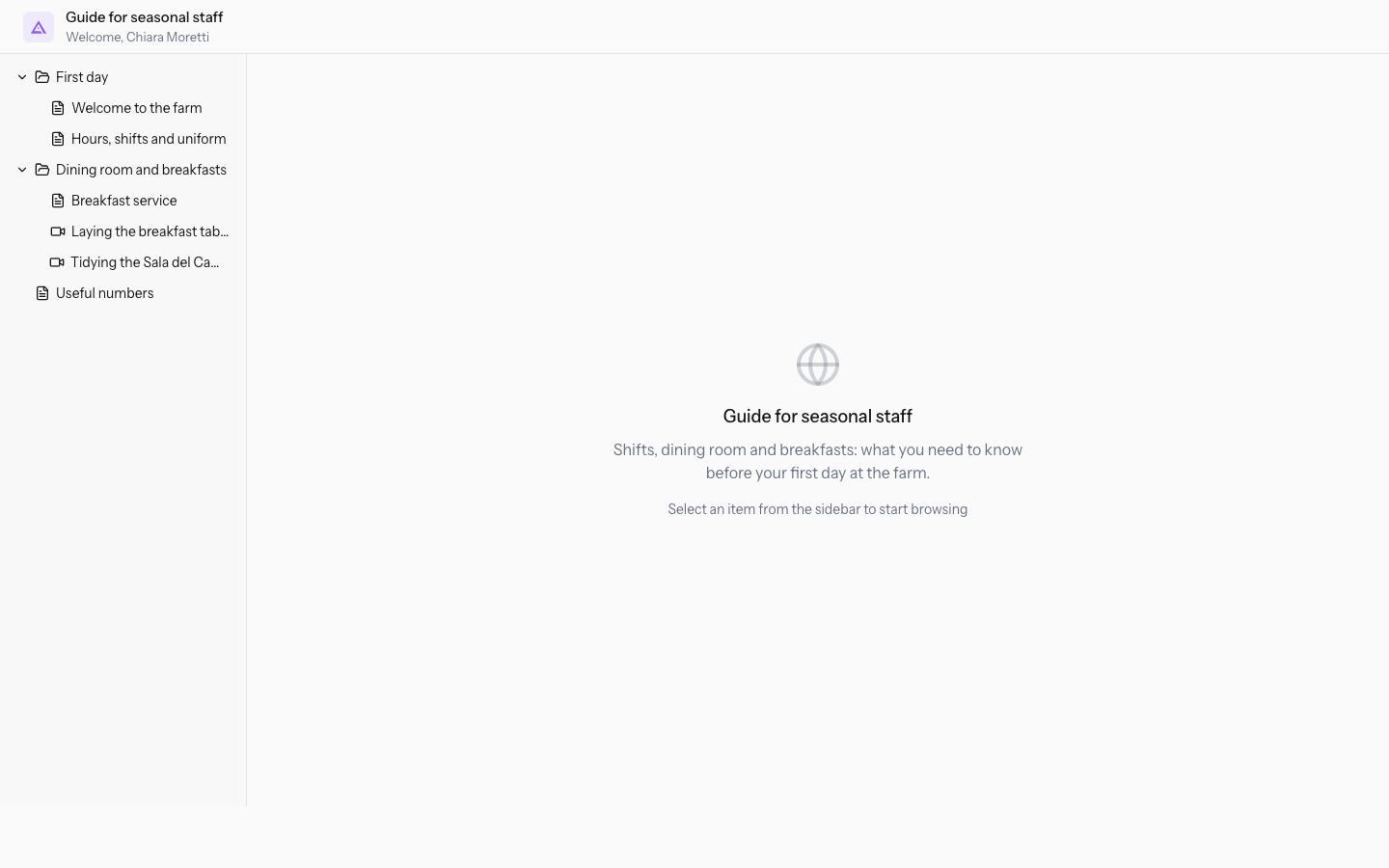
The home screen shows the structure of the portal. No content is selected yet.
- Header: the portal name and, below it, the greeting, such as Welcome, Chiara Moretti. If the invitation has no name, the greeting shows the email address.
- Tree: takes up the left column and contains sections, pages and reels. Sections are open by default.
- Central area: shows the portal name, the description if present, and the message Select an item from the sidebar to start browsing.
- Privacy notice: below the tree, the organization's notice appears when it is published.
Pressing a section opens or closes the content it groups: a section has no content of its own. Pressing a page opens it in the central area. Pressing a reel opens the full-screen player.
Reading a page and downloading attachments
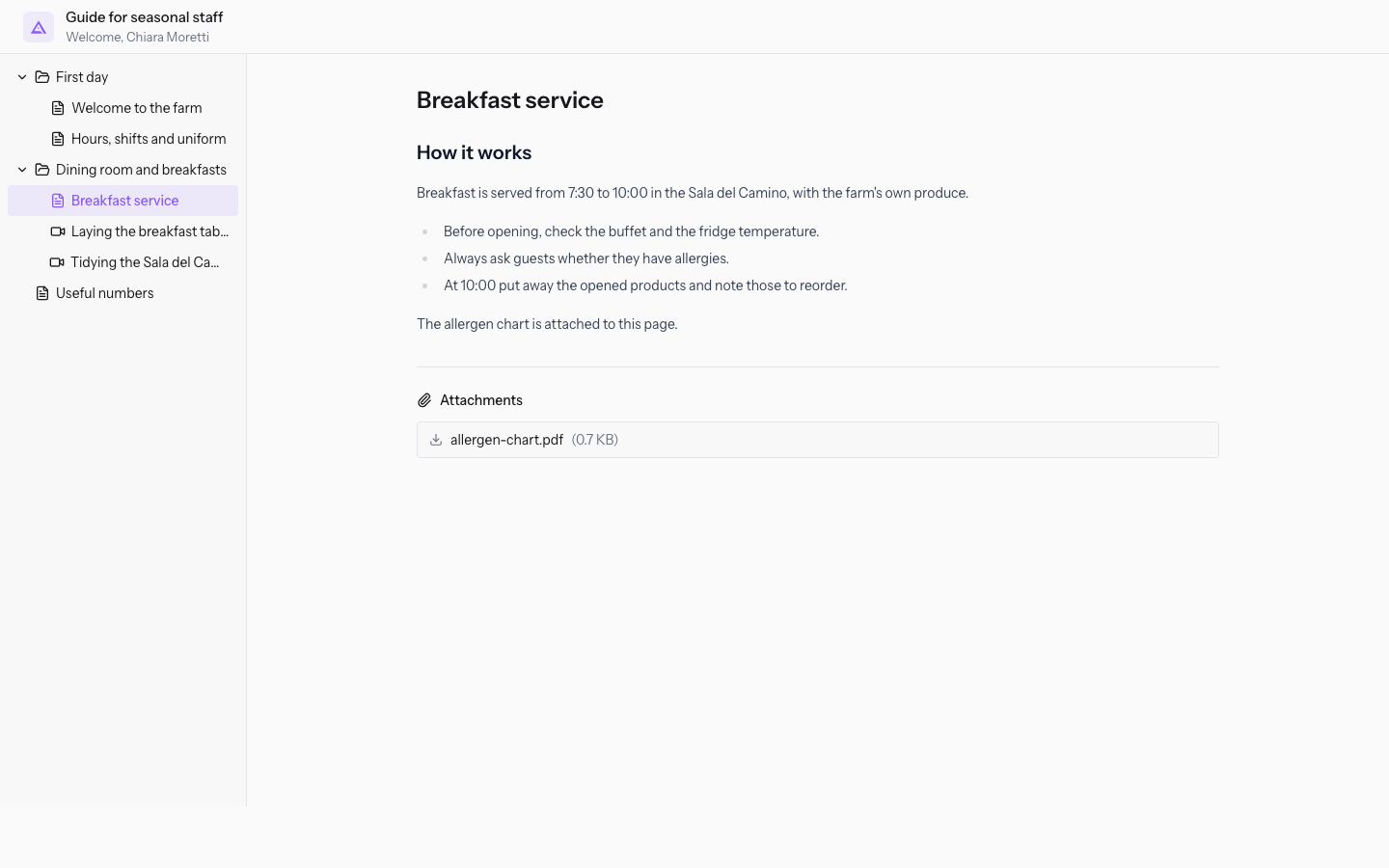
A page shows the title and the text in read-only mode. If the page has attachments, the Attachments block appears below the text, with one row per file: file name and size. Press a row to download the file.
The visitor can download all attachments on the page. To add a file to a page see Attach a file to a page.
Watching a reel
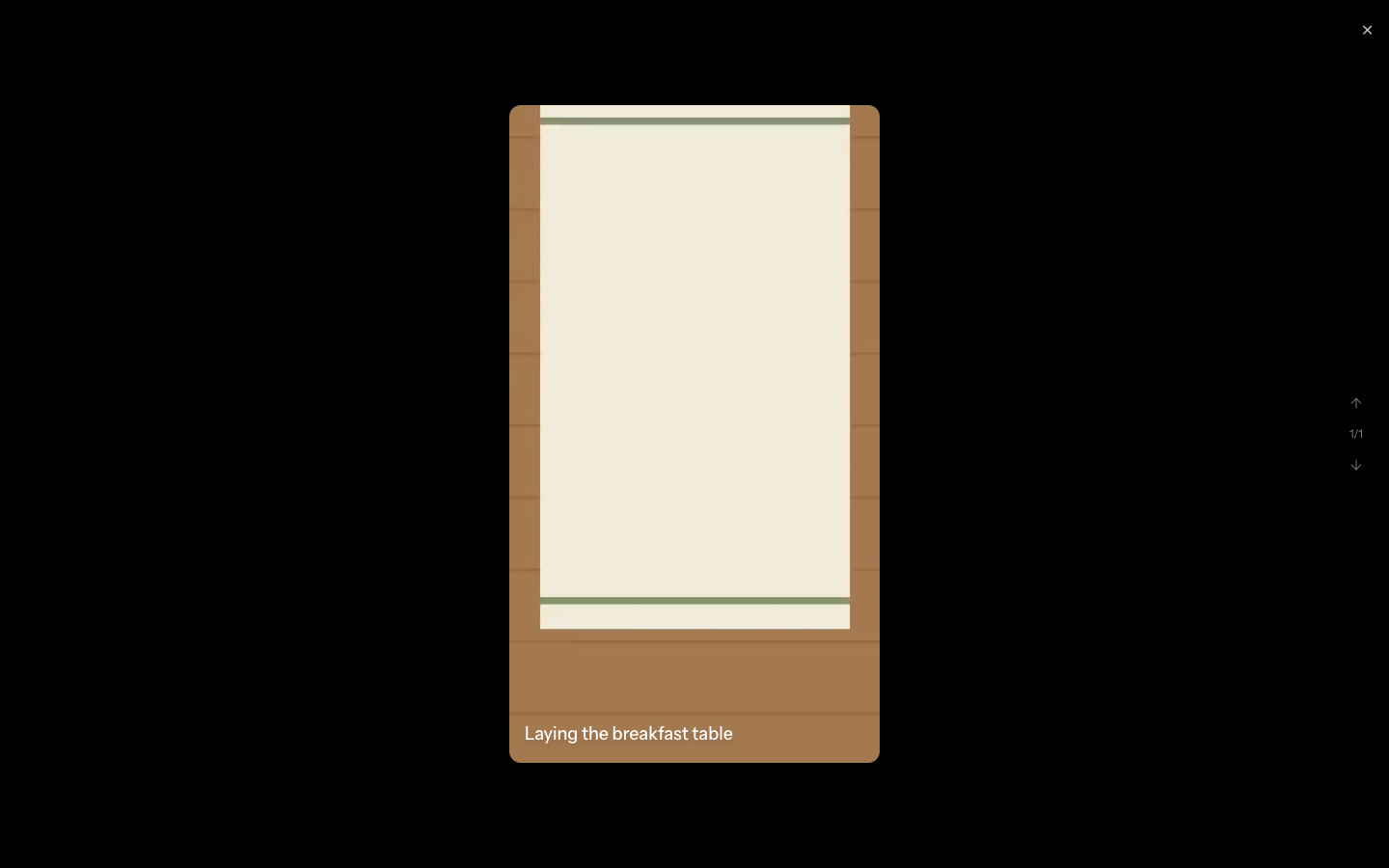
The player takes up the whole screen on a black background. The video starts on its own, loops, and has the normal playback controls. The reel title appears over the video. The format follows the reel's orientation, vertical or horizontal.
- Arrows on the right: move to the previous or next reel. Between the two arrows, the counter shows the reel's position. The up arrow is disabled on the first reel, the down arrow on the last.
- × at the top right: closes the player.
From the keyboard, the up and down arrow keys change reel and Esc closes the player. On a touch screen, you change reel by swiping up or down.
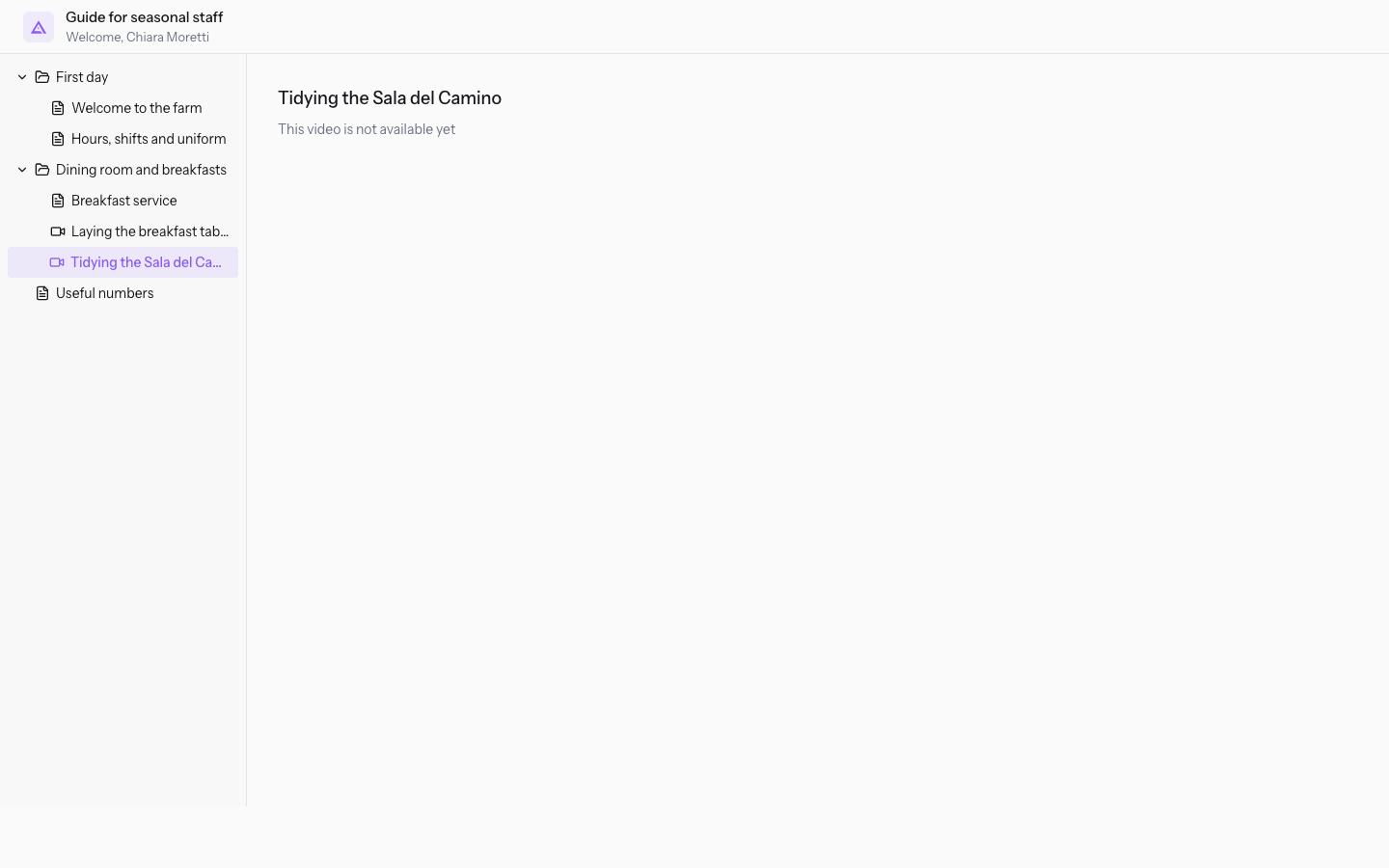
A reel without a video does not enter the player and does not count in the counter. If the visitor selects it, the central area shows the title and the message This video is not available yet.
Opening a link with a PIN
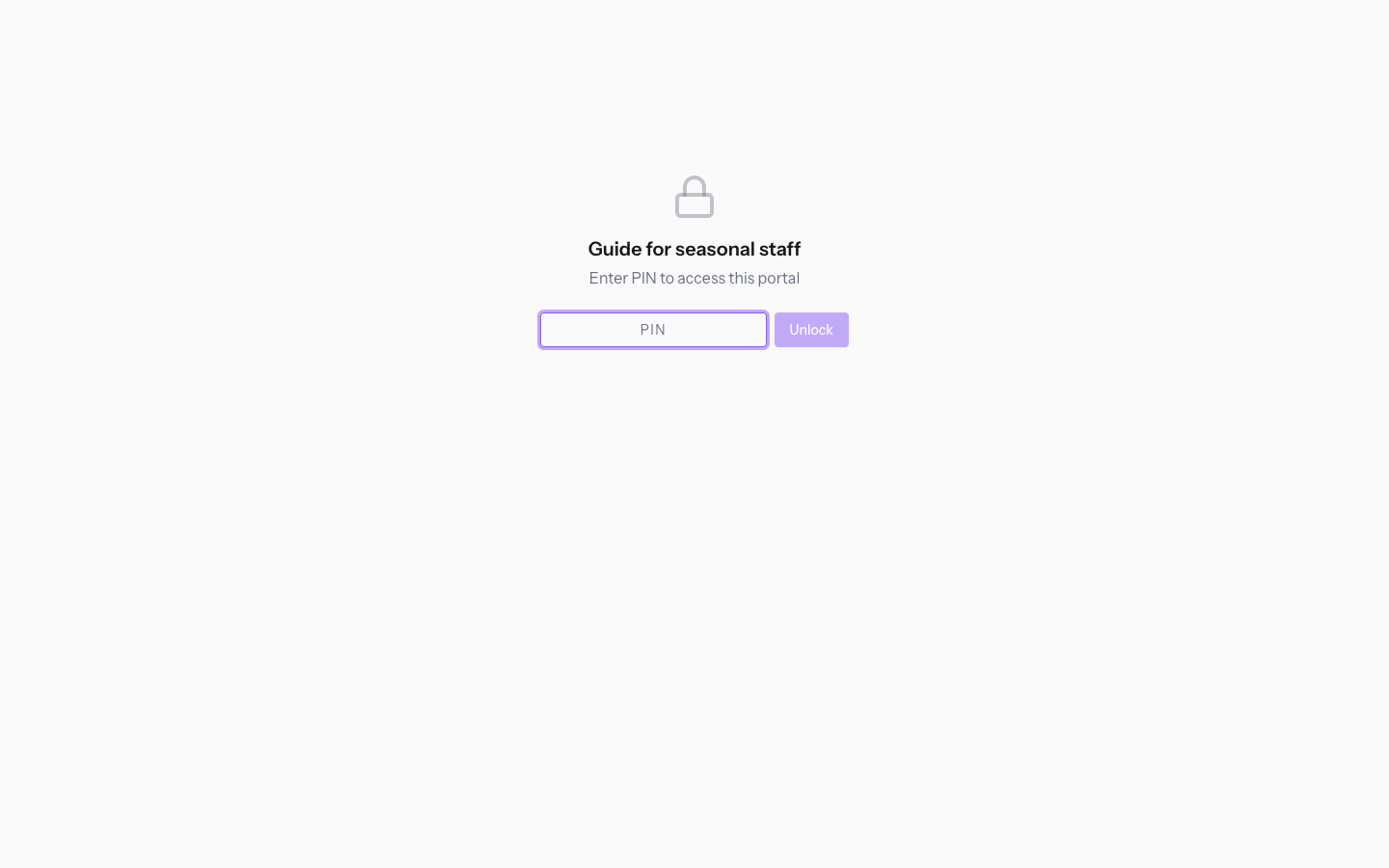
An invitation can have a PIN. In this case, before the content, the screen shows only the portal name and the message Enter PIN to access this portal. The PIN cannot be recovered, so it must be shared with the visitor when the invitation is created.
The field accepts digits only, up to 8. Confirm with Unlock or Enter: the button stays disabled until you enter at least 4 digits.
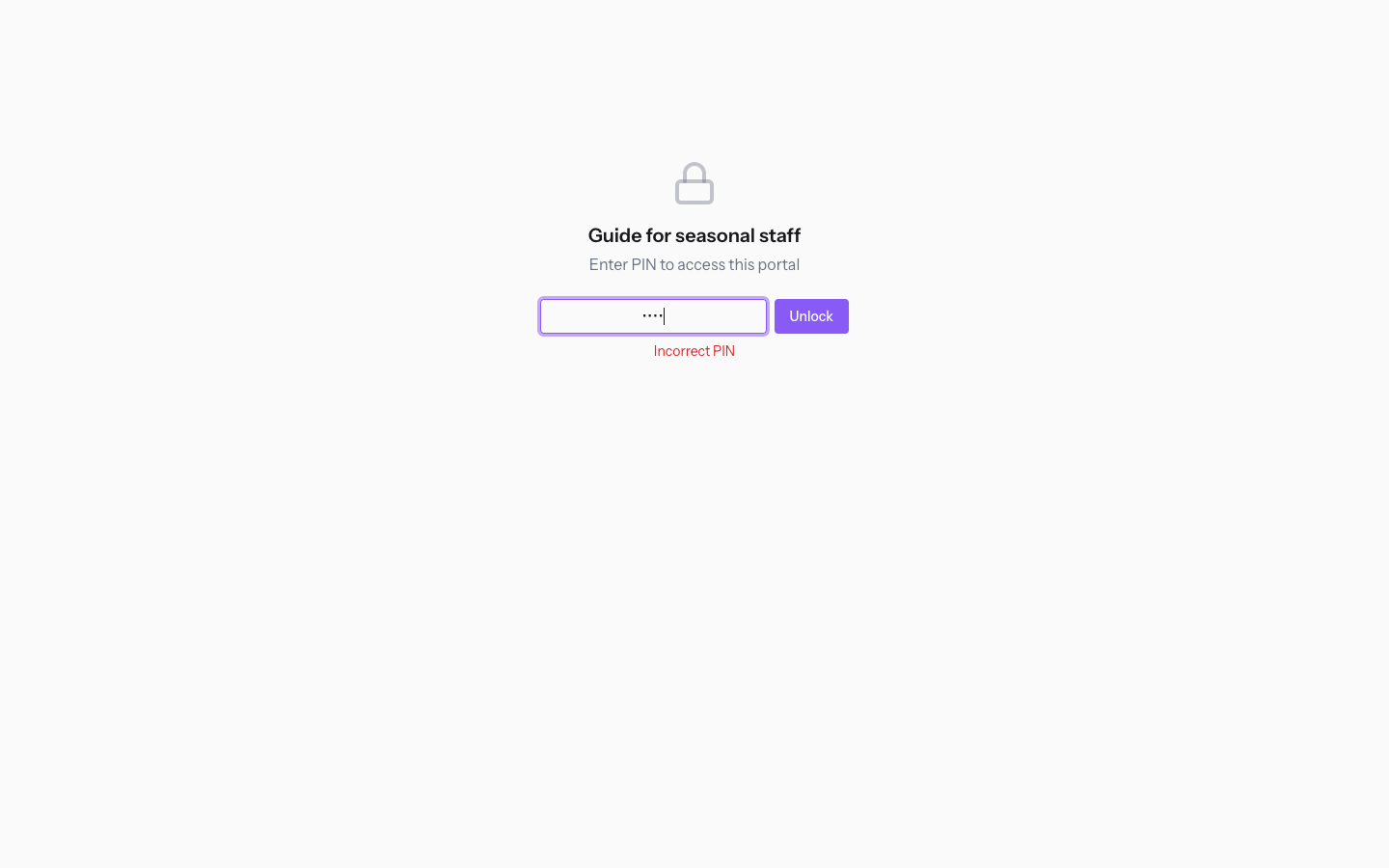
If the PIN is correct, the portal opens. If it is wrong, Incorrect PIN appears below the field and the visitor can try again. The PIN is asked once per browser session.
Note: the PIN is asked before the publication check. On a portal in Draft, the visitor sees the portal name and the PIN request, and receives the refusal only after entering the correct PIN.
When the link does not work
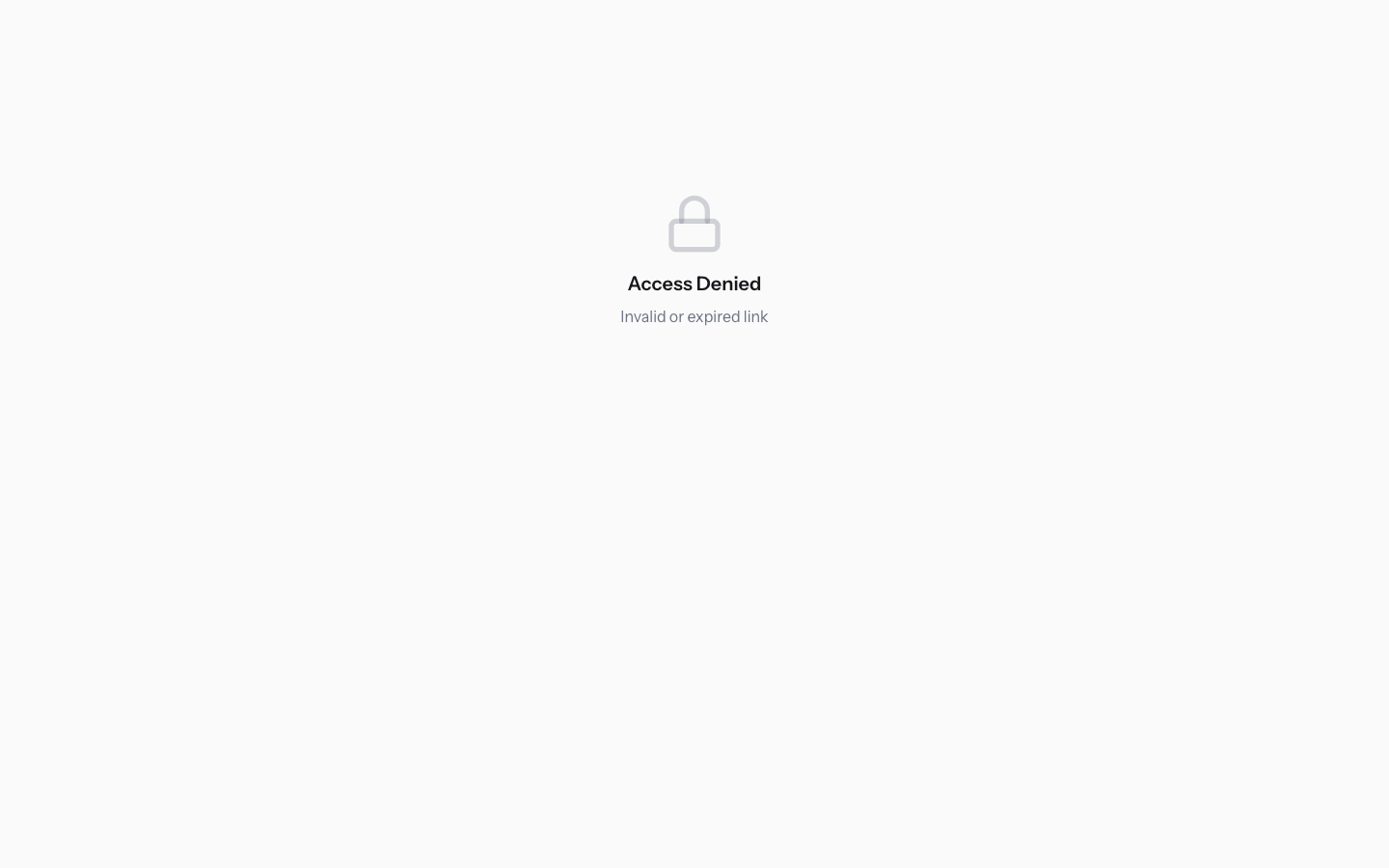
A link does not open the portal in these cases. The screen shows the title Access Denied with a message.
- Expired link: the invitation's expiry date has passed, as for the invitation of
Tommaso Greco. The message is Invalid or expired link. - Revoked link: the invitation was revoked, as for that of
Marta Lombardi. The message is Invalid or expired link. A revocation cannot be undone. - Portal in Draft: the link is valid, but the portal is not available. The message is This portal is not currently available.
Expired and revoked links get the same response, so the visitor cannot tell the two cases apart. These links do not ask for the PIN, even if the invitation had one.
What gets recorded
Each opening of the portal is recorded on the invitation and ends up in Analytics, in the portal editor. This way each visit is attributed to the individual visitor.
- Entering the portal: recorded each time the link screen loads with the content, so also when it is reloaded.
- Opening a page: recorded when the visitor selects the page. The duration is sent when they move to another element, if they stayed on the page for more than 2 seconds.
- Watching a reel: recorded when the visitor moves to another reel or closes the player, with the duration in seconds.
- Privacy notice: each entry records the acknowledgement, with the email and the invitation reference.
Refused links and wrong PINs do not generate visit events, and downloading an attachment is not recorded. To read the data see See who opened the portal and Check the activity log.
See it on your company, not on a slide deck.
In 30 minutes we map the software you use today.We show you how much work and how much margin Archimedes gives back.
Show me on my business →What industry are you in?
One tap — it lets us prepare the demo around your world.
What tools do you use today?
Pick the ones you recognise — or just type them. It helps us show you how they migrate.
Last step: your details.
We reply within one working day — and right after, if you like, you pick the demo slot yourself.
We couldn't send your request. Try again, or write to us at [email protected].
By sending, you agree to your data being processed so we can get back to you about the demo. Privacy notice.
Preview form — nothing is sent from this page.
Want to schedule the demo now?
Your call: book the slot you prefer yourself, or we'll call you to arrange it.
Live availability, 30 minutes, instant confirmation. The calendar opens in a new tab.
Lock in your slot ↗We'll get back to you within one working day — and we'll join the call already knowing your world.
The calendar is open in another tab: pick a slot and the demo is booked. Can't see it? Reopen it ↗
Preview page: nothing was sent.
Our calendar is live: take the slot that suits you and the demo is booked. 30 minutes, instant confirmation, no waiting.
Lock in your slot ↗