Tree of Knowledge
All modules
Copy, check and revoke an invitation
Tree of Knowledge · 10 of 14 · 4 min read
The Manage Invitations window lists a portal's invitations. From here you copy an invitation's link, check whether the visitor has used it, and revoke access.
Checking a portal's invitations
The window shows one row per invitation in the portal, with its status and the visitor's activity. Above the list is the form for creating a new invitation, described in Inviting an external person with a personal link.
- In Tree of Knowledge, open the portal.
- Press Invitations to open the Manage Invitations window.
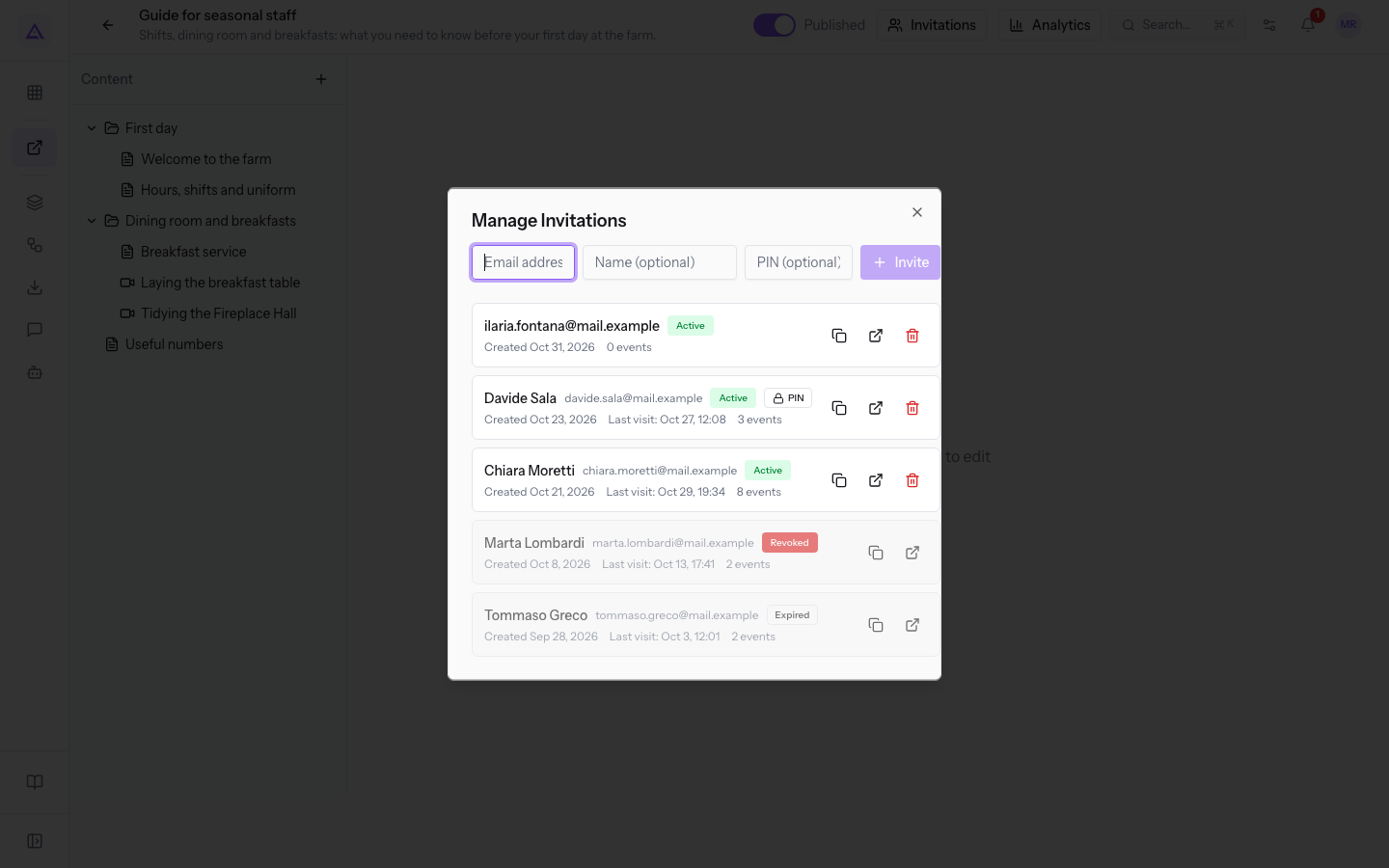
Each row contains:
- Name and email: the visitor's name followed by the email. If the invitation has no name, only the email appears, as for
[email protected]. - Status: Active, Expired or Revoked.
- PIN: appears only if the invitation is protected by a PIN. The PIN cannot be read in this window.
- Created: the date the invitation was created.
- Last visit: date and time of the last access. Appears only if the visitor has opened the link at least once.
- events: the number of activities recorded for that invitation, that is, portal entries, pages opened and reels viewed. An invitation never used shows 0 events. The details are in the activity log.
Each row also has three icons: copy, open in a new browser tab, and trash. The trash icon appears only on rows with status Active.
Invitation statuses
The status tells you whether the invitation link is still valid. Inactive rows appear dimmed.
- Active: the link is valid. In
Guide for seasonal staff, the invitations forChiara Moretti,Davide Halland[email protected]are active. - Expired: the invitation's expiry date has passed and the link is no longer valid. The window has no field to set an expiry date and no command to extend it. In
Guide for seasonal staff, the invitation forTommaso Grecohas expired. - Revoked: the invitation has been revoked and the link is no longer valid. This status takes precedence over Expired. In
Guide for seasonal staff, the invitation forMarta Lombardiis revoked.
Note: an Active invitation is not enough to enter a portal in Draft: the link screen says that the portal is not available. To open access, publish the portal.
Copying an invitation's link
Each invitation has a personal link, valid for one person only. Press the copy icon on the invitation's row: the link goes to the clipboard and the icon becomes a checkmark for two seconds. Paste it into the message you send to the person.
Important: if the row has the PIN badge, the link alone is not enough. The PIN cannot be retrieved from the window: tell the visitor when you create the invitation.
Note: the copy icon also stays on Expired and Revoked rows, but the copied link is not valid.
Opening the link in a new tab
The open icon shows the portal from the invitation's link, in a new browser tab. Use it to check what the visitor sees.
Note: visits are attributed to the invitation of the link. If you open a visitor's link, the visit ends up in their statistics.
Revoking an invitation
Revoking removes access for a single visitor. Before proceeding, choose between revoking and moving the portal back to draft:
- If one visitor must no longer enter, revoke their invitation.
- If nobody should enter for a certain period, move the portal back to draft: the invitations are not revoked.
Before you start: managing invitations requires the module manager role. The author sees the invitations in read-only mode.
Press the trash icon on the invitation's row with status Active. Revocation takes effect immediately, without a confirmation request.
The invitation stays in the list with status Revoked, the link stops working, and the trash icon disappears from the row. The row keeps showing the invitation's data, including the number of events.
Important: a revocation cannot be undone. To give the visitor access again, create a new invitation: it will have its own link, different from the revoked one.
Portal without invitations
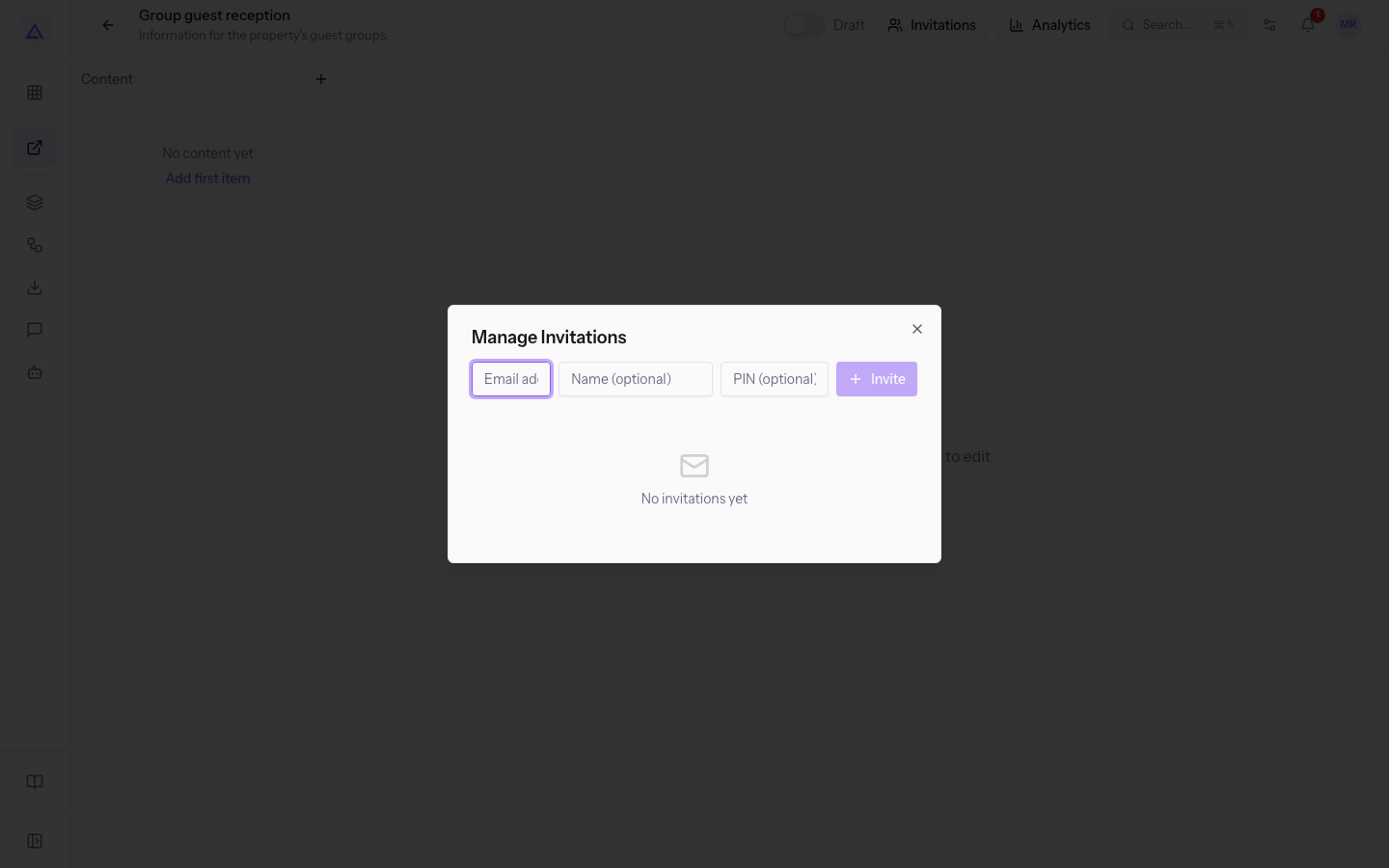
If the portal has no invitations yet, the window shows No invitations yet in place of the list. The form for creating the first invitation is still present.
See it on your company, not on a slide deck.
In 30 minutes we map the software you use today.We show you how much work and how much margin Archimedes gives back.
Show me on my business →What industry are you in?
One tap — it lets us prepare the demo around your world.
What tools do you use today?
Pick the ones you recognise — or just type them. It helps us show you how they migrate.
Last step: your details.
We reply within one working day — and right after, if you like, you pick the demo slot yourself.
We couldn't send your request. Try again, or write to us at [email protected].
By sending, you agree to your data being processed so we can get back to you about the demo. Privacy notice.
Preview form — nothing is sent from this page.
Want to schedule the demo now?
Your call: book the slot you prefer yourself, or we'll call you to arrange it.
Live availability, 30 minutes, instant confirmation. The calendar opens in a new tab.
Lock in your slot ↗We'll get back to you within one working day — and we'll join the call already knowing your world.
The calendar is open in another tab: pick a slot and the demo is booked. Can't see it? Reopen it ↗
Preview page: nothing was sent.
Our calendar is live: take the slot that suits you and the demo is booked. 30 minutes, instant confirmation, no waiting.
Lock in your slot ↗