Tree of Knowledge
All modules
Check the activity log
Tree of Knowledge · 14 of 14 · 3 min read
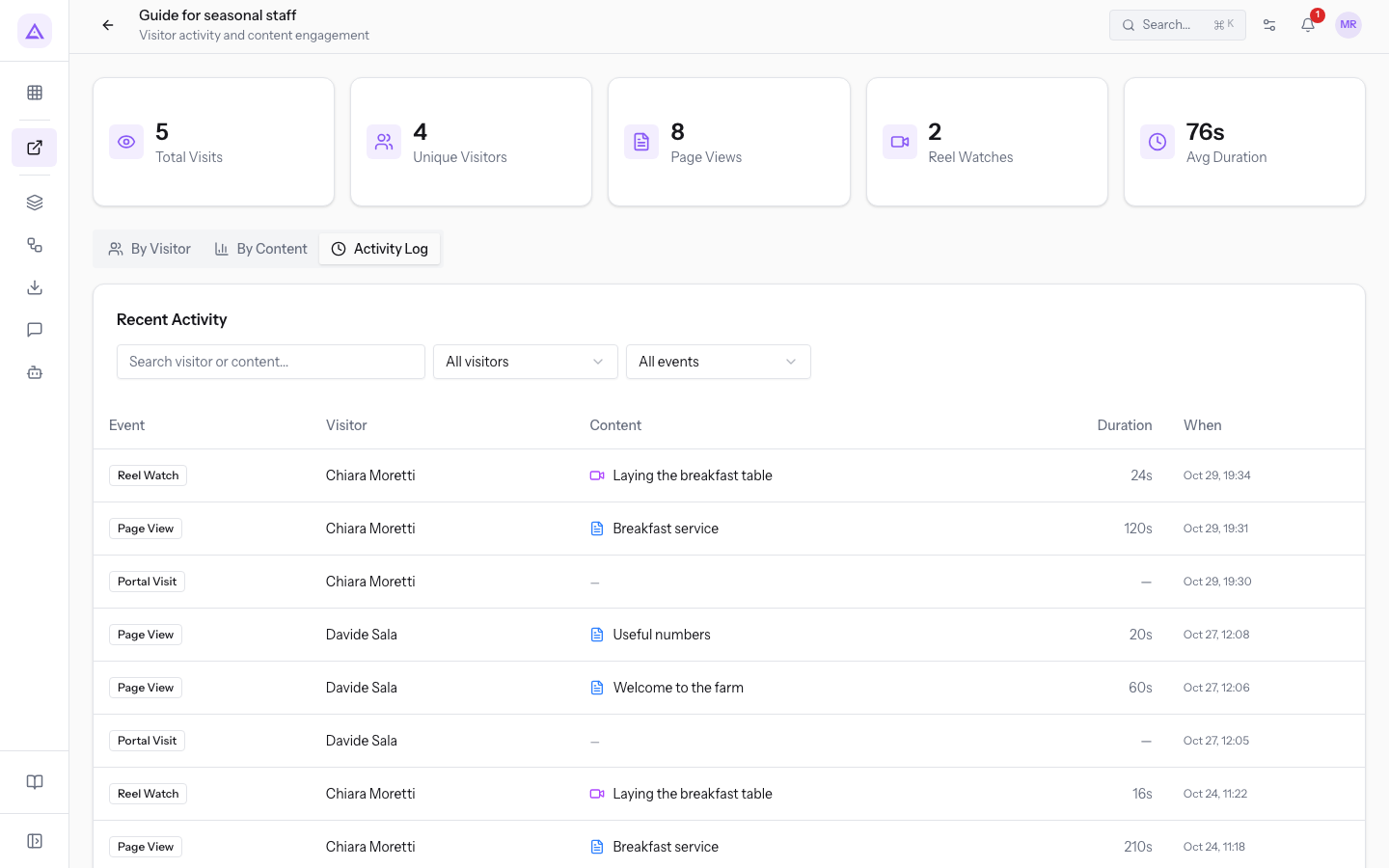
The Activity Log lists, one by one, the events of a portal's visitors: entries, pages opened and reels watched. It lets you reconstruct what each visitor opened and when.
Open the log
The tab is in the statistics of every portal and contains the Recent Activity panel. For totals and the summary of each visitor, see See who opened the portal.
- In Tree of Knowledge, open the portal.
- Press Analytics.
- Press the Activity Log tab.
Read the rows
Each row is an event recorded when a visitor uses their link. The rows are sorted from most recent to least recent. What the visitor sees from the link is described in View the portal as the link recipient.
- Event: the type of event.
- Portal Visit: entering the portal.
- Page View: opening a page.
- Reel Watch: watching a reel.
- Visitor: the visitor's name, or the email if the invitation has no name.
- Content: the title of the page or reel. If the event does not concern a page or reel, the column shows a dash.
- Duration: the time in seconds recorded for the event. If there is no duration, the column shows a dash.
- When: the date and time of the event.
Note: the tab is for viewing only. It has no commands to edit or delete the rows.
Filter the log
The two menus and the search can be used together, but they do not work the same way: the menus filter the whole portal log, the search only the rows shown.
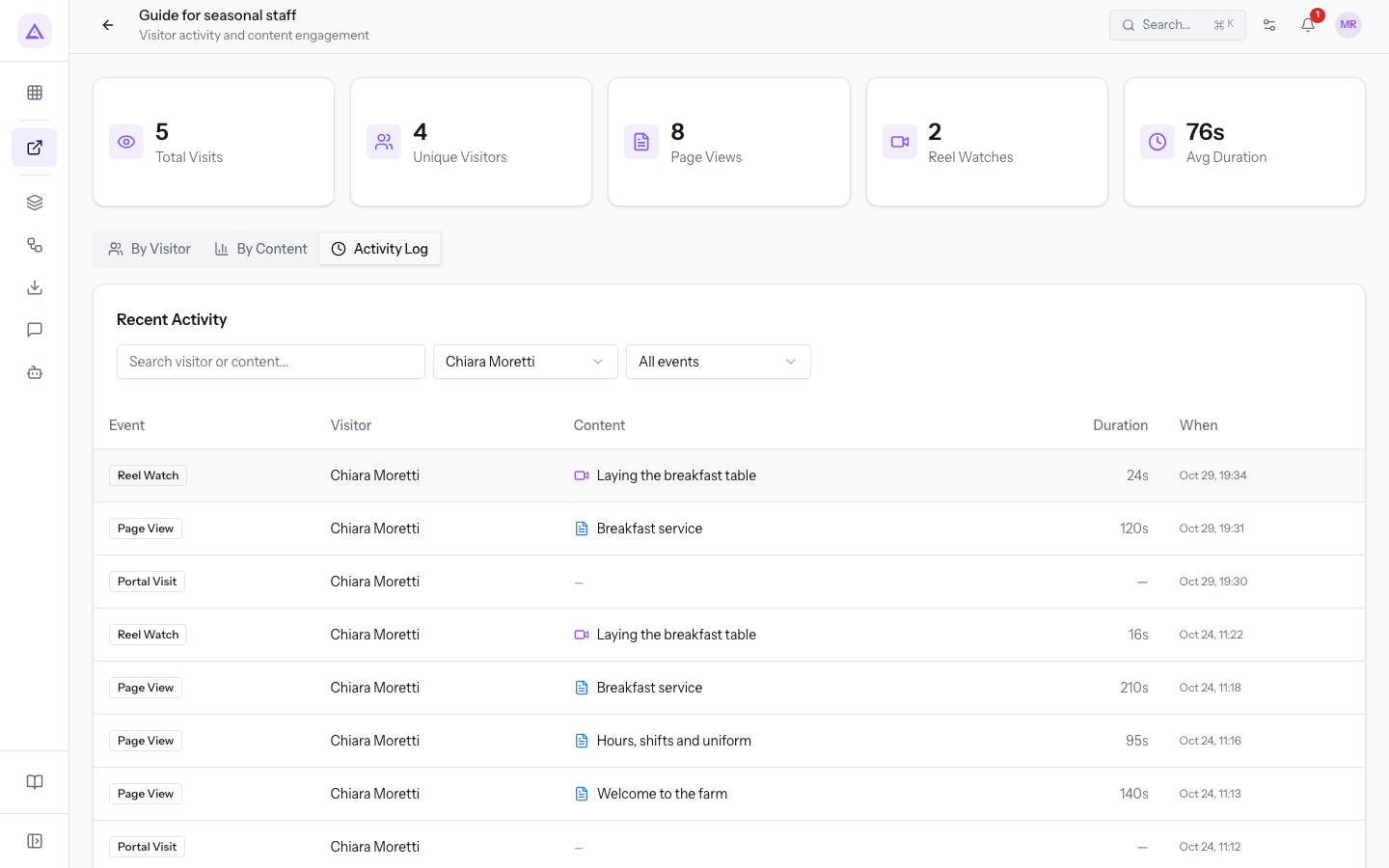
- If you want all activity of one visitor, choose their name in All visitors.
- If you want only one type of event, choose it in All events.
- If you want the rows for a page or reel, use the search: no menu filters by content.
The filters are:
- Search visitor or content...: searches the visitor's name and email and the content title. The list updates as you type.
- All visitors: shows one visitor only. The menu lists all the invitations of the portal, including those who have never opened it.
- All events: shows one type of event only. The options are Portal Visit, Page View and Reel Watch.
Important: the search looks only at the 50 rows shown and may not find an event that exists. For a visitor, use the All visitors menu.
To reconstruct a visitor's visits:
- In All visitors, choose the visitor. For
Chiara Morettiher two visits appear. - Read the list from bottom to top: the bottom row is the least recent event. Each Portal Visit marks an entry.
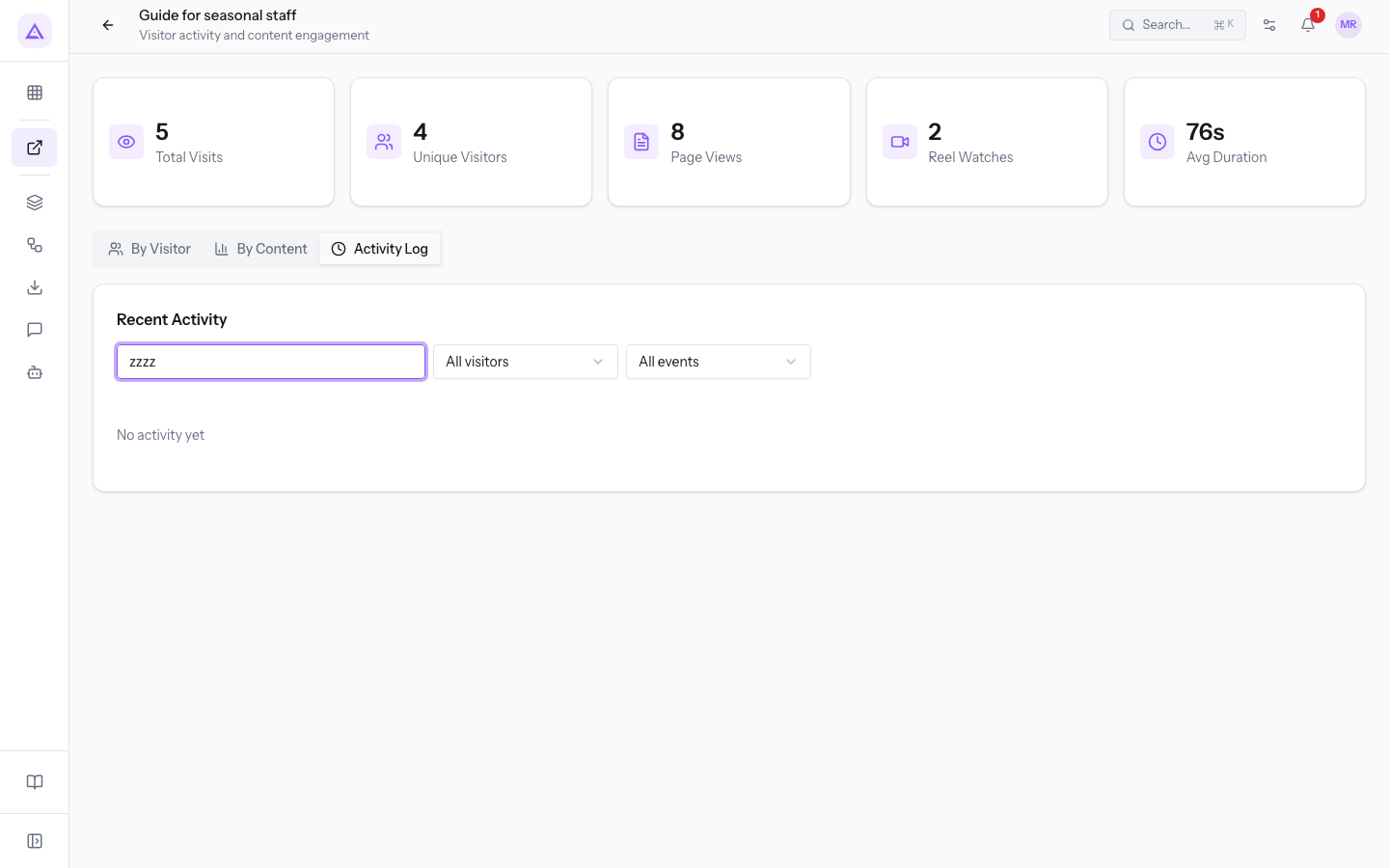
If no row matches the filters, the panel shows No activity yet. The same message appears if the portal has no events yet.
Scroll the log
The log shows 50 rows at a time. Beyond 50 rows, the indication Page 1 of 2 appears below the list, with the current number and the total, and the Previous and Next buttons.
When you change All visitors or All events, the log returns to the first 50 rows.
See it on your company, not on a slide deck.
In 30 minutes we map the software you use today.We show you how much work and how much margin Archimedes gives back.
Show me on my business →What industry are you in?
One tap — it lets us prepare the demo around your world.
What tools do you use today?
Pick the ones you recognise — or just type them. It helps us show you how they migrate.
Last step: your details.
We reply within one working day — and right after, if you like, you pick the demo slot yourself.
We couldn't send your request. Try again, or write to us at [email protected].
By sending, you agree to your data being processed so we can get back to you about the demo. Privacy notice.
Preview form — nothing is sent from this page.
Want to schedule the demo now?
Your call: book the slot you prefer yourself, or we'll call you to arrange it.
Live availability, 30 minutes, instant confirmation. The calendar opens in a new tab.
Lock in your slot ↗We'll get back to you within one working day — and we'll join the call already knowing your world.
The calendar is open in another tab: pick a slot and the demo is booked. Can't see it? Reopen it ↗
Preview page: nothing was sent.
Our calendar is live: take the slot that suits you and the demo is booked. 30 minutes, instant confirmation, no waiting.
Lock in your slot ↗