Purchase
All modules
Create a new purchase request (RFQ)
Purchase · 3 of 13 · 5 min read
A request for quotation (RFQ) is a vendor order still in draft. You use it to prepare a purchase and send it to the vendor before committing, for example to restock lamps in the warehouse or to order the furniture for a new site. When the vendor accepts, you confirm the RFQ and it becomes a purchase order.
Before choosing how to create the order
You can create an order in two ways.
- If you know the vendor and want to fill in lines, prices and dates yourself, create the order from Purchase › Orders as described here.
- If you want to write or dictate the list, or read it from a photo or an Excel sheet, use the Quick order.
Every order automatically receives a number in the format PO/2026/00001.
Before you start: the vendor must be a contact. Creating and editing orders requires the permission of those who buy for the company. Only the purchasing manager can delete an order.
Create the request
The creation form only asks for the header data. Lines are added later in the order's record.
- Go to Purchase › Orders.
- Press New. The New Purchase Order screen opens, with the General section.
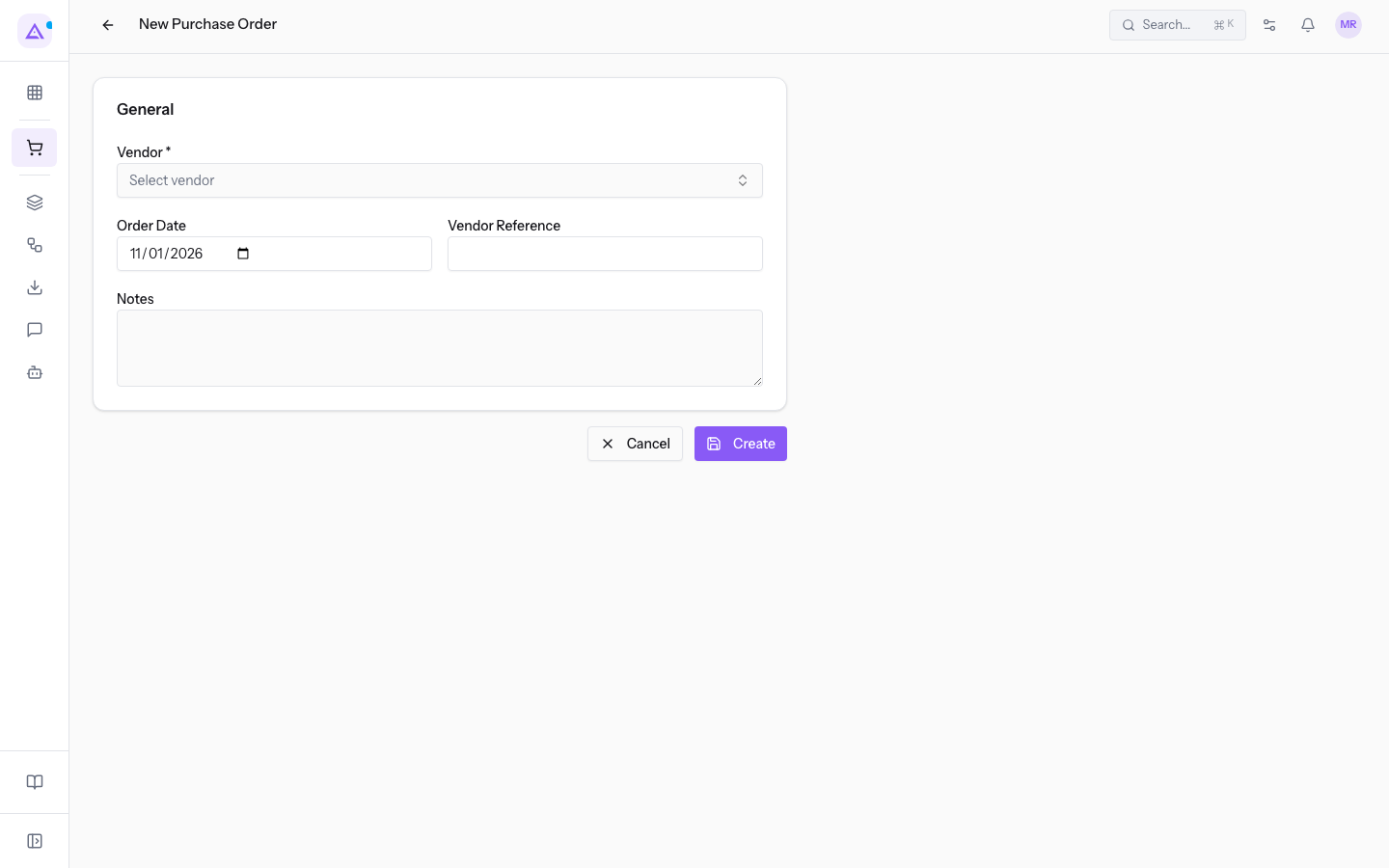
- Open Select vendor and choose the vendor, for example
Forniture Neri S.r.l.. The list shows the email and phone of each contact. With Create new contact you add a vendor that is not in the list yet.
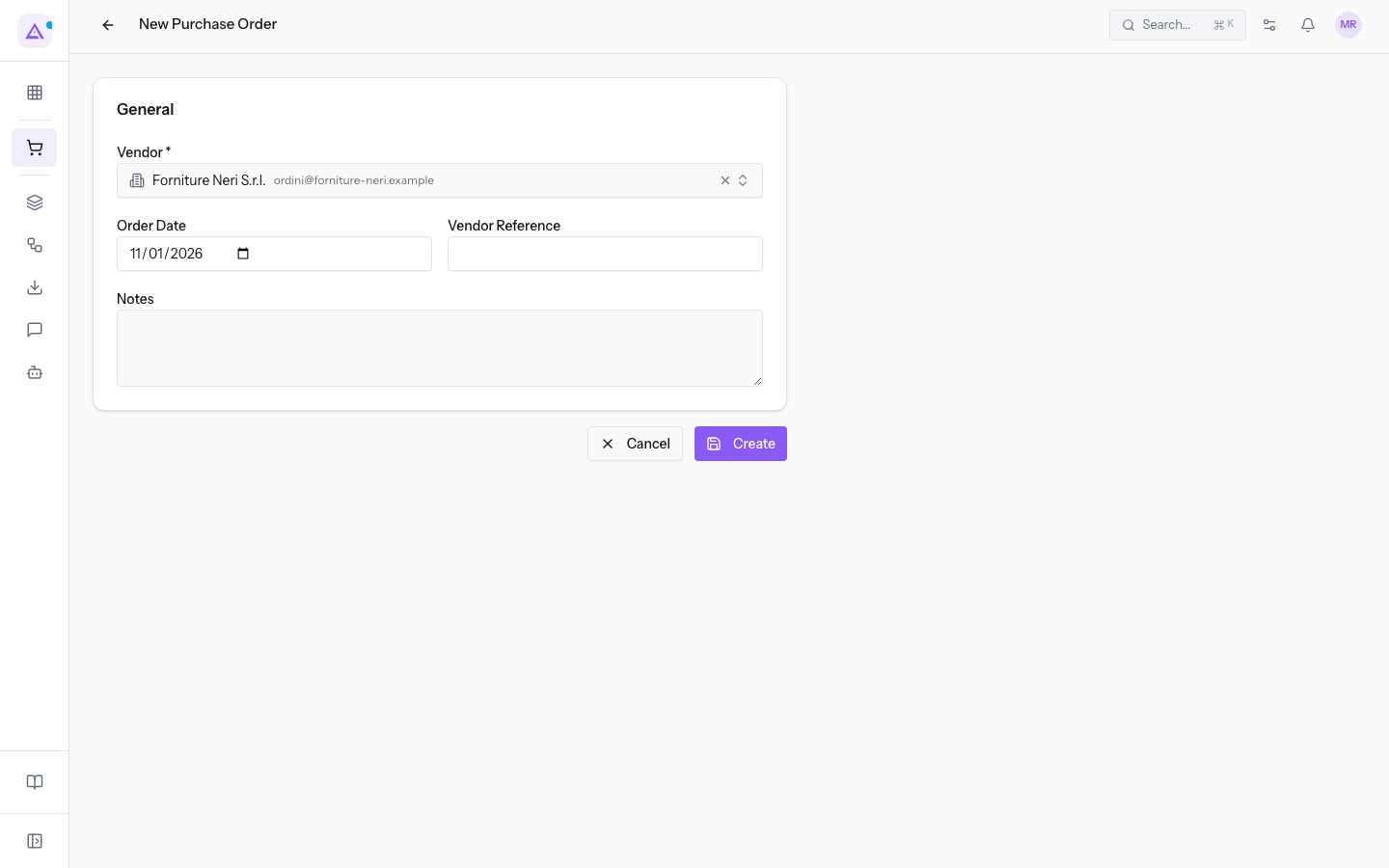
- Fill in the other fields, if you need them.
- Press Create. To leave without creating the order, press Cancel.
The form's fields:
- Vendor: the contact you are asking for a quotation. The field is required. With Clear selection you empty the field.
- Order Date: the date of the order.
- Vendor Reference: the number the vendor uses to identify the order or the quotation.
- Notes: free text about the order.
Complete the request in the order's record
In the record an RFQ shows the status Draft and the title RFQs followed by the number, for example PO/2026/00001. Here you complete the header and add the lines.
- Go to Purchase › Orders and open the request, for example
PO/2026/00001.
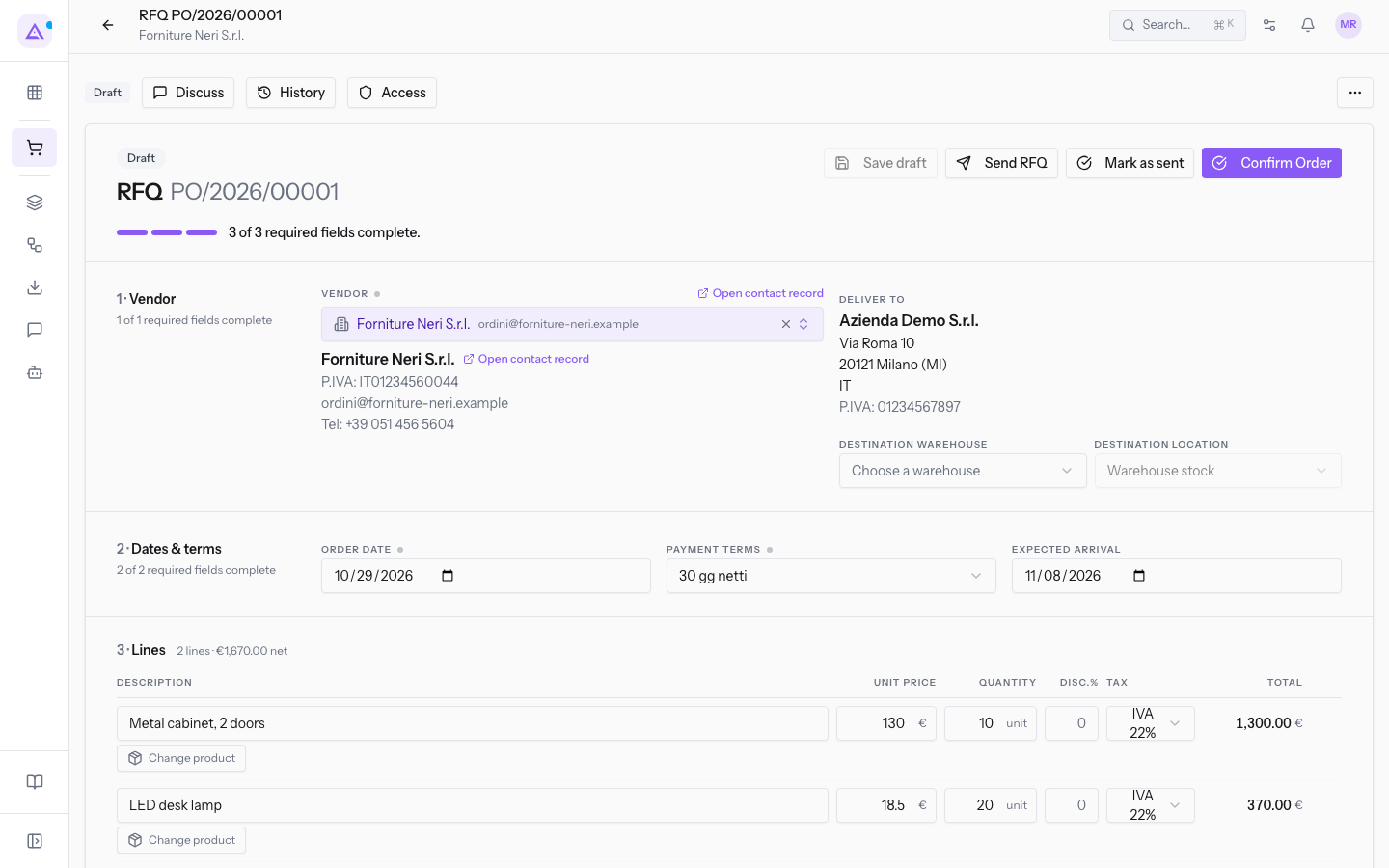
- Check the header fields.
- Press Add product / service to add a line. Prices, discounts and VAT of the lines are described in Add products to the lines and read the price history.
- Press Save draft.
The header fields:
- Vendor: the vendor chosen at creation, for example
Forniture Neri S.r.l.. You can change it with Select vendor.... Open contact record opens the vendor's contact. - Destination warehouse: the warehouse that receives the goods. If the order does not specify one, the organization's default warehouse applies.
- Destination location: the warehouse location where the goods come in. The proposed value is Warehouse stock.
- Order Date: the date of the order, for example
2026-10-29. - Payment Terms: the vendor's payment terms, for example
30 gg netti. - Expected Arrival: the date on which you expect the goods, for example
2026-11-08. - Vendor Ref: the vendor's reference. The field is hidden: to show it press 1 campo opzionale Rif. Fornitore.
- Notes / Terms: the terms to be printed on the order.
Note: an order that is neither locked nor cancelled and has an Expected Arrival creates a goods arrival deadline, with a reminder 2 days before.
Order statuses
An order goes through these statuses. In the Purchase Orders list each status has a filter: RFQs, RFQ Sent, Purchase Order, Locked and Cancelled. To search orders by status see Search and filter purchase orders.
- Draft: the order just created. The record shows the status Draft, the list filters it with RFQs. You can edit it, save it with Save draft, send it or confirm it.
- Sent: the request has reached the vendor. The list filters it with RFQ Sent. With Send RFQ an email goes out with the PDF attached. With Mark as sent you record a sending done by phone, on paper or from another mailbox: no email leaves the application. Mark as sent only works on a draft. See Send the purchase request to the vendor.
- Confirmed: the request confirmed with Confirm Order. The record shows the status Confirmed, the list filters it with Purchase Order. Only a draft or sent order can be confirmed. On confirmation the warehouse receipt is created automatically, for example
WH/IN/00002fromPO/2026/00003. From this moment the order counts in spending and in reports. - Locked: a confirmed order closed with Lock, from the More actions menu. The list filters it with Locked. Only a confirmed order can be locked.
- Cancelled: an order cancelled with Cancel, from the More actions menu. The list filters it with Cancelled. Cancelling an order also cancels the receipts still open. A locked or already cancelled order cannot be cancelled.
Important: only a cancelled order can be brought back to draft, with Reset to Draft. The confirm, cancel and reset actions are described in Confirm, cancel or reset an order.
A confirmed order remains editable. A line cannot, however, go below the quantity already received, nor be removed if goods have arrived. In the More actions menu of a confirmed order, for example PO/2026/00003, you also find Create Receipt, Create Vendor Bill and Download PDF.
See it on your company, not on a slide deck.
In 30 minutes we map the software you use today.We show you how much work and how much margin Archimedes gives back.
Show me on my business →What industry are you in?
One tap — it lets us prepare the demo around your world.
What tools do you use today?
Pick the ones you recognise — or just type them. It helps us show you how they migrate.
Last step: your details.
We reply within one working day — and right after, if you like, you pick the demo slot yourself.
We couldn't send your request. Try again, or write to us at [email protected].
By sending, you agree to your data being processed so we can get back to you about the demo. Privacy notice.
Preview form — nothing is sent from this page.
Want to schedule the demo now?
Your call: book the slot you prefer yourself, or we'll call you to arrange it.
Live availability, 30 minutes, instant confirmation. The calendar opens in a new tab.
Lock in your slot ↗We'll get back to you within one working day — and we'll join the call already knowing your world.
The calendar is open in another tab: pick a slot and the demo is booked. Can't see it? Reopen it ↗
Preview page: nothing was sent.
Our calendar is live: take the slot that suits you and the demo is booked. 30 minutes, instant confirmation, no waiting.
Lock in your slot ↗