Purchase
All modules
Searching and filtering purchase orders
Purchase · 8 of 13 · 4 min read
The Purchase Orders list shows all the requests for quotation and the orders to the organization's vendors. From here you search for an order by reference, filter by status, sort the rows and choose which columns to see. For example, you find PO/2026/00003 or see only the confirmed orders.
Before you start: to open the list you need access to the Purchase module. All users who have access see all the organization's orders.
Opening the order list
The list shows RFQs and confirmed orders in a single table.
- Go to Purchase › Orders.
- The Purchase Orders screen opens, with the search box, the status filter buttons and the order table.
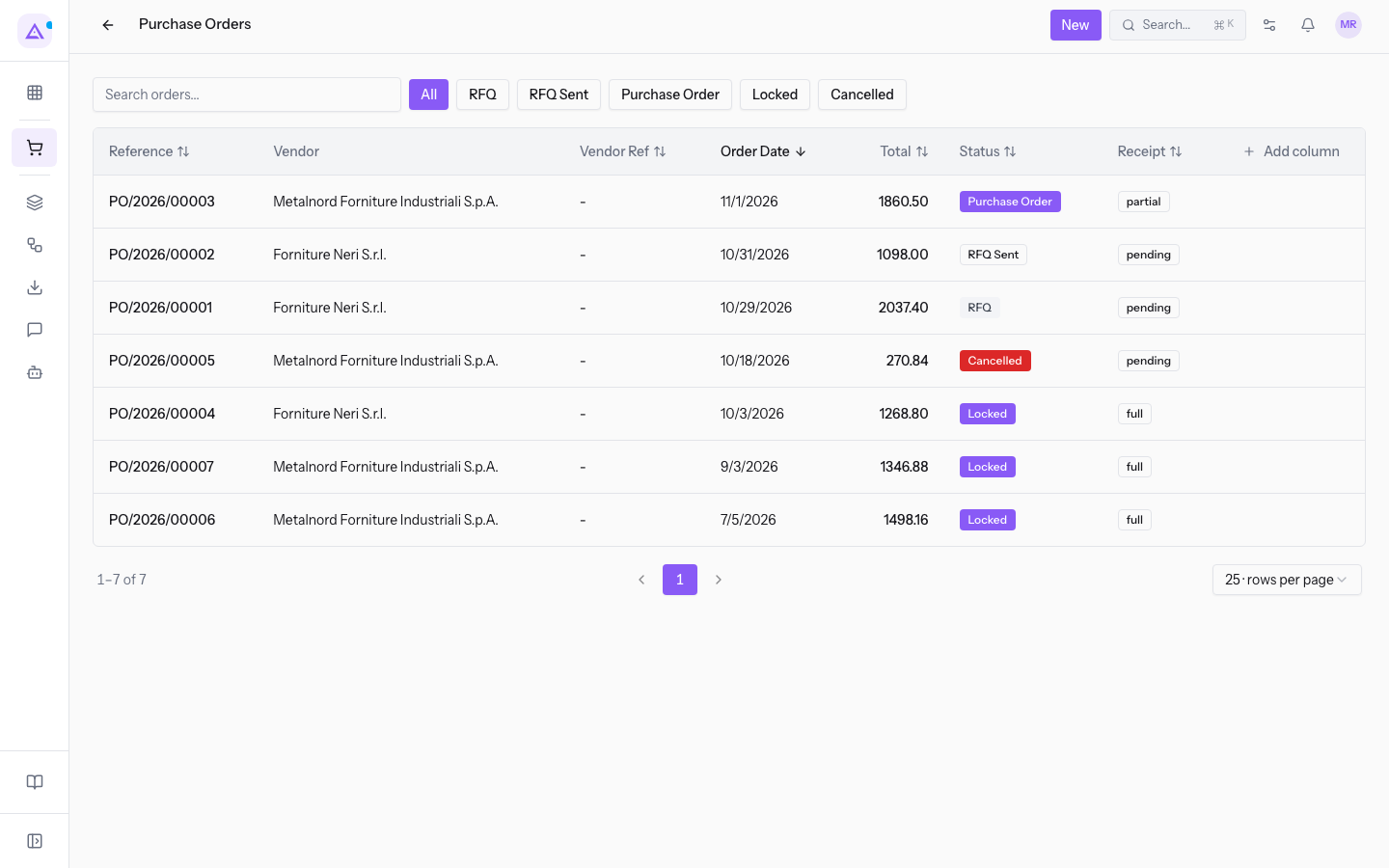
Orders go from the most recent to the least recent, by order date. Click a row to open the order's page. The New button creates an order: see Create a new purchase request (RFQ).
List columns
Each row is an order. The columns visible by default are:
- Reference: the order number, for example
PO/2026/00001. The column is always visible. - Vendor: the vendor's name, for example
Metalnord Forniture Industriali S.p.A.. - Vendor Ref: the reference the vendor gives to the order. If it is missing, the cell shows a dash.
- Order Date: the date of the order.
- Total: the total amount of the order, with two decimals.
- Status: the status of the order, with the same labels as the filters (RFQs, RFQ Sent, Purchase Order, Locked, Cancelled).
- Receipt: the status of the goods receipt.
The Created column shows the date and time the order was created. It is available but hidden by default.
Searching for an order
The search box shows only the orders that match the text you type.
- Type the order reference in the Search orders... box, for example
PO/2026/00003. - Press Enter. The search runs only when you press Enter.
Every time you change the search or the filter, the list goes back to the first page. If no order matches, the table shows No purchase orders found.
Note: to return to the full list, clear the text from the box and press Enter.
Filtering by status
The buttons next to the search box show only the orders in a given status. You can activate only one status filter at a time. The filter combines with the search.
- Click the button of the status you are interested in, for example Purchase Order.
- To see all the orders again, click All.
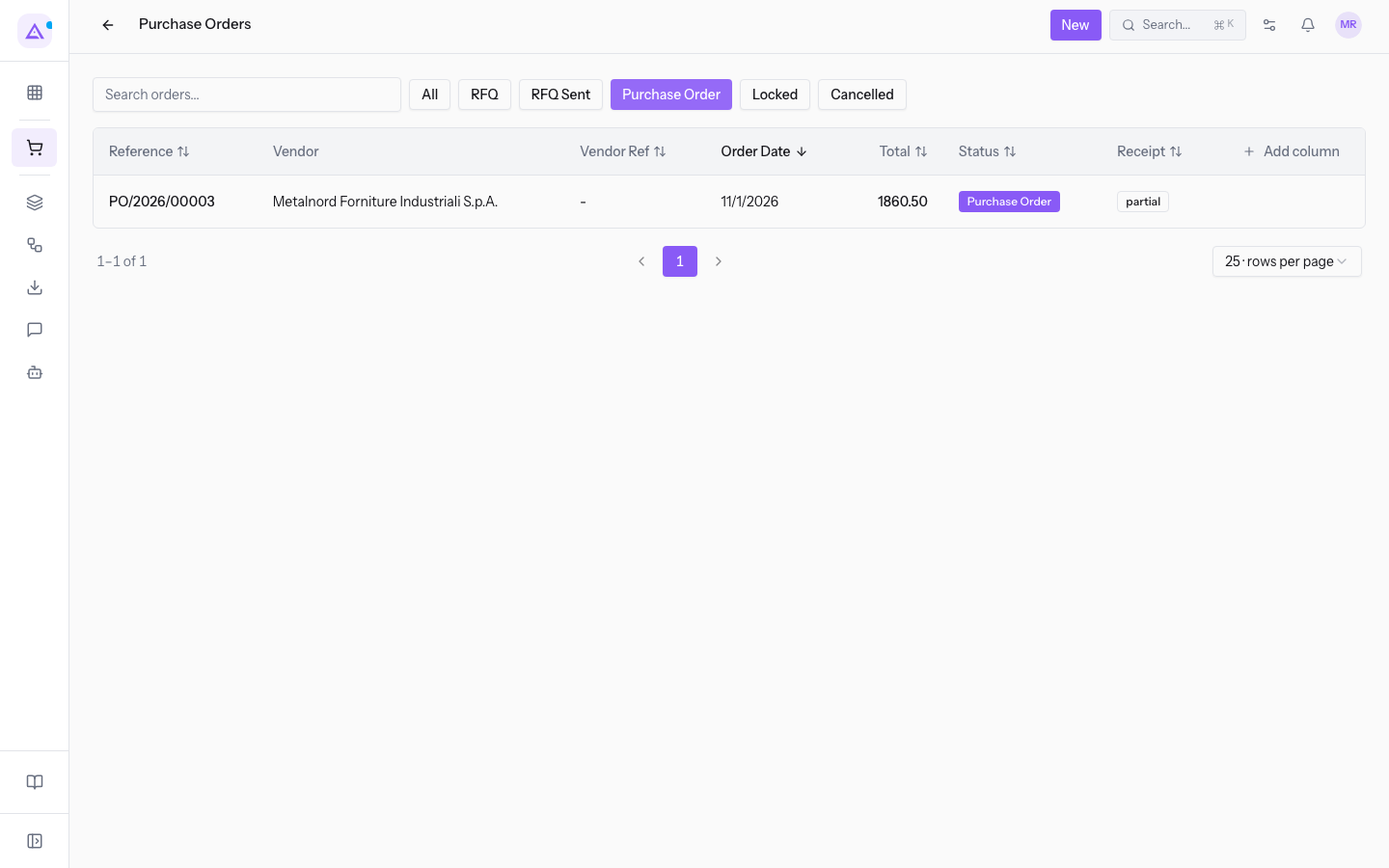
The available filters:
- All: all orders, in any status.
- RFQs: draft requests for quotation, not yet sent, for example
PO/2026/00001. - RFQ Sent: requests sent to the vendor and not yet confirmed.
- Purchase Order: confirmed orders, for example
PO/2026/00003. - Locked: completed orders.
- Cancelled: cancelled orders.
To move an order from one status to another see Confirm, cancel or reset an order.
Sorting the rows
You can sort the list by a column.
- Click the column header, for example Total. The rows go in ascending order.
- Click the same header again to reverse the order.
You can sort the Reference, Vendor Ref, Order Date, Total, Status, Receipt and Created columns. The Vendor column cannot be sorted. The sort order you choose stays saved.
Choosing the columns
The column menu shows or hides the columns and changes their position. The choice applies only to your user.
- Click Add column, to the right of the headers.
- Select a column's checkbox to show it, deselect it to hide it. To find a column, type its name in Search a field….
- To change a column's position, use Move column left and Move column right.
- To return to the default columns, click Reset columns.
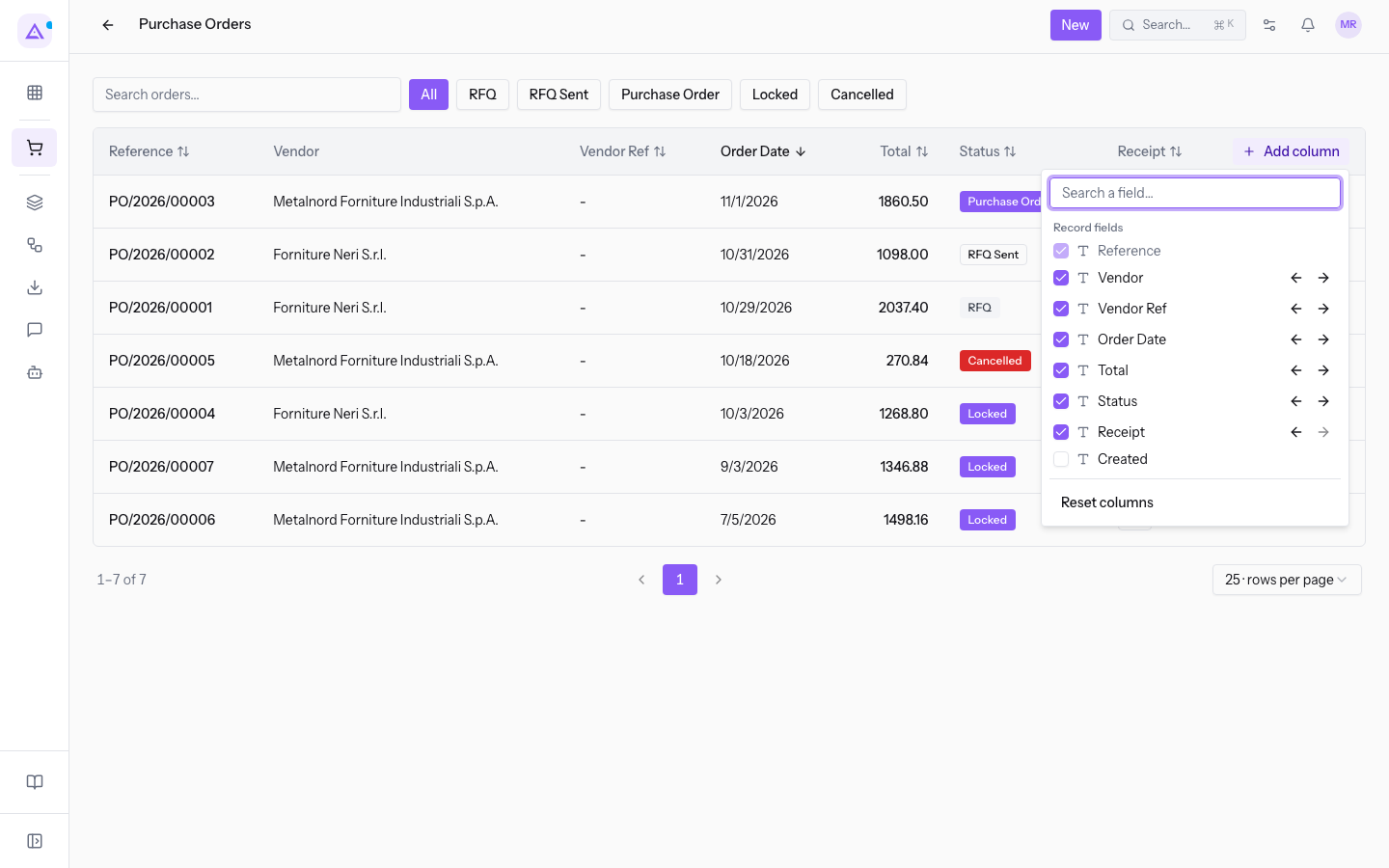
Note: the Reference column cannot be hidden.
Browsing the pages
The list shows 25 orders per page. Below the table you choose how many rows to see with Rows per page. Move from one page to another with Previous page, the page numbers and Next page. The total shown takes into account the active search and filter.
For an order's vendor bill see Linking a vendor bill to the order.
See it on your company, not on a slide deck.
In 30 minutes we map the software you use today.We show you how much work and how much margin Archimedes gives back.
Show me on my business →What industry are you in?
One tap — it lets us prepare the demo around your world.
What tools do you use today?
Pick the ones you recognise — or just type them. It helps us show you how they migrate.
Last step: your details.
We reply within one working day — and right after, if you like, you pick the demo slot yourself.
We couldn't send your request. Try again, or write to us at [email protected].
By sending, you agree to your data being processed so we can get back to you about the demo. Privacy notice.
Preview form — nothing is sent from this page.
Want to schedule the demo now?
Your call: book the slot you prefer yourself, or we'll call you to arrange it.
Live availability, 30 minutes, instant confirmation. The calendar opens in a new tab.
Lock in your slot ↗We'll get back to you within one working day — and we'll join the call already knowing your world.
The calendar is open in another tab: pick a slot and the demo is booked. Can't see it? Reopen it ↗
Preview page: nothing was sent.
Our calendar is live: take the slot that suits you and the demo is booked. 30 minutes, instant confirmation, no waiting.
Lock in your slot ↗