Purchase
All modules
Creating an order with the Quick Order
Purchase · 4 of 13 · 6 min read
The Quick order creates a purchase order in three steps: you choose the vendor, say what you need and confirm from the summary. Use it for frequent reorders from a vendor you know, for example chairs and lamps from Metalnord Forniture Industriali S.p.A.
For an order with dates, payment terms or a different warehouse, use the full form instead, described in Create a new purchase request (RFQ).
How it works
The screen opens from Purchase › Quick order and has the subtitle «Scegli il fornitore, di' cosa serve, conferma».
- If you often order the same things from the same vendor, start from Like last time (01/11/2026) or from a recurring list.
- If you have a written list, a photo of the list or a spreadsheet, use the list or the Photo of the list and From a spreadsheet buttons.
- If you need a single product, search for it by name or pick it from the Usual.
With every line matched to a product, the order is created already confirmed. If even one line is left without an item, the order is saved as a draft until the office assigns it.
Choosing the vendor
The first step shows the vendors with the date of their last order and the number of orders.
- Go to Purchase › Quick order.
- Type part of the name in Search vendor… or choose the vendor from the list, for example
Metalnord Forniture Industriali S.p.A.(Ultimo ordine il 01/11/2026,3 ordini).
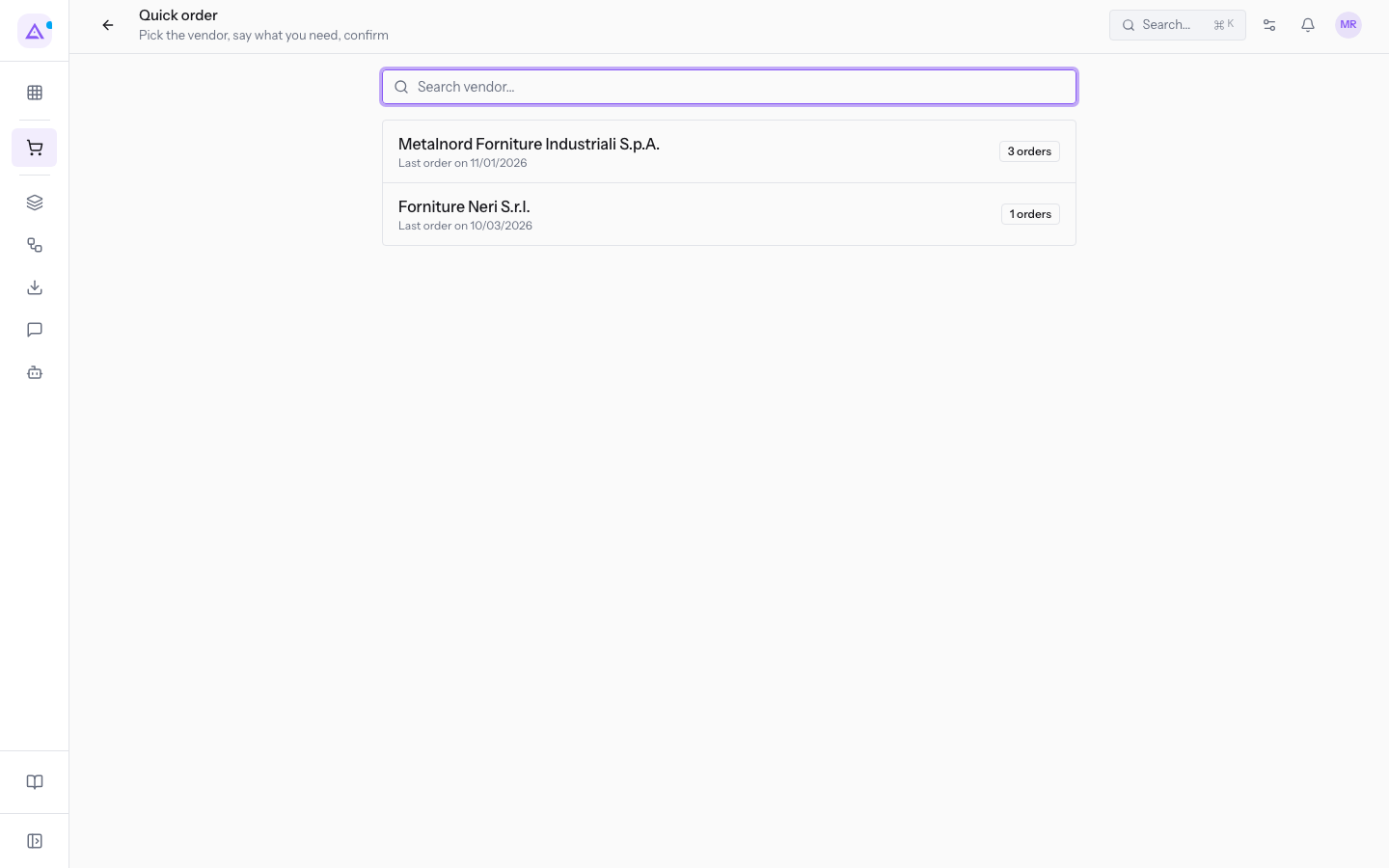
Note: if the organization has more than one warehouse, the choice of the site also appears above the search. With a single warehouse the site is already set.
Adding the lines
After choosing the vendor, the lines page opens. Every way of adding lines adds up the quantity if the product is already in the list, instead of creating a duplicate line.
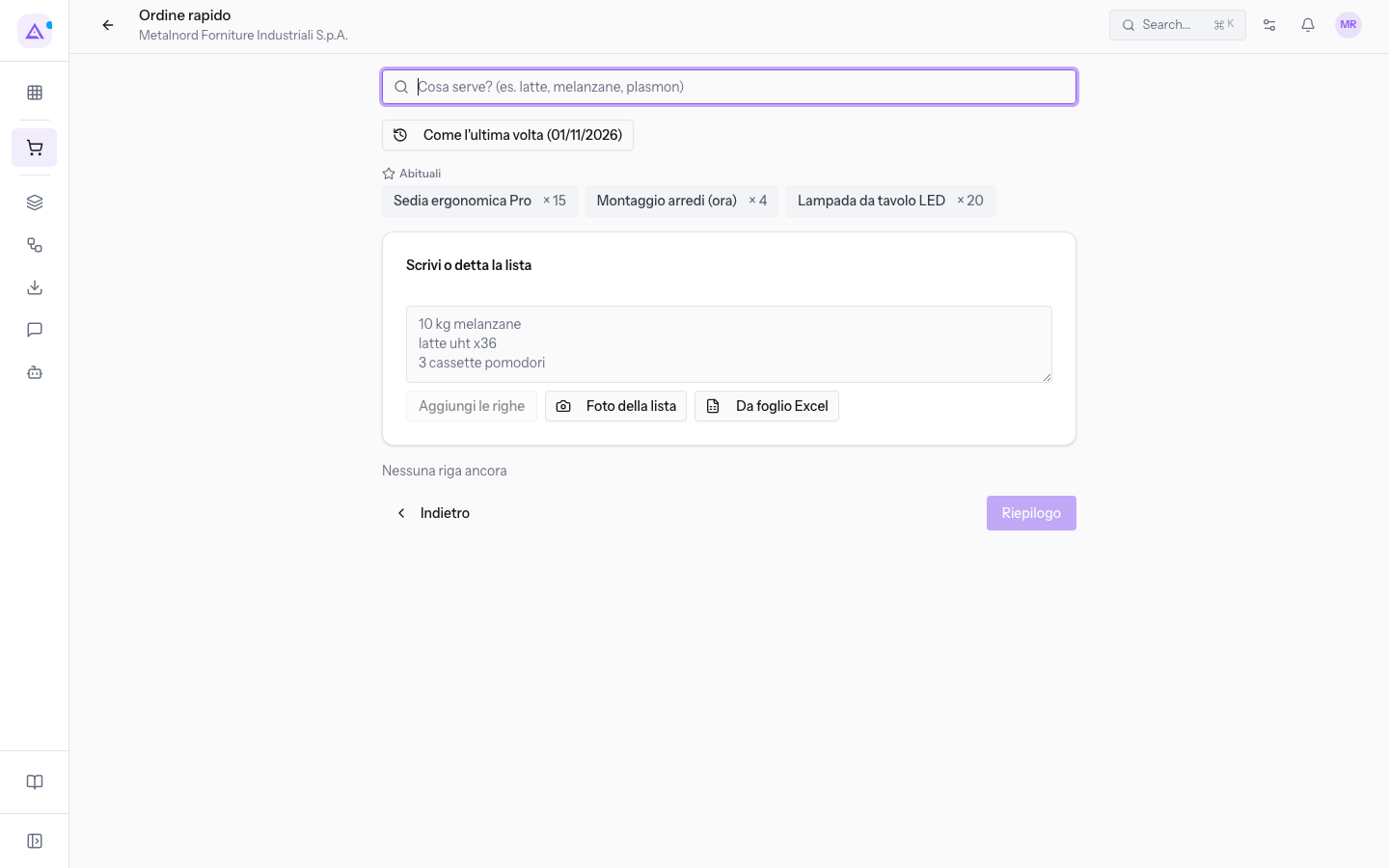
The elements of the page:
- What do you need? (e.g. milk, eggplants): the product search. From two characters on it shows the products found with their price; each result says whether it comes from previous orders, whether it is From the vendor's catalog or whether it is Outside the vendor's catalog. Click a result to add it.
- Like last time (01/11/2026): adds all the lines of the last order to the vendor, with the same quantities. It appears only if the vendor already has an order.
- Recurring lists: every list saved for the vendor appears as a button with its name, next to a button to delete it. How to save them is described in the section Using recurring lists.
- Usual: the products ordered most often from the vendor, with the last quantity, for example Ergonomic chair Pro × 15, Furniture assembly (hour) × 4, LED desk lamp × 20. One click adds the product with that quantity.
- List to write: a text field where you type or dictate one line per product, with the quantity and the product name. Add the lines matches each line to a product with the quantity given.
- Photo of the list: upload or take a photo of a list; the lines read are added as with the written list.
- From a spreadsheet: upload a
.xlsx,.xls,.ods,.csvor.txtfile; the lines read are added as with the written list.
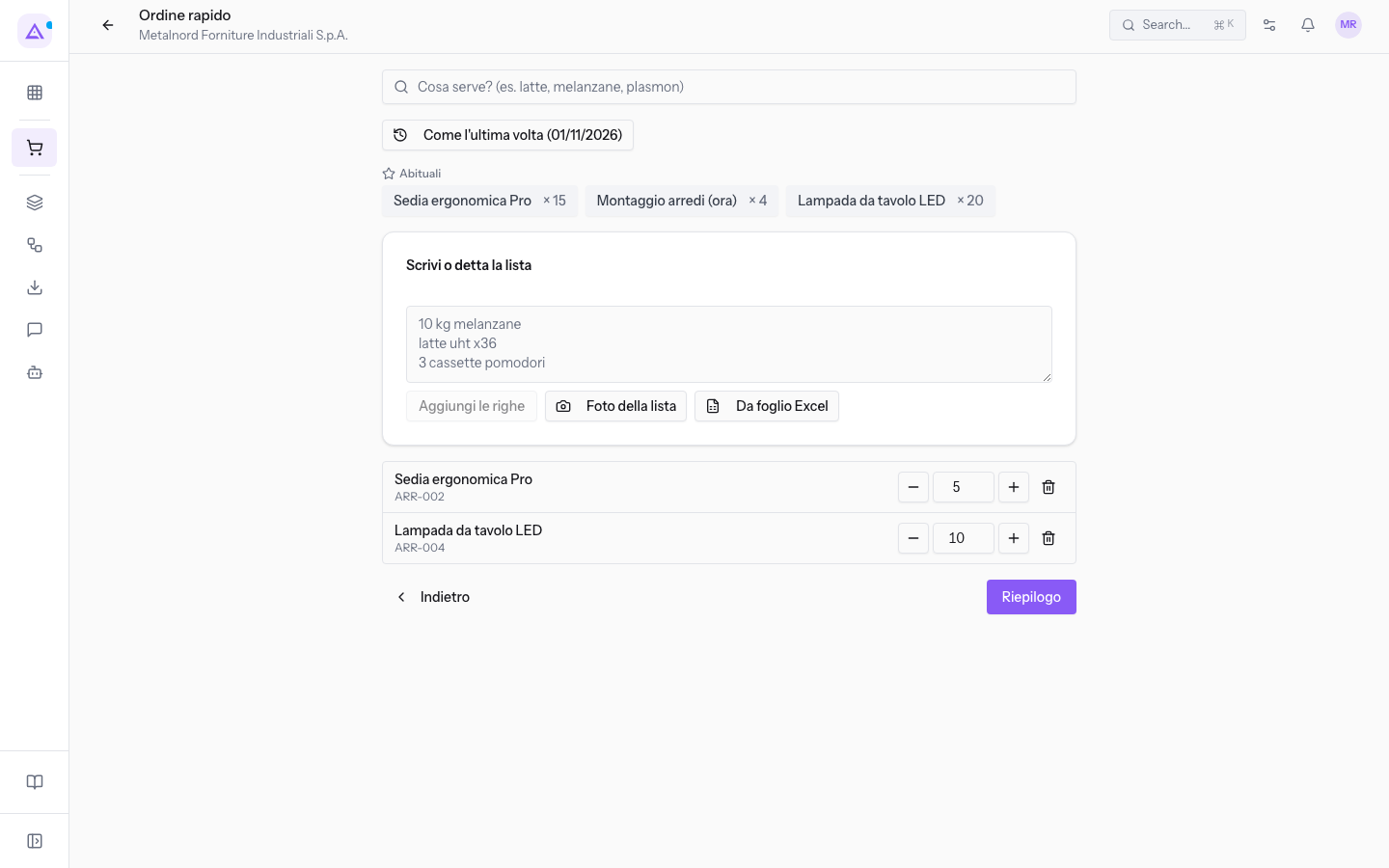
The added lines appear below. For each line, change the quantity with - and + or by typing it in the field, and remove it with Remove.
A line that has not been matched to any product stays highlighted, with the possible products as buttons: click the right one to assign it. Next to Summary, the counter shows how many lines have no item.
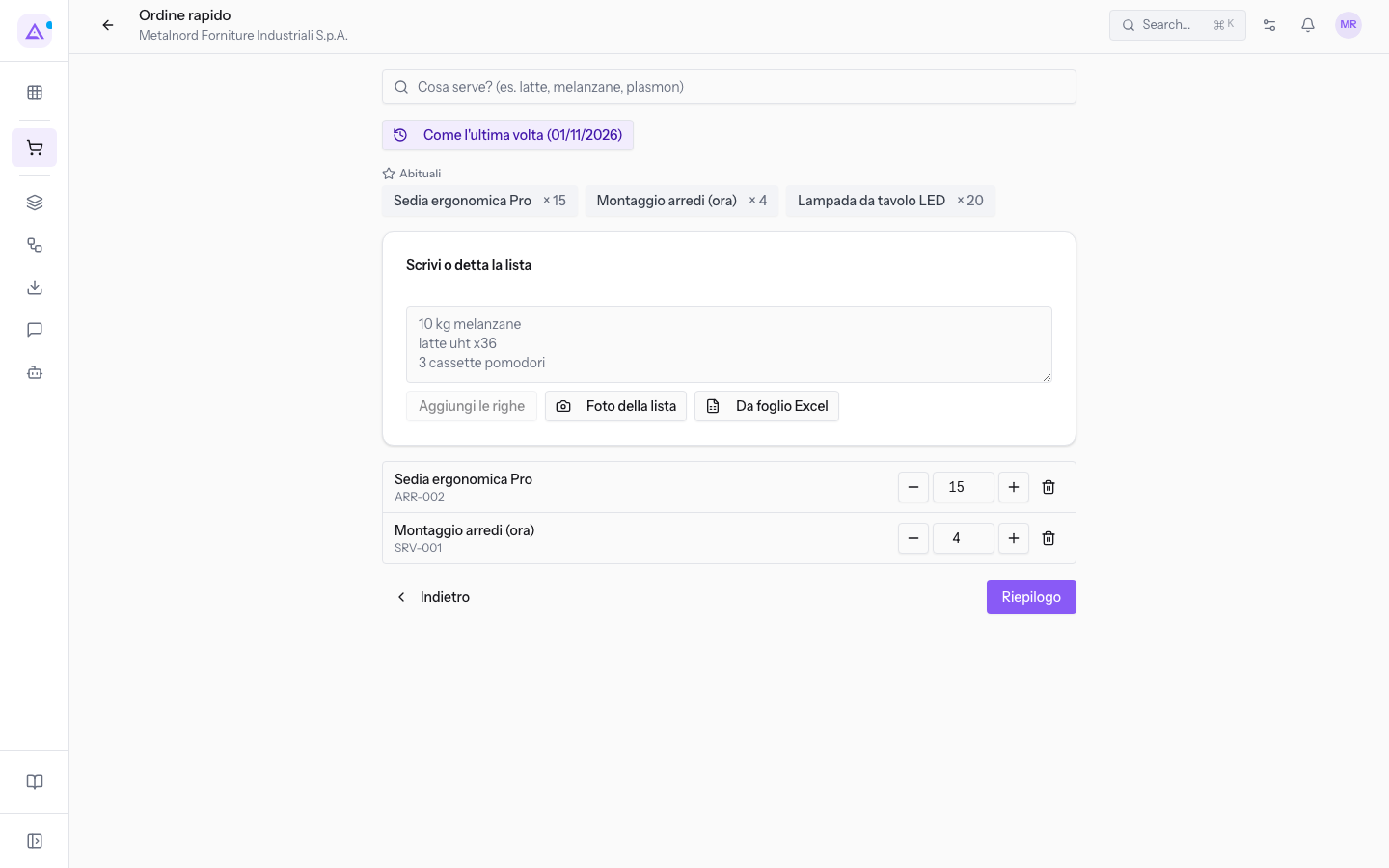
When the list is complete, click Summary. The button is active only if there is at least one line. Back returns to the choice of the vendor.
Checking the summary and confirming
The summary shows the vendor, the lines with the product code (for example Ergonomic chair Pro with the code ARR-002) and the estimated total, calculated from the prices of the lines. Here you can still change the quantities or remove lines.
- Check the lines and quantities.
- Fill in the options below the lines.
- Click Confirm and send.
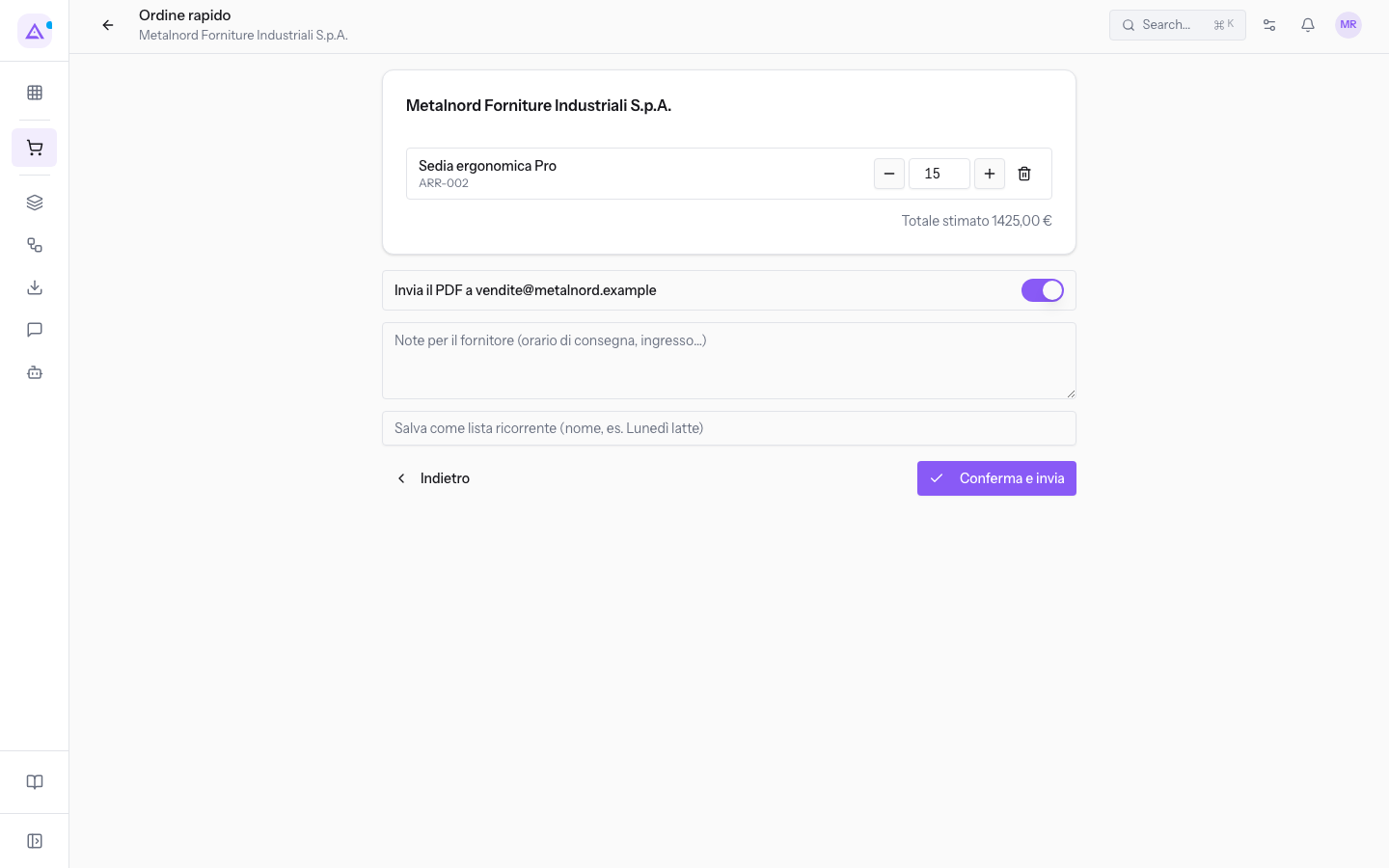
The options of the summary:
- Send the PDF to [email protected]: sends the PDF of the order to the vendor's email. It is enabled automatically if the vendor has an email. It cannot be enabled if the vendor has no email or if a line has no item.
- Notes for the vendor (delivery time, entrance…): instructions for the vendor that go into the order.
- Save as a recurring list (name, e.g. Monday milk): the name under which to save this list for the vendor. The field appears only if all the lines have an item.
Important: if a line has no item, the summary flags it, the final button saves the order as a draft instead of confirming it and the PDF is not sent.
After confirmation
The last screen shows the number of the order created and whether it was confirmed or saved as a draft. It also shows the email the PDF was sent to and any warnings. From here you can open the order created or start a new quick order.
If the organization is connected to an external ERP, the order is sent there too: the screen shows Being sent to the ERP while the sending is in progress, then the number under which the order is recorded in the ERP.
The confirmed order then follows the normal flow: see Confirming, cancelling or restoring an order and Linking a vendor bill to the order.
Using recurring lists
A recurring list is an order template saved for a vendor, for example the chairs and lamps you reorder from Metalnord Forniture Industriali S.p.A.
To save it:
- Prepare the lines and click Summary.
- Type a name in Save as a recurring list (name, e.g. Monday milk).
- Click Confirm and send. The list is saved together with the order.
Note: the list is saved only if all the lines have an item.
To use it, choose the same vendor in Purchase › Quick order and click the button with the name of the list. The order is created immediately from the list, without going through the summary. To delete a list, use the button next to its name.
See it on your company, not on a slide deck.
In 30 minutes we map the software you use today.We show you how much work and how much margin Archimedes gives back.
Show me on my business →What industry are you in?
One tap — it lets us prepare the demo around your world.
What tools do you use today?
Pick the ones you recognise — or just type them. It helps us show you how they migrate.
Last step: your details.
We reply within one working day — and right after, if you like, you pick the demo slot yourself.
We couldn't send your request. Try again, or write to us at [email protected].
By sending, you agree to your data being processed so we can get back to you about the demo. Privacy notice.
Preview form — nothing is sent from this page.
Want to schedule the demo now?
Your call: book the slot you prefer yourself, or we'll call you to arrange it.
Live availability, 30 minutes, instant confirmation. The calendar opens in a new tab.
Lock in your slot ↗We'll get back to you within one working day — and we'll join the call already knowing your world.
The calendar is open in another tab: pick a slot and the demo is booked. Can't see it? Reopen it ↗
Preview page: nothing was sent.
Our calendar is live: take the slot that suits you and the demo is booked. 30 minutes, instant confirmation, no waiting.
Lock in your slot ↗