Purchase
All modules
Rating vendors
Purchase · 11 of 13 · 4 min read
The Vendor ratings page lets you compare vendors on delivery, quality, price and service. You can record a judgement after an order and compare vendor scores, for example before choosing who to send a request for quotation to.
How ratings work
A rating is a criterion with a score from 1 (poor) to 5 (excellent). The criteria are Delivery, Quality, Price and Service.
- Delivery ratings are created on their own when the goods are received, late or on time. You add the others yourself with Add rating.
- The automatic rating compares the date the goods were received with the order's Expected Arrival. If the order has no Expected Arrival, no rating is created.
- Each order gives the vendor only one automatic delivery rating, even when the goods arrive in several receipts.
The automatic delivery score depends on the delay:
| Delay against the expected arrival | Score |
|---|---|
| On time or early | 5 |
| 1 to 3 days | 4 |
| 4 to 7 days | 3 |
| 8 to 14 days | 2 |
| 15 days or more | 1 |
For each criterion a vendor's score is the average of its ratings on that criterion. The Overall score is the average of the scores of the criteria that have at least one rating. A criterion with no ratings does not count in the calculation.
- If you want to judge a vendor only on delivery times, you can rely on the automatic ratings.
- If you also need a judgement on quality, price or service, add a rating yourself for each of those criteria. The Overall will change accordingly.
Reading the vendor list
The list contains every vendor that has at least one rating. At the top you find those with the highest Overall score.
- Open Purchase › Vendor ratings.
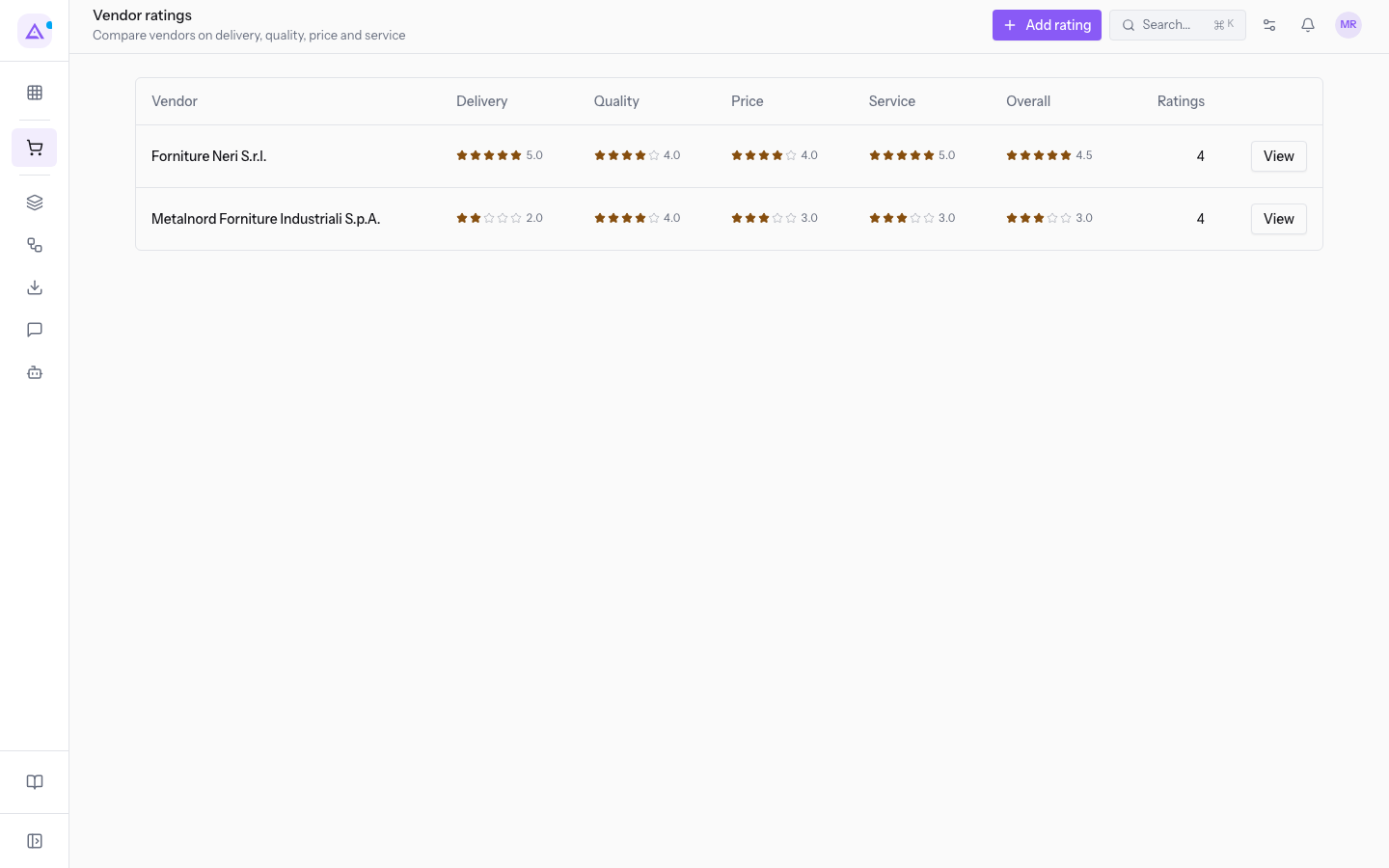
The columns of the list are:
- Vendor: the rated contact.
- Delivery, Quality, Price, Service: the average score for each criterion.
- Overall: the average of the scores of the rated criteria.
- Ratings: how many ratings the vendor has received.
- Actions: the View button opens the vendor's detail.
In the demo organization, for example, Forniture Neri S.r.l. has an Overall score of 4.5.
Viewing a vendor's ratings
A vendor's detail shows the average score per criterion and every rating received, most recent first.
- Open Purchase › Vendor ratings.
- In the vendor's row, click View. A window opens with the vendor's name, for example
Forniture Neri S.r.l. — valutazioni.
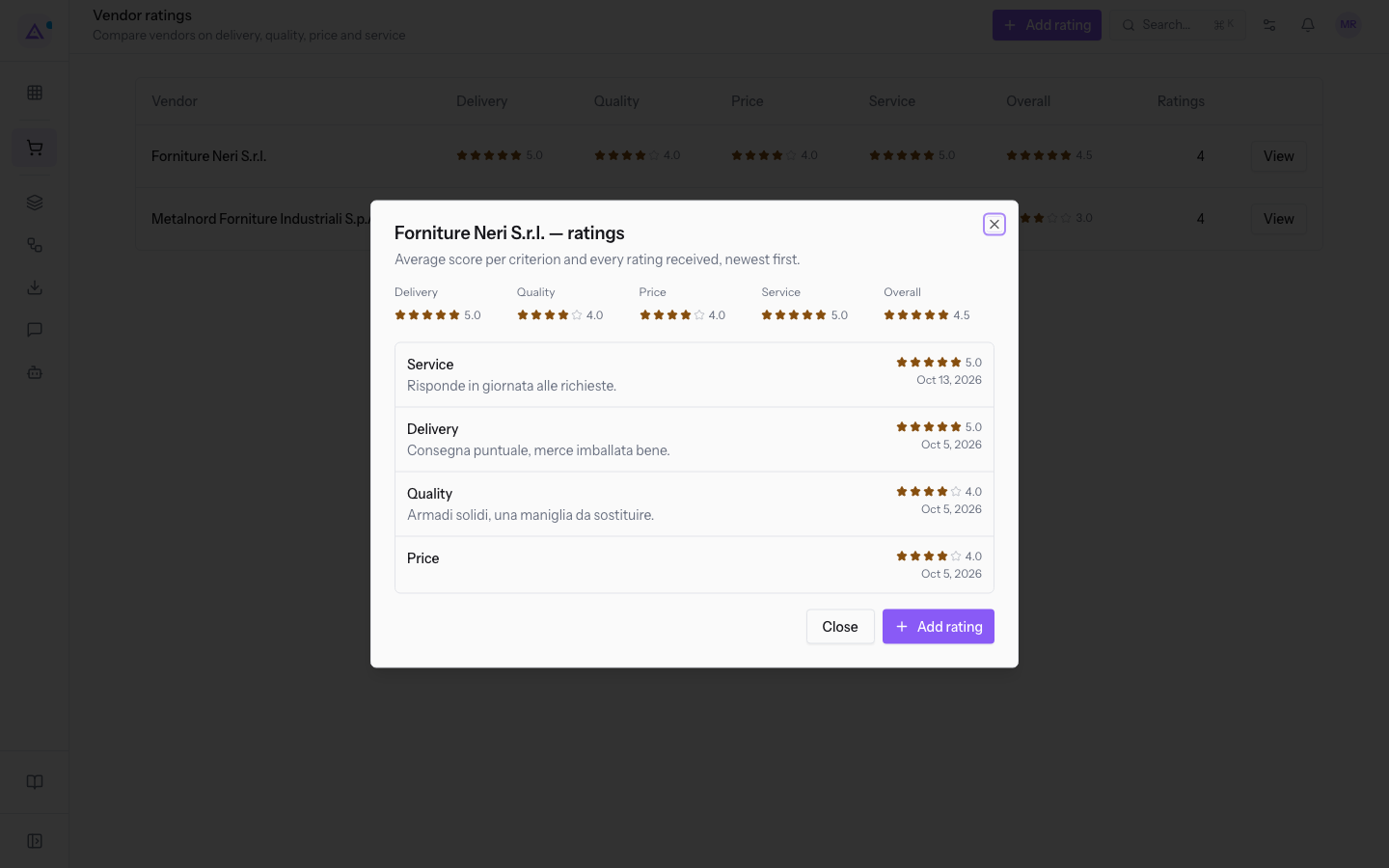
At the top are the Delivery, Quality, Price, Service and Overall scores: for Forniture Neri S.r.l., for example, Delivery 5.0, Quality 4.0, Price 4.0, Service 5.0 and Overall 4.5. Below is the list of ratings. From this window you can add a new rating with Add rating, or close it with Close.
Adding a rating
Add a rating by hand to record a judgement on a criterion, for example the quality of the goods or the service after an order.
Before you start: to create a rating you need access to Purchase as a Purchase User or Purchase Manager.
- Open Purchase › Vendor ratings.
- Click Add rating. The Rate a vendor window opens.
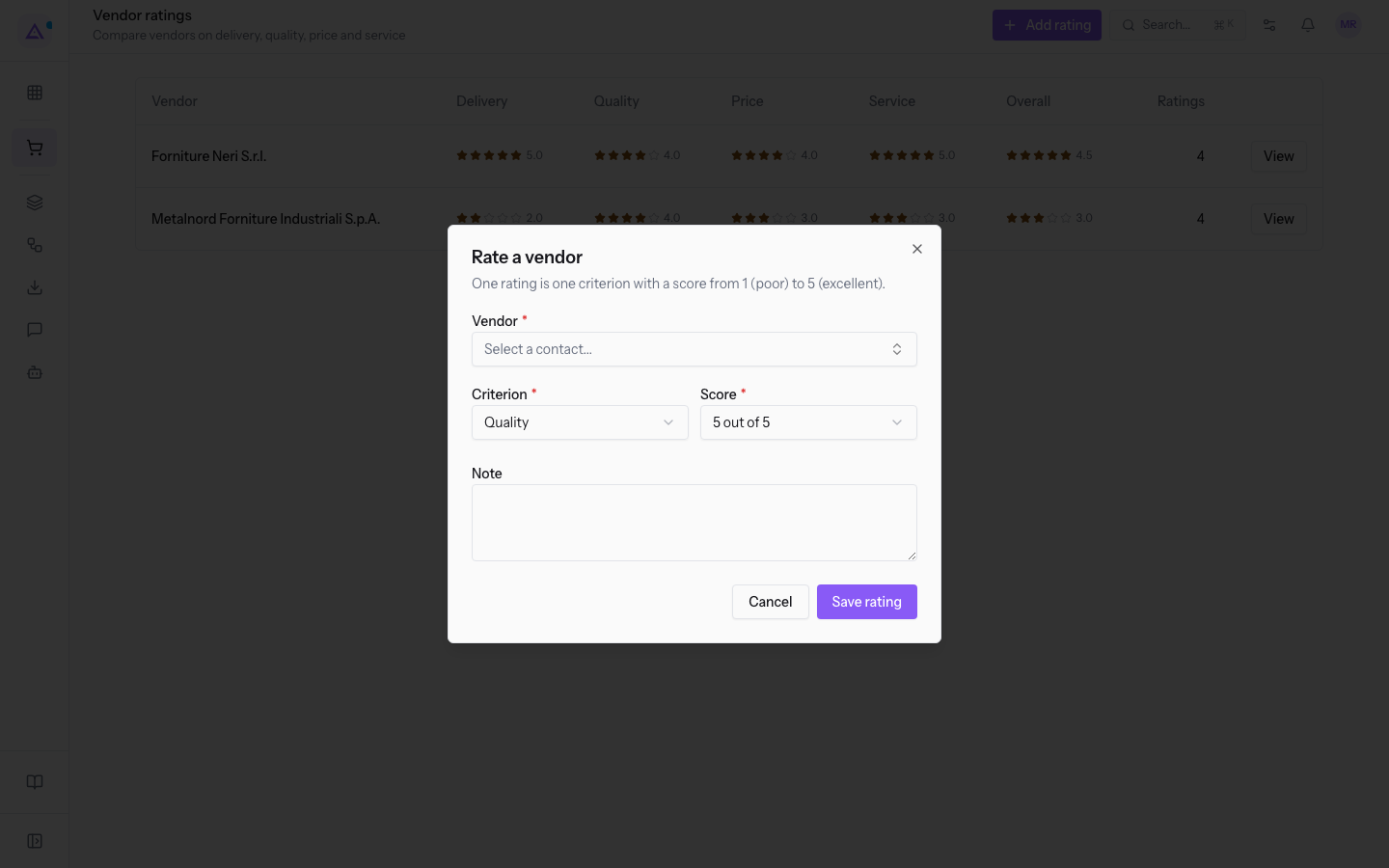
- Fill in the fields and click Save rating. If you change your mind, click Cancel.
The fields of the window are:
- Vendor: the contact to rate, chosen in Select a contact.... For example
Forniture Neri S.r.l.. The field is required. - Criterion: the aspect you are rating. The initial value is Quality. The field is required.
- Delivery: the timing and the way the goods arrive.
- Quality: the quality of the goods or service received.
- Price: how good the price is.
- Service: the vendor's support and availability.
- Score: from 1 out of 5 (poor) to 5 out of 5 (excellent). The initial value is 5 out of 5. The field is required.
- Note: a comment explaining the score. The field is optional.
After saving, the rating counts towards the criterion's average and the vendor's Overall.
Note: each rating represents a single criterion. If you want to rate a vendor on several criteria, add a rating for each one.
Tip: for delivery to be rated automatically, set the Expected Arrival when you Create a new purchase request (RFQ).
See it on your company, not on a slide deck.
In 30 minutes we map the software you use today.We show you how much work and how much margin Archimedes gives back.
Show me on my business →What industry are you in?
One tap — it lets us prepare the demo around your world.
What tools do you use today?
Pick the ones you recognise — or just type them. It helps us show you how they migrate.
Last step: your details.
We reply within one working day — and right after, if you like, you pick the demo slot yourself.
We couldn't send your request. Try again, or write to us at [email protected].
By sending, you agree to your data being processed so we can get back to you about the demo. Privacy notice.
Preview form — nothing is sent from this page.
Want to schedule the demo now?
Your call: book the slot you prefer yourself, or we'll call you to arrange it.
Live availability, 30 minutes, instant confirmation. The calendar opens in a new tab.
Lock in your slot ↗We'll get back to you within one working day — and we'll join the call already knowing your world.
The calendar is open in another tab: pick a slot and the demo is booked. Can't see it? Reopen it ↗
Preview page: nothing was sent.
Our calendar is live: take the slot that suits you and the demo is booked. 30 minutes, instant confirmation, no waiting.
Lock in your slot ↗